“Compare PDF files” is a browser-based task that runs entirely in your browser. Add an old and new version to see word-level changes side by side, or compare page images when a document has no readable text. PDF Toucan helps you review revisions without an account, a watermark, or an upload step.
What you can do with Compare PDF Files
See added and removed words side by side
The first PDF is treated as the old version and the second as the new version. Text is compared word by word, so you can see content that appears only in the old file and content added in the new one. Use the difference view to review each change in context.
Compare scanned documents as page images
If no text is found in a document, the comparison switches to visual mode. Instead of word changes, it compares the page images and marks pages or areas that differ. This is useful when you need to compare two PDFs that were scanned rather than created from selectable text.
Move through changed, added, and removed pages
Use previous and next change controls to move through the results. The comparison identifies changed pages, new pages, and pages removed from the new version. It can also flag pages without a matching counterpart, including cases where text has moved to neighboring pages.
Correct the old and new version order
Choose the versions carefully: the first file is the old version and the second is the new version. If you add them in the wrong order, swap the selected files before starting. That keeps removed text and added text labeled in the direction you expect.
Download the differences as a PDF report
After reviewing the comparison, download the differences as a PDF. The report records the comparison between the selected old and new files, making it easier to share a revision review or retain a record of the changes you found.
How to compare PDF files online
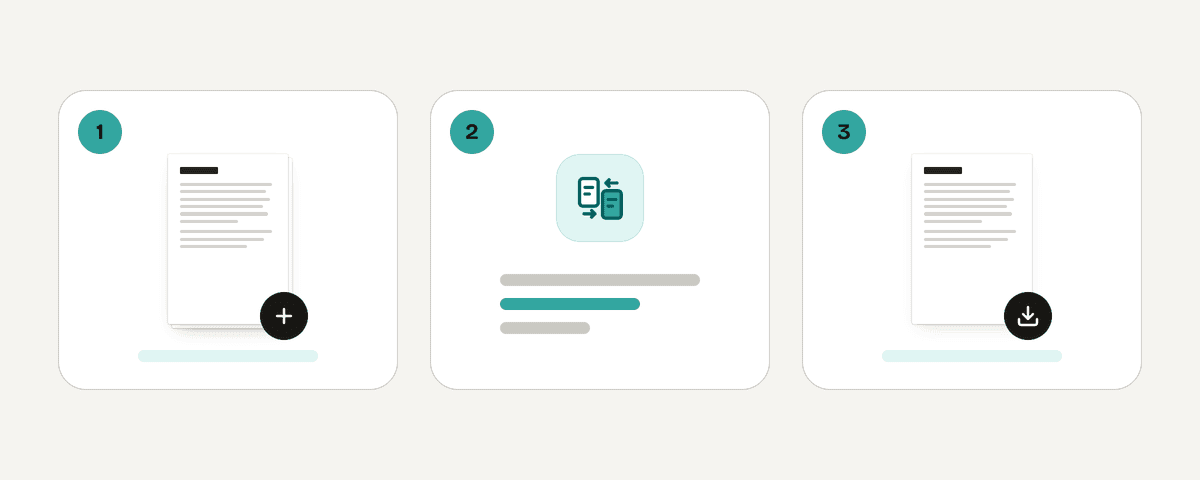
Select the old and new PDF versions
Click “Select PDF files” and choose the two document versions you want to review. Add the earlier file first and the later file second. Only two PDFs can be compared at a time, so extra files are not added.
Swap the versions when needed
Check that the first file is the old version and the second is the new version. If they are reversed, use the swap control before you begin. This ensures the results correctly identify words and pages that were added or removed.
Start the word or visual comparison
Click “Compare the PDFs” to analyze both files. Documents with readable text are compared word by word. When no text is found, the tool compares their page images instead and highlights visual differences.
Review each difference by page
Navigate through the reported changes to inspect words, changed pages, added pages, and removed pages. The result view can also show when a page image differs or when no matching page is available in one version.
Download the PDF difference report
When you have finished reviewing the results, choose the option to download the differences as a PDF. The downloaded report gives you a separate PDF record of the comparison between the old and new versions.
Your PDFs stay on your device during comparison
The comparison runs locally in your browser through a processing engine that works in a web worker. Your selected PDF files stay on your device and are not uploaded for comparison. You can compare PDF files free with PDF Toucan without creating an account, and the tool does not add a watermark to your files. Ads help fund the browser tools. Because processing happens in your browser, keep the page open until the comparison and any PDF report download are complete.
Runs in your browser: the file never leaves your device.
Compare PDF Files – frequently asked questions
How can I compare two PDFs for differences?
Select the earlier document first and the later document second, then click “Compare the PDFs.” The tool compares readable text word by word. If text is unavailable, it compares page images and shows pages or areas with visual differences.
Can I compare PDF files online for free?
Yes. You can use this PDF comparison free in your browser without an account. The files remain on your device during processing, and the tool does not add a watermark to the PDFs or the downloaded difference report.
What changes does the PDF comparison show?
The comparison shows words found only in the old version or only in the new version. It also identifies changed pages, newly added pages, and removed pages. For scanned documents, it can show page images or areas that differ visually.
Why are my PDFs compared as page images?
Your PDFs are compared as page images when no readable text is found in a document. This commonly happens with scanned files. In visual mode, the tool looks for differences in the rendered pages rather than comparing text word by word.
Can I download a PDF comparison report?
Yes. After the comparison finishes, you can download the differences as a PDF. The report captures the results for the selected old and new versions, so you can keep a record of the changes you reviewed.
Does this tool compare more than two PDFs at once?
No. The tool compares two PDFs at a time: one old version and one new version. If you select more files, only two are used for the comparison and extra files are not added.
Will it show pages added or removed between versions?
Yes. The results identify new pages added in the newer file and pages removed from it. They can also note when a page has no matching counterpart, helping you find the difference between two PDF files across page layouts.
Last updated September 19, 2026