PDF compression is a server-based process that can compress PDF files by reducing their file size while balancing image quality. Add one PDF or several, choose how much reduction you want, and download each result separately. PDF Toucan is free to use, needs no account, and does not add a watermark.
What you can do with Compress PDF Files
Choose the file size and image quality you need
Pick Strong compression when the smallest possible file matters most; images can lose noticeable quality. Choose Balanced compression for a much smaller file while images stay sharp. It suits most documents. Choose Light compression when quality should remain almost the same and a smaller reduction is enough.
Compress several PDFs without combining them
Add multiple PDFs to the same session when you have several files to prepare. Each file is compressed on its own, so your documents remain separate. You do not need to merge anything first, and you can download the individual compressed results after processing.
Make image-heavy PDFs easier to email and share
Scanned documents, presentations, and photo-rich PDFs can be awkward to send when their files are large. Use this free online option to reduce PDF file size so documents are easier to attach to emails, upload, or share. The final reduction depends on the images and compression already present in the source file.
Turn images gray for additional file-size savings
Select the black-and-white option when color images are not essential. Images turn gray, which can make the file even smaller. Text colors do not change. This is useful for image-heavy documents where smaller images matter more than preserving color in photos, scans, or illustrations.
See when a PDF is already compressed
After processing, you can see the original and resulting file sizes when the document can be reduced. Some PDFs are already efficiently compressed or contain little that can be removed. In that case, the file is returned unchanged and ready to download rather than being altered unnecessarily.
Download separate compressed PDF results
Once processing is complete, download the compressed PDF for each document you added. Multi-file uploads produce separate results rather than one combined document. This makes it simple to keep your original document structure while you shrink PDF size online free for sharing or storage.
How to compress PDF files online
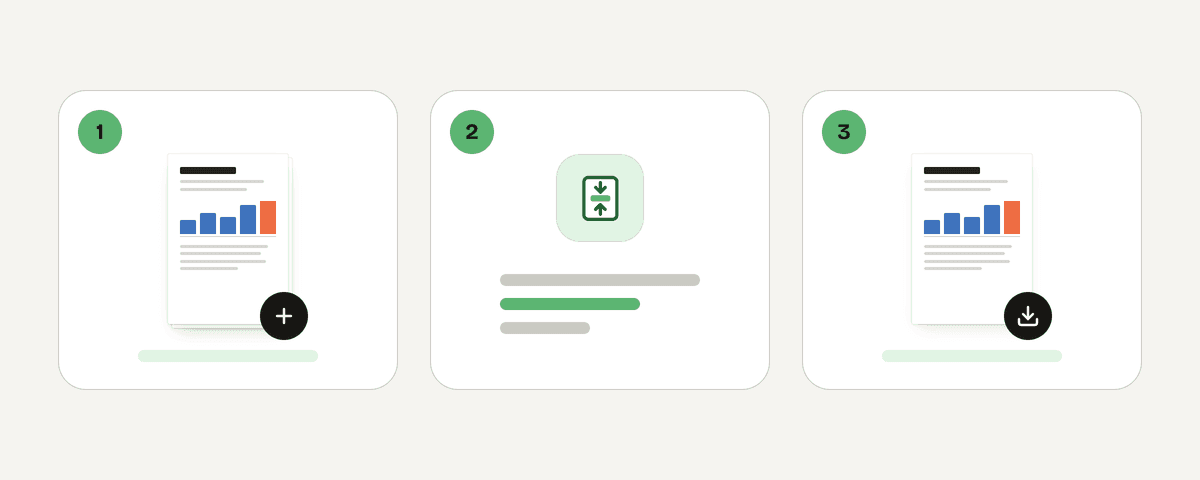
Add one or more PDF files
Choose “Select PDF files” and select the documents you want to make smaller. You can add a single PDF or several PDFs in one session. Each accepted file stays separate throughout the compression process.
Choose Strong, Balanced, or Light compression
Set the tradeoff that suits your document. Strong creates the smallest file but can visibly reduce image quality. Balanced is the recommended choice for substantial savings and sharp images. Light makes a smaller reduction while keeping quality nearly unchanged.
Select black and white when smaller images matter
Use the optional black-and-white setting if gray images are acceptable. It can further reduce the file size of documents containing photos or scans. Only images turn gray; colored text is not changed by this option.
Process each PDF separately
Start the compression after reviewing your settings. If you added several documents, each PDF is processed independently with the chosen options. This lets you reduce PDF size online without combining files or changing their page order.
Download your compressed PDFs
Review the reported size change, then download the compressed PDF results. If a document cannot be made any smaller, it is available unchanged instead. No account is required, and your downloaded files have no watermark.
How your PDF is handled during compression
Your PDF is sent over HTTPS to PDF Toucan servers in the European Union for processing. The service runs the compression in memory: your file is never written to disk or stored. When you download the result, the file is deleted. If you do not download it, it is deleted after 10 minutes at the latest. This server-based processing is needed to create the compressed result, while keeping the handling process limited to the task at hand.
Processed in memory on our servers in the European Union. Your file is never stored: it is deleted as soon as you download the result (at the latest after 10 minutes).
Compress PDF Files – frequently asked questions
How can I compress a PDF file to 100KB for free?
You can try Strong compression and the black-and-white image option to make a PDF smaller for free, but 100KB cannot be promised. The final size depends on the original file, its images, fonts, pages, and how much compression it already contains.
Why is my PDF not reducing in size?
Your PDF may already be compressed efficiently, or it may contain content that cannot be reduced further without changing it. When no useful reduction is possible, the service returns the original file unchanged so you can still download it.
Can I make a PDF smaller without noticeably reducing image quality?
Yes. Choose Balanced compression for a much smaller file while keeping images sharp, or select Light compression when preserving quality is the priority. Light usually produces less file-size reduction, but image quality stays almost the same.
Do I need to sign up to compress a PDF?
No. You can compress PDF files without creating an account. The service is free to use and does not add a watermark to the downloaded result. Ads help fund the site’s browser tools and services.
What happens when I choose strong compression?
Strong compression aims for the smallest file size. It can noticeably reduce image quality, so it is best when fitting a file into an email or upload limit matters more than image detail. Consider Balanced when you need a better quality-to-size tradeoff.
Does making images black and white reduce PDF file size?
Yes, it can reduce PDF file size when the document contains color images. The option turns images gray, which may save additional space. Text colors do not change, so the effect depends largely on how many and what kinds of images your PDF includes.
Can PDF Toucan compress multiple PDFs at once?
Yes. Add several PDFs in one session, choose your compression settings, and process them together. Each file is compressed independently rather than combined into one document, and you can download the separate results afterward.
After you make PDF size smaller, you may also want to merge related documents into one file, protect a PDF before sending it, or use pdf-to-jpg when you need pages as images. Keep the format that works best for the next step in your workflow.
Last updated September 19, 2026