To merge PDF files is to combine documents into one PDF, and it runs in your browser with PDF Toucan. Add PDFs or images, arrange their cards, and produce one file in the sequence you choose. You can merge PDF online free without an account, a watermark, or daily limits on browser tools.
What you can do with Merge PDF Files
Combine PDFs and images in one PDF
Add multiple PDF and image files, then create one PDF from them. Use this when reports, forms, or scans arrive separately. The output gathers every selected source into one document, in the sequence you set, making it straightforward to keep related pages together for sharing, filing, or printing.
Put source files in the exact order you want
Each selected file appears as a card. Drag cards left or right until they match your final sequence. Files are merged from left to right in the order shown, so check the row before you start. Reordering lets you place attachments, exhibits, or image scans where they belong.
Choose whole files or alternating pages
Choose file-by-file merging when each source should remain whole: all pages from the first file are followed by all pages from the next. Choose alternating pages for separately scanned fronts and backs. That pattern adds the first page from each file, then the second, continuing page by page.
Add a bookmark for every source file
Turn on a bookmark for every source file to use its file name as a bookmark in the output. In compatible PDF readers, those bookmarks appear as a table of contents. They can help readers move between source documents after several files have been brought together.
Prepare source files for double-sided printing
Select double-sided print preparation when you want each new source file to begin on a fresh sheet side. A blank page is inserted after any source file with an odd page count. This option is not available when you choose alternating-page merging, because pages are interleaved instead.
Combine files without an account or watermark
PDF Toucan is free to use. You do not need an account to combine PDF files for free, and the downloaded PDF has no watermark. Browser tools have no daily limits; advertising helps fund the site. Use the same workflow whenever you need to assemble another group of documents.
How to merge PDF files online
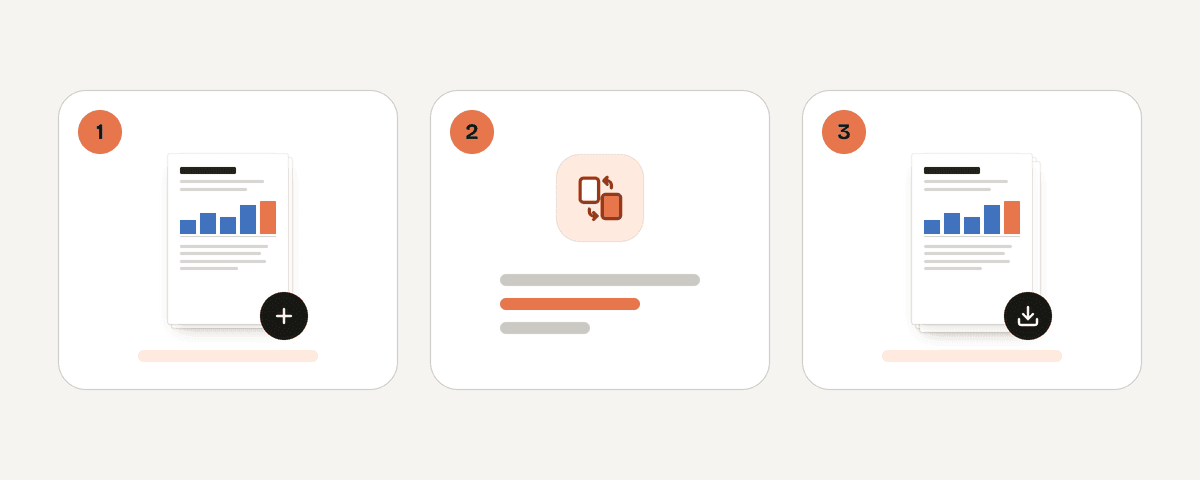
Add at least two source files
Start with two or more PDFs, images, or a mixture of both. Choose "Select PDFs or images" and select the files you want in the finished document. Each source is shown as a separate card, ready for ordering and merge settings.
Set the left-to-right file order
Drag each card until the row reflects the sequence you want. The first card supplies the first pages in normal file-by-file mode. Review names and positions before continuing, since the order you see is the order used in the output.
Select file-by-file or alternating-page merging
Choose file-by-file merging when each source should stay intact. For separately scanned fronts and backs, choose alternating pages: first pages are added in turn, then second pages, creating an A1, B1, A2, B2 pattern.
Set bookmarks or print preparation
Turn on a bookmark for every file if you want file names presented as bookmarks in compatible readers. If you plan to print double-sided, choose preparation for it. Remember that print preparation cannot be selected with alternating pages.
Create and download one PDF
When the cards and options look right, choose "Merge the PDFs". After processing finishes, download the merged PDF. Your selected files are collected into one PDF, ready to save, share, or print.
Your files stay on your device
This merger runs locally in your browser through a web worker. Files stay on your device while you arrange and combine them; they are not uploaded for this browser-based process. The worker performs the processing separately from the page interface. No account is required to use this browser tool. PDF Toucan is supported by advertising rather than charging for this workflow. After downloading the result, you can continue working with the original files on your device.
Runs in your browser: the file never leaves your device.
Merge PDF Files – frequently asked questions
How to merge PDF without paying?
You can use this browser-based workflow at no charge: add at least two PDF or image files, set their order and options, then create one downloadable PDF. No account is needed, and the downloaded result has no watermark.
Can I combine PDF files for free?
Yes. You can add several PDF files, drag their cards into order, and create one output PDF. The browser tool is free, requires no sign-up, and has no daily limits. Advertising supports the site.
What is the easiest way to merge multiple PDFs into one?
The easiest route is to add the files, place their cards in the desired order, keep file-by-file merging selected, and create the output. If you scanned two sides separately, choose alternating pages instead so fronts and backs interleave.
Do I need to sign up to merge PDF files?
No. You can combine files online free without signing up. Select your source files, set any available merge options, and download the result. The finished PDF does not receive a watermark.
Can I merge a PDF and JPG into one file?
Yes. Add the PDF and JPG as separate source files. Arrange their cards in the order you want, then create one PDF. Images and PDFs are both accepted as inputs; the output is a PDF.
How do I join 2 PDFs together free?
Add the two PDF files, move their cards into the preferred left-to-right order, and create the output. Their pages are added as complete files by default, giving you one PDF that contains both documents.
Why add a blank page for double-sided printing?
A blank page keeps the next source file starting on a new sheet side when you print double-sided. It is added after a source file with an odd page count. Alternating-page merging cannot use this option.
After combining files, you may want to compress the result for a smaller file. You can also add page-numbers before sharing or printing. For documents that need separate sections instead, use split to divide a PDF into individual parts later, as needed.
Last updated September 20, 2026