OCR PDF is a server-based process that turns scanned pages into searchable, selectable text in a PDF. Use it when a document looks like a scan and search cannot find its words. Add one or several files, choose the languages in use, and download a searchable PDF when recognition is complete. The output remains a PDF, not a direct Word conversion.
What you can do with OCR PDF
Search and copy text from scanned pages
Make a PDF searchable when its pages are scans rather than live text. After recognition, you can search for words, select recognized passages, and copy text from the PDF. This is useful for archived paperwork, scanned notes, and documents you need to review without manually retyping their contents.
Choose the languages used in the document
Pick from 30 recognition languages, including English, Spanish, German, French, Portuguese, Turkish, Russian, Arabic, Hindi, Japanese, Korean and Chinese. When a document mixes languages, select up to five. Add only the languages you need, because extra languages slow recognition down.
Scan pages without text and preserve the rest
Use the recommended Scan pages without text setting when a PDF has both scanned and text-based pages. Pages that already contain selectable text are left alone, while pages without text are recognized. It is a practical way to recognize text in PDF files without unnecessarily changing pages that already work.
Read existing text again when recognition is wrong
Choose Recognize existing text again if the PDF already has selectable text but that text was badly recognized. The old text is removed and those pages are read again. You can also treat every page as an image to recognize from scratch; this removes old selectable text and links.
Straighten scans and correct page orientation
Turn on page fixes to straighten pages that were scanned at an angle and automatically rotate upside-down or sideways pages to the right orientation. Straightening is not available when you choose to recognize existing text again. These options can make a scanned document easier to read before its text is recognized.
Process several PDFs as separate searchable files
Add multiple PDFs in one session when you need to recognize a batch of documents. Each file is processed on its own, so the results stay separate. When processing finishes, download each searchable PDF individually and keep the original file structure rather than combining your documents.
How to OCR PDF online
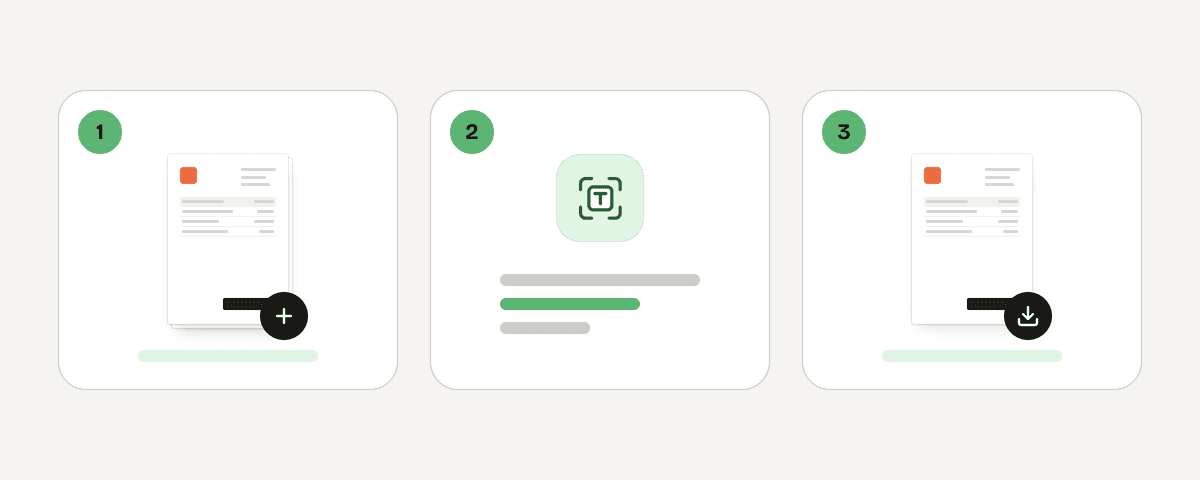
Add the scanned PDFs you want to recognize
Choose “Select PDF files” and pick one or more PDF documents from your device. Each file is handled separately. Use scans that need searchable, selectable text; the result will be a PDF for every file you submit.
Pick every language used in the document
Choose at least one document language before starting, and select every language that appears in the pages (up to five), for example English and German for a bilingual contract. Keep the selection focused, since extra languages make processing take longer.
Choose which pages need text recognition
Keep the recommended option to scan pages without text if your document already includes some usable selectable text. Choose Recognize existing text again only when old recognized text is wrong. Treat every page as an image when you want all pages recognized from scratch.
Apply page fixes and start recognition
Select page straightening for tilted scans and automatic orientation correction for sideways or upside-down pages. Then choose “Recognize text” to begin. Text recognition can take a few minutes for documents with many pages, especially when several languages or files are selected.
Download each searchable PDF
When recognition is complete, download the searchable PDF for each finished file. You can now search and copy its recognized text. If a file has an existing digital signature, remember that OCR makes that signature no longer valid.
Server processing with short file retention
PDF Toucan processes this server-based service on servers in the European Union. Your PDF is sent over HTTPS and processed in memory. It is not written to disk or stored. The file is deleted as soon as you download the result, or within 10 minutes at the latest if no download occurs. The service is free, requires no account, and adds no watermark. Ads help fund the site. Because recognition changes the PDF, an existing digital signature is no longer valid after processing.
Processed in memory on our servers in the European Union. Your file is never stored: it is deleted as soon as you download the result (at the latest after 10 minutes).
OCR PDF – frequently asked questions
How do I recognize text in a PDF?
Add the scanned file, select the language or languages used in it, choose the pages to scan, and start recognition. Once processing is finished, download the searchable PDF. You can then search within the document, select recognized text, and copy it where needed.
How can I OCR a PDF for free?
You can use this free online service without creating an account. Add your PDF, set the recognition options, and download the resulting searchable PDF without a watermark. Processing may take a few minutes when the document has many pages or uses several selected languages.
Can I make a PDF searchable without signing up?
Yes. You can make a PDF searchable free with no sign-up required. Select the file, choose the document language, and run recognition. The resulting file remains a PDF and includes recognized text that you can search, select, and copy.
Which languages can I choose for PDF OCR?
You can choose from 30 languages, including English, Spanish, German, French, Portuguese, Italian, Turkish, Russian, Arabic, Hebrew, Hindi, Thai, Japanese, Korean and Chinese. Select every language used in the document, up to five at once. Adding languages that are not needed slows processing, so keep the selection specific.
Will OCR change text that is already selectable?
Not with the recommended Scan pages without text option. It leaves pages that already contain selectable text alone and recognizes only pages without text. If you select Recognize existing text again or treat every page as an image, old selectable text can be removed.
Why is my digital signature no longer valid after OCR?
Because recognition changes the PDF file, any existing digital signature no longer matches the modified document. The tool will indicate that the digital signature is no longer valid. Keep the signed original if you need to preserve its signature status.
Can I convert a scanned PDF to Word after OCR?
Yes. First convert the scanned PDF to text by creating a searchable PDF here, then use the separate pdf-to-word tool if you need a Word document. OCR itself produces a searchable PDF, not a direct Word file.
Use OCR PDF when you need to make PDF files searchable online and keep the result as a PDF. If you need an editable Word document afterward, try pdf-to-word on the searchable result. If recognition increases the file size, compress can help reduce it before you share or save the file.
Last updated September 19, 2026