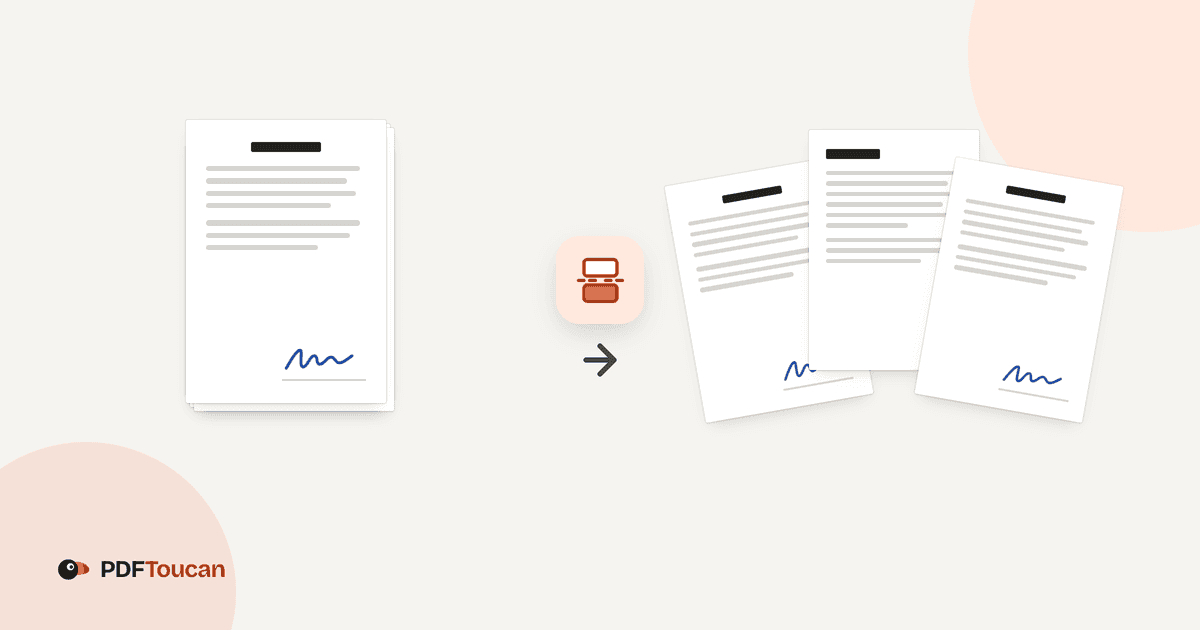
To split PDF pages means to take one PDF and save parts of it as separate PDF files, and on PDF Toucan that work happens inside your browser instead of on a server. Pick custom ranges like 1-3 and 4-8, cut the document into equal parts, or separate every page. You can also keep your ranges or selected pages together in one output PDF. It is free, needs no account, and adds no watermark.
What you can do with Split PDF Pages
Create a PDF for every custom range
Type ranges such as 1-3, 4-8, and 9-last, and every range you type becomes its own PDF. Pages you leave out of the ranges simply do not appear in any output file. This is the quickest way to split a PDF into separate files that follow the chapters or sections you care about.
Cut the document into equal page parts
Choose fixed ranges and set how many pages each part should hold. The document is cut into equal parts of that size, which suits long reports, scanned stacks, and study material. It is also the simple way to split PDF pages in half: pick half the page count as your part size.
Separate every page into its own file
Switch the method to pages and choose to separate every page. Each page becomes its own PDF file, named and packed for you, so a twenty-page document turns into twenty single-page PDFs. Use it when a recipient needs one invoice, certificate, or form per file rather than one long document.
Pick only the pages you need
Select pages directly on the canvas, holding Shift to pick several at once, or type them below as numbers and ranges such as 2, 5-9. Only those pages come out, which makes it easy to separate PDF pages online when you need a handful of pages and nothing else.
Keep ranges or pages in one PDF
Turn on the merge option and your typed ranges are collected in a single file, in the order you typed them. With selected pages, the merge option gathers your picks into one PDF in page order. Handy when you want a shorter document rather than a pile of small ones.
Colored bands show the split plan
Before you split anything, colored bands across the page thumbnails show which file each page ends up in. Pages without a band are left out of the result. Check the bands, adjust your ranges or selection, and you will know exactly what you get before you download.
How to split PDF pages online
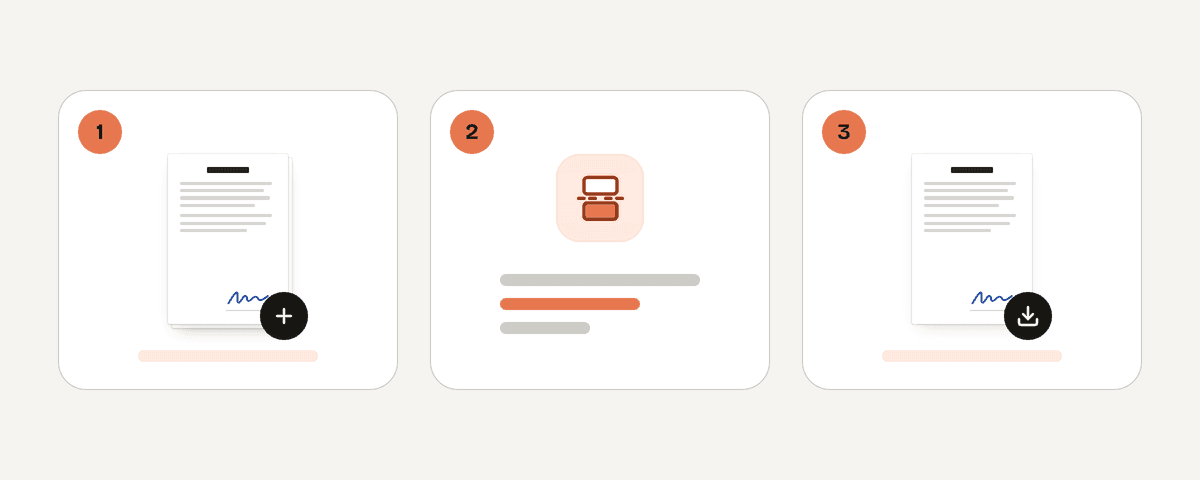
Add the PDF you want to split
Choose the PDF from your device or drop it onto the page. One file at a time, and it needs at least two pages, since a single-page PDF has nothing to split. The pages appear as thumbnails right away because the file is read locally on your computer.
Choose ranges, fixed parts, or pages
Pick a split method. Ranges lets you type custom ranges or cut the document into fixed equal parts. Pages lets you separate every page into its own file or separate only the pages you select. The split plan updates as you switch between the options.
Set the ranges or make your selection
Type ranges such as 1-3, 4-8, 9-last, or enter how many pages each fixed part should contain. For page selection, click the thumbnails you want or type entries like 2, 5-9. The colored bands confirm which pages belong to which output file.
Split the PDF and download the result
Press the split button and the files are built on your device. A single output PDF downloads on its own. When the split creates several PDFs, they download together as one ZIP file, and a large set can take a while to prepare, so give it a moment.
Your PDF stays on your device
This tool runs entirely inside your browser. A local processing engine in a web worker reads the PDF, builds the new files, and hands them to your downloads folder. The document is never uploaded, so it does not travel to any server and nobody else receives a copy. That matters for contracts, medical records, payslips, and anything else you would rather not send across the internet. There is no account to create, no email address to hand over, and no watermark stamped on the pages that come out. Work offline once the page has loaded if you prefer. PDF Toucan is funded by ads, which is why the tool stays free with no daily limits.
Runs in your browser: the file never leaves your device.
Split PDF Pages – frequently asked questions
How can I split PDF pages for free?
Open the tool, add a PDF with at least two pages, choose a split method, and download the result. You can split PDF pages free with no account, no sign-up, and no watermark, because the work happens in your browser and ads pay for the site rather than a subscription.
What's the way to split a PDF into separate files?
Use the ranges method and type each range on its own, for example 1-3, 4-8, 9-last. Every range you type becomes its own PDF. Leave the merge option off so the ranges stay apart, then download. Several output files arrive together as a single ZIP.
Can I split one PDF into two files?
Yes. Type two ranges, such as 1-10 and 11-last, and you get two PDFs. To split PDF pages in half on a twenty-page document, either type 1-10 and 11-20, or use fixed ranges and set ten pages per part.
Where do I divide a PDF file online?
Right here on this page. Nothing installs and nothing uploads, since the splitting engine runs locally in your browser. That makes it a practical way to split a PDF online free on a work laptop where you cannot install software or sign up for a new service.
Do I need to separate every PDF page?
No. Separating every page is only one option. You can also keep chapters together with custom ranges, cut the file into equal parts, or pull out a few chosen pages. Pick whichever matches the result you want; the colored bands show the plan before you commit.
May I choose only certain PDF pages?
Yes. Choose the pages method, then separate the selected pages. Click thumbnails on the canvas, holding Shift to pick several, or type entries such as 2, 5-9. Pages without a colored band are left out. Turn on the merge option to collect your picks into one PDF in page order.
Is there a free PDF splitter with no sign-up?
Yes, this one. There is no registration, no email, no trial, and no watermark on the pages you download. Because the tool works on your device, there are no daily limits either, so you can split PDF pages free as often as your work requires.
Once the split is done, the rest of your workflow is close by on PDF Toucan. Use merge to combine the pieces back into one document or join them with other files, compress to shrink a large output before emailing it, and pdf-to-jpg when someone needs pictures of the pages instead of a PDF. Each tool works the same way: free, no account, no watermark.
Last updated September 19, 2026