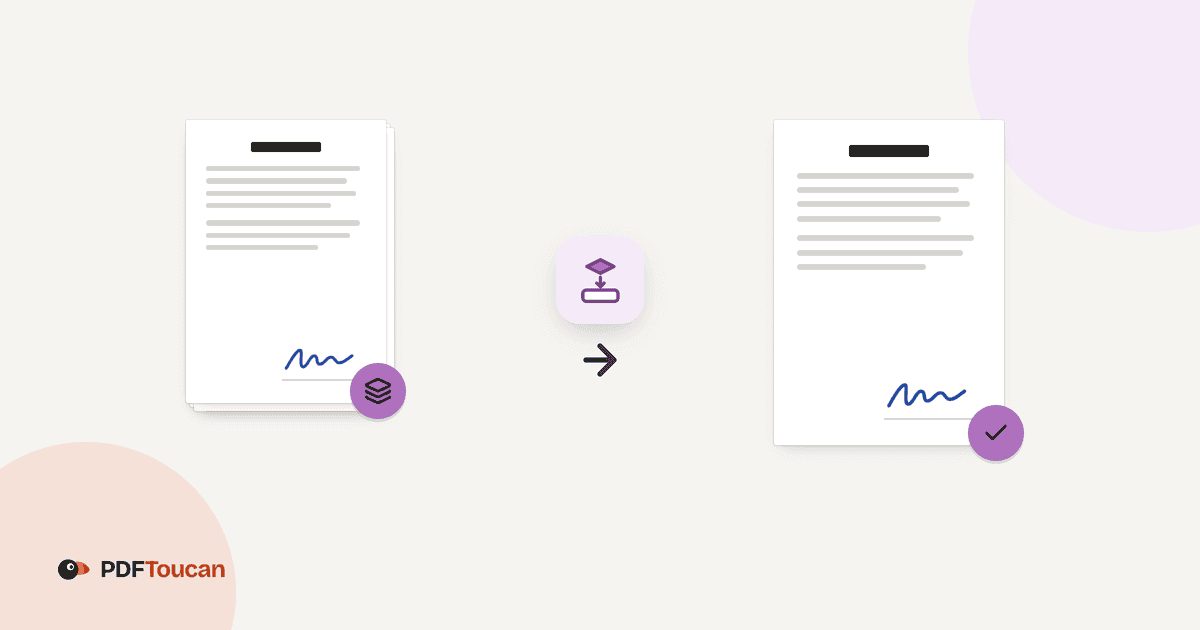
Flattening a PDF in your browser turns selected interactive layers into fixed page content. Use PDF Toucan to flatten PDF forms for reliable viewing and printing, or to make comments and markups part of the page. Choose whether to fix form fields alone or forms, comments, and markups together. Files with no form fields or markups cannot be flattened.
What you can do with Flatten a PDF
Flatten PDF forms for dependable printing
Choose Form fields only to draw completed values directly onto every page and remove the interactive fields. This is the recommended choice when a fillable form must look exactly as completed when someone opens or prints the resulting PDF.
Bake comments and markups into each page
Choose Forms, comments and markups when you need more than field values fixed. Notes, highlights, stamps, and drawn signatures are baked into the page content, so they can no longer be changed as separate PDF annotations.
Keep working links in the fixed copy
Flattening changes the selected page overlays, not your document links. Clickable links continue to work after form fields, comments, and markups are made permanent, giving you a fixed-looking PDF that can still direct readers where it needs to.
Process several PDF files in one run
Add more than one file when you have a group of completed forms or reviewed documents to prepare. Each accepted file is handled on its own, and you receive a separate flattened PDF for every input rather than one combined document.
Preserve your editable source document
Flattening is permanent in the output file only; the original PDF remains unchanged on your device. If a selected document contains XFA data, that data is dropped during flattening. Keep the source copy if you may need to edit fields or annotations later.
How to flatten a PDF online
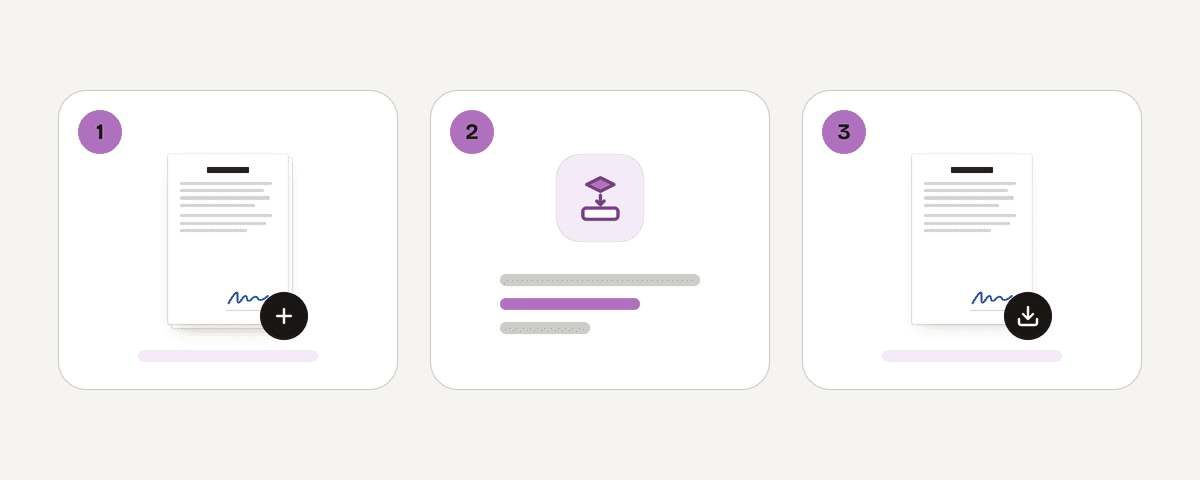
Add the PDFs you want to fix
Click "Select PDF files" and choose one or more PDFs from your device. Review the files in the list before continuing. The page accepts PDFs that contain form fields, comments, or markups to make permanent.
Choose what becomes permanent
Use Form fields only to print filled values onto the page while leaving comments and markups as they are. Choose Forms, comments and markups to bake in notes, highlights, stamps, and drawn signatures as well.
Start the flattening process
Click "Flatten the PDF" after checking your selection. The browser creates a new fixed copy for each accepted document. Your original files are not altered, so you can retain them for future edits or reference.
Download the fixed PDF copies
Download each flattened PDF or the available set of results when processing is complete. Open a copy to confirm that filled values and selected markups display as expected before you share it, print it, or archive it.
Flatten files locally in your browser
PDF Toucan processes this browser-based task locally through a processing engine running in a web worker. Your PDF is never uploaded, so the file stays on your device while it is flattened. No account is needed to use the service. Browser tools have no daily limit, and the free service is supported by ads rather than a subscription. Results are produced without a watermark. Because the original remains untouched, you can keep an editable version while distributing a fixed copy for viewing or printing.
Runs in your browser: the file never leaves your device.
Flatten a PDF – frequently asked questions
What does flatten PDF mean?
It means turning selected interactive PDF elements into ordinary page content. Filled form values, and optionally comments and markups, become part of the page instead of separate items that a PDF viewer can edit independently.
How do I flatten a fillable PDF so it prints?
Choose Form fields only, then flatten the file. This setting draws filled-in values into the page content and removes the form fields, helping the completed form display and print as a fixed document.
Can I flatten PDF comments and annotations online?
Yes. Choose Forms, comments and markups to bake notes, highlights, stamps, and drawn signatures into the pages. This option is useful when you want PDF comments and annotations to remain visible without being separately editable.
Will links still work after I flatten a PDF?
Yes. Links keep working after flattening. The process fixes the selected form fields, comments, and markups on the page, but it does not remove the document’s clickable links.
Does flattening make a PDF non-editable?
No. Flattening removes the selected interactive fields and annotation layers as separate objects, but it is not a complete permission or security control. Use protect when you need to apply PDF protection settings to a copy.
Is it possible to flatten more than one PDF at once?
Yes. Add several eligible PDF files in the same run. Each one is flattened separately, and the results remain separate PDFs, which is helpful for a batch of completed forms or reviewed documents.
Why can’t I flatten my PDF?
The file may not contain anything this process can flatten. PDFs without form fields or markups are refused because there are no eligible interactive layers or annotations to turn into fixed page content.
When your fixed copies are ready, use compress to reduce their file size before sending them. You can also use protect for a controlled sharing copy, or merge when several finished PDFs need to travel together in one document.
Last updated September 24, 2026