Word to PDF conversion takes a DOCX document and renders it as a PDF page by page, and here it runs on our servers rather than in your browser. You upload one file or several, the documents are combined into one PDF, and you download the result. Converting Word to PDF, free and without an account, adds no watermark and sets no daily limit.
What you can do with Convert Word to PDF
Keep your Word document layout in PDF
Your DOCX is rendered so the document keeps its layout instead of falling apart. Headings, paragraphs, lists, tables and page breaks land where you expect them, so the PDF you share looks like the file you wrote. Nothing is rewritten or reflowed by hand.
Combine multiple DOCX files into one PDF
Add several Word documents at once and receive them combined in a single PDF. That is handy for a cover letter plus a resume, or for chapters written as separate files. The documents follow one another in the finished file, ready to send as one attachment.
Pages laid out sideways
The document is laid out on sideways pages, which suits wide tables, timelines and slide-style content that would otherwise be squeezed. This is how the converter presents your pages, so check the preview before you send the PDF on if your text is mostly narrow columns.
Convert DOCX files free with no account
There is no sign-up form, no email address and no daily quota to watch. You open the page, pick your files and convert. Ads fund PDF Toucan, which is why Word to PDF, free and without a watermark, stays available for a single document or a whole stack.
Download PDFs without a watermark
The PDF you download carries no watermark, banner or trial stamp across the pages. What comes back is your document, so you can email it to a client, upload it to an application portal or print it without editing anything out first.
How to convert Word to PDF online
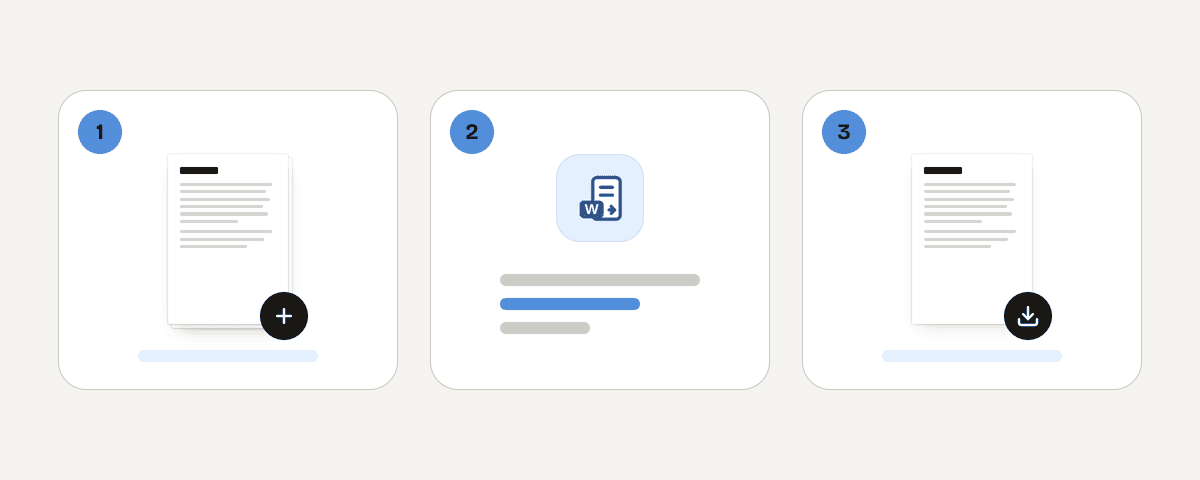
Add one or more DOCX files
Drag your Word documents onto the page or use the file picker. The converter accepts DOCX files, and you can add more than one if you want them in the same PDF. Put them in the order you want them to appear before you start.
Convert the documents into one PDF
Start the conversion and your files travel over HTTPS to our servers, where each document is rendered and the pages are assembled. Several DOCX files become one PDF. Larger documents with many images naturally take a little longer than a short letter.
Download your converted PDF
Save the finished PDF to your computer or phone and open it to check the pages. Once the download is done, the file is removed from the server. If you need another version, simply upload the documents again and convert them a second time.
What happens to your file during conversion
This converter is a server tool, not a browser-only one. Your DOCX is sent over an encrypted HTTPS connection to servers in the European Union, where it is processed in memory. The file is never written to disk and never stored in an archive. It is deleted as soon as you download the result, and at the latest after ten minutes, along with the PDF that was generated. No account is created, so nothing is tied to a profile. Browser-based tools on PDF Toucan keep your file on your device instead; conversion of Word documents needs server rendering, which is why this one works differently. For highly sensitive contracts, consider what your own policy allows before uploading.
Processed in memory on our servers in the European Union. Your file is never stored: it is deleted as soon as you download the result (at the latest after 10 minutes).
Convert Word to PDF – frequently asked questions
How do I convert a DOCX to PDF for free?
Add your DOCX file to this page, start the conversion and download the PDF. That is the whole process. There is no payment step, no trial period and no limit on how many documents you convert in a day, so Word to PDF, free of charge, is what you get.
Can I convert Word to PDF online without signing up?
Yes. No account, email address or password is required. You land on the page, select your files and convert straight away. This free Word to PDF workflow requires no sign-up, and the finished PDF downloads directly to your device.
Does this Word to PDF converter accept DOC files?
No. The converter takes DOCX files, the modern Word format, and returns a PDF. If you have an older DOC file, open it in your word processor and save or export it as DOCX first, then upload that version here for conversion.
Will my document layout stay the same in the PDF?
Yes. Your Word document is rendered without breaking its layout, so headings, tables, lists and page breaks carry over into the PDF. Open the finished file and scan a few pages anyway, simply to confirm the result reads the way you intended before you send it to anyone.
Can I combine multiple Word documents into one PDF?
Yes. Add several DOCX files in one go and the converter returns them combined in a single PDF, in the order you added them. If you later want to join that PDF with other PDFs, use the merge tool instead of converting again.
Where is my file processed during conversion?
On our servers in the European Union. The upload travels over HTTPS, the document is processed in memory, and it is never written to disk or kept in storage. Both your DOCX and the resulting PDF are deleted once you download the result, at the latest after ten minutes.
Is there a watermark on the converted PDF?
No watermark is added. The PDF contains your document and nothing else, with no stamp, logo or promotional footer on the pages. You can print it, attach it to an email or upload it to a form exactly as it comes out of the converter.
Can I download the PDF without an account?
Yes. The download starts from the result screen as soon as the conversion finishes, with no account step in between. Save the PDF, open it and check the pages. If you close the tab before downloading, the file is deleted and you will need to convert again.
Once your Word file is a PDF, the rest of the toolbox is a click away on PDF Toucan. Use compress if the document is too heavy to email, merge to add a cover page or appendix from another PDF, and protect to set a password before you share a contract. All of them work the same way: no account, no watermark.
Last updated September 19, 2026