To add page numbers to PDF online means printing a running number onto each page of a PDF, and here it happens entirely in your browser. You choose where the number sits, how it reads and which pages get one. Set the layout, position, margin, starting number, text, typeface, size and color, check the preview, then download the numbered file. It is free, needs no account and adds no watermark.
What you can do with Add Page Numbers
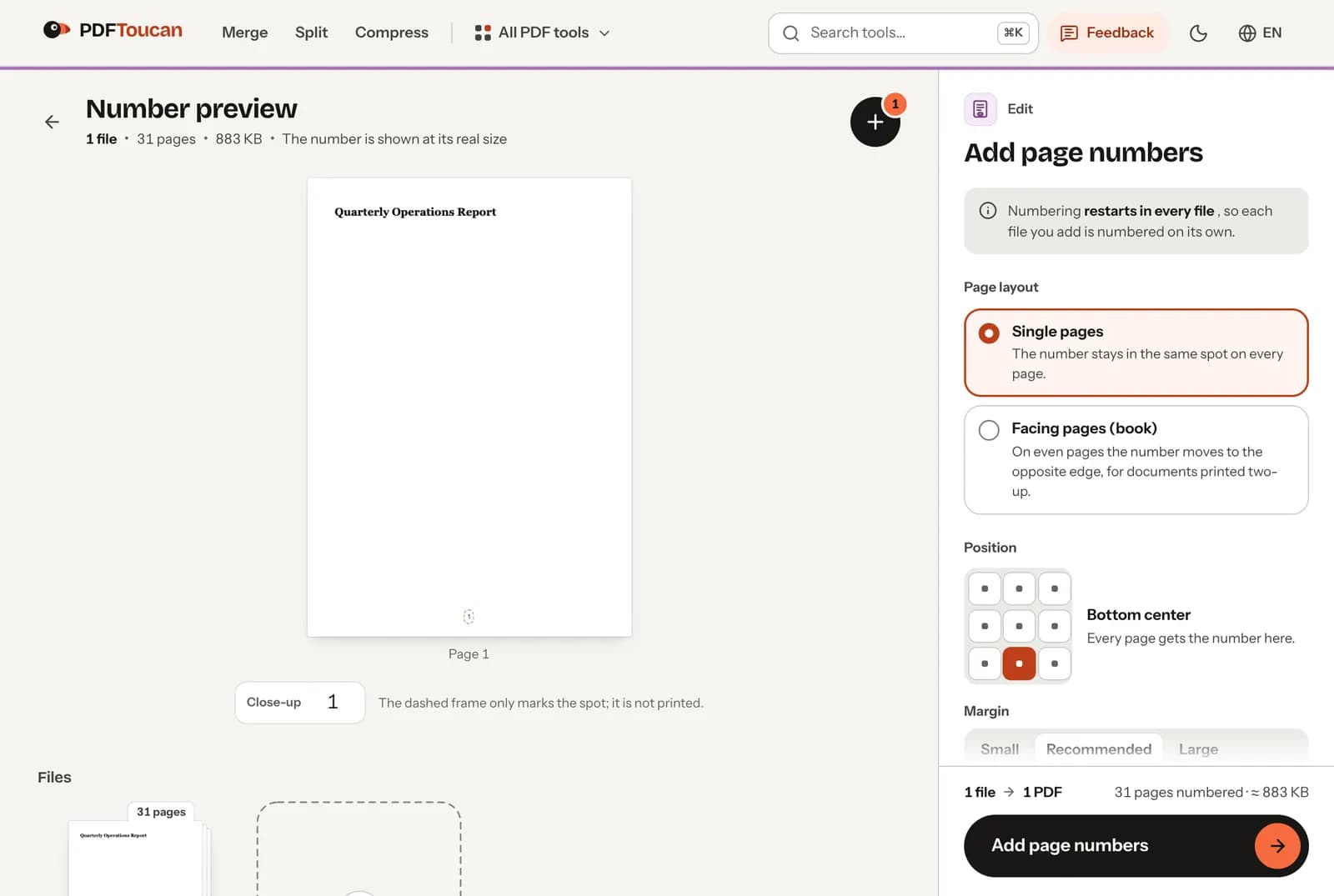
Preview the number at its actual printed size
The preview shows your page number at its real size, so you can judge the typeface, point size and color before anything is written to the file. A close-up view helps with small text. The dashed frame around the number only marks the spot; it is never printed in the finished PDF.
Place numbers for single sheets or facing pages
Single pages keeps the number in the same spot on every page, which suits reports and handouts. Facing pages (book) moves the number on even pages to the opposite edge, so a document printed two-up reads correctly: odd pages here, even pages mirrored on the other side.
Leave covers and selected pages unnumbered
Number all pages, or switch to Pages I choose and type a range. That is handy for leaving out covers and back pages that should stay clean. If your range would not match anything, the tool tells you plainly that no page in your range would get a number.
Start at the number your document needs
Set the first number yourself. The first numbered page gets that value and every later numbered page counts up by one. Use it when a title page and table of contents come first and the visible numbering should begin at three, five or wherever your layout requires.
Use page labels, totals, or your own wording
Pick number only, Page and number, number and total, or Page, number and total. Custom text lets you write your own line using two variables: one becomes the page number, the other the total page count. That is how you print a "Page X of Y" format in your own words.
Make page numbers readable on scans
Choose the position, a small, recommended or large margin measured in points from the edge, then set the typeface, point size and color. Bold helps the number stay readable on light scans and busy backgrounds. A summary line tells you exactly how each page will read.
How to add page numbers online
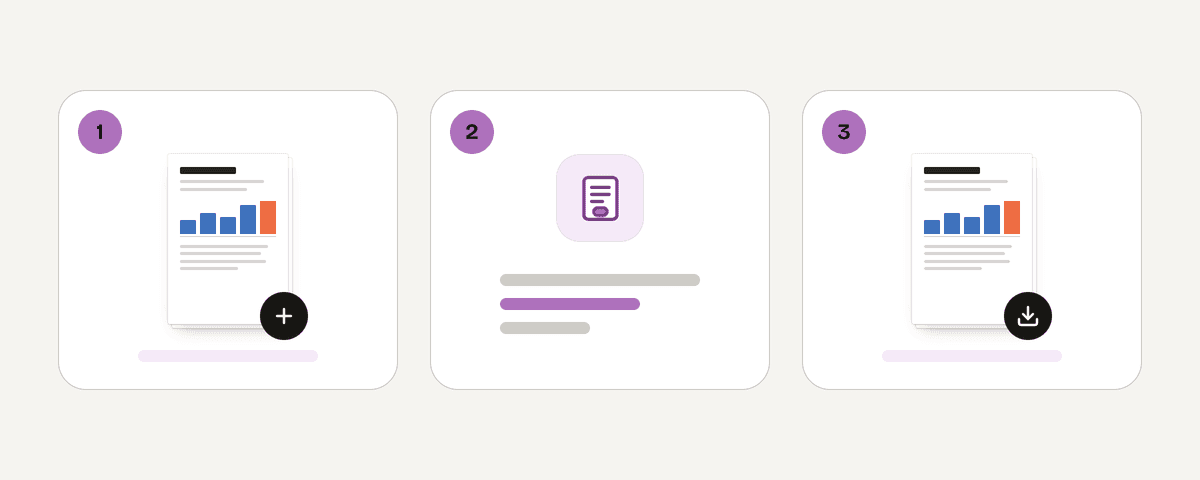
Choose the PDF files to number
Select one PDF or several at once. Each file is prepared for the preview on your device. Numbering restarts in every file, so each file you add is numbered on its own rather than continuing from the previous document.
Pick the layout, position, and margin
Decide between single pages and facing pages (book), then click the spot where the number belongs. Choose a small, recommended or large margin to control how far the number sits from the edge, measured in points.
Set the pages, starting number, and text
Number all pages or choose a range; the range is applied to each file separately. Enter the first number, then pick a text format such as number only or Page, number and total, or write custom text with the page and total variables.
Preview the number and add page numbers
Check the preview, which shows the number at its real size, and use the close-up if the text is small. Adjust the type, size, bold setting or color until it reads well, then apply the page numbers.
Download each numbered PDF
When the work finishes, your numbered files are ready. Download the numbered PDF, or grab several files at once if you numbered a batch. Open each one and check the first and last numbered pages before you send them on.
Tested on a 31-page report
We numbered all 31 pages of a report (883 KB) with the default settings, single pages with the number at the bottom centre, and read the text of the result.
| What we checked | Result |
|---|---|
| Time | Under 1 second, in the browser |
| Page numbers | Real text: they can be selected and searched for |
| Text, links and bookmarks | Unchanged |
| File size | 883 KB before, 309 KB after: saved in a more compact form, nothing removed |
Your PDF stays on your computer
This tool runs locally in your browser. The numbering engine works inside a web worker on your own device, so the PDF is never uploaded to a server and never leaves your computer. That also means large files do not need to travel over your connection, and you can work offline once the page has loaded. If a file is password-protected, you enter the password only to generate the preview on your device. There is no account to create, no watermark on the result, and the tool is free to use. When you are finished, simply close the tab; nothing is left behind on our side because nothing was sent there.
Runs in your browser: the file never leaves your device.
Add Page Numbers – frequently asked questions
How do I add page numbers to a PDF?
Open the tool, select your PDF, then choose a layout, a position on the page and a margin. Set the first number, decide whether all pages or a chosen range get numbered, and pick the text format. Check the preview, add the page numbers and download the finished file.
Can you add page numbers to a PDF without Acrobat?
Yes. Everything runs in your web browser, so you can add page numbers to PDF online without Acrobat or any desktop software installed. Pick your file, set the placement and text, and download the numbered PDF. No account is required and the result carries no watermark.
Is there a way to skip the cover when numbering a PDF?
Yes. Switch from All pages to Pages I choose and enter a range that starts after the cover, for example page two onward. Covers and back pages then stay clean. Set the first number separately if the numbering should still read one on that first numbered page.
Where can I insert page numbers in a PDF online for free?
Right here on PDF Toucan. The page numbering tool is free to use, works in the browser without an upload, needs no sign-up and adds no watermark to your document. You control position, margin, starting number, text, typeface, size, bold and color.
Can I add Roman page numbers to a PDF online?
Not as a setting. The tool numbers pages sequentially with regular digits, and there is no Roman-numeral option. Custom text lets you add your own wording around the number, but it cannot convert the digits themselves, so Roman numbering is not something this tool produces.
Do page numbers restart when I add multiple PDF files?
Yes. Numbering restarts in every file, so each file you add is numbered on its own instead of continuing across the batch. The page range you choose is also applied to each file separately, and the first number you set applies within each document.
Is it possible to add "Page X of Y" to a PDF?
Absolutely. Choose the Page, number and total text option, or write custom text using the two variables: one stands for the page number, the other for the total page count in that file. The preview shows exactly how the finished line will read.
Will my PDF be uploaded when I add page numbers?
No. The file stays on your device because the numbering runs in a web worker inside your browser rather than on a server. Nothing is sent anywhere, which is also why you can keep working after the page has finished loading.
Numbered pages usually mean the document is close to done. If the file is heavy for email, run it through compress first; if it is going to reviewers who should not edit it, protect it with a password afterwards. Need a draft or confidential stamp across the pages instead of a corner number? Use watermark separately. When you next need to add page numbers to PDF online, the settings are only a few clicks away.
Last updated November 2, 2026