Crop PDF online is the process of trimming a PDF page in your browser. Use it when white borders, uneven scans, or extra blank space make a document harder to read or print. PDF Toucan lets you set the area to keep by hand or look for page edges automatically, then apply that area to one page, selected pages, or the whole document.
What you can do with Crop PDF Pages
Trim empty margins around page content
Keep the useful part of a page and trim away distracting blank borders. This is a simple way to remove white margins from PDF pages when a scan has too much space around the text, form, or image. You decide exactly what stays within the visible page area.
Position the crop frame by hand
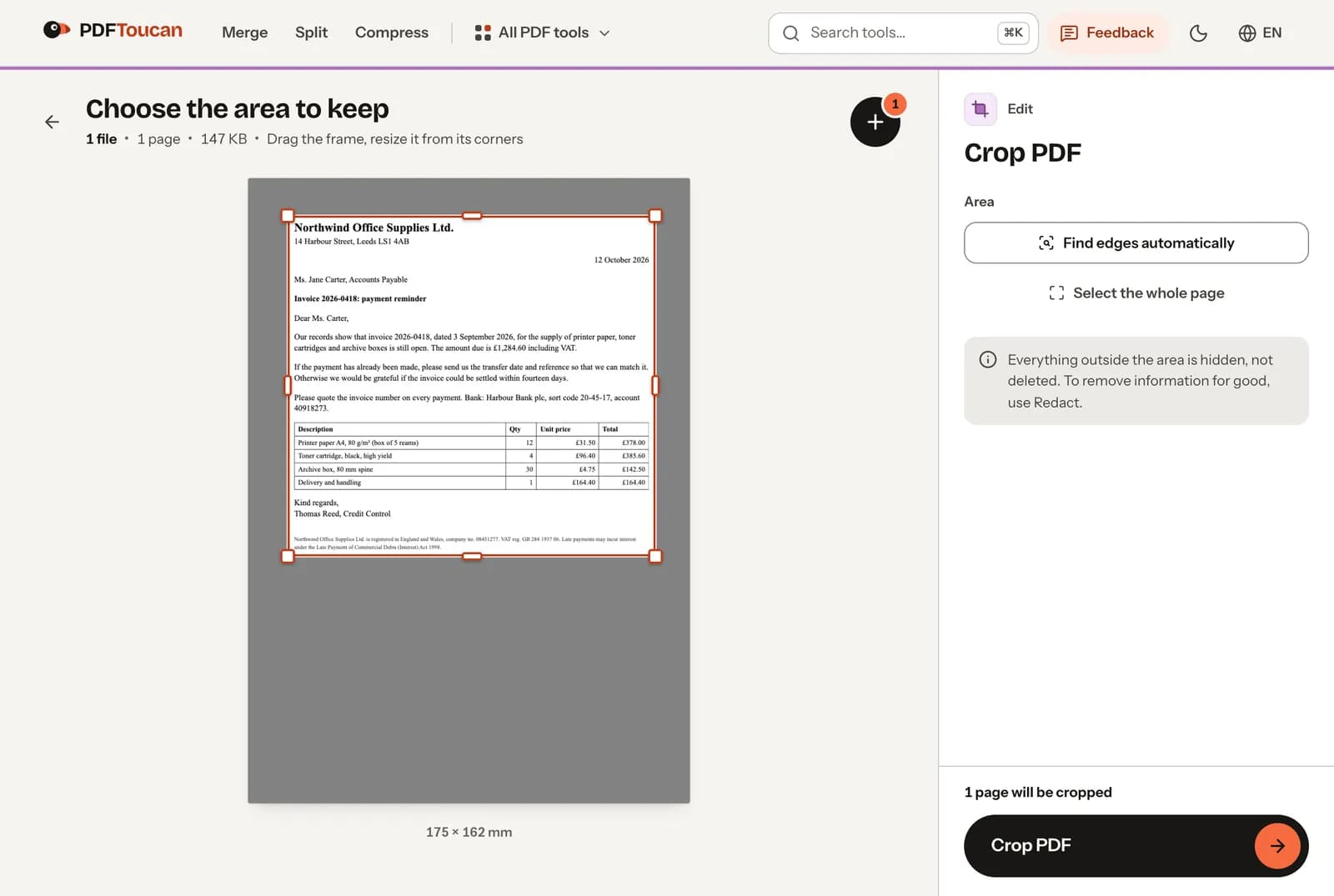
Drag the crop frame over the part of the page you want to keep, then resize it from any corner. For small adjustments, use the arrow keys to move the frame. Hold Shift with the arrow keys to resize it, helping you trim PDF margins with more control.
Find document edges automatically
Choose Find edges automatically when the content has clear boundaries and you want a quick starting point. The tool looks for the page content and sets an area around it. If it cannot find edges or content, you can choose the crop area yourself instead.
Apply one area to the right pages
Crop PDF pages online without treating every page the same. Apply the current area to this page, all pages, or selected pages that you choose. This is useful when only certain pages have oversized borders, while other pages should remain unchanged.
Review every page before you crop
Use Previous page and Next page to inspect the document page by page. You can see your current page number, adjust its crop frame, or select the whole page when it does not need trimming. Check the area carefully before applying it to other pages.
Download a PDF with no watermark
When you crop PDF online, download your new PDF directly from the tool. Crop PDF free with no account and no watermark. PDF Toucan browser tools have no daily limits, so you can return whenever you need to trim pages in a PDF.
How to crop PDF pages online
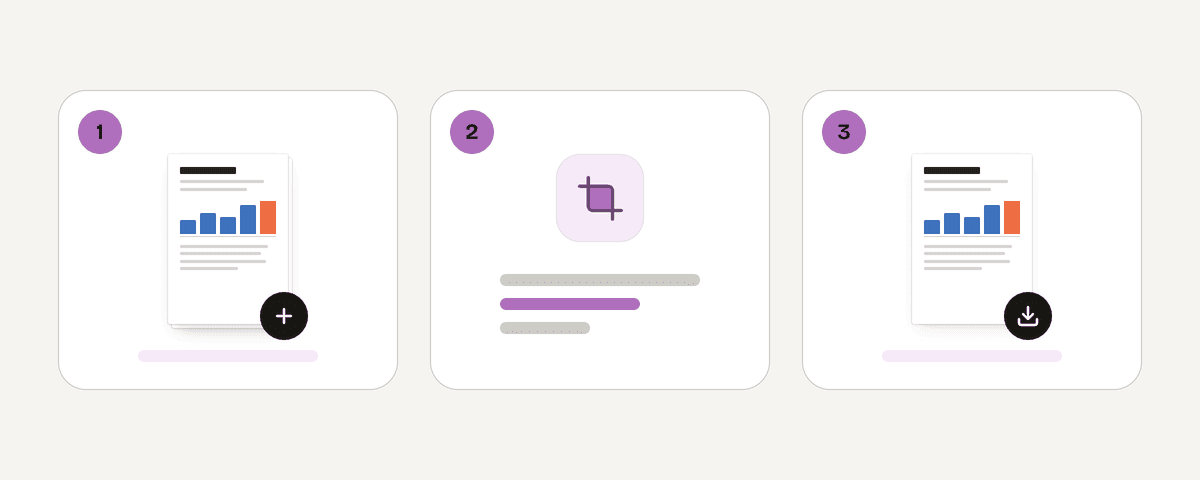
Open your PDF in the browser
Select one PDF file to begin. The document opens in the crop workspace, where you can view the current page and its crop frame. This tool works with PDF input and creates a cropped PDF as the output.
Drag the frame around the content
Move the frame until it covers the page area you want to keep. Drag its corners to resize it, or use the keyboard for finer changes. You can also use automatic edge finding, then refine the result manually if needed.
Choose which pages to crop
Choose This page, All pages, or Selected pages. For selected pages, pick only the pages that should receive the current crop area. Select the whole page for pages that should not be trimmed. Make sure the selected area is large enough for each chosen page.
Crop and download the PDF
Choose Crop PDF once the frame and page choices look right. The tool prepares a new file and confirms when it is ready. Download the cropped PDF to keep the revised page view without a watermark.
Tested on an A4 letter
We cropped a one-page letter (147 KB, text, a table and a 7.5 pt footer) with Find edges automatically and checked the page boxes and size of the result. Separately, we checked what is still in a file after cropping.
| What we checked | Result |
|---|---|
| Find edges automatically | The frame was placed around the text block, footer included |
| File size | 147 KB before, 142 KB after |
| What readers and printers show | Only the area inside the frame |
| Content outside the frame | Still in the file: resetting the page box brings it back |
Cropping hides content, it does not delete it. To remove information for good, use Redact PDF.
Your PDF stays on your device
This crop PDF online tool runs entirely in your browser through a local processing engine in a web worker. Your PDF stays on your device and is never uploaded to a server. You can crop your PDF for free, with no account required and no watermark added to the result. Cropping changes what is shown within the page area, not the underlying information: everything outside the selected area is hidden, not deleted. If you need to remove sensitive text, images, or other information for good, use Redact rather than cropping.
Runs in your browser: the file never leaves your device.
Crop PDF Pages – frequently asked questions
How do I get rid of the white border on a PDF?
Drag the crop frame inward until it surrounds the content you want to keep, then crop the page. You can apply that area to one page, all pages, or selected pages. Automatic edge finding can help locate content boundaries, but you can always adjust the frame yourself.
Can I crop a PDF for free?
Yes. You can crop PDF free in your browser without creating an account, and the downloaded PDF has no watermark. The browser tool has no daily limits, so you can use it again when another document needs its margins trimmed.
What are the steps to crop pages in a PDF?
Open the PDF, place and resize the crop frame, then choose This page, All pages, or Selected pages. Review the pages before you crop, especially if their margins differ. Finally, crop the document and download the new PDF.
Does cropping permanently remove information from a PDF?
No. Cropping hides content outside the area you select; it does not delete that information from the PDF. Use Redact if information must be removed for good. This distinction matters when the document contains private or confidential material.
Why are my PDF margins cut off after cropping?
The crop area is probably too close to the page content or too small for one of the pages you selected. Go back, enlarge or reposition the frame, and review each page. Select the whole page for any page that should keep its original margins.
Can I remove blank space from a PDF online without signing up?
Yes. You can remove blank space from a PDF online free without signing up by setting a crop frame around the content. The tool runs in your browser, so the PDF is not uploaded. Choose the pages to apply the crop before downloading the result.
What happens if automatic edge detection cannot find content?
You can choose the area by hand. The tool may report that no content was found or that it could not find the edges. In either case, drag and resize the frame yourself, or select the whole page if you do not want to trim it.
After you crop PDF pages online, you may want to compress the finished file if it is larger than you need. If you are preparing a combined document, crop pages first and then use merge. PDF Toucan keeps these browser-based PDF tasks simple, with no account or watermark.
Last updated November 2, 2026