To extract pages from PDF is to pick the pages you want out of one document and save them as a new file, and on PDF Toucan that happens entirely in your browser. Open a PDF, click the thumbnails you need or type page numbers such as 5, 1-3, and the pages come out in the order you set. You can extract pages from PDF free, with no account and no watermark.
What you can do with Extract PDF Pages
Choose pages by thumbnail or page number
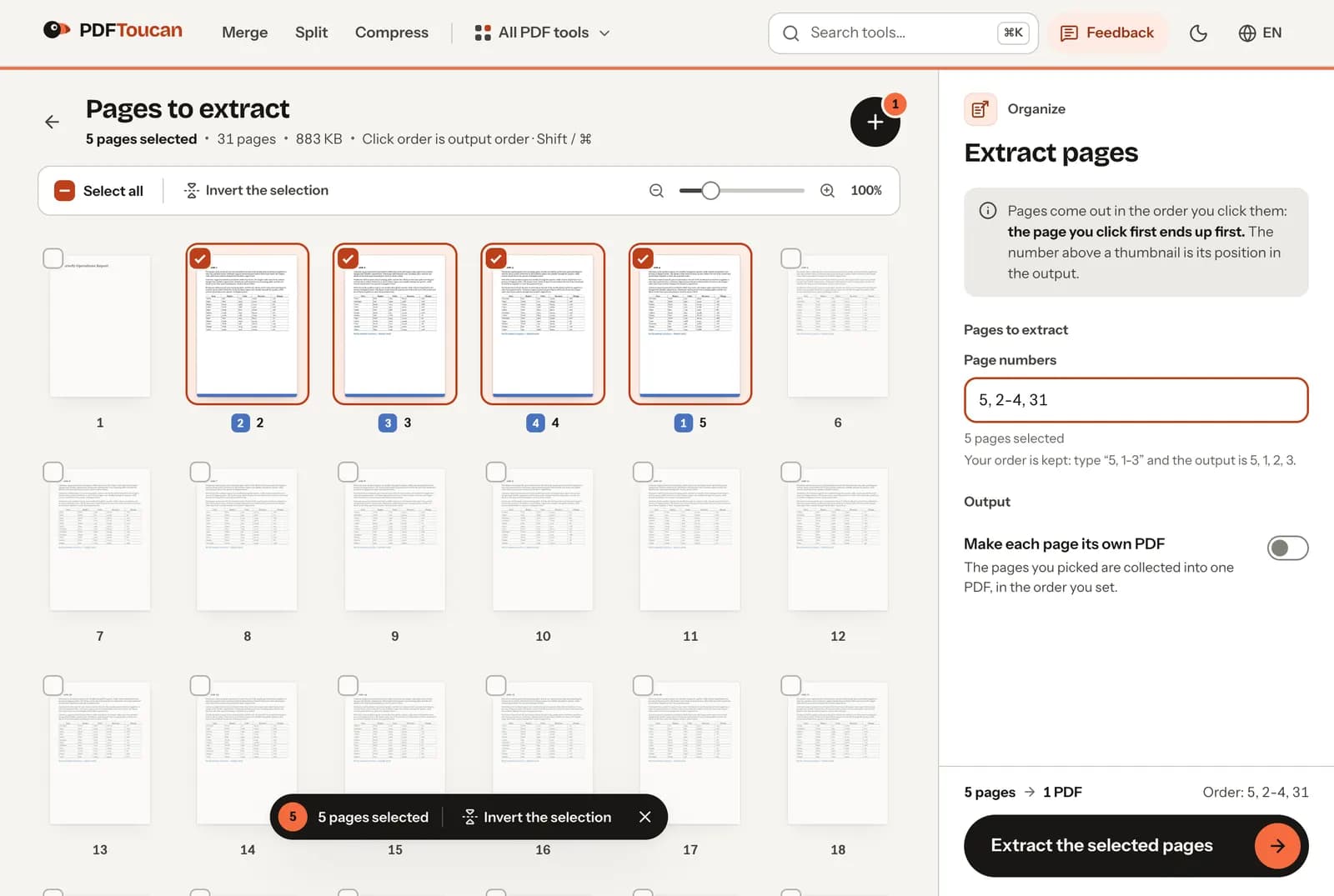
Scroll the thumbnails and click the pages you want, or type page numbers in the field instead: 5, 1-3 and 8-last all work. Mixing single pages with ranges is fine. Use whichever is quicker for the document in front of you, since both feed the same selection.
Set the exact order of your extracted PDF
Click order is output order. The page you click first ends up first in the new file, and typed input keeps its sequence too: enter 5, 1-3 and the result runs page 5, then 1, 2, 3. Nonsequential picks stay exactly as you arranged them.
See each page's output position before extracting
The number above a selected thumbnail shows its position in the output, and the page label spells it out: page 4, number 1 in the output. An order line lists your full sequence, so you can check the whole run before anything is built.
Invert or clear a selection in one click
Picked the wrong half? The invert the selection option swaps chosen pages for unchosen ones, which helps when you want everything except a few pages. Clicking clear the selection empties it completely, so you can start again without reloading the document or losing your place.
Download one PDF or a ZIP of one-page PDFs
By default the selected pages are collected into a single PDF in the order you set. Switch on the option to make each page its own PDF, and every picked page becomes a separate one-page file; they download together as a ZIP. Page content is never altered.
How to extract PDF pages online
Open your PDF in the browser
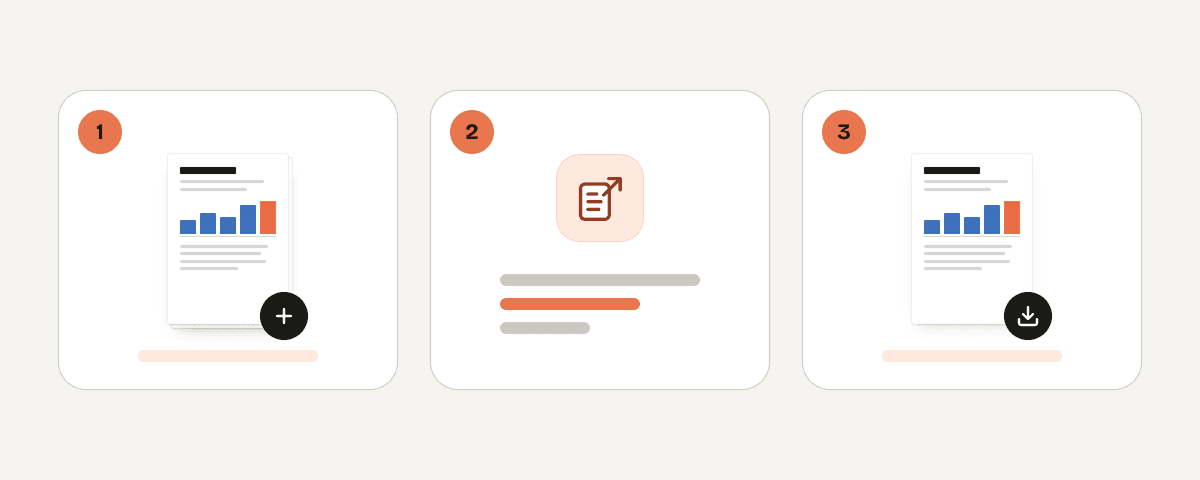
Drop one PDF onto the page or pick it from your device. It loads locally and the thumbnails appear in moments. This tool works on a single document at a time, so choose the PDF you want to pull pages from and let it render.
Select the pages you want, in order
Click thumbnails in the sequence you want them to appear, or type page numbers and ranges such as 5, 1-3, 8-last. Watch the number above each thumbnail to confirm its output position. Use invert or clear at any point if you change your mind.
Choose one combined PDF or separate files
Leave the default to collect every selected page into one PDF in your chosen order. Or turn on the option that makes each page its own PDF, and the one-page files arrive together in a ZIP. Pick whichever suits how you plan to share them.
Extract and download your selected pages
Press Extract the selected pages. The new file is built on your device in a second or two, and a short message tells you how many pages were collected. Download the extracted PDF or the ZIP, rename it, and your original file stays as it was.
Tested on a 31-page report
We extracted pages 5, 2–4 and 31 from a 31-page, 883 KB A4 report with text, a table on every page, web links, links between sections and bookmarks, then opened the new file with a PDF library to see what it contains.
| What we checked | Result |
|---|---|
| Time | Under 1 second, in the browser |
| New file | 5 pages, 70 KB, in the order typed: 5, 2, 3, 4, 31 |
| Text | Still selectable and searchable |
| Web links | Kept |
| Bookmarks and links within the document | Not carried over |
| Pages you did not pick | Not in the new file, not even hidden |
Your PDF stays on your device
Extraction runs locally. PDF Toucan opens the file with a processing engine that works inside your browser, in a web worker on your own computer, so the PDF is never uploaded to a server. Thumbnails, page selection and the finished file are all produced on your machine, which matters when the document holds contracts, medical records or anything else you would rather not email. There is no account to create and no watermark on the output, so you can extract pages from PDF free as often as you need; ads keep the site running. Close the tab and nothing is left behind.
Runs in your browser: the file never leaves your device.
Extract PDF Pages – frequently asked questions
How do I extract pages from a PDF for free?
Extracting pages here costs nothing. Open your PDF, click the pages you want or type numbers such as 5, 1-3, then download the new file. You can extract pages from PDF free with no sign up, no watermark and no daily limit on browser tools, because ads fund the site.
Can I save certain pages from a PDF as a new file?
Yes. Select only the pages you need — a single page, a range, or scattered pages such as 2, 7 and 9 — and they are collected into one new PDF. The original document is not modified; you keep it and get a separate extracted file alongside it.
What does extracting pages from a PDF mean?
It means copying chosen pages out of a document into a new PDF, leaving the page content untouched. You are not editing text or images. You are only deciding which pages travel into the new file and in which order they appear once it is built.
Is it possible to choose a different page order?
Yes. Click order is output order, so the page you click first ends up first. Typed input behaves the same way: enter 5, 1-3 and the output is page 5, then 1, 2 and 3. The number above each thumbnail confirms its position.
Do I need to sign up to extract PDF pages online?
No account is needed. There is no sign up, no email and no login required to extract PDF pages online here; open the tool and start clicking. The finished PDF downloads without a watermark, and browser tools carry no daily cap on how often you use them.
Will my PDF be uploaded when I extract pages?
No. The file stays on your device. PDF Toucan reads and writes it inside your browser using a web worker, so pages are rendered, selected and saved locally and nothing travels to a server. That holds whether the document has two pages or several hundred.
How can I save selected PDF pages as separate files?
Turn on the setting that makes each page its own PDF, and every page you picked becomes a separate one-page file; they download together as a ZIP. Leave the option off when you would rather have one combined PDF.
Once your pages are out, the next step is usually quick. Use merge to join the extracted file with another PDF, compress to slim down a scan-heavy selection before emailing it, or protect to add a password when the pages are sensitive. Each tool opens in the same browser tab, free and without an account, so a short workflow takes about a minute.
Last updated November 2, 2026