PDF to PowerPoint is a server-based conversion that turns PDF pages into PPTX slides. Upload up to five PDFs, choose whether to extract editable text or keep whole-page pictures, and download a presentation for each file. It is free to use, requires no account, and does not add a watermark.
What you can do with PDF to PowerPoint
Edit horizontal PDF text in PowerPoint
Choose Editable text, the recommended setting, to place extracted horizontal text in editable PowerPoint text boxes. Each slide also includes a picture of the original page with its text removed, so you can revise wording while retaining the page’s visual appearance.
Keep the page design behind editable text
The editable-text option uses a page picture as the basis of every slide and places text boxes where extractable text appeared in the PDF. Layout elements, shapes, and tables remain part of that picture rather than becoming native PowerPoint objects.
Preserve common text styling where possible
Extracted text boxes keep the source font size, bold, italic, and colour where possible. Because a PDF font may not be available in PowerPoint, the converter maps fonts to common choices such as Calibri, Arial, and Times New Roman.
Make fixed slides from complete page pictures
Select Picture only when you need each page shown exactly as one image. Every page becomes a slide with one complete picture of that page, so nothing moves and no content on the slide can be edited.
Convert up to five PDFs as separate presentations
Add up to five PDF files in one run. Each file is converted on its own into one PPTX file, rather than combining documents into a single deck. When several presentations are ready, they download together in a ZIP file.
Set clear expectations for scanned and rotated pages
Scanned pages have no text layer to extract, so they become picture-only slides. This converter does not run OCR. Vertical or rotated text is not turned into editable text boxes, even when other horizontal text on the page can be extracted.
How to PDF to PowerPoint online
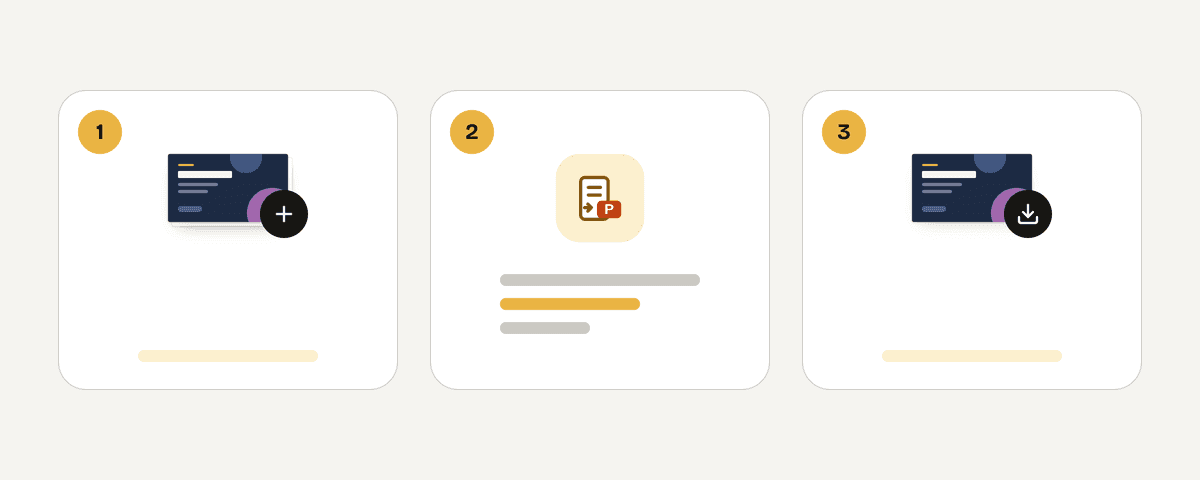
Add the PDFs you want to turn into slides
Choose “Select PDF files” and add one or more PDFs. A run accepts up to five files, 200 total PDF pages, and 95 MB across all files. Files that do not fit these limits are refused as too large and may need splitting.
Choose editable text or a complete page picture
Leave Editable text selected to create page pictures with editable text boxes over them, or choose Picture only for fixed page-image slides. Use the second option when editing is unnecessary or when you want every page preserved as a single picture.
Start the PPTX conversion
Select “Convert to PowerPoint” to process the files. Every PDF page becomes one PowerPoint slide of the same size as the original page. Large files can take a few minutes, especially when your run includes many pages.
Download each finished presentation
Download the PPTX file when one PDF is complete, then open and edit it in PowerPoint. If you converted several PDFs, the completed presentations are delivered together in a ZIP file, with one PPTX for each original PDF.
Your files are processed in EU server memory
PDF Toucan sends your PDF over HTTPS to servers in the European Union. The conversion is processed in memory: files are not written to disk or stored. Your file is deleted as soon as you download the result, or no later than 10 minutes after processing if you do not download it. You do not need to create an account to use the service. The resulting PowerPoint file has no watermark. This is a server-based converter, so allow a few minutes for larger files to finish processing.
Processed in memory on our servers in the European Union. Your file is never stored: it is deleted as soon as you download the result (at the latest after 10 minutes).
PDF to PowerPoint – frequently asked questions
How do I convert a PDF to PPTX?
Upload your PDF, choose Editable text or Picture only, and select “Convert to PowerPoint.” The converter creates one same-size slide for every PDF page. Download the resulting PPTX, or a ZIP file if you converted more than one PDF.
Can you convert a PDF to PowerPoint for free?
Yes. You can convert PDF files to PPTX for free without creating an account, and the downloaded presentation has no watermark. One run can include up to five files, 200 pages in total, and 95 MB across the uploaded PDFs.
Why can't I insert a PDF into PowerPoint?
PowerPoint may treat a PDF as an object or an image instead of editable slide content. Converting it first creates a presentation with one slide per PDF page. With Editable text selected, extractable horizontal text is placed in text boxes.
How can I get a PDF into PowerPoint?
Convert the document to a PPTX file, then open that presentation in PowerPoint. This is more practical than inserting the PDF when you need a slide for each page. The Picture only setting keeps each page as one fixed slide image.
What happens if my PDF is scanned?
Scanned pages remain pictures because they usually have no text layer to extract. The converter does not use OCR, so it cannot turn words visible in a scan into editable PowerPoint text boxes. Other pages with extractable text can still use Editable text.
Does the converted PowerPoint keep the text editable?
Yes, when you choose Editable text and the PDF contains extractable horizontal text. That text becomes PowerPoint text boxes, with size, bold, italic, and colour retained where possible. The remainder of the page is a picture, not native editable layout elements.
Is there a limit on PDF pages I can convert?
Yes. A conversion run allows up to 200 PDF pages across all uploaded files, with a maximum of five PDFs and 95 MB total. A file that would exceed the available limit is refused as too large; split it into smaller parts and try again.
Last updated September 24, 2026