HEIC to PDF conversion runs entirely in your browser. Turn iPhone and iPad photos, screenshots, and scans into PDF pages without sending the original images to a remote server. Arrange several pictures into the right reading order, choose a page layout for printing or sharing, and download one document or separate PDFs when the conversion is ready.
What you can do with HEIC to PDF
Decode HEIC and HEIF without an upload
PDF Toucan decodes HEIC and HEIF photos locally in your browser with a WebAssembly decoder. Your original iPhone or iPad image stays on your device while it is turned into a PDF page, which is useful when working with personal photos, scans, receipts, or IDs.
Keep each iPhone photo facing the right way
The image keeps its intended orientation when it becomes a PDF page. With Automatic orientation and a standard page size, portrait photos receive portrait pages and landscape photos receive landscape pages. Live Photos use their still frame rather than the motion portion.
Put photos in the page order you need
Drag the image cards before converting to place pages exactly where you want them. Each selected image becomes one page, arranged from left to right in the visible order. This makes an iPhone photo to PDF document easier to prepare for receipts, scans, and document sets.
Choose HEIC to PDF page sizing for the job
Select Letter for common US printing, A4 for many international documents, or Fit to image when you want the page to take the image’s dimensions. Fit to image leaves no empty edges. Orientation settings are not used when the page fits the image.
Set margins and choose one file or several
Choose no margin for an image that runs to the page edge, a small white frame to help prevent printer clipping, or a large margin for notes and binding. Combine all images into one ordered PDF, or turn combining off to create a separate PDF for every image.
How to HEIC to PDF online
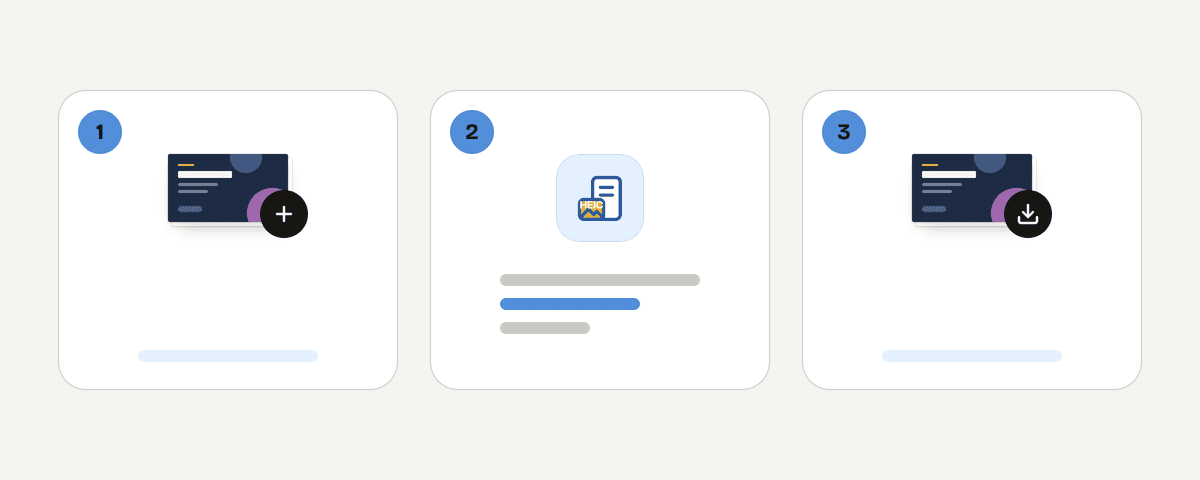
Add HEIC or HEIF photos from your device
Choose “Select HEIC files” and pick photos from your iPhone, iPad, computer, or other device. The images are decoded in the browser, including in Chrome and Firefox on Windows or Android, so you can begin without creating an account.
Drag image cards into reading order
Review the cards and drag them until the sequence matches the pages you want readers to see. If an image cannot be opened, its card is flagged and that image is skipped. The remaining photos can still be converted.
Choose a page layout for the finished PDF
Pick Letter, A4, or Fit to image. Then choose Automatic, Portrait, or Landscape orientation when using a standard page size. Set no, small, or large margins according to whether you need edge-to-edge pages, printer space, or room for notes.
Convert and download the pages
Choose whether all selected images should become one PDF or whether each image should become its own file. Start the conversion, then download the finished PDF after the selected photos have been laid out in the order and format you chose.
Your photos stay on your device during conversion
This HEIC image to PDF converter processes your photos on your device rather than uploading them. Its local conversion engine runs in a browser web worker, where it decodes the image and creates the PDF. That concrete difference can matter when you are converting personal photos, IDs, scans, or receipts. PDF Toucan’s browser tools are free, require no account, add no watermark, and have no daily limit. Ads fund the site. You can select multiple images, arrange them, and download the result without placing the original HEIC files on a remote server.
Runs in your browser: the file never leaves your device.
HEIC to PDF – frequently asked questions
How do I convert a HEIC to PDF?
Choose “Select HEIC files,” add one or more HEIC or HEIF images, arrange their cards, and select your page settings. Then convert the images and download the result. You can choose one combined document or a separate PDF for each selected photo.
What is the easiest way to turn a HEIC into a PDF?
The easiest approach is to select the photo, keep Automatic orientation, and choose Fit to image or Letter as needed. Fit to image matches the page to the image dimensions, while Letter is useful when you plan to print in the US.
Can I convert pictures to PDF on iPhone?
Yes. You can choose HEIC or HEIF photos from an iPhone or iPad and create PDF pages in the browser. Add several photos if needed, drag them into order, and choose whether they should be delivered as one PDF or separate files.
Does HEIC to PDF work on Windows for free?
Yes. This browser-based conversion works on Windows and is free to use. HEIC and HEIF images are decoded locally, including in Chrome and Firefox, with no account required, no watermark added, and no daily limit for browser tools.
Why is my HEIC image skipped during conversion?
It is skipped when the browser cannot open that particular image. The tool flags the affected card so you can identify it, while the other images continue through conversion. Remove the flagged image or try another compatible copy before converting again.
Will a Live Photo convert to a PDF?
Yes. A Live Photo uses its still image when it is converted, not its motion portion. The resulting page follows the same size, orientation, margin, and combined-output settings that you choose for the rest of your selected photos.
Could I make one PDF from several iPhone photos?
Yes. Add all of the iPhone photos you want, then drag their cards into the correct sequence. Keep the option to combine all images enabled, and the selected images will become pages in one PDF in the order shown.
After changing HEIC photos into a PDF, you can use merge if you need to join that document with another PDF. If the finished file is larger than you need for sharing, compress is an optional next step. Those tools are separate from this conversion and can be used when your PDF is ready.
Last updated September 24, 2026