To rotate PDF pages online means to turn one page, a selection, or a whole file 90 degrees at a time, and this tool does it right inside your browser. Add a scan that came out sideways, pick a direction, and watch the previews update to match the saved result. Nothing is uploaded, nothing is watermarked, and you never create an account. It is a free way to rotate PDF pages online and download the corrected file.
What you can do with Rotate PDF Pages
Turn a whole PDF 90° left or right
Every file you add gets its own card with a rotate button. One tap turns that entire document 90 degrees, and a second tap turns it again. The other files in your list stay exactly as they were, which helps when only one scan came out of the feeder sideways.
Rotate selected PDF pages together
Select the pages that need correcting, then use Selected left or Selected right to turn them as a group. This is the fastest fix when a handful of scanned or phone-camera pages sit sideways in the middle of an otherwise upright document.
Turn PDF pages one by one in a grid
Switch on page-by-page mode and the canvas becomes a page grid. Each page carries its own left and right controls, so you can rotate PDF pages individually online. The previews match the result exactly, so you can confirm every orientation before you download.
Rotate portrait or landscape pages only
Under Which pages, choose All, Portrait only, or Landscape only. Pick a direction and the turn applies just to that orientation, while pages in the other orientation stay as they are. If a file has none of the chosen orientation, the tool tells you instead of guessing.
Rotate multiple PDFs at once
Add several PDFs and use Rotate every page to turn all of them 90 degrees to the left or right in one move. When one document needs a different direction, use the rotate button on its own card. The result is saved as separate files, one per input.
Reset unwanted page rotations
Changed your mind mid-edit? Reset all clears every rotation you applied, and Reset restores just the pages you selected. Because each tap adds 90 degrees, a fourth tap also brings a page back to where it started. Nothing is final until you download.
How to rotate PDF pages online
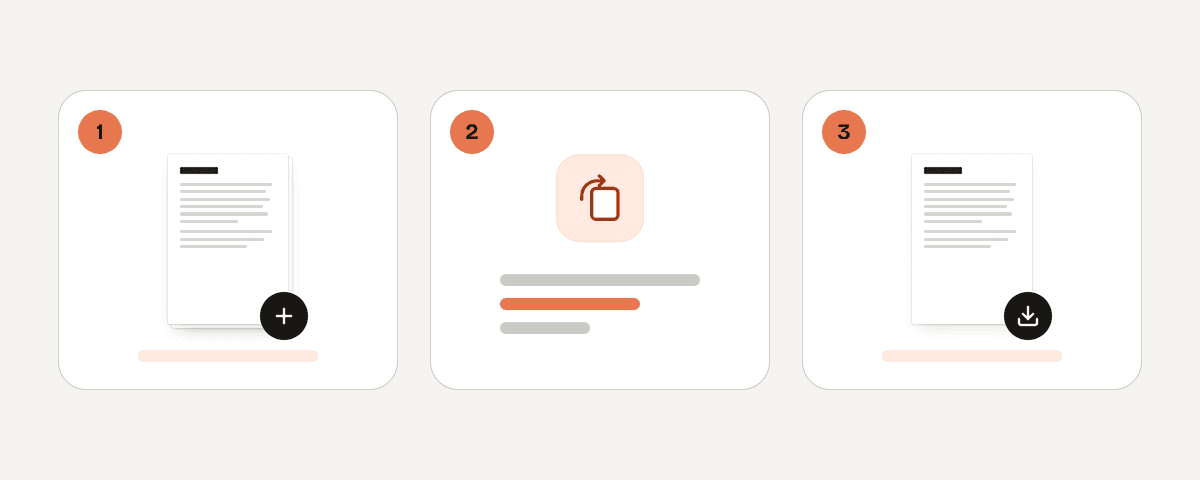
Add the PDF files you need to turn
Drop one or more PDFs onto the page or browse for them. Each file appears as a card with its page count, and the pages load into the canvas. Add a PDF first if the rotation options are still waiting — they activate as soon as a document is there.
Choose all pages, an orientation, or specific pages
Decide what the turn should cover. Leave the selection on All to rotate every page, pick Portrait only or Landscape only to target one orientation, or select individual pages to turn them together. In page-by-page mode you pick the pages yourself, page by page.
Pick left or right and check the page previews
Tap Left or Right, or use All left and All right for the whole document. Every tap turns the page another 90 degrees and the preview updates immediately. Look through the grid and fix any page that overshot; the fourth tap brings it back to the start.
Download the rotated PDF with its new orientation
When the previews look right, save your work. You get a confirmation that the pages were rotated, then download the rotated PDF. Multi-file jobs report how many files and pages were saved with the new orientation, so you know nothing was left behind.
Your PDF stays on your device
This tool runs entirely inside your browser. A local processing engine works in a web worker on your own machine, so the PDF you rotate is never uploaded to a server and never leaves your device. That makes it a sensible choice for contracts, medical scans, tax paperwork, or anything else you would rather not send across the internet. PDF Toucan asks for no account and no email address, adds no watermark to the output, and sets no daily limits on browser tools. Ads keep the site free. If you close the tab, the files you added are simply gone from the page — there is nothing on our side to delete.
Runs in your browser: the file never leaves your device.
Rotate PDF Pages – frequently asked questions
How do I rotate a PDF for free?
Add your file, pick a direction, and download the result. The tool is free to use with no account, no watermark on the output, and no daily limits on browser tools. Every tap turns the selected pages 90 degrees, and the previews show exactly what the saved file will look like.
Can I rotate PDF pages individually online?
Yes. Turn on page-by-page mode and the canvas becomes a page grid where each page has its own left and right control. Use it when a scan mixes upright and sideways pages, or select several pages and use Selected left or Selected right to turn just those together.
Will rotating a PDF save the new orientation?
Yes. The rotation is written into the file you download, so the pages open at their corrected angle in any PDF reader. After you save, the confirmation tells you how many pages were saved with the new orientation, and multi-file jobs report the totals per batch.
Is there a way to rotate only landscape pages?
Yes. Under Which pages, choose Landscape only and then pick a direction — landscape pages turn while portrait pages stay as they are. Portrait only works the same way in reverse. If your files contain no pages in the chosen orientation, the tool says so rather than rotating anything.
Do I need to sign up to rotate a PDF?
No. There is no sign-up, no login, and no email required. Open the page, add your PDF, turn the pages, and download. Because the work happens in your browser, there is no account to hold your files and nothing is stored between visits.
What happens after four 90-degree rotations?
The page returns to its original orientation. Each tap adds another 90 degrees, so four taps complete a full circle. If you want to undo more quickly, use Reset all to clear every rotation, or Reset to restore only the pages you currently have selected.
Can I turn several PDF files at the same time?
Yes. Add as many PDFs as you need and use Rotate everything 90° to the left or right to apply the same turn across every file in the list. When one document needs a different angle, use the rotate button on that file's own card instead.
Once your pages face the right way, the rest of the cleanup is close at hand. Use organize to reorder or remove pages, merge to combine the corrected scans into a single document, and compress to bring a bulky file down to an emailable size. Every one of these PDF Toucan tools is free, needs no account, and adds no watermark to what you download.
Last updated September 19, 2026