PDF to Word conversion runs on a server and turns a PDF into an editable DOCX document. This free PDF to Word converter lets you upload up to five PDFs, choose how scanned pages are treated, and download a separate Word file for each original. No account is needed, and your documents receive no watermark.
What you can do with PDF to Word Converter
A separate editable DOCX for every PDF
Each uploaded PDF becomes its own DOCX file. The converter places text, tables, and pictures in the document so you can open it in Word and make changes. Complex layouts can need a quick review after conversion, especially when the original uses unusual fonts or tightly arranged elements.
Automatic OCR for scanned pages
Automatic is the recommended Scanned pages setting. It looks for scanned pages that have no text layer and recognizes their text with OCR for the DOCX result. Pages that already have a text layer are not unnecessarily read as images, making this a practical choice for most mixed PDFs.
Choose the right scanned-page treatment
Open More options when Automatic is not right for your file. Always recognize text reads every page like an image and may help when text comes out garbled, though it takes longer. Don't recognize text keeps scanned pages as pictures in the resulting Word document.
Convert several PDFs in one run
Add several source documents rather than repeating the same job one file at a time. PDF Toucan converts every PDF separately instead of merging them into one Word document. When multiple results are ready, the DOCX files are delivered together in a ZIP download for easier saving.
Clear limits for larger conversion jobs
You can convert up to five files, with up to 300 PDF pages across the whole run and a combined file size of 95 MB. Large PDFs can take a few minutes to process. If a file is too large to fit, split it into smaller parts before trying again.
How to PDF to Word converter online
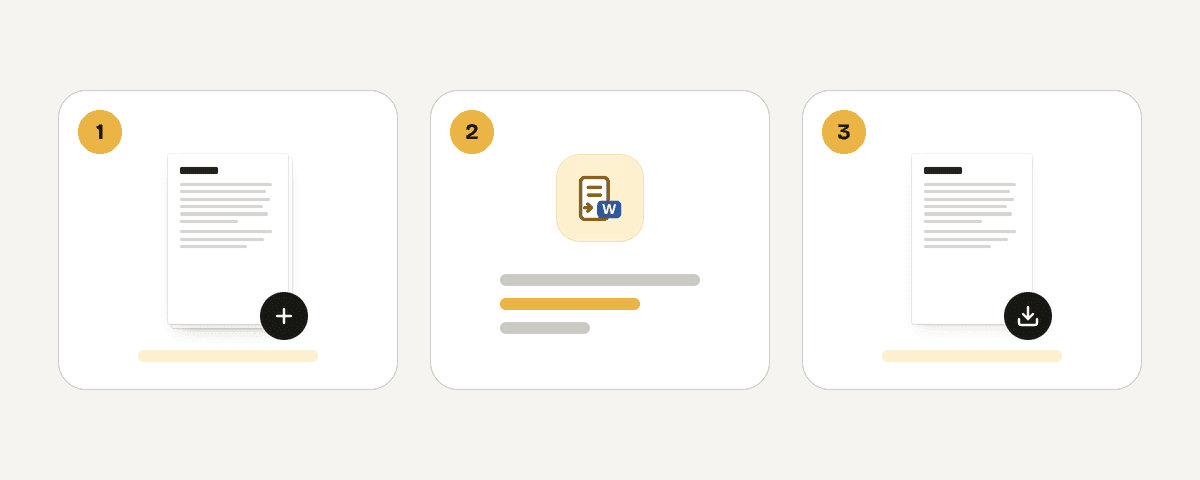
Add up to five PDF files
Select "Select PDF files" and choose the PDFs you want to turn into DOCX documents. You can add as many as five files in one run, provided their combined page count and size stay within the conversion limits.
Choose a scanned-page setting
Use More options and review Scanned pages before converting. Leave Automatic selected for the recommended OCR behavior, choose Always recognize text for every-page image reading, or choose Don't recognize text when scanned pages should remain pictures.
Start the DOCX conversion
Select "Convert to Word" to send the PDFs for processing. Each file is handled on its own, so one source PDF produces one DOCX document. Larger files may take a few minutes before the download is ready.
Download and edit the Word files
Download the completed DOCX file, or download the ZIP when you converted more than one PDF. Open each document in Word to edit its text, tables, and pictures, then review the layout before sharing or printing it.
Server processing with short file retention
PDF Toucan sends your files over HTTPS to servers in the European Union. The PDFs are processed in memory rather than written to disk or stored. Your files are deleted as soon as you download the result, or no later than 10 minutes after processing if you do not download it. No account is required to use the converter, so you do not need to provide login details to create a DOCX file. The service is free and does not add a watermark to your converted documents.
Processed in memory on our servers in the European Union. Your file is never stored: it is deleted as soon as you download the result (at the latest after 10 minutes).
PDF to Word Converter – frequently asked questions
How do I convert a PDF to DOCX for free?
Choose "Select PDF files," add your PDF, set a scanned-page option if needed, and select "Convert to Word." When processing finishes, download the DOCX and open it in Word. The service is free, requires no account, and adds no watermark.
Can I turn a PDF into Word without paying?
Yes. You can convert PDF to Word free with no sign-up and no watermark. The service is funded by ads. Normal use is available at no charge, with a fair-use quota per network in place to help prevent abuse.
Does this PDF to Word converter work with scanned documents?
Yes. The default Automatic setting uses OCR only on scanned pages that have no text layer. If text is garbled, Always recognize text reads every page like an image. You can also choose Don't recognize text to add scanned pages as pictures.
What happens to tables and pictures when I convert a PDF to Word?
The converter places text, tables, and pictures in the DOCX so you can edit the result in Word. Because PDF layouts can use fonts, spacing, and design elements that behave differently in Word, review the converted document and make any needed layout adjustments.
Is it possible to convert multiple PDF files to editable Word documents at once?
Yes. Add up to five PDF files in one run, and each one is converted into a separate DOCX document. When several files are complete, you receive the resulting Word documents together in a ZIP download.
Why is my PDF too large to convert?
A file can be refused when the run exceeds 95 MB in total or contains more than 300 PDF pages across all files. Split an oversized PDF into smaller parts, then convert those parts in separate runs.
Do I need to create an account to convert PDF to Word?
No. You can upload PDFs, choose conversion options, and download editable DOCX files without creating an account. PDF Toucan also keeps watermarks off the Word documents it creates.
Last updated September 20, 2026