Convert PDF to Word without Losing Formatting: Practical Guide
PDF Toucan editorial team · Last updated September 19, 2026 · 8 min read
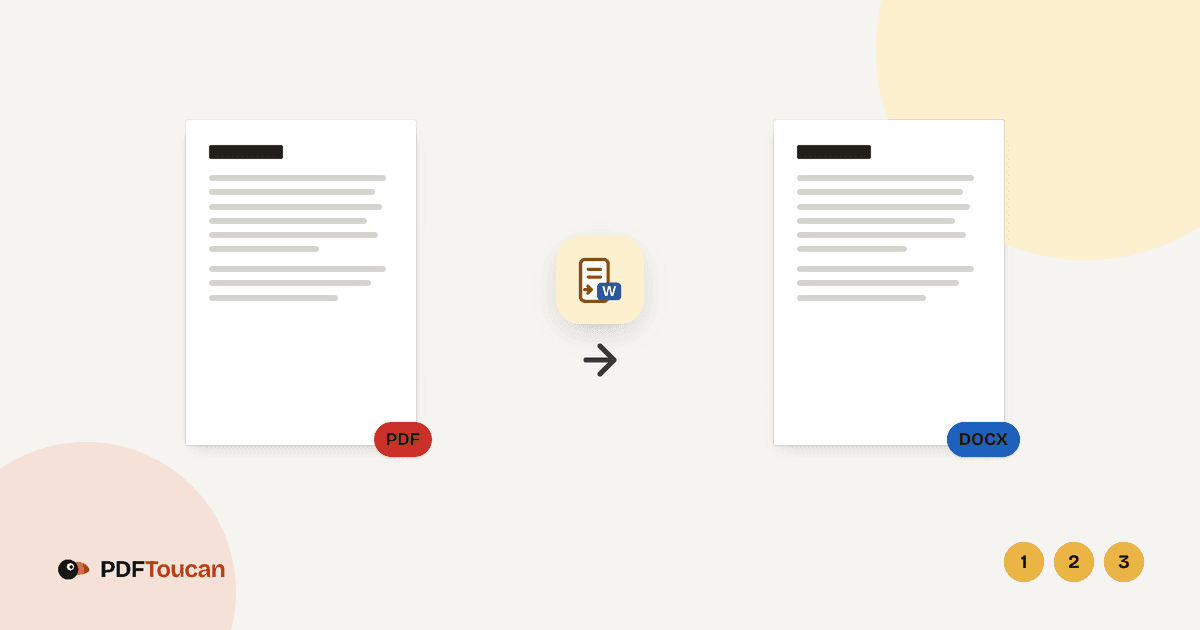
To convert PDF to word without losing formatting, start with a text-based PDF, run it through PDF Toucan's PDF to Word tool, then review fonts, tables, and page breaks in Word before you edit. Exact formatting cannot always be preserved, because a PDF page is a fixed layout while a DOCX rebuilds the same content as editable paragraphs, tables, and images. Scanned PDFs need OCR text recognition first if you want searchable, copyable text — otherwise scanned pages are simply added to the Word document as pictures.
Why does a PDF layout break when converted to Word?
A PDF stores every glyph, line, and image at a fixed coordinate on the page. Nothing reflows: the file describes where things sit, not how they relate to each other. A Word document works the other way round. It stores paragraphs, styles, tables, section breaks, margins, and anchored images, and then calculates positions when you open it. Conversion means reconstructing the structure that produced the fixed page.
That reconstruction is usually good, but it is rarely exact. Common sources of drift include:
- Font substitution. If the PDF embeds a font your system does not have, Word picks a replacement with different metrics, and every line wrap shifts slightly.
- Line and paragraph spacing. A PDF may space lines optically; Word converts that into explicit spacing values that round differently.
- Text boxes and columns. Multi-column layouts may become separate text frames, tables, or a long single column.
- Image anchoring. Pictures that sat at fixed coordinates become floating or inline objects, and captions may drift a line up or down.
- Margins and page size. Small differences push a final line onto a new page, which cascades through the rest of the document.
A clean, digitally produced PDF — a report, a contract, a letter, a thesis chapter — converts far more predictably than a design-heavy brochure with layered vector art. Whatever the source, plan a comparison pass: open the original PDF next to the DOCX and check page breaks, headings, footnotes, and any form fields.
How do you convert a digital PDF to Word with PDF Toucan?
If you can select and copy words in the PDF with your mouse, the file already contains real text and is ready for conversion.
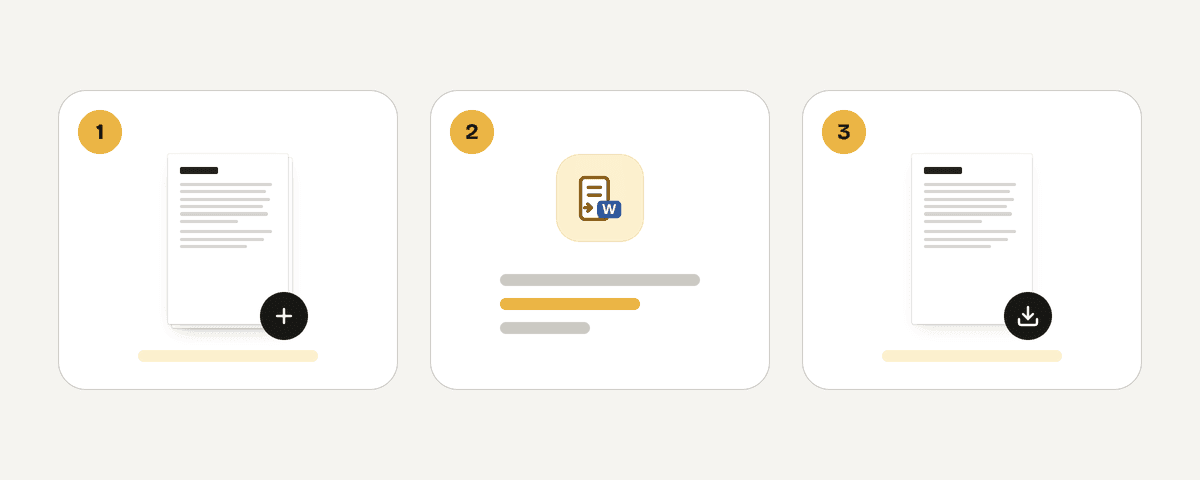
- Open the PDF to Word converter.
- Choose "Select PDF files". You can also drop a PDF anywhere on the page, or paste one from the clipboard.
- Add one file or several — the tool accepts multiple files and lists them under Files to convert to Word.
- Choose "Convert to Word" and wait for the documents to be ready.
- Choose "Download the Word document". With several files you get them together, ready to open and edit in Word.
- Open the DOCX in Microsoft Word (or a compatible editor) and do a full visual comparison against the PDF before editing.
The tool is free, needs no account, adds no watermark, and has no daily limit. Conversion runs on servers in the European Union: the file is sent over HTTPS, processed in memory rather than written to disk, and deleted as soon as the result is downloaded — at the latest after 10 minutes. If you want a fixed-layout file again at the end, PDF Toucan also has a word-to-PDF tool.
What should you do if the PDF is a scan?
First, run the selection test. Open the PDF, try to drag-select a sentence, and press Ctrl+C / Cmd+C. If nothing highlights, or you only get a blue rectangle over the whole page, the pages are images — photographs or scans of paper.
This matters because the PDF to Word tool states it plainly: scanned pages are not turned into text; they are added as pictures. You will get a Word document that looks like the scan, but you cannot click into a paragraph and retype a word.
The fix is optical character recognition before conversion:
- Open OCR PDF and choose "Select PDF files" (or drop/paste the file).
- Under Document language, pick the languages actually used in the document. You must pick at least one; extra languages slow recognition down, so do not select all of them "just in case".
- Open "More options" and choose which pages to scan. "Scan pages without text" is the recommended setting — pages that already contain text are left alone.
- Use "Recognize existing text again" only when a previous OCR pass was poor. It deletes the badly recognized old text and reads those pages again. "Treat every page as an image" is the last resort: it turns every page into an image and loses existing selectable text and links.
- Under Page fixes, enable "Straighten tilted pages" for crooked scans and "Fix page orientation automatically" for pages that came in upside down or sideways. (Straightening is not available when re-recognizing existing text.)
- Choose "Recognize text". Files with many pages can take a few minutes. Then choose "Download the searchable PDF".
Now you have a PDF whose text you can search and copy. Proofread the recognized text before you trust it, then feed that searchable PDF into the PDF to Word converter. Note one important caveat: after OCR, a digital signature on the PDF is no longer valid. Keep the original signed file if signature validity matters legally.
How can you reduce problems with tables, fonts, and page breaks?
Treat the DOCX as an editing copy and keep the original PDF untouched as your reference. Then work through the document in this order — structure first, cosmetics last.
- Page setup. Check page size, orientation, and margins against the PDF. Fixing these first prevents you from chasing reflow problems that disappear on their own.
- Fonts. Turn on the formatting pane and look for substituted or missing fonts. Replace them with an approved font available to everyone who will open the file, then re-check line wraps, heading positions, and total page count.
- Tables. Inspect column widths, row breaks across pages, merged-cell regions, and number alignment. If more than a handful of cells are wrong, rebuilding the table from scratch in Word is usually faster than repairing it.
- Headers, footers, and page numbers. These often convert into floating text boxes on page one instead of true header/footer content. Re-create them with Word's header and footer tools.
- Lists and columns. Bullets and numbering frequently arrive as literal characters plus tab stops. Reapply real Word list styles so numbering updates automatically.
- Images and captions. Check anything sitting beside or behind an image — captions, callouts, and wrapped text are the most common places for movement.
- Export. Save the finished document, and if you need a fixed layout again, export back to PDF.
When should you expect imperfect conversion results?
Some documents convert almost invisibly; others will always need manual work. Use this table to judge before you start.
| Source document | Likely conversion quality | What to plan for |
|---|---|---|
| Digital text PDF, single column | High | Quick check of fonts and page breaks |
| Report with simple tables | Good | Column widths and row breaks need tuning |
| Multi-column magazine layout | Mixed | Columns may become text boxes; reflow by hand |
| Form with fields | Mixed | Field behaviour is lost; rebuild interactive parts |
| Clean 300 dpi scan + OCR | Good text, approximate layout | Proofread names, dates, totals |
| Low-resolution or skewed scan | Low | Expect character errors; consider rescanning |
| Handwriting | Not usable as text | Keep as an image |
| Heavily designed brochure | Low | Recreating sections in Word is often faster |
OCR misreads characters most often in blurry scans, small print, and tightly packed tables — think 0/O, 1/l, and broken accented letters. Always verify names, dates, invoice totals, reference numbers, and formulas against the original before sending the document on. And for a short, highly designed piece, accept the honest answer: rebuilding two or three pages in Word yourself will beat fighting a converted layout for an hour.
FAQ
Can I convert PDF to Word free with no sign-up?
Yes. The PDF to Word tool needs no account, adds no watermark, and has no daily limit; ads fund the site. Your file is sent over HTTPS to servers in the European Union, processed in memory, and deleted once you download the result — at the latest after 10 minutes.
Why is my converted Word document not identical to the PDF?
A PDF fixes every element at a coordinate, while Word rebuilds content as editable paragraphs, tables, and anchored images. Font substitution, spacing rounding, margins, columns, and image anchoring all shift slightly during that rebuild. Small differences accumulate, which is why page breaks are usually the first thing to move.
Can OCR turn a scanned PDF into editable Word text?
OCR PDF produces a searchable PDF whose text you can search and copy, and that recognized text can then carry through a conversion to Word. Converting a scan directly, without OCR, does not work that way: scanned pages are added to the Word document as pictures instead.
What is the best OCR setting for a PDF that already has selectable text?
Use "Scan pages without text", the recommended option, so pages that already contain text are left untouched and only image pages are processed. Choose "Recognize existing text again" solely when the earlier recognition was clearly wrong — it deletes that old text and reads those pages from scratch.
Will OCR affect a digitally signed PDF?
Yes. The tool warns that the digital signature is no longer valid after text recognition, because the file content changes. If signature validity matters for legal or audit reasons, archive the original signed PDF and use the OCR output only as a working, searchable copy.
Related guides
- How to Make a Scanned PDF Searchable: OCR, Languages, and ChecksMake scanned PDFs searchable online with OCR. Choose document languages, straighten pages, verify text, then convert the OCR PDF to Word.8 min read
- Ilovepdf vs Smallpdf: Free Limits, Privacy, and PDF ToucanCompare iLovePDF and Smallpdf free limits, privacy, watermarks, and languages, then see where PDF Toucan offers a different approach.8 min read