Ilovepdf vs Smallpdf: Free Limits, Privacy, and PDF Toucan
PDF Toucan editorial team · Last updated September 20, 2026 · 8 min read
When comparing iLovePDF vs Smallpdf, the best free option depends on the exact task, today’s allowance, your document’s sensitivity, and whether you need browser-only processing. PDF Toucan takes a different approach: its merge tool works locally in your browser, while compression and Word conversion use short-lived processing on European Union servers.
What are the free limits for iLovePDF vs Smallpdf?
Free PDF allowances are not always a single, permanent number. They can vary by task, file size, page count, batch size, whether you are signed in, and changes to a provider’s free or paid plans. Before preparing a large batch, check the current pricing page and the page for the specific tool you intend to use.
This is especially important for conversion, OCR, compression, and batch jobs. A free plan may allow a small one-off job while placing different limits on repeated tasks, large files, or multiple documents in one run.
| Service | Free task allowance | File-size or page limits | Account requirement | Watermark policy | Processing location | Language availability |
|---|---|---|---|---|---|---|
| iLovePDF | Check the current plan and individual tool page. Allowances can be tool-specific. | Check the current tool page. | Check the current tool and plan page. | Check the current tool and plan page. | Check the current privacy documentation. | Check the current language selector and OCR documentation. |
| Smallpdf | Check the current plan and individual tool page. Allowances can be tool-specific. | Check the current tool page. | Check the current tool and plan page. | Check the current tool and plan page. | Check the current privacy documentation. | Check the current language selector and OCR documentation. |
| PDF Toucan | No daily limits on browser tools. | Merge limits depend on what the browser can handle. PDF-to-Word limits are listed below. | No account required. | No watermark. | Merge runs in the browser. Compress and PDF to Word use temporary EU server processing. | Check the site interface and OCR options for the task. |
The documented limits for the PDF-to-Word tool are separate from the browser merge workflow:
- Up to 5 PDF files per run.
- Up to 300 PDF pages across all files in the run.
- Up to 95 MB total for all files in the run.
- One DOCX file is created for each input PDF.
- If several files are converted, the resulting Word documents download in a ZIP file.
A file that would push the run beyond the size or page allowance is refused as too large. For a long document, split it into smaller parts before converting.
Do iLovePDF and Smallpdf upload files, and how does PDF Toucan handle privacy?
Many online PDF services upload documents to a server because conversion, OCR, and compression can require substantial processing. Whether a particular iLovePDF or Smallpdf tool uploads a file, how long it is retained, and what controls apply should be verified in that service’s current privacy and retention documentation. Do not assume that every tool uses the same technical workflow.
PDF Toucan has two distinct processing models, so choose the one that fits the document.
- Merge PDF runs locally. The merge tool uses a local processing engine in a browser web worker. Your files are never uploaded.
- Compress PDF and PDF to Word use servers. Files are sent over HTTPS to servers in the European Union. They are processed in memory, are never written to disk or stored, and are deleted as soon as the result is downloaded or after 10 minutes at the latest.
For documents that must remain on the device, browser-based merging is the better fit. For example, you can combine locally held PDFs, images, or both into one PDF without sending those files to a server.
Compression and Word conversion have a different trade-off. They provide functions that can require server processing, so assess the sensitivity of the material before continuing. If a document contains confidential personal, legal, financial, health, or business information, follow your organization’s policies and confirm that the selected workflow is appropriate.
Are there watermarks, sign-ups, or daily limits on the free tools?
Watermarks, sign-up rules, and usage caps are separate policies. A service can allow a free task but limit its frequency, require an account for some features, or apply different rules by tool. For iLovePDF and Smallpdf, check the current page for the exact task rather than treating a policy for one tool as a rule for the entire service.
PDF Toucan does not require an account and does not add a watermark. Its browser tools have no daily limits; advertising funds the site.
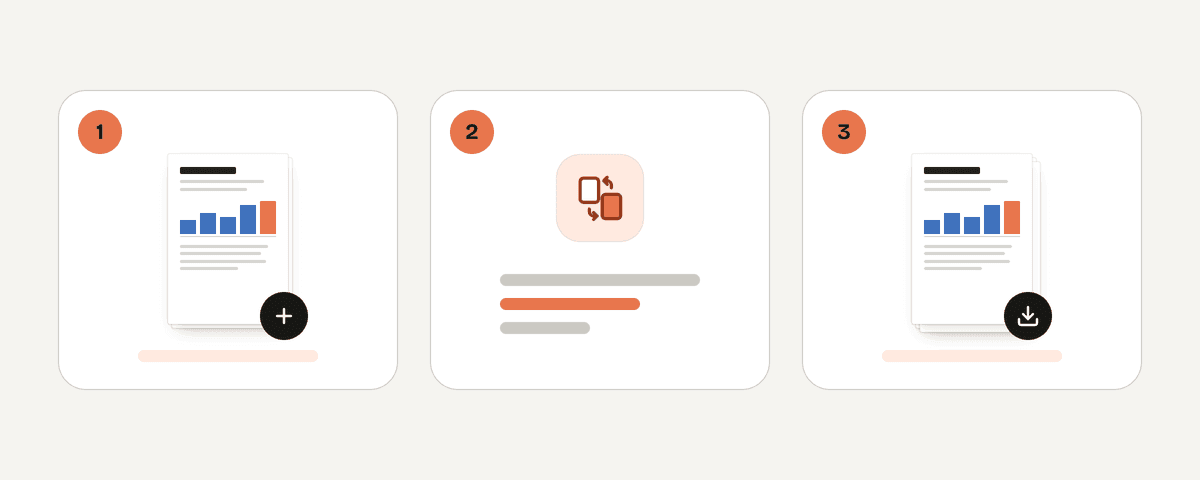
To combine documents without an upload step, open the Merge PDF tool and follow these steps:
- Select Select PDFs or images.
- Choose at least two PDF or image files. You can also drop files anywhere on the page or paste them.
- Drag the file cards until they are in the required order.
- Choose how pages are added. Use File by file, in order to place each entire file after the prior one. Use Page by page, alternating for separately scanned fronts and backs, producing an A1, B1, A2, B2 pattern.
- Optionally add a bookmark for every source file. The file names then appear as a table of contents in compatible PDF readers.
- If preparing documents for double-sided printing, choose the option that adds a blank page after files with an odd page count. This option is unavailable when pages are merged alternately.
- Select Merge the PDFs, then download the merged PDF.
The alternating option is useful only when the input order represents matching page sides. For ordinary documents, file-by-file merging is usually the clearer choice.
Which languages do iLovePDF, Smallpdf, and PDF Toucan support?
There are two different language questions: the language of the website interface and the languages that an OCR system can recognize in scanned pages. They are not the same thing.
iLovePDF and Smallpdf may offer localized interfaces, but interface options and OCR coverage can change. Check each provider’s current language selector for the interface, then check its OCR documentation if you need to extract text from a scan. A localized button label does not by itself confirm that OCR supports every language, script, font, or document layout.
For PDF-to-Word conversion, OCR choices appear under More options and then Scanned pages:
- Choose Automatic for the recommended default. It recognizes text only on scanned pages that have no text layer.
- Choose Always recognize text to read every page as an image. This can help when existing text comes out garbled, but it takes longer.
- Choose Don't recognize text to add scanned pages as pictures instead.
OCR results depend on scan resolution, contrast, rotation, page layout, fonts, and whether the original has clear printed text. Do not expect the same accuracy from handwriting, faded copies, unusual scripts, or poor-quality mobile scans as from a clean, high-resolution printed document.
Where does PDF Toucan differ from iLovePDF and Smallpdf?
The practical difference is not simply which site has more tools. Choose based on the particular job, the desired free allowance, how sensitive the files are, whether you need editable output, and your preferred interface language.
Combine files locally
Use the browser-based merge tool when you need to collect PDFs and images into one file without uploading them. It supports drag-and-drop reordering, file-by-file merging, page-by-page alternating for front-and-back scans, bookmarks for each file, and optional blank pages for double-sided printing.
Reduce PDF size
Use Compress PDF when a PDF needs to fit in an email or share. Each PDF is compressed separately, even when you submit multiple files. Choose from these settings:
- Strong compression: produces the smallest file, with noticeable image-quality loss.
- Balanced compression: the recommended option for a substantial reduction while keeping images sharp.
- Light compression: keeps quality almost the same but may reduce the file less.
- Make it black and white: turns images grey to reduce size further; text colors do not change.
The tool can report that a file is already compressed and cannot be made smaller. In that case, it remains available for download unchanged.
Create editable Word files
Use PDF to Word when you need a DOCX version for editing. Text, tables, and pictures are placed so they can be edited in Word. Each input PDF becomes its own DOCX; multiple outputs are supplied in a ZIP file. Large conversions can take a few minutes, and the page, file-count, and total-size limits still apply.
The key trade-off is straightforward: merging is browser-only, while compression and PDF-to-Word conversion use temporary server processing in the European Union. That distinction can matter more than a general feature checklist when you work with sensitive files.
FAQ
Is iLovePDF or Smallpdf better for occasional free PDF work?
Either may suit occasional work, but compare the current limits for the precise tool you need. Check task allowances, batch support, file caps, account rules, and any output restrictions. For a simple no-upload merge, a browser-based workflow may be the deciding factor.
Does PDF Toucan upload files when I merge PDFs?
No. Its Merge PDF tool runs entirely in your browser through a local processing engine in a web worker. Files are never uploaded. You can add PDFs or images, arrange them, select merge options, and download one combined PDF from the local workflow.
Does PDF Toucan add a watermark or require an account?
No account is required, and the tools described here add no watermark. Browser tools also have no daily limits. Advertising funds the site instead. Check the relevant tool’s requirements when planning a larger conversion or a workflow that uses server processing.
What are the PDF Toucan PDF-to-Word size and page limits?
PDF to Word accepts up to five PDFs in one run, with up to 300 total pages and a combined input size of up to 95 MB. Each input becomes one DOCX. If several PDFs are converted, the Word files download together in a ZIP archive.
Can PDF Toucan convert scanned PDFs to editable Word documents?
Yes, the conversion tool offers OCR options for scanned pages. Automatic OCR is the default and recognizes pages without a text layer. You can also choose to recognize every page or to avoid OCR and add scanned pages as pictures. Results depend on scan quality and layout.
Related guides
- How to Merge PDF on Mac: Preview, Finder, and Online OptionsMerge PDFs on a Mac with Preview’s sidebar, Finder Quick Actions, or a browser tool. Learn ordering fixes, image support, and privacy limits.7 min read
- How to Merge PDF on iPhone: Files, Shortcuts, and a Browser ToolCombine PDFs on an iPhone or iPad with the Files app, a reusable Shortcut, or a private browser tool, then reorder and save the result.8 min read
- How to Merge PDF Files: Options for Every DeviceLearn how to merge PDF files on any device, reorder pages, add images, and create one readable PDF with useful file bookmarks.8 min read
- How to Combine PDF Files on Windows 11: Free Merging MethodsWindows 11 cannot natively merge PDFs. Learn the Print to PDF limitation, a private browser-based method, file ordering, and large-scan tips.7 min read