How to Merge PDF Files: Options for Every Device
PDF Toucan editorial team · Last updated September 19, 2026 · 8 min read
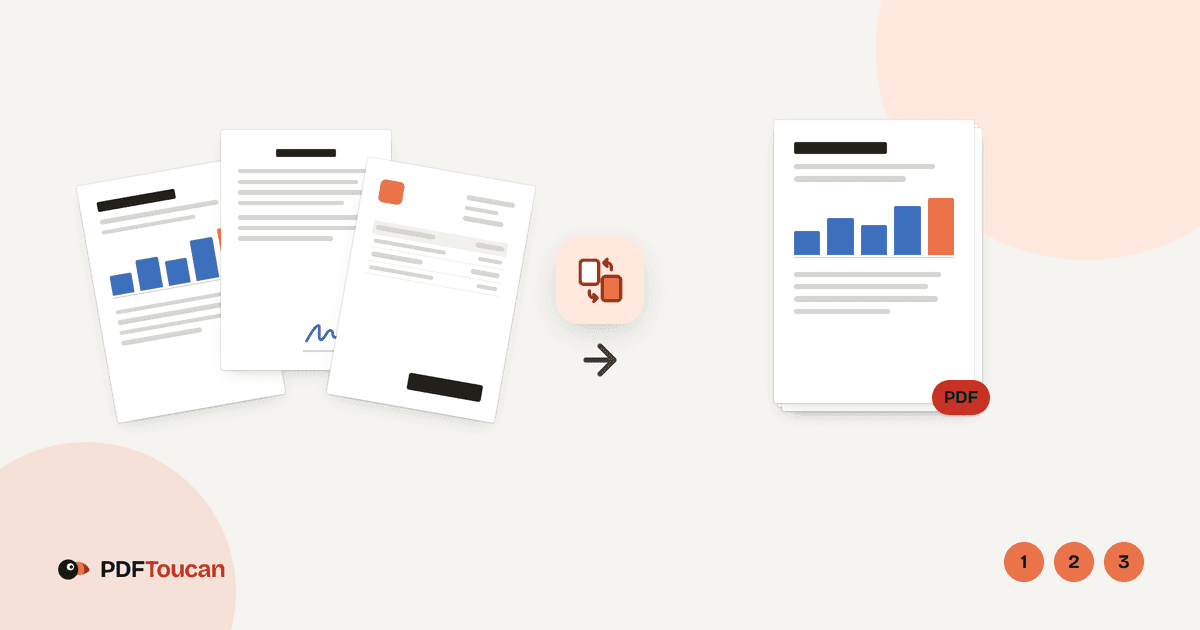
If you want to know how to merge PDF files, the short answer is to open PDF Toucan's Merge PDF tool in any modern browser, add your PDFs or images, drag the file cards into the order you want, and select "Merge the PDFs." If the pages inside those documents also need moving, rotating, or removing, use Organize PDF before you download the final file. Below you'll find that browser method plus the built-in options on macOS and iOS, and honest notes on where each one falls short.
How do I merge PDF files online for free without signing up?
A browser-based merge works the same on Windows, macOS, ChromeOS, Linux, Android, and iPadOS, which makes it the most portable answer when you move between devices or use a shared computer.
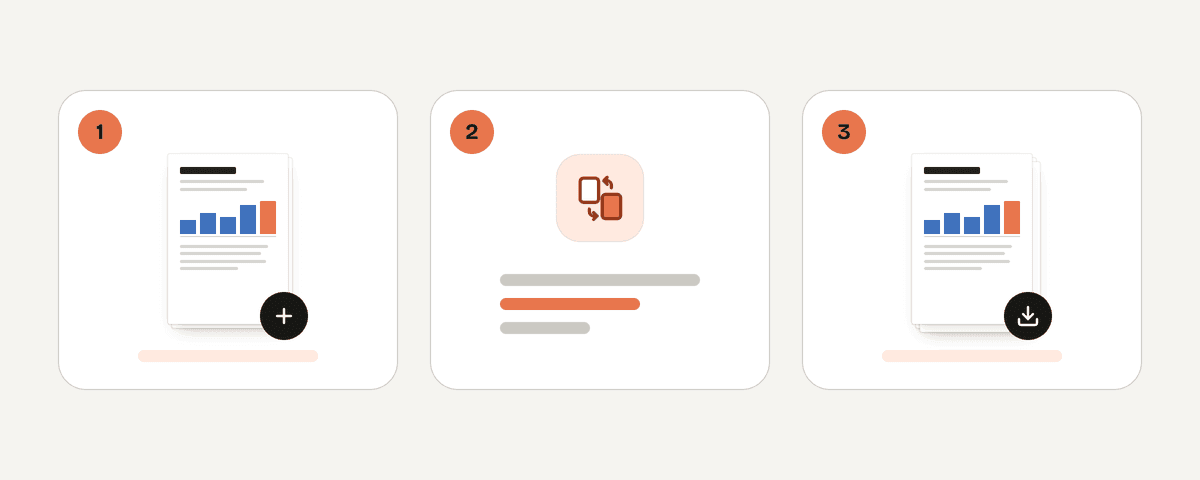
- Open Merge PDF in Chrome, Edge, Safari, or Firefox.
- Choose Select PDFs or images. You can also drag files anywhere on the page, or paste them.
- Add at least two files — the tool tells you "Add at least 2 files to merge" until you do.
- Drag the file cards to set the order. Files are merged left to right, in the order you see them.
- Pick your merge options (covered further down), then choose Merge the PDFs.
- When the confirmation appears, choose Download the merged PDF.
Two practical details matter here. First, the tool is free, needs no account, adds no watermark, and has no daily limits on browser tools — ads pay for the site. Second, the merge runs inside your browser using a local processing engine in a web worker, so the files are never uploaded to a server. That also means very large documents depend on your own device's memory: a phone with many apps open may struggle where a laptop won't.
How do I reorder PDF files or individual pages before merging?
There are two different jobs hiding behind the word "reorder," and picking the right tool saves a lot of clicking.
File-level ordering. If each document is already correct internally and you just need them stacked in sequence, stay in Merge PDF. Drag the cards left or right; each source file is added whole, after the previous one.
Page-level editing. If pages are scrambled, sideways, or you need to drop a few, use Organize PDF instead:
- Choose Select PDF files and add one or several PDFs — they end up in one document.
- Drag page thumbnails to move them. Hold Ctrl/Cmd or Shift to select more than one page at a time.
- Use the page tools to Rotate left, Rotate right, Delete, or Keep only the selected pages (labelled Remove the rest).
- Use the marker that appears between two pages to insert a Blank page or Pages from another PDF — the PDF you pick is added there, whole.
- If you lose track, use Undo, Redo, or By number to put pages back in file and number order.
- Choose Create the organized PDF and download the result.
Organize PDF also has Move to start, Move back one, Move forward one, and Move to end on each page, which is faster than dragging in a long document.
| Task | Use Merge PDF | Use Organize PDF |
|---|---|---|
| Stack whole documents in order | Yes | Possible, but slower |
| Include JPG or PNG images | Yes | No — PDF input only |
| Move or delete single pages | No | Yes |
| Rotate pages | No | Yes |
| Alternate fronts and backs | Yes | No |
| One bookmark per source file | Yes | No |
| Insert a blank separator page | Yes (odd-page option) | Yes (anywhere) |
Can I merge PDF and JPG files and keep bookmarks?
Yes to the images: Merge PDF accepts both PDF and image input, so scans, photos, and receipts can sit alongside real PDFs in one output file. Add them in the reading order you want, then drag the cards to fine-tune.
The output options are worth a moment:
- A bookmark for every file — source file names show up as the table of contents in PDF readers. Name your files sensibly before merging, because those names become your navigation.
- Prepare for double-sided printing — a blank page is added after any file with an odd page count, so the next document starts on a fresh sheet. This option is not available when merging alternately.
- How are pages added? — File by file, in order gives A, A, B, B. Page by page, alternating gives A1, B1, A2, B2, which is exactly what you need when a sheet-fed scanner produced one file of fronts and one file of backs.
One honest caveat: don't assume any merge tool carries every internal bookmark, link, or form field from the source PDFs into the combined document. The bookmark option described here creates one bookmark per input file — a reliable table of contents, not a full copy of each document's original outline. Check the result if the source files had detailed outlines you depend on.
How do I merge PDFs on Windows or in Chrome?
Windows doesn't ship a dependable built-in command for combining several PDFs into one document, and Chrome has no merge feature either. Right-clicking a group of PDFs offers printing, not merging — and "Print to PDF" only handles one document at a time.
The practical route:
- Open Merge PDF in Chrome or Edge.
- Choose Select PDFs or images and pick your files, or drag them from File Explorer anywhere onto the page.
- Drag the cards into order and tick A bookmark for every file if the result will be long.
- Choose Merge the PDFs, then download.
The same steps work whether the files sit in Downloads, on OneDrive, or in a shared network folder — as long as the file opens in File Explorer, you can add it. If you need to rearrange individual pages rather than whole documents, open Organize PDF afterwards, or instead.
How do I combine PDFs on a Mac with Preview?
macOS does have a built-in option, and for simple PDF-only jobs it's fine.
- Open the first PDF in Preview.
- Choose View > Thumbnails to show the sidebar.
- Drag another PDF from Finder into the thumbnail sidebar, dropping it where it should appear.
- To insert at an exact spot, select a thumbnail and choose Edit > Insert > Page from File. Repeat for each additional document.
- Drag thumbnails up or down to reorder pages.
- Choose File > Save. To protect the original, duplicate the file first, or use File > Export to write a separate PDF.
Apple documents this workflow in its Preview support pages. Preview is best for straightforward PDF-only assembly. Reach for the browser tool when you also want to drop image files in directly, merge alternating fronts and backs, or generate one bookmark per source file.
How do I merge PDFs on an iPhone or iPad with the Files app?
iOS and iPadOS include a quick combine feature in Files:
- Open the folder containing your documents.
- Tap the More button, then Select.
- Tap each PDF you want to include.
- Tap More, then Create PDF.
Check the result right away, especially if order matters — the combination follows the folder's current sort, not the order in which you tapped. Renaming files with numeric prefixes (01, 02, 03) before you start is the simplest fix. Files also gives you no page-level rearranging and no per-file bookmarks.
For precise control, open Merge PDF in Safari instead, add files from Files or iCloud Drive, drag the cards, merge, and save the download back into Files. Everything still happens on the device.
How do I merge PDFs on Android?
Android file managers vary by manufacturer, and most don't include a PDF merge command at all. Rather than hunting for an app that does, use the browser:
- Open Merge PDF in Chrome or another Android browser.
- Tap Select PDFs or images and pick files from device storage or cloud storage.
- Drag the cards to set the order — tap and hold a card, then move it.
- Tap Merge the PDFs and download the finished file.
If pages need moving, rotating, removing, or a blank separator inserted, run the document through Organize PDF before you save the final version. On a phone, work with moderate file sizes where you can; merging dozens of high-resolution scans is smoother on a computer.
A quick decision guide
| Situation | Best option |
|---|---|
| Any device, consistent steps | Merge PDF in the browser |
| Mac, two or three PDFs, no images | Preview |
| iPhone, quick combine, order already correct | Files > Create PDF |
| Scans split into fronts and backs | Merge PDF, alternating order |
| Long report needing navigation | Merge PDF with per-file bookmarks |
| Pages out of order or upside down | Organize PDF |
After merging, the same site has tools named compress, split, page-numbers, and protect if the combined file is too large, needs numbering, or should be password-protected before you send it.
Frequently asked questions
Is it free to merge PDF files online without signing up?
Yes. PDF Toucan's browser tools are free with no account, no watermark, and no daily limits; ads fund the site. The merge runs locally in your browser through a web worker, so your files are not uploaded. You simply add files, order them, merge, and download.
Can I merge PDFs and images into one PDF?
Yes. Merge PDF accepts both PDF and image files, so you can combine scans, photos, and existing PDFs into a single document. Add every file, drag the cards into your preferred reading order, then choose "Merge the PDFs." The output is always a single PDF.
What is the difference between merging PDF files and organizing PDF pages?
Merging stacks whole files one after another in the order of the cards you arrange. Organizing works at page level: you drag individual thumbnails, rotate them, delete them, keep only a selection, or insert blank pages and whole PDFs at a chosen position before creating the final document.
How can I make a bookmark or table of contents for each merged file?
In Merge PDF, enable the output option "A bookmark for every file." Each source file name then appears as a bookmark in compatible PDF readers, acting as a table of contents. Rename your files clearly before merging, since those names become the entries readers will see.
Related guides
- How to Merge PDF on Mac: Preview, Finder, and Online OptionsMerge PDFs on a Mac with Preview’s sidebar, Finder Quick Actions, or a browser tool. Learn ordering fixes, image support, and privacy limits.7 min read
- How to Merge PDF on iPhone: Files, Shortcuts, and a Browser ToolCombine PDFs on an iPhone or iPad with the Files app, a reusable Shortcut, or a private browser tool, then reorder and save the result.8 min read
- How to Combine PDF Files on Windows 11: Free Merging MethodsWindows 11 cannot natively merge PDFs. Learn the Print to PDF limitation, a private browser-based method, file ordering, and large-scan tips.7 min read
- How to Add Page Numbers to a PDF: Positions, Starts, and FormatsLearn where to place PDF page numbers, start at 1 after a cover, choose Word for Roman numerals or Page 1 of 10, and number exported PDFs online.8 min read