How to Combine PDF Files on Windows 11: Free Merging Methods
PDF Toucan editorial team · Last updated September 19, 2026 · 7 min read
If you are looking for how to combine PDF files on Windows 11, the short answer is that Windows 11 has no built-in PDF merger. Microsoft Print to PDF creates a PDF from a single print job — it does not append one existing PDF to another, and File Explorer has no "combine" command for PDFs. To join existing documents, use a dedicated merger such as the browser-based Merge PDF tool: add your files, drag the cards into the order you want, merge, and download one combined PDF.
Can Windows 11 combine PDF files without extra software?
Windows 11 ships with a PDF viewer (Microsoft Edge) and a virtual printer (Microsoft Print to PDF), and that combination fools a lot of people into thinking merging is built in. It isn't.
- Microsoft Print to PDF turns whatever a single application sends to the printer into a new PDF file. It always produces a new file. There is no "append to existing PDF" option, so you cannot print document B into the end of document A.
- Microsoft Edge opens PDFs, lets you annotate and print them, and can save a copy — but there is no native command anywhere in Edge that merges multiple PDF files into one document.
- File Explorer can select multiple PDFs and print them, but each file goes through as its own print job, producing separate outputs.
So for existing PDFs, your realistic choices are a dedicated PDF merger, a desktop PDF editor, or a browser-based merging tool. The rest of this guide covers the fastest free route and the ordering decisions that actually determine whether the result is usable.
How do I combine PDF files on Windows 11 with a free browser tool?
A browser tool avoids installers, admin rights, and trial limits. Here is the exact process using PDF Toucan's merger in Edge, Chrome, or Firefox on Windows 11:
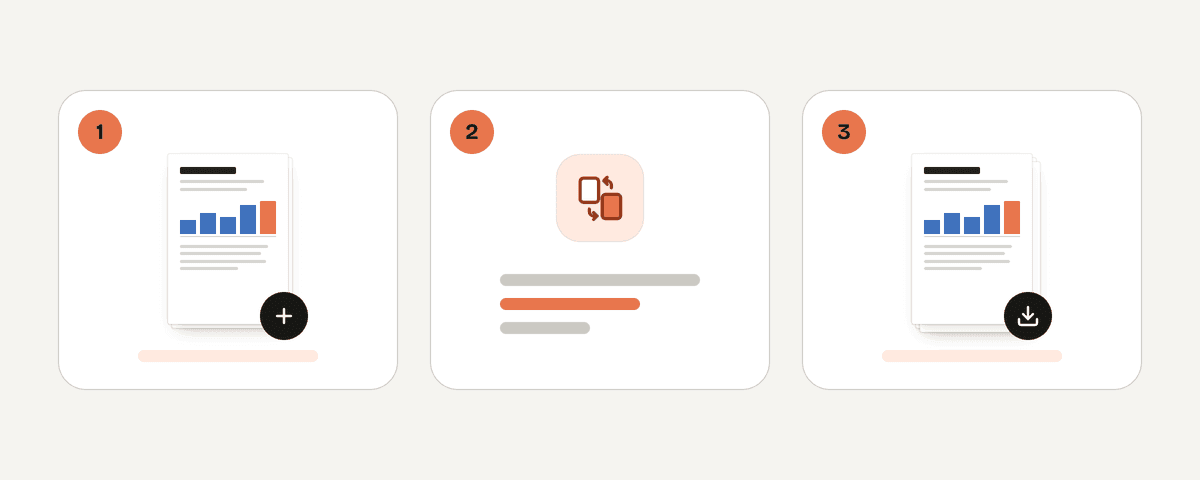
- Open the Merge PDF tool.
- Choose Select PDFs or images and pick your files. You can also drag files from File Explorer and drop them anywhere on the page, or paste files copied to the clipboard.
- Add at least two files. The tool needs a minimum of two items — with only one, it will tell you to Add at least 2 files to merge.
- Review the file cards on screen. Drag them left or right until they are in the order you want the finished document to read.
- Set the merge options: choose how pages are added, and optionally add bookmarks or blank pages (details in the next section).
- Choose Merge the PDFs. A confirmation appears — PDFs merged! — with the number of files combined and the page count of the result.
- Choose Download the merged PDF and save it to your Downloads folder or wherever you need it.
The tool is free, requires no account, adds no watermark, and has no daily limits — ads fund the site. Processing runs locally in your browser through a web worker, so the files stay on your PC and are never uploaded to a server. That also means speed depends on your own machine rather than an internet connection, which is handy when you are merging a stack of large scans.
How should I order files and pages before merging?
Ordering is where most merges go wrong. Fix it before you press the merge button, not afterwards.
Sequence the files first. Decide the final reading order on paper: cover letter, then résumé, then references, then certificates. Drag the cards into that sequence. Files are merged left to right, exactly in the order you see them on screen.
Then pick how pages are added:
| Option | What it does | Use it when |
|---|---|---|
| File by file, in order | Each file is added whole, after the previous one (A, A, B, B) | Every document should stay intact — contracts, appendices, chapters |
| Page by page, alternating | Interleaves pages: A1, B1, A2, B2… (A, B, A, B) | You scanned all the fronts into one file and all the backs into another |
Two extra output settings worth knowing:
- A bookmark for every file — file names appear as the table of contents in PDF readers that support outlines. For a 60-page merged submission, this turns a wall of pages into a navigable document. Name your source files sensibly first, because those names become the bookmark labels.
- Prepare for double-sided printing — adds a blank page after any file with an odd page count, so the next document always starts on a fresh sheet when printed duplex. This option is not available when merging alternately.
When is Microsoft Print to PDF a useful workaround?
Print to PDF still has a place in a Windows 11 workflow — just not as a merger.
It is genuinely useful when you need to:
- Save a web page, an email, or a printable document as a PDF for the first time.
- Convert something that only exists inside one application — a Word report, a spreadsheet range, a Paint image — into PDF form.
- Build a single PDF out of content you have already assembled inside one program. If you can paste everything into one Word document, printing that document once gives you one PDF.
What it cannot do is combine separate print jobs. Each job writes its own output file; nothing gets appended to an existing PDF. If you find yourself printing four PDFs "into" one and ending up with four files, that is expected behaviour, not a configuration mistake. Merge the existing PDFs instead — it is faster and keeps the original text, links, and quality rather than re-rendering everything.
Microsoft documents the built-in printer and its behaviour on support.microsoft.com if you want to confirm the feature set for your build.
How can I combine large scanned PDFs without creating a confusing file?
Scans are the hardest merges because the pages all look alike and errors hide until someone else reads the document.
- Name batches before you start. Use prefixes that sort naturally:
01-fronts,02-backs, ortax-return-part-1,tax-return-part-2. Correct names make the card order easy to verify at a glance and produce readable bookmarks. - Match the merge mode to how you scanned. Fronts and backs in separate files → page by page, alternating. Complete documents in each file → file by file, in order.
- Watch the back-page direction. Some sheet feeders produce the reverse sides in the opposite order. If your "backs" file runs last page first, reverse it before merging (an organize tool can do this) — alternating merge assumes both files run in the same direction.
- Turn on double-sided preparation if the result will be printed. The blank page after odd-length files keeps each document on its own sheet. Remember it is unavailable for alternating merges.
- Verify the output. Check the reported page count against the sum of your source files, then scroll through the downloaded PDF — beginning, a few random middle spots, and the end — before sending it anywhere.
If the finished file is too heavy for an email attachment or an upload portal, run it through a compress tool afterwards. Use organize to rearrange, rotate, or delete stray pages, and split if the recipient insists on smaller parts. Adding page numbers before distribution makes reviews far easier, and protect can set a password if the content is sensitive.
What free options are available for merging PDFs on Windows 11?
| Approach | Cost and setup | Best for | Watch out for |
|---|---|---|---|
| Browser-based merger | Free, nothing to install | Quick merges of PDFs and images, work PCs without admin rights | Needs a modern browser; very large batches depend on your PC's memory |
| Desktop PDF editor | Free tier or paid licence, installer required | Offline work, heavy editing alongside merging | Trial watermarks, page or file limits, export restrictions |
| Office-app workaround | Free if you already have the apps | Content you can paste into one document before printing | Re-renders pages; loses links and text quality from scanned originals |
PDF Toucan's merger accepts multiple PDFs and images in the same job, so a photographed receipt can sit between two exported invoices without converting anything first. It produces a single PDF locally in the browser, with no sign-up and no watermark.
Whichever route you choose, apply one rule to sensitive material: before you upload a contract, medical record, or ID scan to any service, read how that service handles files. A tool that processes documents locally in your browser removes the upload step entirely, which is usually the simplest way to keep private files private.
Frequently asked questions
Does Windows 11 have a built-in PDF merger?
No. Windows 11 includes Microsoft Print to PDF and a PDF viewer in Edge, but neither can append one existing PDF to another. Print to PDF always creates a new file from a single print job. To join existing PDFs you need a dedicated merger or a PDF editor.
Can I merge PDF files in Microsoft Edge?
Edge opens, annotates, and prints PDFs, but it has no native merge command. You can, however, use Edge to open a browser-based merging tool and combine files there. The result downloads to your PC like any other file, with no extension or installer needed.
How do I merge PDF and JPG files into one PDF?
Add both types in the same job. The merge tool accepts PDFs and images, so choose Select PDFs or images, drop in your JPGs alongside the PDFs, drag the cards into order, then choose Merge the PDFs. Each image becomes a page in the combined document.
Can I merge front-and-back scanned pages in the right order?
Yes. If your scanner saved all fronts in one file and all backs in another, select the Page by page, alternating option. Pages interleave as A1, B1, A2, B2, and so on. Check that both files run in the same page direction before merging, otherwise reverse the backs first.
Is it free to merge PDFs online without signing up?
Yes. PDF Toucan's merger is free, needs no account, adds no watermark, and imposes no daily limits; ads pay for the site. Merging runs inside your browser in a web worker, so your documents are never uploaded — they are processed on your own computer.
Related guides
- How to Merge PDF on Mac: Preview, Finder, and Online OptionsMerge PDFs on a Mac with Preview’s sidebar, Finder Quick Actions, or a browser tool. Learn ordering fixes, image support, and privacy limits.7 min read
- How to Merge PDF on iPhone: Files, Shortcuts, and a Browser ToolCombine PDFs on an iPhone or iPad with the Files app, a reusable Shortcut, or a private browser tool, then reorder and save the result.8 min read
- How to Merge PDF Files: Options for Every DeviceLearn how to merge PDF files on any device, reorder pages, add images, and create one readable PDF with useful file bookmarks.8 min read
- How to Add Page Numbers to a PDF: Positions, Starts, and FormatsLearn where to place PDF page numbers, start at 1 after a cover, choose Word for Roman numerals or Page 1 of 10, and number exported PDFs online.8 min read