Adding a watermark to a PDF is a browser-based task that places a text or logo stamp on your document without uploading the file. Use PDF Toucan to mark documents with a name, status, logo, or notice such as CONFIDENTIAL. Choose the pages, adjust the look, preview the result, and download your watermarked PDFs with no account and no added watermark.
What you can do with Add Watermark to PDF
Stamp text or a logo watermark
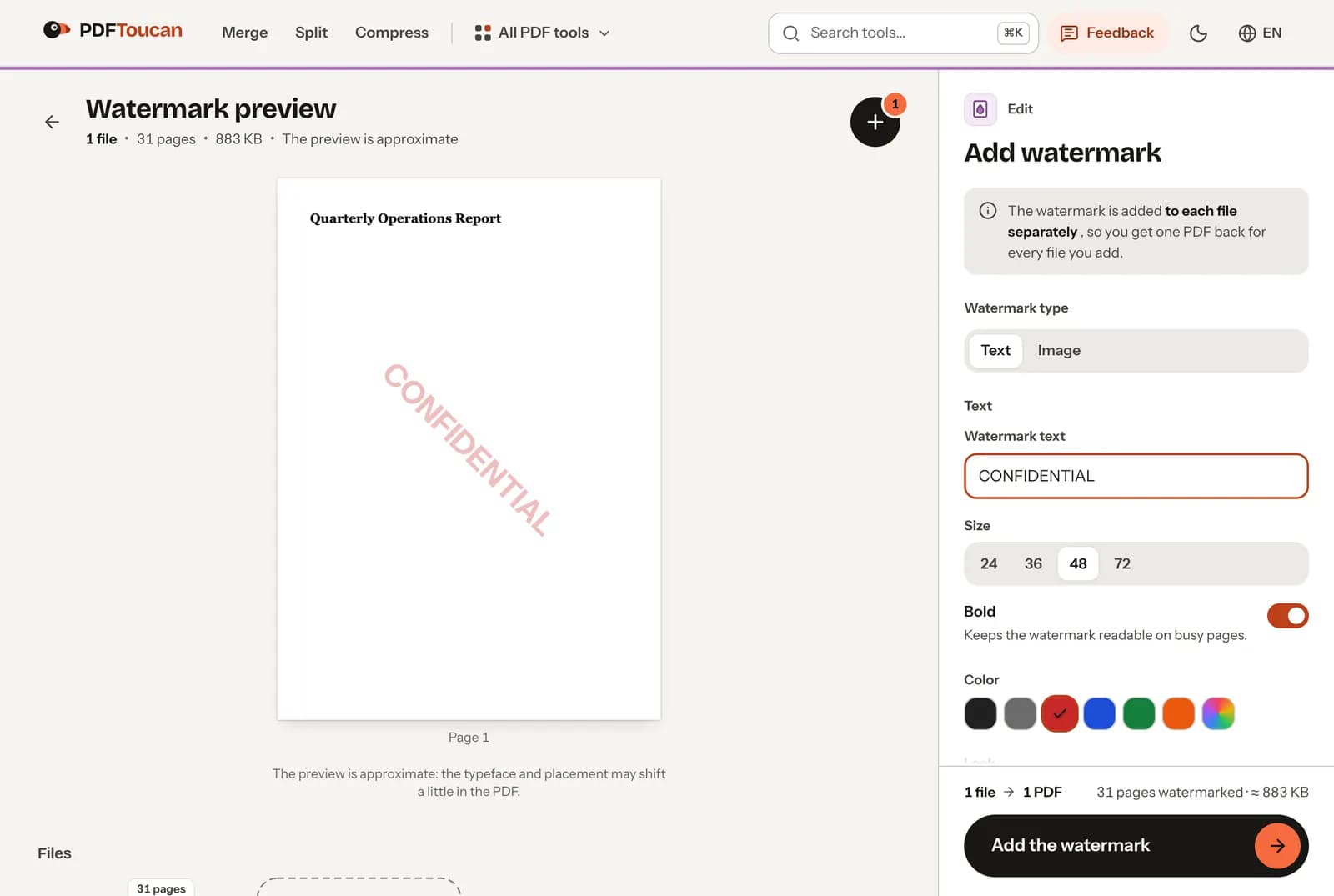
Choose Text for a label, notice, or name, then write your watermark text. Choose Image to add a PNG or JPG logo instead. A PNG with a transparent background usually gives the cleanest result. This is a practical way to add a logo to a PDF for free while keeping your original page design visible.
Preview watermark placement before adding it
The preview lets you check the selected watermark before you process the PDF. It is approximate, so the typeface and placement can shift a little in the finished PDF. Use it to refine the general size, angle, location, and visibility before you add the watermark to every chosen page.
Set opacity, rotation, size, and color
Fine-tune text size, bold styling, and text color, or set the size of an image watermark. Adjust opacity to control how strongly the mark appears over the page; a lower value covers less of the content underneath. Rotate the watermark to suit a diagonal, horizontal, or vertical layout.
Place one mark or tile the full page
Put one watermark in a chosen location on every selected page, such as a corner or the center. Turn on tiling when you want the watermark to repeat across the whole page. Position does not apply while tiling is enabled, because the repeated pattern fills the page instead.
Choose whether the watermark is on top or underneath
Select On top to print the watermark over the existing page content. This is the recommended option when the mark needs to remain noticeable. Select Underneath to keep it behind text. On scanned pages, an underneath watermark may be invisible because the scan can cover the layer beneath it.
Watermark selected pages in multiple PDFs
Add several PDF files and choose All pages or enter the pages you want to watermark. The page range is applied separately to each file. When you add a watermark to a PDF for free in a batch, each PDF is handled on its own and returned as its own watermarked download.
How to add watermark to PDF online

Add your PDF files
Select one or more PDF files from your device. Each file will receive the same watermark settings, but PDF Toucan processes them separately. If a protected PDF needs a password to prepare its preview, enter the file password when prompted.
Choose text or upload a logo
Select Text and write a label such as CONFIDENTIAL, or select Image and choose a PNG or JPG file. For a cleaner logo watermark, use a PNG with a transparent background. Replace or remove the image before processing if you change your mind.
Adjust the watermark preview
Set the size, color, bold style, opacity, rotation, placement, and layer. Turn on tiling if you want the mark repeated across the page. Check the approximate preview, remembering that final typeface and positioning may shift slightly in the PDF.
Select pages and add the watermark
Choose all pages or enter a page range for the pages that should receive the mark. Then add the watermark and download the finished PDFs. You get one watermarked PDF back for every file you added.
Tested on a 31-page report
We stamped the text CONFIDENTIAL on all 31 pages of a report (883 KB) with the default settings and read the text of the result.
| What we checked | Result |
|---|---|
| Time | Under 1 second, in the browser |
| Watermark | Real text on every page: it can be selected and searched for |
| Text, links and bookmarks | Unchanged |
| File size | 883 KB before, 310 KB after: saved in a more compact form |
A watermark marks a document; it does not protect it. Anyone with a PDF editor can remove a text watermark.
Your PDF stays on your device
PDF Toucan processes this watermark tool entirely in your browser using a local processing engine running in a web worker. Your PDF is never uploaded to a server, and the finished watermarked PDF is created on your device. You can use the tool for free without creating an account, and it does not add its own watermark to your document. If you open a protected PDF, the tool may ask for the file password so it can prepare the preview.
Runs in your browser: the file never leaves your device.
Add Watermark to PDF – frequently asked questions
How do I add a watermark to a PDF for free?
You can add a watermark by choosing your PDF, selecting a text or image watermark, adjusting its appearance and pages, then downloading the result. PDF Toucan lets you add a watermark to a PDF for free in your browser, with no account required and no added site watermark on the finished file.
Can I put a watermark on a PDF?
Yes. You can put a text mark or a PNG or JPG logo on every page or only the pages you select. Choose one position for the mark, or enable tiling to repeat it across the full page.
How can I add a watermark to a PDF online?
You can do this using a browser-based watermark tool: add the PDF, configure the text or image, choose the page range, and process it. Although you use it online, this tool handles the PDF locally in your browser rather than uploading it.
Is it possible to add a logo to a PDF for free?
Yes. Choose Image, then select a PNG or JPG logo from your device. You can change its size, opacity, rotation, layer, and placement. A transparent PNG is often the best choice when you want the logo to blend cleanly with the page.
Does a text watermark stay readable on busy PDF pages?
Yes. Bold text can help the watermark stand out on busy pages. You can also adjust its color, size, opacity, rotation, and layer. For the clearest result, preview the mark and avoid setting opacity so low that it blends into the page.
Can I watermark only selected pages in a PDF?
Yes. Select Pages I choose and enter the page range you want to mark. The same range is applied to every PDF in a multi-file batch, and each file is returned separately after its selected pages are watermarked.
Will my PDF be uploaded when I add a watermark?
No. The PDF is processed entirely in your browser on your device, so the file is not uploaded. You can add a watermark to a PDF for free without signing up, then save the finished PDF directly from the tool.
Need to prepare a document before sharing it? Use protect to add password protection after watermarking, or use compress when you need a smaller file for email or upload. These browser tools are free to use, with no account, no added watermark, and no daily limits on browser tools.
Last updated November 2, 2026