Image to PDF conversion turns picture files such as JPG, PNG, or WebP into the pages of a PDF document, and on PDF Toucan it happens entirely inside your browser. Add your photos, drag the cards into the order you want, then set the page size, orientation, and margin. Each image becomes one page. Experience JPG to PDF free conversion, with no account to create and no watermark on the result.
What you can do with Image to PDF
Turn photos, screenshots, and scans into PDF pages
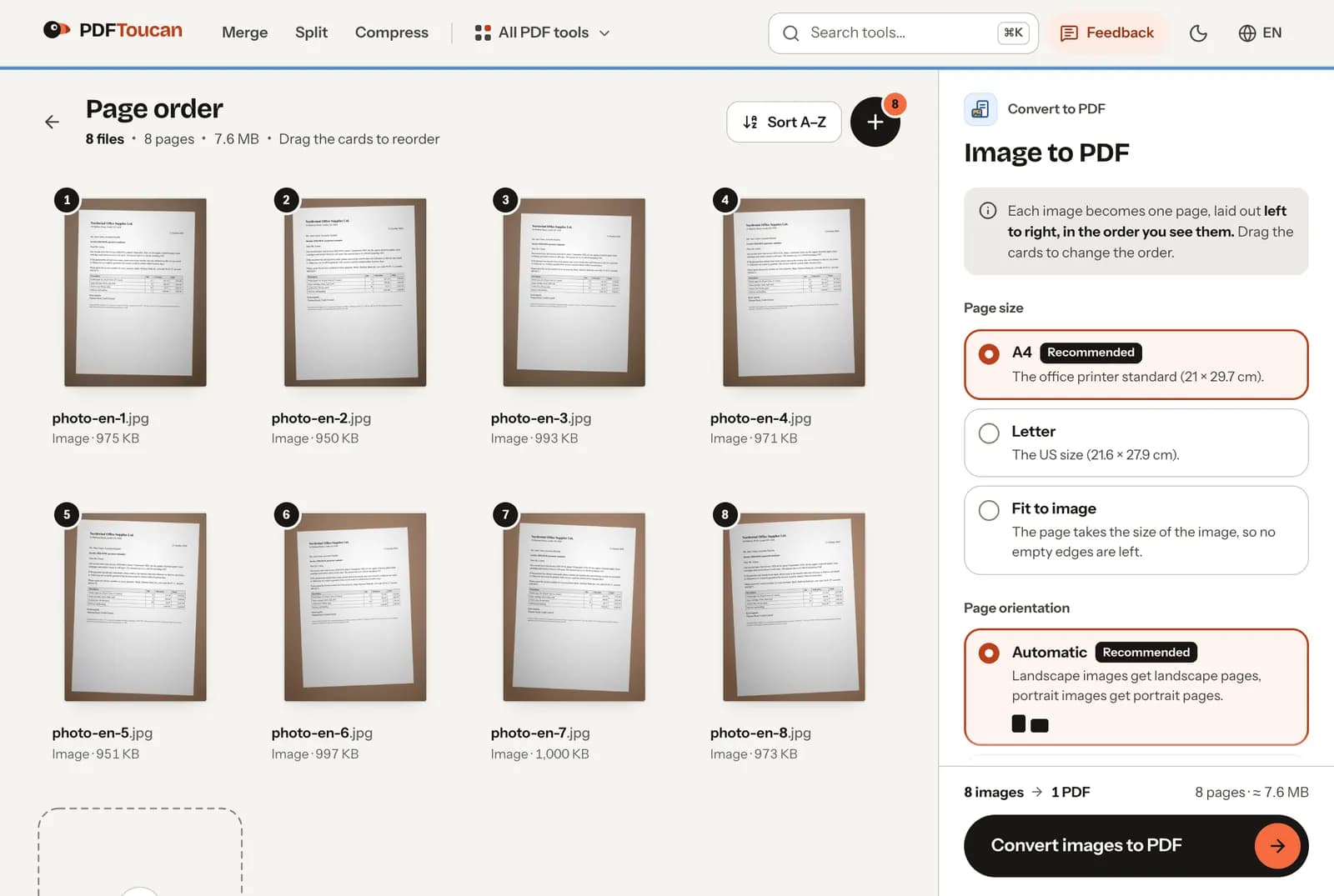
Every image you add becomes one page in the finished document. That makes it easy to gather camera photos, phone screenshots, and scanned paperwork into a single file you can email, print, or archive. Pages are laid out left to right, in the order you see on screen.
Set the page order before you convert
Your images appear as cards under Page order. Drag a card to move it, and the order on screen is exactly the order in the PDF. Check the sequence before converting, so a receipt or a signature page never lands in the wrong spot.
Choose Letter, A4, or fit to image
Three page sizes are available. Letter is the US size at 21.6 by 27.9 cm, A4 is the office printer standard at 21 by 29.7 cm, and Fit to image gives each page the size of the picture, so no empty edges are left around it.
Match page orientation to each image
Automatic gives landscape images landscape pages and portrait images portrait pages, so a mixed set keeps its shape. Pick Portrait or Landscape to force one direction; images that do not match shrink to fit. Orientation is not used when the page fits the image.
Add no margin, a thin frame, or room for notes
None runs the image to the edge of the page. Small leaves a thin white frame, so printers do not clip the edges. Large adds a wide margin with space for binding and handwritten notes. A small example shows what each margin looks like.
Combine images into one PDF or make separate files
Combine all images into one PDF is on by default. Turn it off and every image becomes its own PDF. JPG, PNG, WebP, GIF, and BMP open in every browser; HEIC and TIFF depend on your browser, and files it cannot open are flagged and skipped.
How to image to PDF online
Add the images you want to convert
Drop your JPG, PNG, WebP, GIF, or BMP files onto the page, or browse for them. You can add several at once, and nothing leaves your device. If a card shows a warning, your browser cannot open that format; remove it and the rest still convert.
Drag the image cards into the right page order
Under Page order, each picture appears as a card. Drag the cards until the sequence matches the document you have in mind. Reading runs left to right across the row, and that becomes page one, page two, page three, and so on.
Choose page size, orientation, margin, and output
Open the conversion options and pick Letter, A4, or Fit to image. Set orientation to Automatic, Portrait, or Landscape. Choose a margin of None, Small, or Large. Leave the output switch on for one combined PDF, or turn it off for one PDF per image.
Convert the images and download your PDF
Select Convert images to PDF. The work happens on your own device, so speed depends on your computer rather than an upload. When it finishes, download the file. A combined job arrives as a single PDF; separate output arrives as one PDF per image.
Tested with eight phone photos
We combined eight 12-megapixel phone photos of a printed letter (3024 × 4032 pixels, 7.6 MB together) into one PDF in Chrome on 2 November 2026. One of them was stored sideways with an EXIF orientation tag, the way phones save turned shots.
| What we checked | Result |
|---|---|
| Time for 8 photos | About 1 second, in the browser |
| Size of the PDF | 7.6 MB: the photos are not recompressed |
| Image quality | Unchanged: the original JPG data is placed on the page |
| Photo stored sideways | The page came out upright |
| After Compress PDF (Balanced compression) | 0.65 MB, the text on the photos still readable |
The PDF is as large as the photos because nothing is recompressed. To send it by email, compress it afterwards: Balanced compression made our PDF about 12 times smaller in under five seconds.
Your images stay on your computer
This converter runs entirely inside your browser, in a local processing engine in a web worker. Your images are read on your device, the PDF is built on your device, and no file is ever uploaded to a server. There is no account to create, no email address to hand over, and no watermark on the finished document. Ads pay for the site, so browser tools like this one stay free without daily limits. Sensitive material such as ID photos, medical scans, and signed contracts never leaves the machine you are working on.
Runs in your browser: the file never leaves your device.
Image to PDF – frequently asked questions
How do I convert a JPEG to a PDF for free?
Add your JPEG files, drag the cards into the order you want, then pick a page size and margin and select Convert images to PDF. Download the result when it appears. Everything runs in your browser, so using this JPG to PDF free converter means no upload, no account, and no watermark.
Can I turn a photo into a PDF without an app?
Yes. The converter is a web page, so there is nothing to install. Open it in Chrome, Safari, Edge, or Firefox on a laptop or a phone, add your photos, and the PDF is built locally. That helps when you cannot install software on a work machine.
What image formats can I convert to PDF?
JPG, PNG, WebP, GIF, and BMP open in every browser. HEIC and TIFF work only where the browser supports them: Safari does, Chrome does not. Any file your browser cannot open is flagged on its card and skipped, while the remaining images still convert normally.
How can I add multiple images to one PDF for free?
Select all the pictures at once and keep the Combine all images into one PDF switch on. Every image then becomes a page of the same document. The order follows the cards on screen, so drag them first. The finished file downloads as one PDF.
Does converting photos to PDF keep the original page order?
The order you see is the order you get. Cards are laid out left to right, and that sequence becomes page one, page two, and onward. If the arrangement looks wrong after adding files, drag any card to a new position before you convert.
Can I make separate PDFs instead of one combined file?
Yes. Switch off Combine all images into one PDF and each picture becomes its own document. That helps when every scan has to be filed or sent separately. A single image always produces a single PDF, whether the switch is on or off.
Why was an HEIC or TIFF image skipped during conversion?
Your browser could not open that format. HEIC and TIFF rely on browser support, and Chrome does not decode them while Safari does. The card shows a warning so you can remove the file or try again in another browser; the rest of your images still convert.
Once your pictures are pages, the rest of the toolbox is close at hand. Use merge to attach the new file to an existing report, compress when a PDF is too large to email, and ocr to make scanned text searchable. Each tool is free to use, needs no account, and adds no watermark. PDF Toucan keeps them all in one place.
Last updated November 2, 2026