Best Resolution for Scanning Documents: We Measured 150 to 600 DPI
PDF Toucan editorial team · Last updated November 2, 2026 · 7 min read
For ordinary printed documents, scan at 300 dpi. In our test, a one-page letter scanned at 150, 200, 300 and 600 dpi was read by OCR with practically the same accuracy at every resolution (98–99% of the words), but the 600 dpi scan took more than twice as long to process as 300 dpi and produced a file more than twice as large. 300 dpi gives you a safety margin for small print and later reuse without the cost of 600 dpi. What actually decided whether OCR worked at all was contrast, not resolution: a faded till receipt returned no text at any resolution until its contrast was raised.
The numbers below come from our own measurements, made with the tools on this site. How the test was set up is explained at the end.
What we measured
We scanned the same A4 letter (11 pt body text, a price table and a 7.5 pt footer) at four resolutions, saved each scan as a quality-85 JPG, turned it into a PDF and ran it through OCR PDF with English as the language.
| Resolution | Image size | JPG file | PNG file | OCR time | Words read correctly |
|---|---|---|---|---|---|
| 150 dpi | 1,241 × 1,754 px | 136 KB | 550 KB | 4.8 s | 99.0% |
| 200 dpi | 1,654 × 2,338 px | 203 KB | 844 KB | 5.6 s | 98.0% |
| 300 dpi | 2,481 × 3,507 px | 363 KB | 1,546 KB | 8.8 s | 99.0% |
| 600 dpi | 4,962 × 7,014 px | 845 KB | 5,094 KB | 20.7 s | 99.0% |
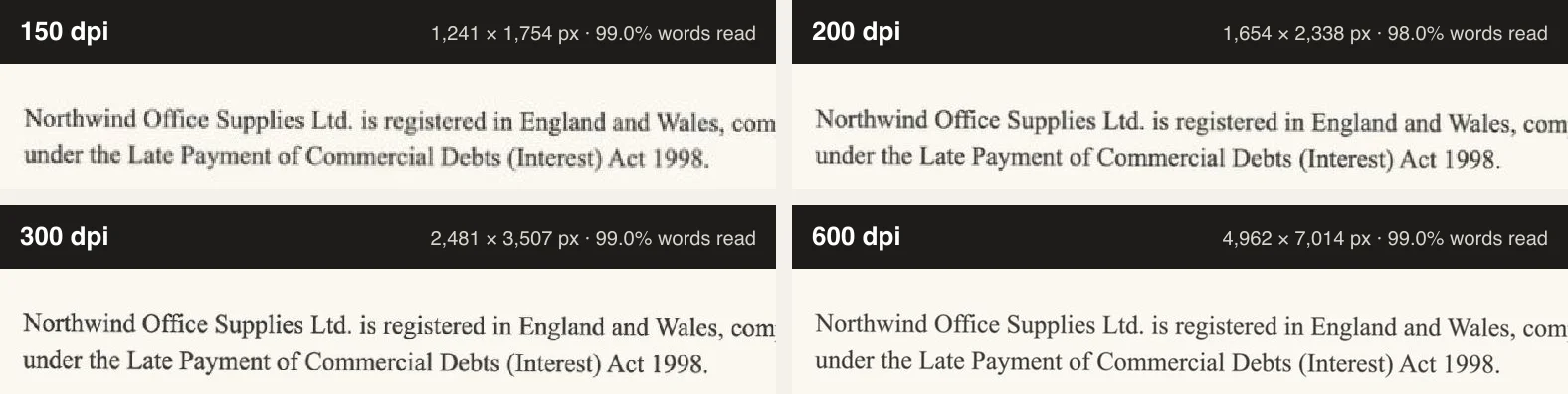
Three things stand out:
- Accuracy stopped improving early. On a clean, flat page, every resolution missed only two to four of the 198 words. "m²" was misread at every resolution; the other misses moved around: at 150 dpi "plc" became "ple", at 300 dpi a quantity of 12 in the table came out as 17, at 600 dpi a "1" went missing. A higher resolution did not remove these slips, so check figures after OCR whatever you scan at.
- Cost grows fast. Going from 300 to 600 dpi quadruples the pixels. The JPG grew 2.3 times, the PNG 3.3 times, and OCR took 2.4 times as long.
- The searchable PDF stays small with JPG scans. After OCR, the 300 dpi JPG scan became a 252 KB searchable PDF; the 600 dpi one became 553 KB.
So why not scan at 150 dpi?
Because our test page was the easy case: clean paper, dark print, lying flat. Real scans add things that eat into the margin:
- Smaller type. Footnotes, terms and conditions and receipts often use 6–7 pt type. Halve the resolution and each letter has a quarter of the pixels to be recognized from.
- Scanner blur and dirt. A worn glass plate, a document that is not pressed flat, or a phone held at an angle all soften the image. Extra pixels give OCR something to work with.
- Reuse. A 150 dpi scan looks soft when printed or zoomed. If the scan is the only copy you will keep (a contract, a certificate), 300 dpi is the archive standard for good reason.
Use 200 dpi when you scan large batches of plain typed pages and storage or upload limits matter. Use 300 dpi for everything you will search, keep or print. Keep 600 dpi for small originals you need to enlarge, such as stamps, photographs, fine drawings or very small print.
Colour, grayscale or black and white?
For text documents, grayscale is the sweet spot. In our test the grayscale PNG was about half the size of the colour PNG at every resolution (820 KB instead of 1,546 KB at 300 dpi) and was read with the same accuracy, 99.5% at 300 dpi.
- Colour: only when colour carries meaning, such as stamps, highlighted passages, coloured forms or photos.
- Grayscale: letters, invoices, contracts, books. It keeps faint pencil notes and grey print that a black-and-white scan can lose.
- Black and white (1-bit): smallest files, but it decides for every pixel whether it is ink or paper. Faint or grey print can vanish completely. Avoid it for anything faded.
JPG or PNG for the scan?
At the same resolution, our JPG scans were about four times smaller than the PNG scans (363 KB against 1,546 KB at 300 dpi), and OCR read them just as well (99.0% against 99.5%). For documents you scan to read, search and send, a high-quality JPG is fine. Choose PNG when you need a perfect master copy, or for line art, barcodes and signatures. Our guide on JPG vs PNG for scanned documents goes through the trade-offs in detail.
Faded receipts: contrast matters more than dpi
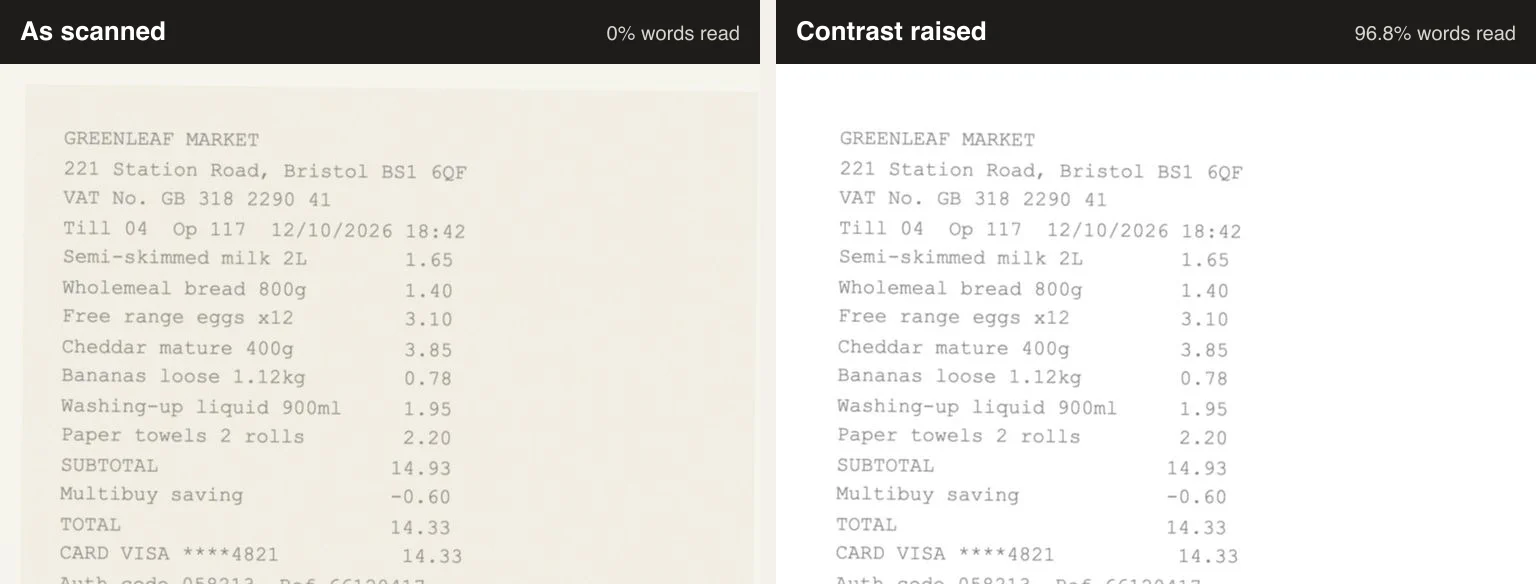
We also scanned a till receipt printed in grey 7 pt type on slightly darker paper, the way thermal receipts look after a few months. OCR read none of its words at 150, 200, 300 or 600 dpi. The page was not too small to read; the problem was that the grey receipt on a white scanner bed gave too little contrast for the recognizer to separate the letters from the paper.
The same 300 dpi scan with its contrast raised (grayscale, darker blacks, whiter paper) was read with 96.8% accuracy.
What to do with faded originals:
- Scan in grayscale, not black and white.
- Use the scanner's contrast or darker setting, or the "text" or "document" mode of a phone scanning app, which does the same.
- If you already have a pale scan, raise the contrast in any photo editor before turning it into a PDF.
- Scanning at a higher resolution does not help. In our test, 600 dpi failed exactly like 150 dpi.
From scan to a searchable PDF
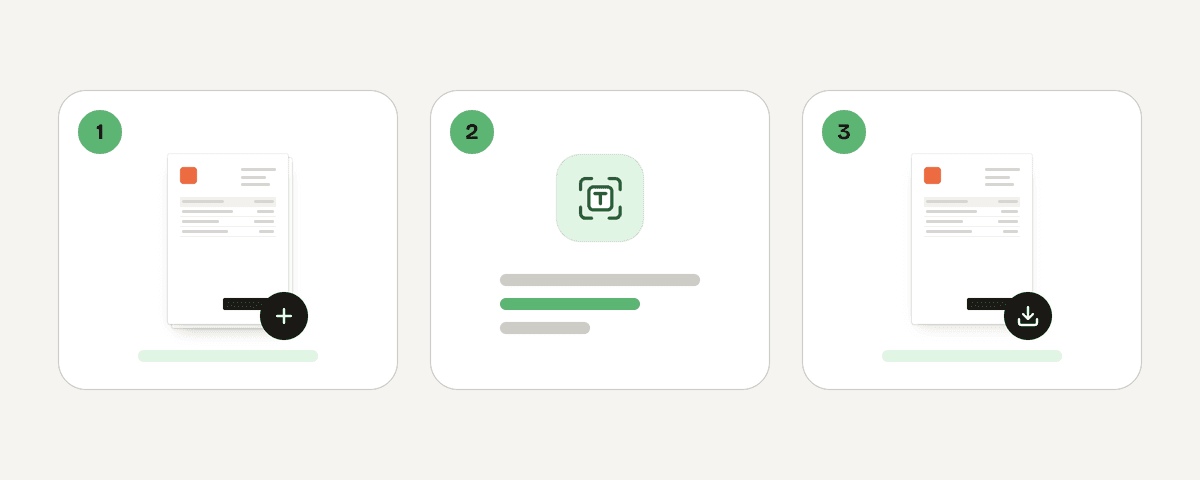
- Scan at 300 dpi in grayscale and save as JPG (or let the scanner create a PDF directly).
- If you have separate image files, combine them with Image to PDF. Each image becomes one page, in the order you set.
- Open OCR PDF, choose the document's language and run it. The pages look the same afterwards, but the text can be searched and copied.
- If the file is too large to send, run it through Compress PDF.
How we tested
We could not hand a scanner a sheet of paper for every resolution and keep everything else identical, so we produced the scans in a controlled way. The letter was laid out as an A4 page, rendered at 150, 200, 300 and 600 pixels per inch, and given what a flatbed scanner typically adds: slightly off-white paper, a little blur, sensor noise and a 0.4° skew. Each scan was saved as JPG (quality 85), as colour PNG and as grayscale PNG, placed on an A4 PDF page and processed with the OCR tool of this site on 2 November 2026. Accuracy is the share of the letter's 198 words that came back correctly and in order. The receipt was made the same way with grey 7 pt monospace type and heavier noise.
Real scanners and phones differ, and so do documents, so treat the percentages as a comparison between resolutions, not as a promise for every page.
Related guides
- Convert PDF to Word without Losing Formatting: Practical GuideLearn why PDFs shift in Word, how to handle scans and tables, and when a free conversion needs cleanup before you edit.8 min read
- How to Make a Scanned PDF Searchable: OCR, Languages, and ChecksMake scanned PDFs searchable online with OCR. Choose document languages, straighten pages, verify text, then convert the OCR PDF to Word.8 min read