PDF to Excel is a server-based conversion that turns tables in PDF documents into XLSX files. Use this free, no-account, no-watermark PDF to Excel online option when you need values from statements, reports, or lists in a spreadsheet. Add up to five PDFs, choose how scanned pages are read, and download the converted files when they are ready.
What you can do with PDF to Excel
Turn PDF tables into usable XLSX data
Move tables out of a PDF and into an Excel workbook instead of retyping rows by hand. Numbers and dates are transferred as values you can calculate with, so you can review figures, sort data, or continue working in a spreadsheet.
Review every PDF page on its own Excel sheet
Each page in a submitted PDF becomes a separate sheet in its XLSX output. That makes page-by-page reports, statements, and sets of tables easier to inspect without combining all content into one long worksheet.
Choose OCR for scanned pages
Automatic is the recommended default under More options and Scanned pages. It recognizes text only on scanned pages with no text layer. Choose Always recognize text if extracted text is garbled; every page is then read like an image, which can take longer. Choose Don't recognize text to skip scan recognition.
Keep text lines when no table is found
If a page has no detectable table, its text lines are transferred instead. This fallback gives you access to the page content, but it does not turn table-free text into a spreadsheet-ready table or promise a particular layout.
Convert up to five PDFs in one run
Add several documents when you have a batch to handle. You can submit up to five PDF files per run, and each PDF is converted into its own XLSX file. When multiple files are ready, they are delivered together in a ZIP download.
Stay within the page and file limits
One run can contain up to 300 PDF pages and 95 MB in total across all submitted files. A file that does not fit is refused, so split a large PDF into smaller parts and convert those parts separately. Large files can take a few minutes.
How to PDF to Excel online
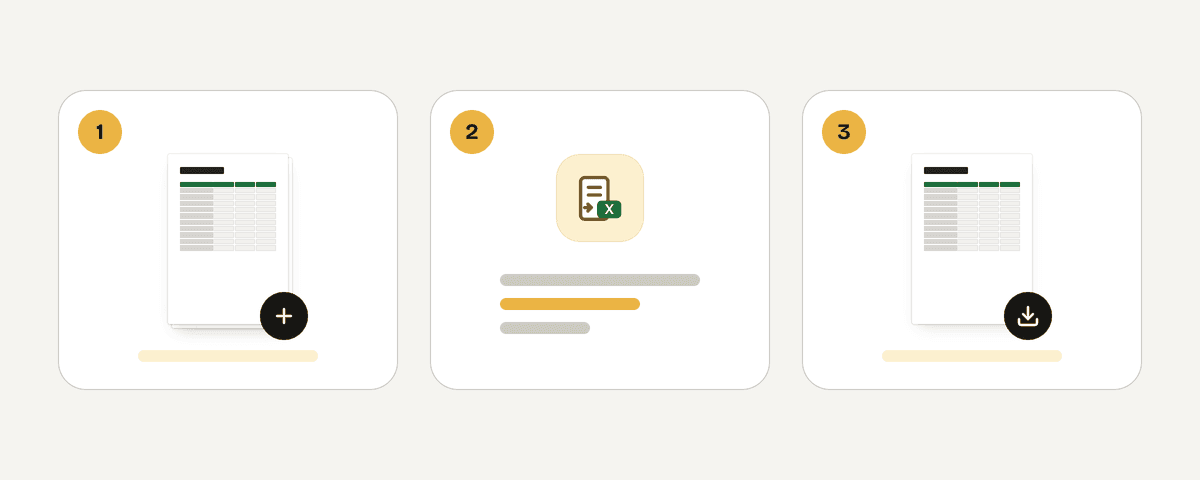
Add PDFs for XLSX conversion
Select the documents whose tables you want to move into spreadsheets. Click "Select PDF files" to add one PDF or a group of up to five files, then check that you have chosen the right documents before converting.
Set scanned-page recognition
Open More options and review Scanned pages. Keep Automatic for recognition on scans without a text layer, select Always recognize text when normal extraction is garbled, or select Don't recognize text when you want to skip scan recognition.
Start the table conversion
Click "Convert to Excel" to send the PDFs for processing. The service creates one XLSX file for each PDF and places every source page on its own sheet. Larger documents may need a few minutes to finish.
Download the converted XLSX files
Download the completed Excel file when you convert one PDF. If you submitted several PDFs, download the ZIP package containing the separate XLSX results. Review the sheets, especially scans and complex tables, before relying on the extracted values.
Your files are processed in the EU and cleared promptly
PDF Toucan sends your files over HTTPS to servers in the European Union. The PDFs are processed in memory, rather than being written to disk or stored for later use. Your files are deleted as soon as you download the result, or within 10 minutes at the latest if no download occurs. This is a free server-based service with no account required and no watermark on the output. Because processing happens on a server, submitted files are subject to the stated size and page limits.
Processed in memory on our servers in the European Union. Your file is never stored: it is deleted as soon as you download the result (at the latest after 10 minutes).
PDF to Excel – frequently asked questions
How do I convert a PDF to Excel without software for free?
Use this free PDF to Excel online page in your browser. Add your PDF, leave Automatic selected for scanned-page recognition unless you need another option, start the conversion, and download the XLSX result. No account or desktop software is required.
What is the best way to extract a table from PDF to Excel?
Start with a PDF that has clear table rows and columns, then review the XLSX sheets after conversion. If the source is a scan, Automatic recognition is enabled by default; try Always recognize text if the extracted text comes out garbled.
Are scanned PDF pages convertible to XLSX?
Yes. Automatic mode recognizes text on scanned pages that do not have a text layer. You can also choose Always recognize text to read every page as an image, which may help with garbled extraction but can take longer.
Does each PDF page become a separate Excel sheet?
Yes. Each page in a PDF becomes its own sheet in that PDF's XLSX output. This keeps multi-page statements and reports organized by their original page boundaries, making the conversion easier to check.
Can I process more than one PDF at once?
Yes. You can submit up to five PDFs in one run, within a combined limit of 300 pages and 95 MB. Each source PDF becomes a separate XLSX file, and several completed files download together as a ZIP.
Why did my PDF to Excel result contain text lines instead of a table?
The page likely did not contain a table the converter could find. When no tables are found, the service transfers text lines as a fallback. Those lines preserve page content, but they are not promised to have a spreadsheet-ready table structure.
How can I turn an Excel file back into a PDF?
Use the excel-to-pdf tool when you need to create a PDF from an Excel file. It is the natural reverse step after reviewing or editing the XLSX result from this conversion.
Last updated September 20, 2026