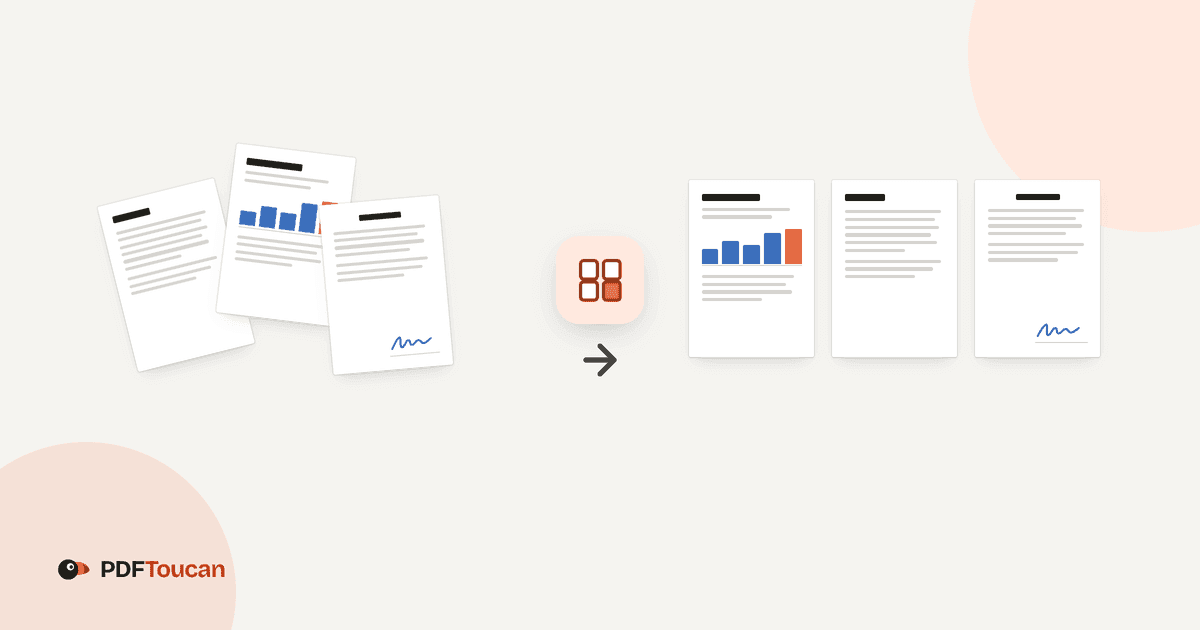
To rearrange PDF pages is to change their order in your browser. PDF Toucan lets you organize PDF pages online without uploading the file. Add one or more PDFs, review the page thumbnails, and build the document you need. It is free to use, requires no account, and adds no watermark to your finished PDF.
What you can do with Rearrange PDF Pages
Drag pages into the right order
Move a page thumbnail exactly where it belongs. You can drag one page at a time, or hold Shift to select several pages and move them together. Use the page controls when you want a precise move to the start, back one position, forward one position, or the end.
Combine whole PDFs in one document
Add more source files when you need pages from several PDFs in one result. Between any two pages, choose another PDF and place it at that position. The file you select is added whole, so you can arrange complete source documents around your existing pages.
Rotate only the pages that need it
Correct a sideways page without changing the rest of the document. Select one page or several pages, then rotate them left or right. This is useful when a scanned packet contains a few pages with the wrong orientation among otherwise correctly aligned pages.
Keep the pages you want and remove the rest
Delete unwanted pages individually, or select the pages you need and choose Keep only the selected pages. You can also take pages out as you review the file. Clear the selection when you are ready to continue with a different group of pages.
Add blank pages for cleaner printing
Insert a blank page after a selected page, between two pages, or at the end of the PDF. A blank page can separate sections and help prepare a document for double-sided printing. If the final page count is odd, you can also prepare the output with a blank page at the end.
Fix scan order with quick actions
Use Reverse to flip the full page order when a scan came in backward. Sort pages by original file and page number to restore their starting order. When fronts and backs were scanned separately, interleave files into A1, B1, A2, B2 order. Undo and redo let you check changes confidently.
How to rearrange PDF pages online
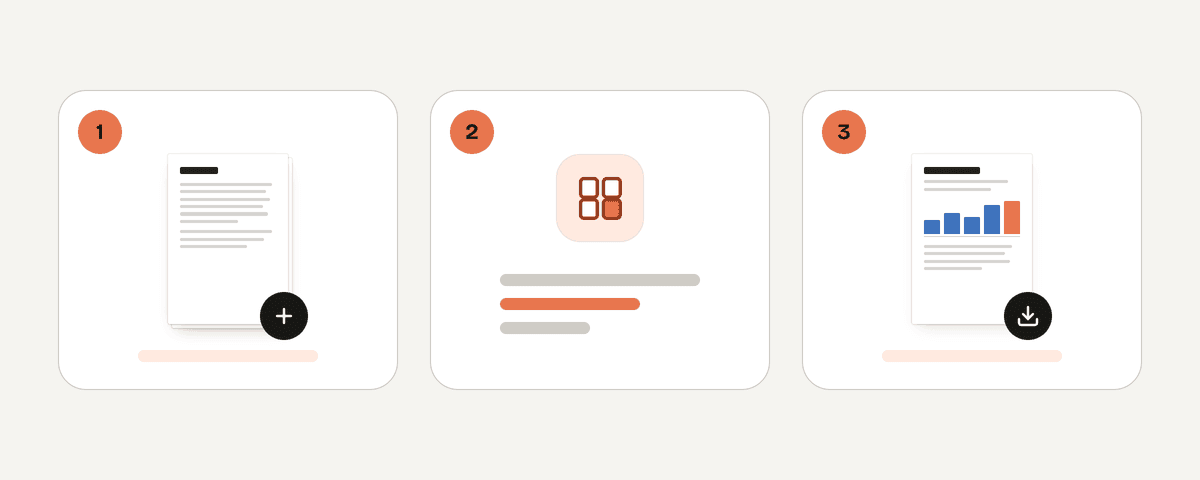
Add the PDF files you want to organize
Choose "Select PDF files" and pick one or more PDF files from your device. Their pages appear as thumbnails, making it easy to manage PDF pages online before you create a single combined output.
Drag or select pages to reorganize
Drag thumbnails into a new sequence. To move a group, select multiple pages with Shift, then move them together. You can also use page controls to send a page to the start or end, or move it one position at a time.
Rotate, remove, or insert pages
Rotate selected pages left or right, delete pages you do not need, or keep only your current selection. Add blank pages where they help, or insert another complete PDF between two pages. Use Reverse, sort by number, or interleave files when the source order needs a quick fix.
Create and download the organized PDF
Review the thumbnail order and use Undo or Redo if needed. When the document looks right, select "Create the organized PDF". Download the finished PDF when it is ready, with your pages in the order and orientation you chose.
Your PDF stays in your browser
This organizer runs locally in your browser, so your PDF stays on your device and is never uploaded. The local processing engine works in a web worker while you reorder, rotate, remove, and add pages. You can organize PDF pages for free without creating an account, and the downloaded result has no watermark. Because processing happens in the browser, keep the tab open until your organized PDF is ready to download.
Runs in your browser: the file never leaves your device.
Rearrange PDF Pages – frequently asked questions
How do I arrange PDF pages online?
Start by adding your PDF files, then drag page thumbnails into the order you need. You can select several pages with Shift, move them as a group, rotate them, delete them, or insert blank pages. Create the output when the page sequence is ready.
Can I rearrange PDF pages without signing up?
Yes. You can use the organizer without an account. Add your PDF, make the page changes you need in the browser, and download the organized result. The tool is free and does not add a watermark to the PDF you create.
What is the fastest way to reorder scanned PDF pages?
Use the quick actions when the scan has a predictable problem. Reverse the order for backward scans, sort by original file and page number to restore the source order, or interleave two files as A1, B1, A2, B2 when fronts and backs were scanned separately.
Can I combine pages from several PDFs into one file?
Yes. Add multiple PDF source files, then arrange their page thumbnails in one workspace. You can also insert another PDF between two pages. That inserted source PDF is added whole, allowing you to build one organized document from several files.
Do blank pages help with double-sided PDF printing?
Yes. A blank page can act as a separator so the next section begins on the side you expect. Add one after a selected page, between pages, or at the end. You can also prepare the output so an odd total page count receives a final blank page.
Is it possible to rotate just one page in a PDF?
Yes. Select the single page that is sideways or upside down, then choose rotate left or rotate right. You can also select a batch of pages when several pages have the same orientation problem, without rotating the entire PDF.
Where can I organize PDF pages for free online?
PDF Toucan lets you organize PDF pages online in your browser. You can drag pages, remove unwanted material, add blank pages, combine whole PDFs, and download one result. No account is required, and the file is processed locally on your device.
Once your page order is set, you can use compress to reduce the file size before sharing. Add page-numbers when the document needs a clear sequence, or use protect when you want to apply password protection. Your organized PDF is ready for the next step.
Last updated September 19, 2026