How to Rotate a PDF and Save It: Permanent Page Fixes
PDF Toucan editorial team · Last updated September 19, 2026 · 7 min read
If you need to know how to rotate a PDF and save it permanently, use a tool that changes the document pages rather than a reader’s temporary viewing angle. Whether the PDF is on an iPhone, Android phone, or desktop—and whether it is a few KB or much larger—rotate the required pages, create a new PDF, and check that downloaded copy.
Why does a PDF rotate temporarily but look wrong after you reopen it?
PDF readers can rotate either the current view or the saved pages. These are different actions.
| Action | What changes | Does the change remain in the file? |
|---|---|---|
| Rotate View in a PDF reader | The way the current app or browser displays the page | Often no; it can reset when you close the file or open it elsewhere |
| Rotate pages and create a new PDF | The saved page rotation in a new output file | Yes; the new PDF keeps the corrected orientation |
A viewer’s Rotate View command is useful if you only need to read a sideways page. However, it may not edit the PDF itself. When you close the tab, reopen the attachment, or send the original file to another person, the page can still be sideways.
To make the correction stick, use a PDF editing or rotation tool that creates a new file. Before sharing it:
- Keep the original PDF until you have reviewed the output.
- Open the newly saved or downloaded PDF, not the source file.
- Check the pages you changed and a few nearby pages.
- Confirm the pages are upright in the new file, then share that copy.
How do you rotate a PDF and save the change online?
PDF Toucan’s Rotate PDF tool lets you turn an entire file, every page across the files you add, or only pages you select. It processes the document locally in your browser through a local processing engine in a web worker; the PDF is not uploaded. The browser tools are free to use without an account, watermark, or daily limit, with ads funding the site.
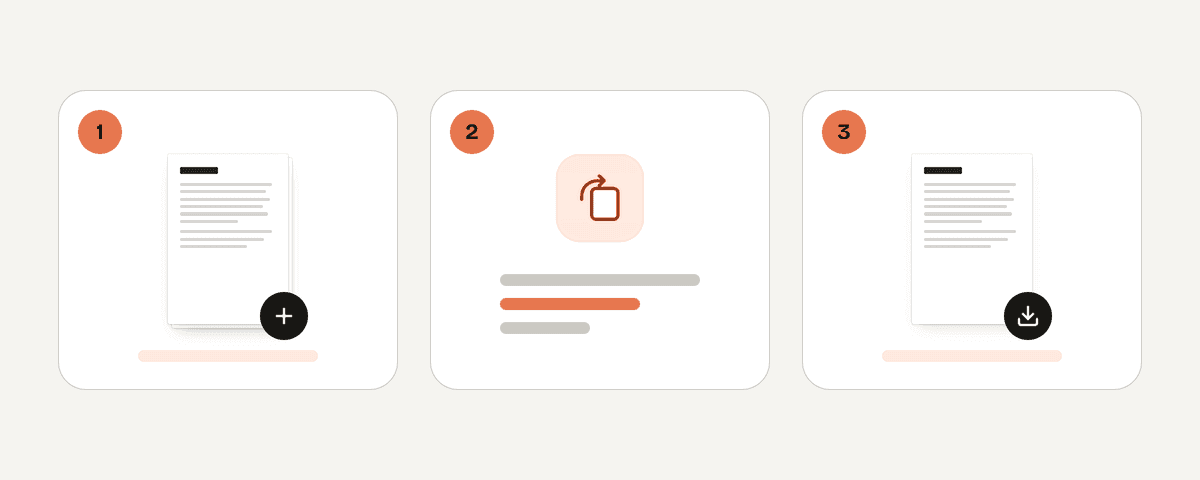
Follow these steps:
- Open the Rotate PDF tool.
- Choose Select PDF files and pick a PDF. You can also drop a PDF anywhere on the page or paste it.
- Choose the scope of the rotation:
- For one complete file, use the rotate button on that file’s card.
- For every page in every file currently listed, choose Rotate every page, then choose Left or Right.
- For only some pages, select those pages first, then use the selected-page rotation controls.
- Review the previews. Every tap turns a page 90°, and the previews match the result. Four taps return a page to its starting orientation.
- If necessary, choose Reset all for the broader rotation changes or Reset in the page controls.
- Choose Rotate the PDF for one input file or Rotate the PDFs for multiple files.
- Save the generated PDF through your browser’s download prompt or Downloads area.
The saved download is the permanent corrected copy. Do not assume that a changed filename means the pages are right: open the output and inspect it, especially in documents that mix portrait pages, landscape tables, and scanned material.
How can you rotate one PDF page without rotating the whole document?
Use page-by-page rotation when only one or a few pages are incorrectly oriented. This commonly happens when a scanner feeds one sheet in the wrong direction.
- Add the document with Select PDF files.
- Choose Page by page. The canvas changes to a page grid.
- Select the sideways page or pages using the previews.
- Choose Selected left or Selected right.
- Check the updated previews. If a page is upside down, apply another 90° turn and check again.
- Choose Rotate the PDF and save the output.
Usually, one turn fixes a sideways page. An upside-down page normally needs two turns. Checking the preview after each change helps prevent you from rotating an already correct page.
If you also need to rearrange, remove, or combine pages, use Organize PDF instead. It lets you select pages, choose Rotate left or Rotate right, drag pages into a new order, delete pages, add a blank page, and combine pages from multiple PDFs. When the document is ready, choose Create the organized PDF.
How do you permanently rotate every page in a PDF?
For a scan where every page is sideways, rotating the whole document is quicker than correcting each page separately.
- Add the PDF to Rotate PDF.
- Choose Rotate every page.
- Choose Left to turn pages 90° to the left or Right to turn them 90° to the right.
- Review previews near the beginning, middle, and end of the document.
- Choose Rotate the PDF, save the result, and reopen it.
The Rotate every page setting applies the same rotation to every page in every file in the list. If you added multiple files but need to change only one, use the rotate button on that individual file’s card instead.
For mixed-orientation PDFs, use the page-selection options carefully. All targets every page in the file. Portrait only and Landscape only can target pages with one orientation where those choices are available. For example, you may want to rotate only landscape pages in a report while leaving correctly oriented portrait pages unchanged.
Do not rotate every page just because one page is sideways. Select the affected page or pages instead, or the rest of the document will become incorrectly oriented.
How do you rotate and save a PDF on an iPhone or Android phone?
You can use the same browser-based process on a phone without installing a dedicated app. The main difference is selecting the PDF through the mobile file picker and saving the output through the browser download process.
- Open Rotate PDF in your mobile browser.
- Tap Select PDF files.
- Choose the PDF from Files, Downloads, or the picker supplied by your cloud-storage provider.
- For a fully sideways scan, select Rotate every page and then Left or Right.
- For only a few incorrect pages, choose Page by page, select the pages, and use Selected left or Selected right.
- Review the previews and choose Rotate the PDF.
- Save the downloaded PDF to Files or Downloads, then open that new file to verify the orientation.
A rotate icon in a phone PDF viewer may rotate only the reading view. If the viewer does not clearly offer an option to save or export changed pages, treat that rotation as temporary. Creating a new PDF with a rotation tool produces the copy you can send or store.
On a smaller screen, page-by-page rotation is practical for a handful of bad pages. For an entire sideways scan, rotating every page is faster and reduces the chance of inconsistent page directions.
What should you check before sharing the rotated PDF?
The permanent fix only helps if you send the corrected output rather than the original. Use this final review:
- Open the saved output in a separate viewer or browser tab.
- Check every changed page, including the first and last page in each affected section.
- Confirm that portrait pages are upright and that landscape pages are intentionally landscape rather than sideways.
- Confirm page order and readability, particularly for forms, signatures, tables, and scanned handwriting.
- Rename the output clearly, such as
report-rotated.pdforinvoice-pages-fixed.pdf. - Keep the source file until you know the corrected copy opens as expected.
If the final PDF also needs pages moved, removed, inserted, or combined, organize those changes before creating the final document. Rotation does not normally change page order, but a final check catches selection mistakes before the file is shared.
FAQ
Can I rotate a PDF online for free with no sign-up?
Yes. PDF Toucan’s browser tools can rotate PDFs without an account, watermark, or daily limit. Add the PDF, choose whether to rotate a whole file, every page, or selected pages, then choose Rotate the PDF or Rotate the PDFs to save the corrected output.
How do I rotate PDF pages individually online and save them?
Add the PDF, choose Page by page, and select the page thumbnails that need correction. Use Selected left or Selected right, inspect the previews, and choose Rotate the PDF. Save the generated download, because that output—not the original—retains the individual page rotations.
Why does rotating a PDF in Chrome, Edge, or another viewer not save permanently?
Many readers rotate only the current display, not the saved document pages. That view setting can disappear when you close the tab, reopen the PDF, or send the original file to someone else. Create and download a newly rotated PDF when the orientation must persist.
Can I rotate a PDF on my iPhone or Android without installing an app?
Yes. Open a browser-based PDF rotation tool, choose the file through the phone’s file picker, rotate all pages or selected pages, and save the downloaded output to Files or Downloads. Reopen the downloaded copy to confirm that its pages remain upright outside the browser session.