TIFF to PDF is a browser-based conversion that turns TIFF images into PDF pages. Add scans, archived documents, or fax files, set the page layout you need, and download the result when it is ready. This free TIFF to PDF converter keeps multi-page frames in sequence and lets you organize separate TIFF files before creating a document.
What you can do with TIFF to PDF
Make every TIFF frame a PDF page
Convert TIFF scans and fax documents into readable PDF pages. If one TIFF contains several frames, each frame becomes its own page in the finished PDF. The original frame sequence is retained, which is useful for multi-page scan batches and stored fax records.
Read common TIFF scan and fax compression
The converter decodes TIFF files in your browser, including LZW, Deflate, PackBits, JPEG-compressed TIFF files, and CCITT fax scans. That covers many files created by scanners, copiers, fax systems, and document archives without needing to prepare each image first.
Set the PDF page order from your TIFF cards
Review the files you added, then drag their cards into the order you want. The PDF follows the left-to-right order shown in the workspace. This makes it practical to combine separate scans into one organized document before conversion.
Choose Letter, A4, or image-sized PDF pages
Pick Letter for standard US printing, A4 for many office workflows, or Fit to image when you do not want unused page edges. For people who need to convert TIFF to PDF online high quality for printing, page size helps you prepare the layout for its destination.
Match TIFF pages to portrait or landscape layouts
Use Automatic orientation to give portrait and landscape images matching pages. You can also force every page to portrait or landscape when consistency matters. Select no margin, a small printer-friendly white frame, or a large border for notes and binding.
Combine TIFF files or download separate PDFs
Keep all selected TIFF images in one PDF when you are assembling a single record or packet. Turn off combining to create a separate PDF for each image instead. A single TIFF file always produces one PDF, even when it contains multiple frames.
How to TIFF to PDF online
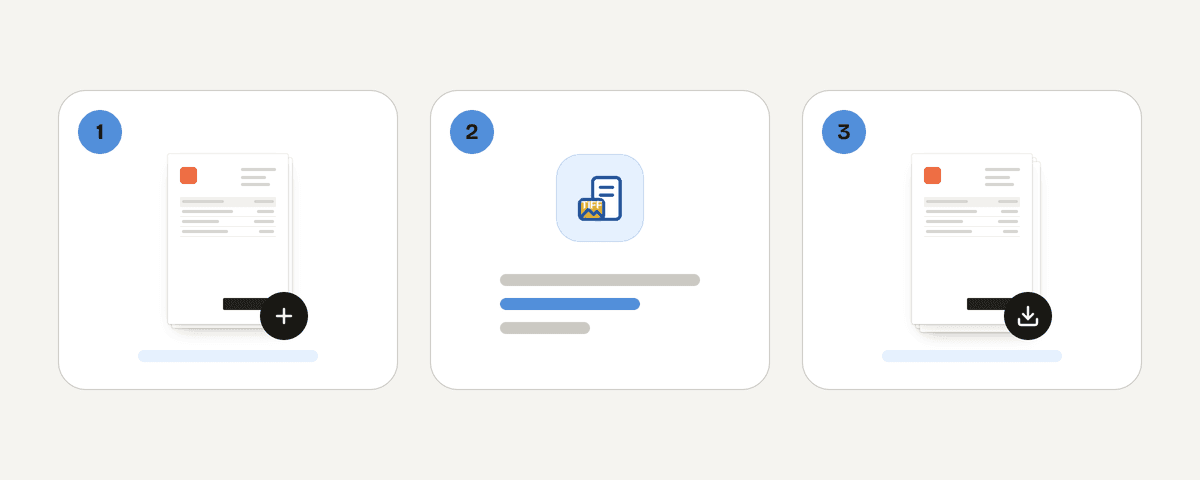
Add your TIFF scans or fax files
Choose “Select TIFF files” and pick the .tif or .tiff files you want to convert. You can add several files for one job. Each file appears as a card so you can check which scans will become PDF pages.
Reorder TIFF pages before conversion
Drag the TIFF cards until they match the document order you need. Frames inside a multi-page TIFF stay in their existing sequence, while separate files follow the card order. Remove any scan you do not want included before making the PDF.
Set page size, orientation, and margins
Choose Letter, A4, or Fit to image, then select automatic, portrait, or landscape orientation. Set no margin, small margin, or large margin based on how you will print, file, bind, or share the completed TIFF conversion.
Create and download the PDF
Start the conversion after reviewing your settings. PDF Toucan turns the selected images into PDF pages in your browser, then provides the download. If you chose separate output, each image is made into its own PDF rather than one combined document.
Your TIFF files stay on your device
TIFF files are decoded and converted entirely in your browser by a local processing engine running in a web worker. Your files are not uploaded for this conversion. You do not need an account, and the downloaded PDF has no watermark. PDF Toucan is free to use; ads help fund the site. Browser tools also have no daily limits, so you can return whenever you need to convert TIFF scans. TIFF and HEIC availability depends on browser support: Safari supports TIFF, while Chrome does not. An image your browser cannot open is flagged and skipped, while other supported files can still convert.
Runs in your browser: the file never leaves your device.
TIFF to PDF – frequently asked questions
How do I change a TIF to a PDF?
Select your TIF or TIFF files, arrange the cards if needed, choose page settings, and convert them in your browser. Each image becomes a PDF page, while every frame in a multi-page TIFF becomes its own page in sequence.
Can I convert a multi-page TIFF to one PDF?
Yes. A multi-page TIFF to PDF conversion creates one PDF page for every TIFF frame and keeps the frame order. You can also add other TIFF files and combine their pages into the same PDF document.
Does TIFF to PDF work with fax-compressed scans?
Yes. The converter can decode CCITT fax scans as well as TIFF files using LZW, Deflate, PackBits, and JPEG compression. Support still depends on whether your browser can open TIFF files in the first place.
Which page size should I use for a TIFF PDF?
Letter is a sensible choice for standard US printing, while A4 suits many office document workflows. Fit to image makes the PDF page match the image size, which avoids empty edges around the scan.
Can I put several TIFF files into one PDF?
Yes. Leave the combine option enabled, arrange the TIFF cards in the required order, and create one PDF from all selected images. This is a convenient way to combine TIFF to PDF free without manually assembling pages afterward.
Why is my TIFF file skipped during conversion?
Your browser may not support that image format. TIFF support varies by browser: Safari supports TIFF, while Chrome does not. Unsupported images are flagged on their cards and skipped, so other files that your browser can open may still convert.
Can I convert a PDF to TIFF for free?
No. This page converts TIFF files to PDF, not PDF files to TIFF. If you already have a PDF, PDF Toucan also offers related tools such as OCR, merge, and compress for other PDF tasks.
When your scans are in PDF form, you can use related PDF Toucan tools to merge documents into a longer packet, run OCR on suitable PDFs, or compress a finished file for easier sharing. Start with your TIFF pages, choose the layout that fits your workflow, and download the document you need.
Last updated September 24, 2026