Removing pages from a PDF means deleting the sheets you no longer need — blank backs, cover sheets, duplicate scans — and here that work happens inside your browser. When you remove pages from PDF online with PDF Toucan, nothing is uploaded: you click the pages to mark them, or type numbers like 2, 5-7, 12-last, then download the document that's left. Free, no account, no watermark.
What you can do with Remove PDF Pages
Mark pages by click, Shift, or typed numbers
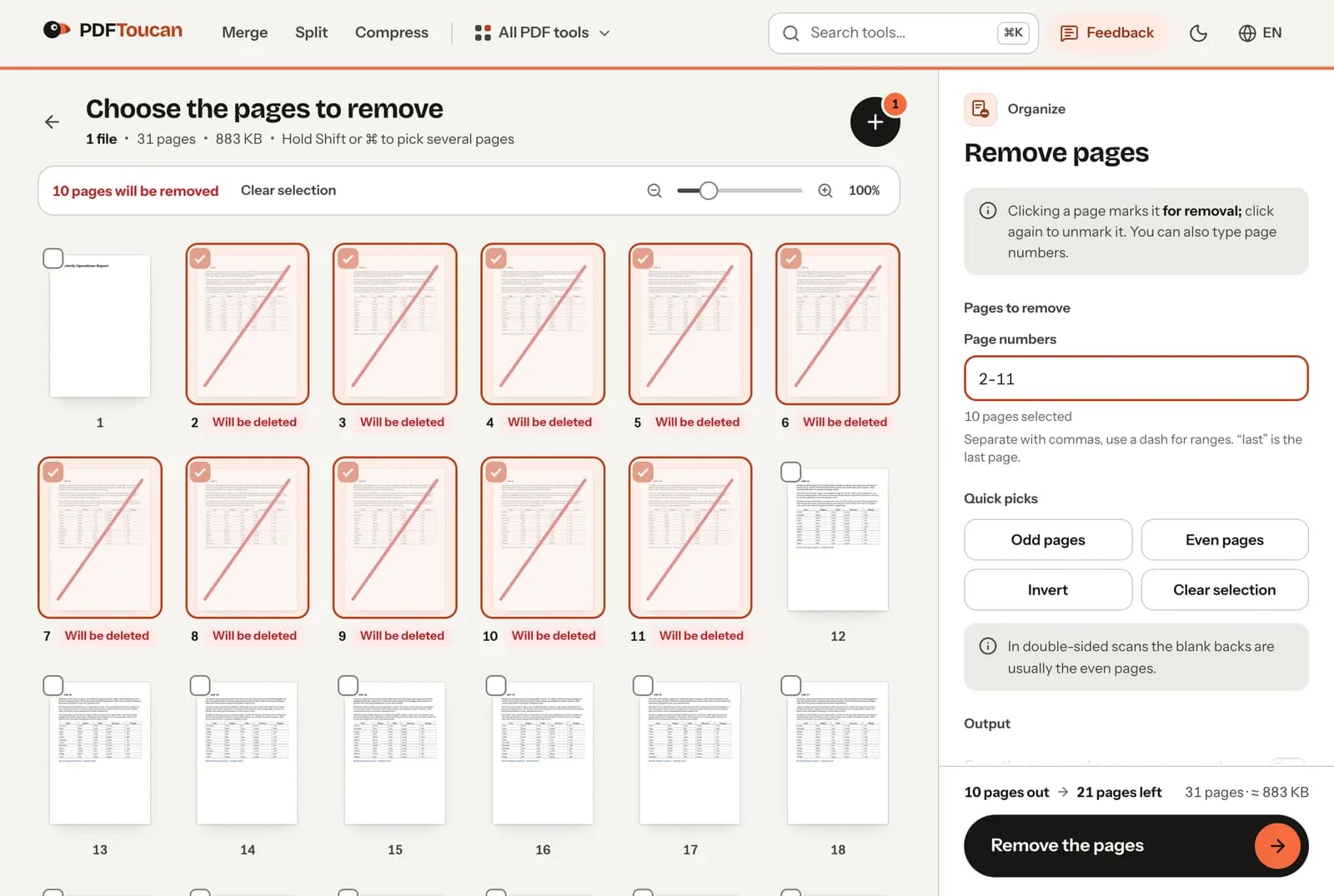
Click a page thumbnail to mark it for removal, and click it again to unmark it. Hold Shift to pick several pages in a row. Prefer the keyboard? Type the page numbers into the field instead. The counter keeps showing how many pages will be removed and how many will be left.
Type exact ranges like 2, 5-7, or 12-last
The page numbers field understands single pages, ranges, and open-ended runs. Enter 2 for one page, 5-7 for a block of three, or 12-last for everything from page 12 to the end of the file. Mix them on one line, separated by commas, and the marked pages update as you type.
Odd and even quick picks for double-sided scans
Two quick picks mark every odd or every even page at once. That helps with double-sided scans, where the blank backs are usually the even pages. Mark them, glance at the thumbnails to confirm nothing useful got caught, unmark any page you want to keep, then remove the rest.
Invert or clear the selection without reloading
Marked the pages you meant to keep? Invert flips the selection in one step, so the unmarked pages become the marked ones. Clear selection empties the list and starts you over with the same document still open — no need to reload the PDF or pick the file again.
Save the removed pages as a second PDF
Switch on the option to save the removed pages separately and you get two downloads: the document with the pages you kept, and a second file holding everything you took out. It is a simple safety net in case you marked the wrong page. Leave it off for a single file.
At least one page always stays in the PDF
You can't remove every page — one has to stay, so the remove button waits until you leave at least a single page unmarked. Unmark one and you're free to continue. After the removal, the confirmation tells you how many pages went out and how many the new file holds.
How to remove PDF pages online
Open the PDF you want to trim
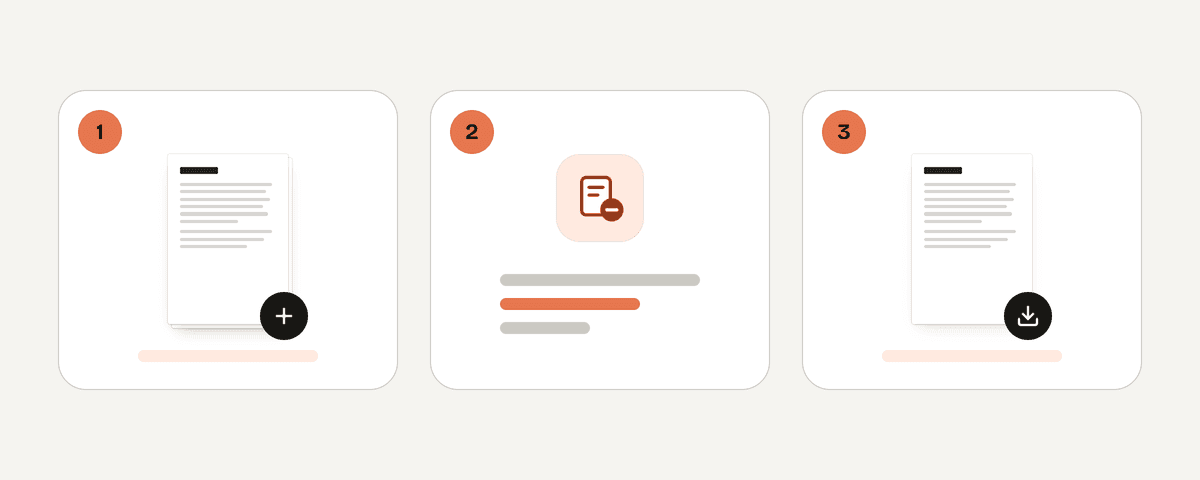
Drop a single PDF onto the page or pick it from your device. It opens as a grid of page thumbnails straight away, because the file is read locally. Even a long document stays on your machine, so there is no upload wait before you start choosing pages.
Mark the pages you don't need
Click any page to mark it for removal, and click again to unmark it. Hold Shift to catch a run of pages, or type numbers such as 2, 5-7, 12-last in the page numbers field. Until you mark something, the tool simply says no pages marked yet.
Use odd, even, invert, or clear when it helps
For long documents, start from a quick pick instead of clicking page by page. Odd pages and Even pages mark half the file at once, Invert swaps your selection, and Clear selection wipes it. Then fine-tune by clicking the few pages that need different treatment.
Remove the pages and download your PDF
Press Remove the pages. The new PDF is built on your device in a moment, and the confirmation tells you how many pages were taken out and how many are left. Download the new PDF, plus the removed-pages file if you chose that output option.
Tested on a 31-page report
We removed pages 2–11 from a 31-page, 883 KB A4 report and opened the new file with a PDF library to check what was left in it.
| What we checked | Result |
|---|---|
| Time | Under 1 second, in the browser |
| New file | 21 pages, 145 KB |
| Removed pages | Gone from the file, not just hidden |
| Text and web links on the kept pages | Kept |
| Bookmarks | Not carried over |
Your PDF never leaves your computer
This tool runs entirely in your browser. A local processing engine works inside a web worker on your own device, so the PDF you open is read, edited and rebuilt on your machine and never uploaded to a server. That also means you can delete pages from a scan full of private details without handing it to anyone, and the tool keeps working on a slow connection once the page has loaded. There is no account to create, no watermark on the result, and no daily limit on the browser tools here. Ads pay for the site, so you can remove pages from PDF online free of charge.
Runs in your browser: the file never leaves your device.
Remove PDF Pages – frequently asked questions
How do I remove pages from a PDF for free?
Open the file here, click the pages you don't want, and press Remove the pages. The whole job runs in your browser, so you can remove pages from PDF online free of charge, with no sign-up, no watermark, and no daily cap on how often you do it.
Can I delete PDF pages without signing up?
Yes. There is no account, no email and no sign-in step. You pick a PDF, mark pages, and download the result. Because the file is processed on your device, there is nothing for the site to store about you or about your document.
What if I mark the wrong page for removal?
Click it again and the mark disappears; Clear selection resets everything at once. If you only notice after downloading, switch on the option to save removed pages as a separate PDF next time — the pages you took out then arrive in their own file.
Is there a way to remove blank pages from a double-sided scan?
Yes. Use the Even pages quick pick: in double-sided scans the blank backs are usually the even pages. Mark them, check the thumbnails for any even page that actually has content, unmark those few, and then remove what's left marked.
Why can't I remove every page from my PDF?
A PDF needs at least one page, so the tool won't let you finish with an empty file. Unmark a single page and you can continue. If you want just one page out of a long report, mark everything else and keep that page.
Does the tool accept a page range such as 5-7?
Yes. The page numbers field takes single pages, ranges and open runs: 2, 5-7 and 12-last all work, and you can combine them with commas. The thumbnails update as you type, so you can check the selection before removing anything.
Can the deleted pages be saved as a separate PDF?
Yes, if you turn on that output option before removing. Two files are then downloaded: the pages you keep and the ones you removed. Leave the option off and you get a single file, the trimmed document, with the removed pages simply gone.
Once the extra pages are gone, the rest of the workflow is close by. Compress brings a heavy scan down to an email-friendly size. Merge joins the trimmed file with another PDF when you're assembling a packet. The page numbers tool stamps a clean sequence after the old numbering stops matching. All of them work the same way on PDF Toucan: free, no account, no watermark.
Last updated November 2, 2026