Add signature to PDF is the process of placing a visible signature on a document, and it runs right in your browser. With PDF Toucan, you can sign PDF free without an account: create a signature by drawing, typing, or uploading an image, position it on the page, and download the finished PDF with no watermark.
What you can do with Sign PDF
Create a signature in the way that suits you
Draw with a mouse, pen, or finger in the signature drawing area. Prefer a typed look? Enter your name and choose a Handwritten, Elegant, or Plain style. You can also upload a PNG or JPG signature image, including a photo of a signature written on white paper.
Clean up a signature image before you add it
When you upload a photo or image, turn on Remove background if you want to reduce the white paper background around the ink. Choose another image if needed, then select an ink color and add the signature when it looks right for your document.
Add signature to PDF exactly where it belongs
After creating your signature, click the spot where it should appear on the page. Drag it to move it into place. Pull a corner to make it larger or smaller, so the visible signature fits the line, box, or open space in the document.
Put the same signature on every page
Use Add to all pages when one signature needs to appear throughout a PDF. This is useful for documents with multiple pages that each need the same visible mark. You can choose this placement while adding the signature instead of placing it page by page.
Include a date, full name, or extra text
A signature is not always the only detail a document needs. Add a Date, Full name, or Text item alongside your signature when you need to show who signed or include a short visible note. Place and size each item on the page.
Keep reusable signatures in your current browser
Choose Remember on this device to keep a signature ready for another document. Your saved signatures stay only on the current device and in the current browser. Open Your signatures to use one again, or choose Delete this signature when you no longer want it saved.
How to sign PDF online
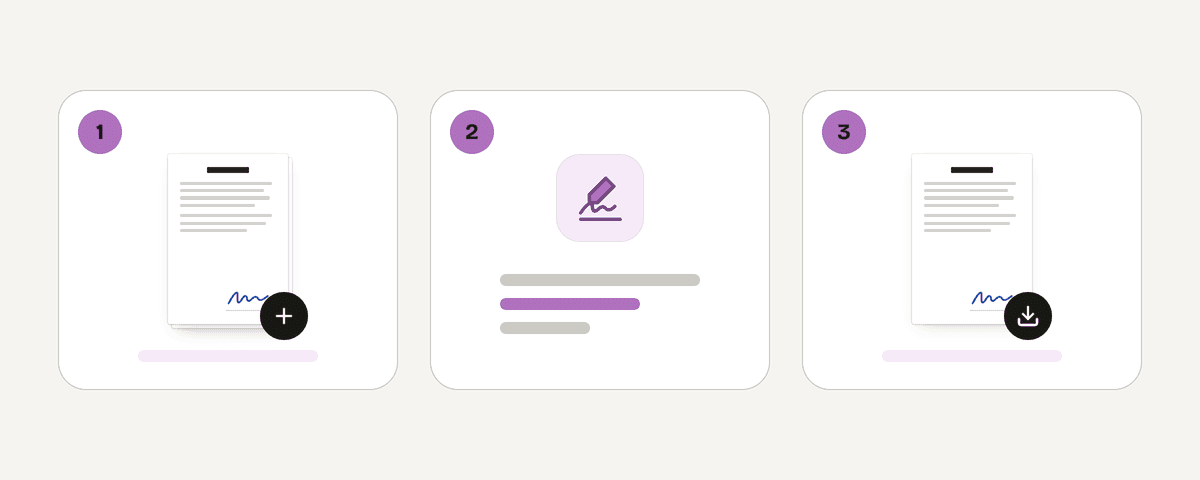
Select the PDF you want to sign
Choose your document with the “Select PDF file” button. This signing page accepts a PDF and works with one file at a time. Then choose “Sign PDF” to prepare the document for adding your visible signature.
Create or choose your signature
Choose Draw, Type, or Upload. Draw directly with your mouse, pen, or finger; type your name and select a style; or select a PNG or JPG image. If you have saved a signature in this browser, you can select it instead.
Place and adjust the signature
Select Add signature, then click the page where it belongs. Drag it to a new location or pull a corner to resize it. Add a date, full name, or text if needed, and use Add to all pages when the same signature should appear throughout the PDF.
Download your signed PDF
When the placement looks right, finish signing and choose Download signed PDF. The result is a PDF with your visible additions and no watermark. You can keep working from the original document if you need to make a different version.
Your PDF stays in your browser while you sign
PDF Toucan processes the PDF entirely on your device in the browser. A local processing engine runs in a web worker, so the file is never uploaded for signing. You do not need an account to use this free browser tool, and the downloaded PDF has no watermark. If you choose to remember a signature, that saved signature remains only on this device and in this browser. It is not available from another browser or device. You can remove it at any time with Delete this signature.
Runs in your browser: the file never leaves your device.
Sign PDF – frequently asked questions
How can I sign a PDF file for free?
Select your PDF, choose “Sign PDF,” and create a signature by drawing, typing, or uploading a PNG or JPG image. Place it on the page, then download the signed file. PDF Toucan is free to use, requires no account, and adds no watermark.
Where do I add a signature to a PDF?
Click the location on the PDF page where you want the signature to appear after you choose Add signature. You can then drag it to another position or pull a corner to resize it. Add a Date, Full name, or Text item nearby when needed.
Can I electronically sign a PDF without creating an account?
Yes. You can electronically sign PDF files in this browser without creating an account. Choose how to make your visible signature, place it on the document, and download the result. This is a sign PDF online free no sign up option for one PDF at a time.
What types of signature can I use on a PDF?
You can draw a signature with a mouse, pen, or finger; type your name in Handwritten, Elegant, or Plain styles; or upload a signature image. PNG and JPG files are supported, including a photo of a signature on white paper.
Why can't I sign a PDF electronically?
This page works with PDF input and adds visible signature elements to the document. Make sure you selected a PDF file, then choose “Sign PDF” before creating or selecting a signature. If a typed style lacks characters in your name, choose another style or draw your signature.
Does my signature stay saved after I download the PDF?
Only if you choose Remember on this device. A saved signature stays in the current browser on the current device, ready to use again. It does not move to other devices or browsers, and you can delete it from Your signatures whenever you want.
Is an uploaded signature image supported?
Yes. Upload a PNG or JPG image of your signature, or use a photo of a signature written on white paper. You can optionally use Remove background before adding it, then place the image on the PDF and resize it to fit.
When your signed document is ready, download it and keep the original if you need another version. For a practical next step, use protect to add password protection to a PDF or compress to reduce its file size before sharing.
Last updated September 19, 2026