How to Fill In a PDF Form Online and Save It
PDF Toucan editorial team · Last updated November 2, 2026 · 4 min read
To fill in a PDF form online, open Fill PDF Form, choose the form, click into the fields on the page and type, tick the boxes and pick from the lists, then press Save the filled form. You download a copy of the form with your entries saved in its fields; anyone can open it in Adobe Reader, a browser or the Preview app on a Mac and see what you entered. The form stays on your device the whole time.
This works for forms that have real form fields, the ones you can click into in a PDF reader. Below is what to do with the other kinds, and what we found when we filled in a test form in English and in Turkish.
Step by step
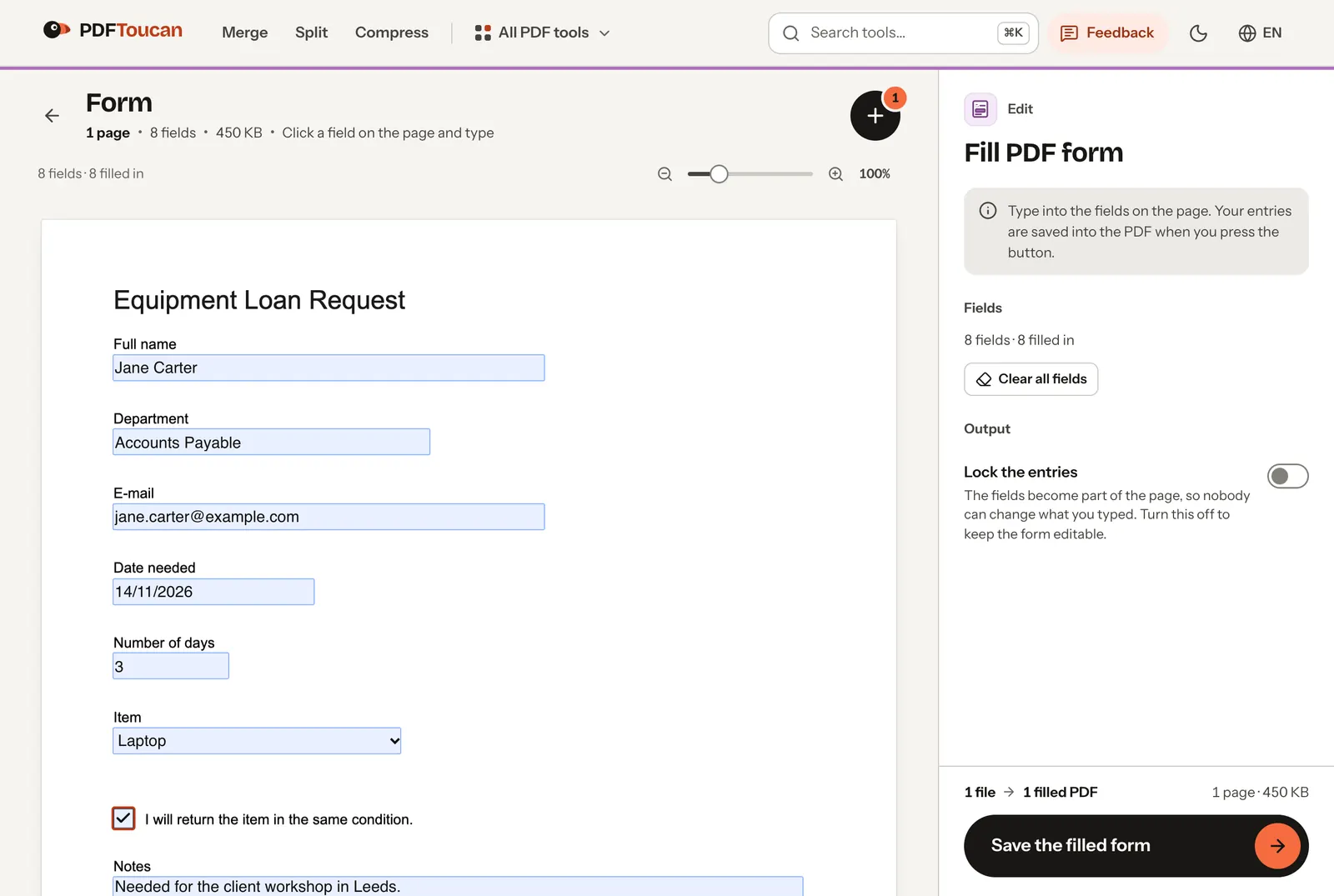
- Open Fill PDF Form and choose the PDF. The tool finds the fields and shows how many there are, for example "8 fields".
- Click a field on the page and type. Text fields, checkboxes, option buttons and drop-down lists all work in place; dates are typed like any other text, in the format the form asks for.
- The side panel counts the fields you have filled and warns you about required fields that are still empty.
- Decide about Lock the entries:
- Off (default): the saved form stays editable, so you or the recipient can still correct an entry.
- On: your entries become part of the page and can no longer be changed in the fields. Use this for a final version you send to an office.
- Press Save the filled form and download it.
What we found in our test
We filled in a one-page form with eight fields: five text fields, a multi-line notes field, a drop-down list and a checkbox.
| Result | |
|---|---|
| Time to save | Under a second |
| Entries in the saved PDF | All 8, exactly as typed |
| Form still editable (Lock the entries off) | Yes, all 8 fields |
| Letters such as ş, ğ, ü and ç | Saved correctly |
| File size | 450 KB before, 771 KB after |
The file grew because the tool stores a typeface in it to draw your entries. That way the form looks the same in every reader, including letters that the form's own font does not contain, which is common with forms made for one language and filled in another.
When the form has no fields
Many PDFs only look like forms: they are a scan or a printout with lines to write on. Fill PDF Form then says that the PDF has no fillable fields. You can still fill it in:
Signature fields in a fillable form are not filled here either; save the form first, then sign the saved file with Sign PDF.
XFA forms
Some government and insurance forms are made with an older Adobe technology called XFA. Browsers cannot display or fill these, and neither can most PDF apps; the PDF often only shows a message asking you to open it in Adobe Reader. Fill PDF Form detects them and tells you so. For these forms, use the free Adobe Acrobat Reader on a computer.
Lock the entries, or keep the form editable?
| Keep editable (default) | Lock the entries |
|---|---|
| You can still correct a typo later | Final version, nobody can change the fields |
| The recipient's system can read the field values | The entries are part of the page, like printed text |
| Best for forms you fill in in several sessions | Best for forms you send to an authority or employer |
Locking is the same as flattening a form. If you have already saved an editable copy and want to lock it later, use Flatten PDF.
Is my form uploaded?
No. Fill PDF Form runs in your browser tab. Forms often hold personal details such as ID numbers, addresses and bank accounts; none of that is sent to our server.
How we tested
On 2 November 2026 we filled in a one-page A4 equipment loan form (450 KB, eight fields) with Fill PDF Form on pdftoucan.com in Chrome, once with English entries and once with Turkish entries, and saved it with Lock the entries switched off. We then opened the saved files with a PDF library, read back every field value and listed the fonts in the file.