Edit PDF is a browser-based way to change existing PDF text and add page elements without uploading your file. Open one PDF, revise text line by line, or place new content where it belongs. PDF Toucan gives you practical controls for correcting a document, marking up a page, or covering visible content before you save a new PDF.
What you can do with Edit PDF
Change words already in the PDF
Choose Edit text, then click a line or double-click it to revise the file’s existing words. Type your change and press Enter to apply it. This removes the old words rather than placing replacement text over them. Empty a line to remove that line from the document.
Keep revised lines aligned on the page
Changed lines retain their position, size, and color. Right-aligned prices or totals keep their right edge, while centered headings remain centered. Text is edited one line at a time and does not wrap, so a longer line can push text rightward or be cut off at the page edge.
Add text, images, shapes, and markings
Use the separate page tools to add text boxes, one PNG or JPG image at a time, squares, circles, lines, arrows, freehand drawings, and highlights. Drag an item to move it, pull a corner to resize it, and adjust its color, size, or thickness. Delete items you no longer need.
Use a white box for a visual cover-up
Place a White box over visible text or graphics that cannot be changed in place, then add replacement text if needed. A white box only hides what is underneath; the underlying content remains in the file. For permanent removal of sensitive information, use Redact instead.
Undo, redo, and review every change
Undo and redo work for both rewritten text and added page items. When an item is selected, arrow keys move it and Delete removes it; keyboard shortcuts are available for undo and redo. Check the edited-page indicators before you choose Save PDF and download the revised document.
Work around text that cannot be rewritten
Scans, text inside graphics, and Arabic, Hebrew, Indic, and Thai text cannot be changed in place. Text editing is available for PDFs up to 64 MB. If a line cannot be read or safely rewritten, you can still add text, images, shapes, drawings, or a white box. Run OCR first for scanned text.
How to edit PDF online
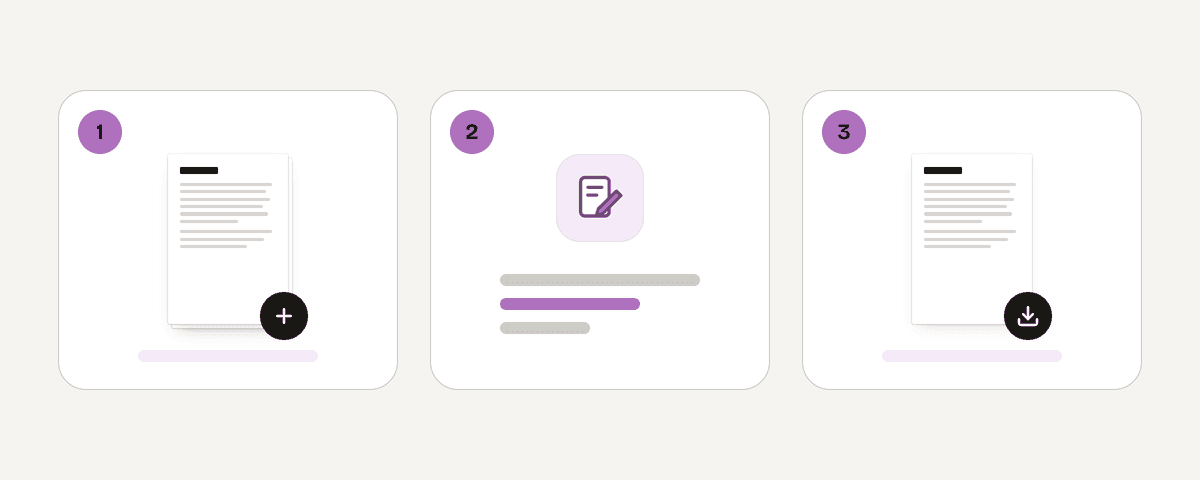
Load a PDF for local editing
Choose “Select PDF file” and pick the PDF you want to revise. The editor prepares its pages locally in your browser. If the document is password-protected, enter its password to open and edit it. Only one PDF is edited at a time.
Choose Edit text and revise a line
Select Edit text, then click a line you want to change. You can also double-click a line on the page. Enter the new wording and press Enter to save it, or press Esc to cancel. Keep an eye on long replacements because lines do not wrap.
Add page elements where needed
Choose Add text, Image, Shape, Draw, Highlight, or White box when you need to add something new rather than revise existing text. Click on the page to place it, then drag it into position. Select an item to change its appearance, resize it, or remove it.
Review changes and save the PDF
Use Undo and Redo to check your work, and look for page indicators showing where edits were made. When the document is ready, choose “Save PDF” to write the changes into a new file. Download the edited PDF when it is ready.
Local browser editing for your PDF
PDF Toucan processes and edits your PDF locally on your device in a browser web worker, so the file is never uploaded. You do not need an account to use this browser-based editor. Browser tools have no daily limit, and saved browser edits have no watermark; ads help fund the site. Password-protected PDFs can be edited after you enter the password. The saved edited file does not keep that password, so protect it again afterward if you need password protection.
Runs in your browser: the file never leaves your device.
Edit PDF – frequently asked questions
Can I edit PDF text?
Yes. You can change text that already exists in a compatible PDF by selecting Edit text, clicking a line, typing the revision, and pressing Enter. The original words are removed from the file rather than hidden beneath a new text box.
How do I edit text in a PDF?
Choose Edit text and select the line you need to revise. Type directly into the line and press Enter to apply the change. For content that is not editable in place, such as a scan or graphic, cover it with a white box and add new text.
What is the free way to modify a PDF online?
You can modify a PDF online free in your browser by opening the file, revising compatible text, and adding text boxes, images, shapes, drawings, or highlights. No account is required, and the browser editor adds no watermark to the saved file.
Does this PDF editor require sign-up?
No. This is a PDF editor no sign up is needed for: open your PDF, make changes, and save the result without creating an account. Browser tools also have no daily limit, while ads support the free service.
Why can’t I edit text in a scanned PDF?
A scanned page is a picture of text, not selectable PDF text that can be rewritten line by line. Run OCR first if you need editable text, or use a white box to cover the visible words and place new text over that area.
Will edited PDF text keep the same font?
It depends. Usually, existing characters use the line’s own font. If your revision needs characters that the PDF does not contain in that font, the editor uses a matching free font with the same kind and widths. It does not promise that every edit keeps the original font exactly.
Can I remove information with a white box?
No. A white box is a visual cover-up only, so the underlying text or graphic remains in the PDF. Use it for appearance fixes or replacement text. If information must be permanently removed, use Redact rather than relying on a white box.
When the wording and layout are right, save your edited file and continue with the next task if needed. You can use Sign PDF to add a signature, Compress PDF to reduce file size, or Protect PDF to apply password protection to the finished document.
Last updated September 29, 2026