PDF to PNG conversion turns PDF pages into PNG images directly in your browser. Use it when crisp text, line art, or lossless page images matter more than the smallest possible file. Choose every page or only the pages you need, select a resolution, and optionally preserve blank areas as transparent instead of white.
What you can do with PDF to PNG Converter
Lossless PNG keeps text and lines crisp
PNG is the preselected format because it preserves fine text, diagrams, and linework without JPG-style compression. It is a sensible choice for pages that will be viewed closely, reused in a design, or printed. The trade-off is larger image files than JPG or WebP.
Transparent backgrounds for blank page areas
Turn on Transparent background when white-looking blank areas should remain see-through in the exported image. This can be useful when placing a page graphic over another background. The setting is available only with PNG, since JPG and WebP do not offer this option here.
Choose Low, Standard, or High resolution
Pick Low for reading on screen and sending by email, Standard for crisp viewing and clean office printing, or High for printing and close zooming. The converter shows the DPI and approximate pixel dimensions, so you can balance visible detail against the resulting file size.
Export every page or select exact pages
Convert a full document or click individual pages in the grid to choose only what you need. You can also type a page range. The range and the page selection stay synchronized, making it easier to check that the right pages will become images.
Convert pages from several PDFs together
Add more than one PDF in the same session when you need images from multiple documents. Each selected page becomes its own image. This is useful for collecting individual pages without repeating the setup for every file, while still keeping pages separate.
Get multiple PNGs in one ZIP download
A one-page conversion downloads the image on its own. If you create more than one image, the files are delivered together as a single ZIP download. That keeps a multi-page export tidy and avoids handling a separate download for each converted page.
How to PDF to PNG converter online
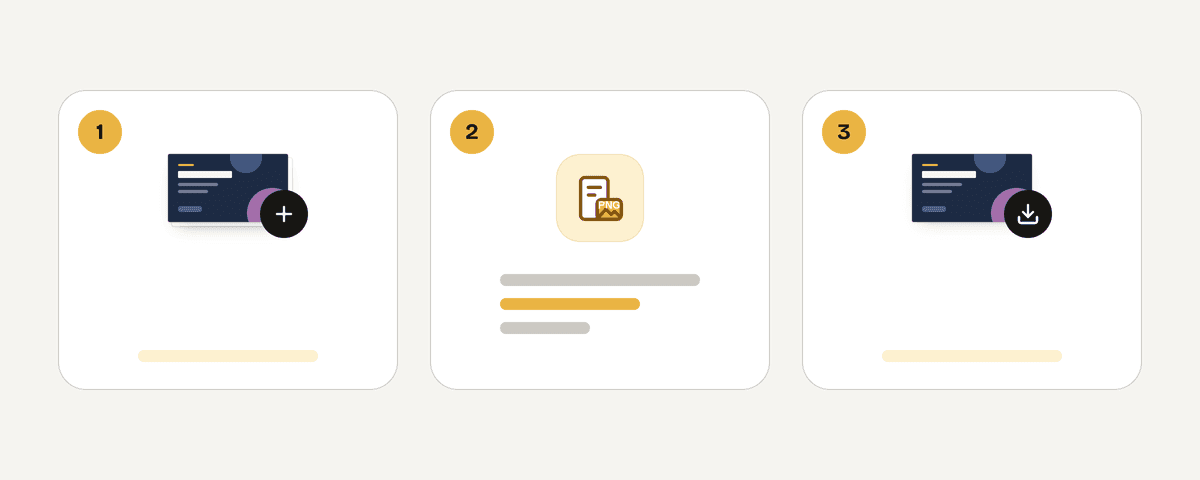
Add the PDF files you want to export
Choose “Select PDF files” and select one or more PDFs from your device. The files are prepared locally in the browser, then their pages appear for review. Add several documents when you want to create page images from more than one PDF at once.
Choose all pages or mark individual pages
Select All of them to export every page, or choose Selected pages and click the pages you need in the grid. If it is faster, enter a page range instead. Check the selection before continuing, because every chosen page becomes a separate image.
Keep PNG selected and set the resolution
Leave PNG selected for lossless output, or choose JPG or WebP if a different balance of compatibility and file size suits your use. Then choose Low, Standard, or High resolution. The displayed DPI and pixel estimate help you see what the export will produce.
Enable transparency when blank areas need it
Switch on Transparent background if blank page areas should be see-through rather than white. This setting works with PNG only. Leave it off when you want the usual white page appearance, or when the source page does not need to sit over another background.
Convert the pages and save the images
Start the conversion after confirming your pages and image options. A single selected page downloads as its own image. When several pages are exported, download the ZIP containing all of the PNG files and extract it on your device when needed.
Your PDFs stay on your device during conversion
PDF Toucan processes this browser tool locally on your device, using a processing engine that runs in a browser web worker. Your PDF is never uploaded for conversion. No account is required, and the exported images have no watermark. Because this is a browser tool, there is no daily limit for use. You can add several PDFs and choose their pages while the work remains in your browser. For best results with large documents, keep the browser open until the conversion and download have finished.
Runs in your browser: the file never leaves your device.
PDF to PNG Converter – frequently asked questions
How can I convert PDF to PNG for free?
Select your PDF, choose the pages and image settings, then convert and download the result. This browser-based converter is free to use, requires no account, adds no watermark, and has no daily limit for browser tools.
Do I need to sign up to change a PDF to PNG?
No. You can convert PDF to PNG free online with no sign up. Choose your files, select the pages you want, set PNG and resolution options, then download the resulting image or ZIP file.
Can I convert only certain PDF pages to PNG?
Yes. Choose Selected pages, click pages in the grid, or type a page range. The range stays synchronized with the grid selection, so you can export a single page, a few pages, or nonconsecutive pages without converting the entire document.
What resolution should I choose when converting PDF pages to PNG?
Choose Low for smaller files intended for screen reading or email, Standard for crisp screens and office printing, or High for printing and zooming in. Higher resolution produces more pixels and more detail, but noticeably increases the file size.
Can a PNG from a PDF have a transparent background?
Yes. Enable Transparent background to keep areas the page leaves blank see-through instead of white. This option is available only when PNG is selected. It can help when you plan to place the exported page image on a colored or designed background.
Does each PDF page become a separate PNG image?
Yes. Every selected page is exported as its own image rather than being combined with other pages. A one-page result downloads directly, while multiple page images are grouped into one ZIP file for a more manageable download.
Where do several exported PNG files download?
Multiple images download together in a single ZIP file. Extract the ZIP to access the individual page images. If you convert only one page, its PNG downloads directly instead of being placed in a ZIP.
Need to turn exported images back into a document later? Use png-to-pdf to make a PDF from PNG images. If the finished document needs a smaller file size, compress is a useful follow-up. PDF Toucan also lets you choose JPG or WebP in this converter when PNG is not the right fit.
Last updated September 24, 2026