To fill pdf form, you enter values into existing PDF fields in your browser. Add one fillable PDF, click its text fields, checkboxes, dates, or choices, and save the completed document. This page works with AcroForm fields already built into the file. It does not create new fields or let you write on a flat, non-fillable PDF.
What you can do with Fill PDF Form
Fill the fields already built into your PDF
Complete existing AcroForm fields without leaving the page. Click a field, then type a single-line or multi-line answer, tick a checkbox, select a radio button, choose from a dropdown or list box, or enter a date. Read-only fields remain exactly as their author configured them.
Check required fields before you save
See the total number of fields, the number you have completed, and how many required fields are still empty. Blank required fields are highlighted, so you can review a fillable PDF form online before downloading. This makes it easier to spot a missed answer or selection.
Keep a completed form editable when needed
Leave Lock the entries turned off to save your answers while retaining the original form fields. This is useful when you may need to revise the information later, or when another person still needs to complete remaining fields. Your output stays a PDF with editable form controls.
Lock the entries into the PDF page
Turn on Lock the entries when the information should no longer be changed through the original form fields. The completed fields become part of the page in the saved PDF. This option is specific to the filled entries and is different from using the separate Flatten tool.
Save names and answers in non-Latin scripts
Entries containing Turkish, Greek, Cyrillic, and other non-Latin characters are written with an embedded font in the output PDF. You can complete pdf form online with the characters your form requires. The tool still respects fields marked read-only and does not replace their existing content.
Know when another PDF tool is the right fit
This page fills form fields that already exist in one PDF. If your file has no fillable fields, use PDF Edit to write on the page instead. XFA, or older Adobe LiveCycle, forms cannot be filled in a browser. Save first, then use Sign PDF for signature fields.
How to fill PDF form online
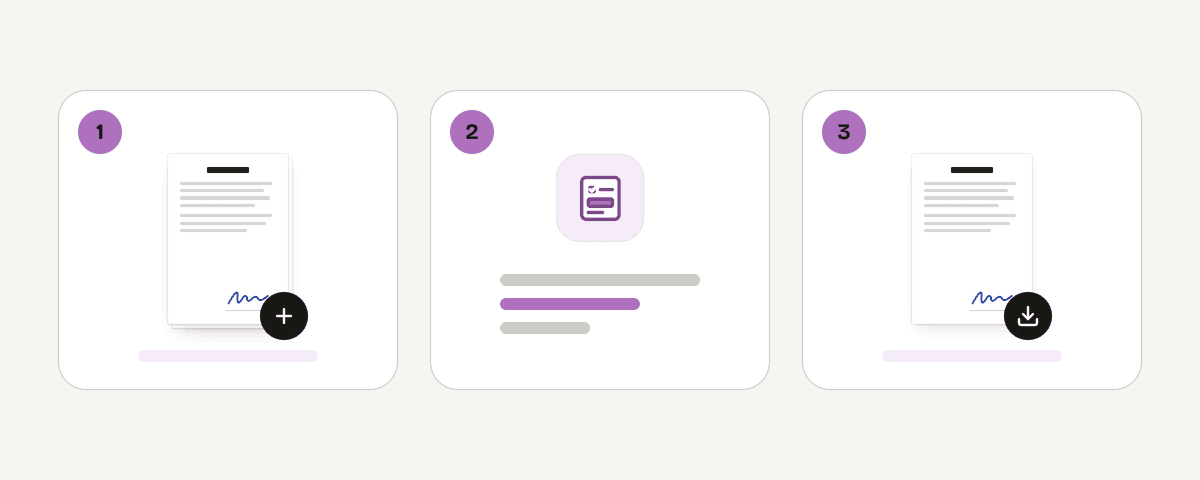
Add one fillable PDF
Choose “Select PDF file” and select the PDF containing the fields you need to complete. The tool accepts one PDF per run and looks for AcroForm fields in that document. If no usable fields are found, it explains why and points you to the appropriate next step.
Click each field and enter your details
Select fields directly on the PDF page. Type into text fields, choose available options, tick checkboxes, and complete date fields as needed. You can also use Clear all fields if you want to remove the current entries and start the form again.
Review required fields and choose the output
Check the field summary for unfinished required fields, which remain highlighted while blank. Then decide whether to leave Lock the entries off for an editable form or turn it on to place your completed values into the PDF page.
Save and download the filled PDF
Press “Save the filled form” to create the output PDF. When the save is ready, download the filled document. If you left locking off, its form fields remain editable. If you enabled locking, the entered values can no longer be changed through those fields.
Your form stays on your device while you complete it
PDF Toucan processes this fillable PDF form locally in your browser with a local processing engine running in a web worker. Your PDF is never uploaded, so the document stays on your device while you enter and save values. No account is required to fill out pdf form free, and the downloaded PDF has no watermark. This is a free browser tool funded by ads. Browser tools have no daily limit, so you can return whenever you need to complete another eligible form. The tool handles one file per run and saves your entries into a PDF output.
Runs in your browser: the file never leaves your device.
Fill PDF Form – frequently asked questions
How do I fill in a PDF form for free?
Select the fillable PDF, click each existing field, enter or choose the requested information, and save the result. This free browser tool needs no account and adds no watermark. It works with AcroForm fields already present in one PDF.
Can I type on a PDF form?
Yes, when the PDF contains editable text fields. You can type in single-line and multi-line fields, as well as complete checkboxes, radio buttons, dropdowns, list boxes, and dates. A flat PDF without fields needs PDF Edit instead.
What steps let me fill out a PDF form online?
Add the PDF, select each field on the page, and enter your details. Review any highlighted required fields, choose whether to lock your entries, then save and download the PDF. The form is processed in your browser rather than uploaded.
How can I fill and sign a PDF for free?
Fill the available text, choice, checkbox, and date fields here first, then save the PDF. Signature fields are not completed by this tool. Use Sign PDF on the saved form when you are ready to add a signature.
Why can’t I fill in my PDF form?
The PDF may have no fillable fields, may contain read-only fields, or may use the older XFA Adobe LiveCycle format. Use PDF Edit for a document with no fields. XFA forms cannot be filled in browsers and should be opened in Adobe Acrobat Reader.
Will my completed PDF form stay editable?
Yes, if you leave Lock the entries turned off. The saved PDF retains its existing form fields and your entered values can be revised later. Turn on Lock the entries only when you want completed fields to become part of the page.
Is there a free way to convert a PDF into a fillable form?
No, this tool does not create fillable form fields or convert a flat PDF into an interactive form. It fills existing AcroForm fields only. For writing visible text on a non-fillable document, use PDF Edit rather than this form filler.
When your form is complete, save a copy that suits the next step. Use Sign PDF after saving if the document needs a signature. Use Flatten when you need its separate flattening workflow, or Protect if you want to add PDF protection. PDF Toucan keeps these tasks separate so you can choose the right output for your document.
Last updated September 24, 2026