PNG to PDF converts PNG images into PDF pages directly in your browser. Add screenshots, scans, or graphics, place them in the order you want, and choose how the finished pages should look. This PNG-only converter lets you create one document or separate PDFs while keeping the conversion on your device.
What you can do with PNG to PDF Converter
Put multiple PNGs in the right page order
Add several PNG files, then drag their cards until the sequence matches your document. Each image becomes one PDF page, arranged from left to right in the order shown before conversion. This gives you a clear way to combine PNG files into one PDF without rebuilding the page order afterward.
Print transparent PNG areas on white paper
Transparent portions of each PNG are placed on white paper in the finished PDF. That means screenshots, graphics, and scans have a printable white background rather than transparent areas that may look different in another viewer or when sent to a printer.
Choose Letter, A4, or pages that fit the image
Choose Letter for the common US paper size, measuring 21.6 × 27.9 cm, or select A4 for office-standard documents. Choose Fit to image when you want the PDF to keep the original image size: each page takes the image dimensions, leaving no empty edges.
Set orientation image by image or for the whole document
Automatic orientation gives landscape images landscape pages and portrait images portrait pages. If your document needs a uniform layout, select Portrait or Landscape instead. Images with the opposite shape shrink to fit the selected page, while Fit to image does not use orientation settings.
Leave room for printers, notes, or binding
Select no margin when you want the image to run to the page edge. A small margin leaves a thin white frame that can help prevent printer clipping. A large margin creates more space around every image for notes, punch holes, or binding.
Make one PDF or a separate PDF for each PNG
The default output combines all selected images into one PDF, making it useful for multi-page scans and ordered screenshots. Turn off the combine option when every PNG needs its own PDF file. A single image always creates a single PDF.
How to PNG to PDF converter online
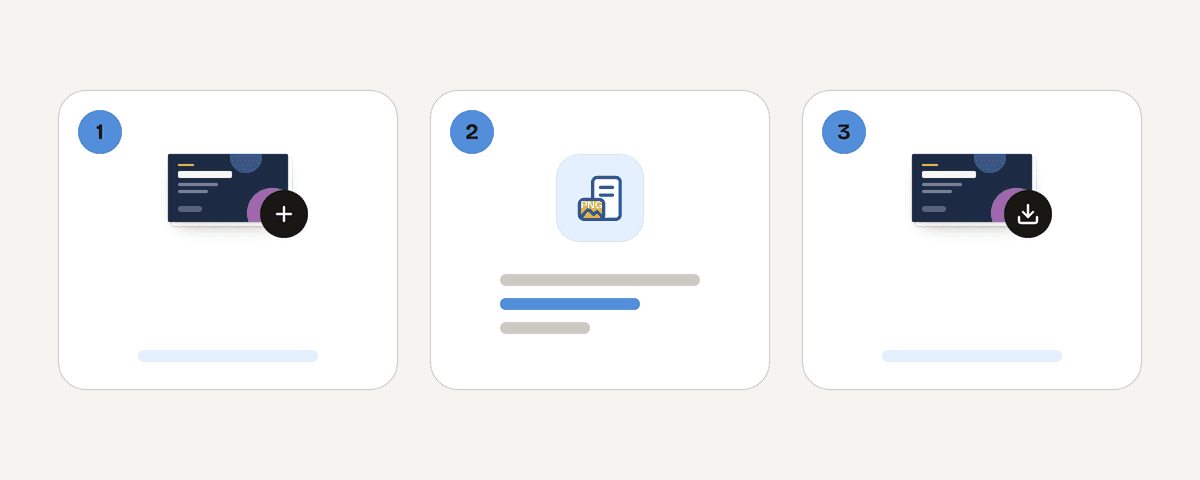
Add the PNG files you want to convert
Select “Select PNG files” and choose the PNG images you need. This page accepts PNG files only, so it is designed for PNG screenshots, graphics, and scans rather than other image formats.
Drag PNG cards into your final page order
Review the image cards after they appear, then drag them into the order readers should see. The first card becomes the first page, and the rest follow from left to right exactly as shown.
Choose page size, orientation, and margins
Pick Letter for typical US printing, A4 for the office-standard format, or Fit to image for pages matching the original dimensions. Then choose automatic, portrait, or landscape orientation and set the margin that suits your print layout.
Convert the images and download your PDF
Choose whether to combine every image into one document or create separate files, then start the conversion. When it finishes, download the PDF or PDFs. Turning a PNG into a PDF happens in your browser, with the settings you selected applied to the pages.
Your PNG files stay on your device
PNG to PDF runs entirely in your browser through a local processing engine in a web worker. Your PNG files are never uploaded, because conversion happens on your device rather than on a server. You do not need an account to use it, and the resulting PDFs have no watermark. PDF Toucan’s browser tools have no daily limit, so you can return when you need to convert another set of images. Ads help fund the free service. This tool accepts PNG files only; if you need to work with another image format, use the appropriate image conversion page on the site.
Runs in your browser: the file never leaves your device.
PNG to PDF Converter – frequently asked questions
How do I convert a PNG to PDF for free?
Use the file selector to add your PNG images, arrange their cards in page order, choose page options, and convert. This is a free browser-based way to turn PNG files into PDFs without creating an account or receiving a watermark.
Can I turn a PNG into a PDF?
Yes. Add one PNG to create a one-page PDF, or add several PNG files to make a multi-page document. You can choose Letter, A4, or image-sized pages before converting, then download the finished file.
How do I combine PNGs into a PDF?
Add all of the PNG files, drag the cards into the correct sequence, and leave the combine option enabled. Each image becomes a page in one document, following the left-to-right order you see before conversion.
Does PNG to PDF keep the image size?
Yes, when you choose Fit to image. Each PDF page takes the dimensions of its PNG, so there are no empty page edges. If you choose Letter or A4 instead, the image is fitted onto that selected paper size.
Which paper size should I choose for a PDF made from a PNG?
Choose Letter for standard US printing and everyday American documents. Choose A4 when the recipient or printer uses that office-standard size. Choose Fit to image when matching the PNG dimensions matters more than using a standard sheet size.
Will transparent areas in a PNG stay transparent in the PDF?
No. Transparent areas are placed on white paper in the PDF. This gives the page a predictable printable background, so transparent parts of a graphic or screenshot appear against white rather than remaining see-through.
Is it possible to add a PNG to an existing PDF?
Yes, by converting the PNG first and then using the merge tool. Create the PNG PDF with this converter, select it alongside your existing PDF in merge, and arrange the files in the order you need.
Once your images are PDFs, use merge to join them with other PDF files or compress to reduce a finished document’s file size. If your scanned PNG pages contain text you need to extract, OCR can help turn that visible text into searchable PDF content.
Last updated September 24, 2026