HTML to PDF conversion turns a web page or an HTML file into a PDF document, and on PDF Toucan it runs on our servers rather than inside your browser. You can convert HTML to PDF online from one public web address or from one HTML file you upload. Set the page size, pick portrait or landscape, choose your margins, then download the finished PDF. It is free, and no account is needed.
What you can do with Convert HTML to PDF
Choose a web address or HTML file
Start by picking your source. Enter the address of a live page to use the web page to PDF converter, or upload a single HTML file from your computer. The tool handles one source at a time, so each conversion produces one PDF from one page or one file.
Use full public web addresses
The web address option accepts full public links only. If you type something that is not a web address, the tool says so. It also flags addresses it cannot open, including internal and private network addresses, so you know to check the link before converting.
Check the rendered page preview
After the source loads, a page preview appears with the details of what will be converted. Take a look before you continue. If the wrong page or file is loaded, remove it and start again with a different address or a different HTML file.
Set the PDF page size
Choose the page size that suits the document you want to save. A long article, an invoice, and a wide report all read differently on paper, so pick the size that fits your use before converting. The setting applies to the whole PDF you download.
Switch between portrait and landscape
Orientation is a single choice. Use landscape for wide tables and dashboards that would otherwise feel cramped, or keep portrait for a standard vertical layout such as an article, a receipt, or documentation. You can convert again with the other setting if the first result is not what you wanted.
Control margins before conversion
Pick no margins, small margins, or normal margins before you convert. A no-margins setting suits edge-to-edge layouts and screenshots of full pages. Normal margins leave room for binding, printing, and handwritten notes. Small margins sit in between when you want more content on each page.
How to convert HTML to PDF online
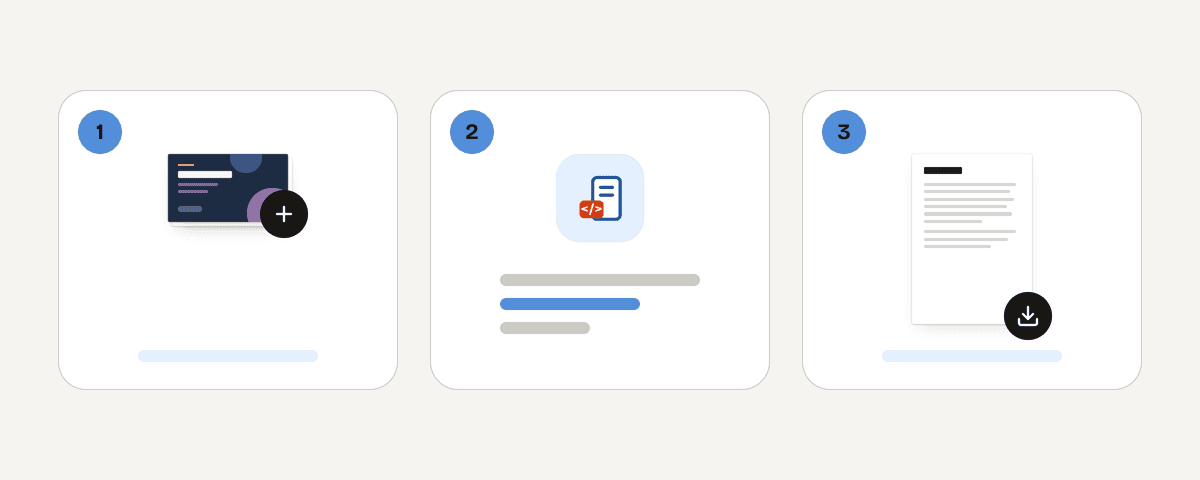
Pick your source: web address or HTML file
Open the tool and choose whether you want to convert a live web page or an HTML file you already have. The two paths lead to the same options, so use whichever matches the material you need as a PDF.
Enter a valid address or add your HTML file
For a web page, type or paste the full public address, then continue. For a file, add one HTML document from your computer. If the address cannot be opened, check it and try again with a public link.
Set page size, orientation, and margins
Open the page options and choose your page size. Select portrait for standard documents or landscape for wide tables and dashboards. Then pick none, small, or normal margins. These three settings shape how the finished PDF looks on screen and in print.
Convert the source and download the PDF
Select Convert to PDF and wait for the confirmation that your web page or HTML file has been converted. The tool tells you how many pages the PDF has. Download the file, and it is yours to keep, share, or print with no watermark added.
What happens to your page or file
This is a server tool. Your HTML file or the address you enter is sent to us over an HTTPS connection and processed in memory on servers located in the European Union. Nothing is written to disk, and nothing is stored for later. The finished PDF is deleted as soon as you download it, and in any case no later than 10 minutes after conversion. You do not create an account, you do not give an email address, and the PDF you receive carries no watermark. Ads keep the site free, and you do not need an account to use it.
Processed in memory on our servers in the European Union. Your file is never stored: it is deleted as soon as you download the result (at the latest after 10 minutes).
Convert HTML to PDF – frequently asked questions
How do I convert HTML to PDF?
Choose your source, then set the output. Pick a web address or an HTML file, enter a full public link or upload one file, select page size, orientation, and margins, and select Convert to PDF. When the confirmation appears, download the PDF.
What is the easiest way to save a webpage as a PDF?
Paste the address into the web address field and continue. The page loads, you check the preview, choose portrait or landscape with the margins you prefer, and convert. No software to install and no sign-up, which is why many people convert HTML to PDF online instead of adding an extension.
Can you save an entire webpage as PDF?
Yes, the tool converts the page at the address you enter into a multi-page PDF, and it tells you how many pages the result has. Very long pages simply produce more pages. Content that sits behind a login or on a private network cannot be opened and cannot be converted.
Do I need to sign up to convert HTML to PDF free?
No account is required. PDF Toucan is free to use, with no registration and no email address required. You choose your settings, convert, and download. That makes it a practical HTML to PDF converter free of sign-up steps.
Which web addresses can I convert to PDF?
Only full public web addresses can be converted. If you type something that is not a web address, the tool tells you. Internal and private network addresses cannot be opened, and if a page fails to load you will be asked to check the address and try again.
Will my HTML to PDF file have a watermark?
No watermark is added. The PDF you download contains only the converted web page or HTML file, at the page size, orientation, and margins you selected. There is no branding on the pages and no extra cover sheet, so the file is ready to send or print straight away.
Are landscape pages available for wide tables?
Yes. Orientation is one of the page options, and landscape is designed for wide tables and dashboards that would be cut awkwardly in portrait. Choose it before converting. If the result still feels tight, convert again with smaller margins or a different page size.
Can I convert several HTML files at once?
No, this tool takes one source per conversion: either one web address or one HTML file. To combine several results into a single document, convert them one at a time and then join the downloaded PDFs with a separate merge step.
Once your PDF is downloaded, the rest of the toolbox is a click away. Use compress if the file is heavy for email, and use merge to join several converted pages into one document in the order you want. Both are separate tools, so run them after this conversion rather than during it. Come back whenever you need to convert HTML to PDF online again.
Last updated September 19, 2026