PDF redaction lets you redact PDF in your browser while permanently removing selected information from a document. With PDF Toucan, you can search for text-based details or draw boxes over any area, review every mark, and create a new PDF. To redact PDF online free, you do not need an account, and browser tools add no watermark or daily limits.
What you can do with Redact a PDF
Permanently remove marked details
After you create the redacted file, pages containing marked areas are converted to images. This removes the selected content from the output rather than leaving it behind as selectable PDF text. Use it to remove sensitive information from PDF pages, including IDs, account details, and contact information.
Find names, IDs, and contact details
Search for a word or phrase, such as a name, surname, or company, and add the matches you want to remove. Automatic finding can also identify Turkish ID numbers, IBANs, email addresses, phone numbers, and license plates when the document contains searchable text.
Draw boxes over any page content
Drag across a page to mark an area by hand. This is useful for signatures, photos, handwritten notes, stamps, and text in scans. You can also use manual selection when a page has no searchable text or a particular match needs closer review.
Review, move, and resize every mark
Check marked areas by page before you create the output. Show a match on its page, remove a mark you no longer need, or adjust a selected area. You can move an area with the arrow keys, resize it with Alt and arrow keys, or delete it.
Set the box color and clear file details
Choose black or white redaction boxes to fit the document layout. You can also clear the title, author, subject, and keywords stored in the PDF file properties. This helps remove personal information from PDF metadata as well as from visible page content.
How to redact a PDF online
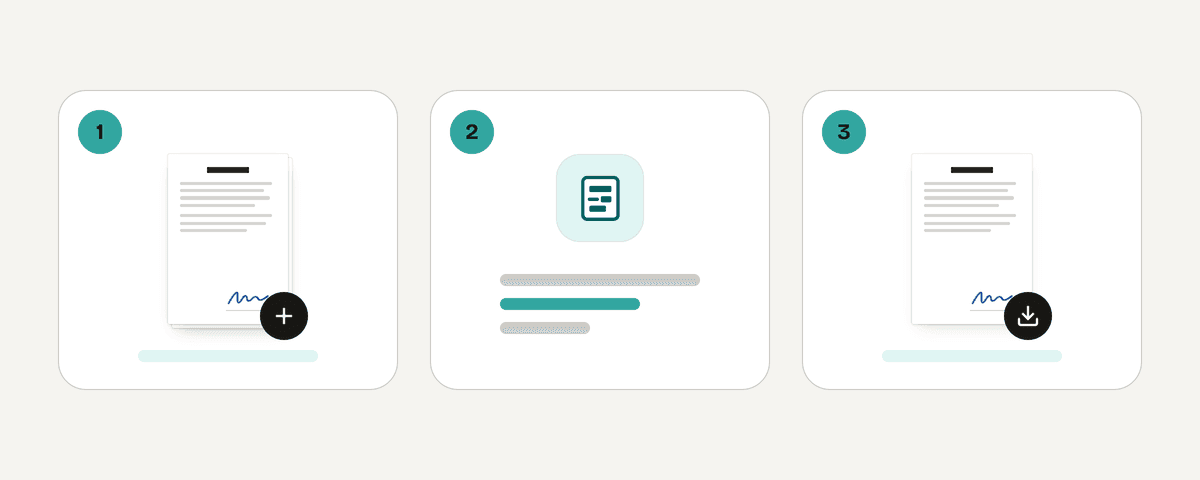
Open the PDF on your device
Choose "Select PDF file" and open the PDF you want to edit. The document is processed in your browser, where you can view its pages and prepare the areas that need to be removed.
Search or draw redaction areas
Enter a word or phrase to search searchable text, or use the automatic options for supported detail types. For a scan, image-only page, or text that cannot be searched, drag on the page to draw each area by hand.
Review each marked area
Use the marked-area list to see what is selected on every page. Show a match on the page, remove unnecessary marks, and reposition or resize a selected box until it covers the information you intend to remove.
Clear document properties if needed
Turn on the option to clear document details when you also want to remove the title, author, subject, and keyword fields from file properties. This step is separate from marking visible content on the page.
Create and download the new PDF
Select "Redact" after reviewing all marks. The browser creates the redacted PDF, with affected pages turned into images, then makes the new file available for download. Keep your original file if you may need an unedited copy later.
Your PDF stays in your browser
The Redact PDF feature runs entirely in your browser through a local processing engine in a web worker. Your PDF stays on your device and is never uploaded. You can work without creating an account, and PDF Toucan browser tools are free, with no watermark or daily limits. Ads help fund the site. Before sharing the result, review the downloaded PDF to confirm that every intended area was marked and that its appearance meets your needs.
Runs in your browser: the file never leaves your device.
Redact a PDF – frequently asked questions
What is the way to black out text in a PDF?
Draw a box over the text, or search for a word or phrase when the PDF has searchable text. Review the marked area, then select "Redact" to create a new file. A visible black box alone is not enough; the new output removes marked content by converting affected pages to images.
Can you redact PDF for free?
Yes. You can redact PDF files for free with PDF Toucan in your browser. No account is required, and browser tools have no watermark or daily limits. Choose the file, mark the details, and download the new PDF when processing is complete.
Why can’t I redact a PDF automatically?
Automatic search depends on searchable text in the PDF. Scanned documents, image-only pages, handwriting, and some embedded text cannot be searched. When that happens, draw the areas to redact directly on the page instead of relying on a text search.
What is the way to permanently redact a PDF?
The reliable method is to mark every area carefully, review the marks, and create the redacted output. In the downloaded file, pages with marked areas are converted to images, so the selected content is not left as selectable PDF text.
Does redacting a PDF remove the original text?
Yes, in the newly created redacted PDF, marked-page content is removed through image conversion rather than simple visual covering. Your original PDF is not changed. Check the downloaded file before sending it, especially when several details appear close together.
How can I remove personal information from PDF file properties?
Use the option to clear document details before creating the output. It removes the title, author, subject, and keyword fields from the PDF properties. Mark visible names, addresses, or other page content separately, since metadata removal does not alter the page itself.
Will this work with scanned PDFs?
Yes, but scanned PDFs usually do not contain searchable text. Automatic finding cannot work on those pages, so you need to draw each redaction area by hand. This also applies to signatures, handwritten notes, photos, and other non-text page content.
When you need to remove sensitive information from PDF documents, take time to inspect each marked area before downloading the result. After redaction, you can use protect to add password protection or compress to reduce the file size. PDF Toucan keeps these browser-based tasks straightforward, free, and account-free.
Last updated September 19, 2026