Protect PDF with password is the process of encrypting a PDF in your browser so an opening password is required to open it. PDF Toucan encrypts your selected files locally with AES-256, without uploading them. Set one password for every PDF in a batch, then choose the permissions you want available after someone opens a file.
What you can do with Protect PDF with Password
Encrypt every selected PDF with AES-256
Apply AES-256 encryption to one PDF or several selected PDFs in a single run. Each output file is encrypted separately, and the opening password you choose is needed before the file can be opened. This makes it practical to prepare a group of documents with consistent protection settings.
Use one opening password across the batch
Every file in your list receives the same opening password. That means you do not need to set up each PDF one at a time when you protect a group of files. Choose a password you can safely share with the intended recipients, then keep a record of it.
Keep files and passwords in your browser
Encryption happens in a local browser web worker. Your PDFs are not uploaded, and the password never leaves your browser. You can password protect PDF free without creating an account, and the downloaded files do not receive a watermark from PDF Toucan.
Check password length, match, and strength
Enter the opening password twice to confirm it before encryption begins. The password must contain at least 6 characters. The tool also indicates password strength and encourages a longer password with capitals, digits, and punctuation. At least 8 characters is recommended, and longer passwords are safer.
Choose permissions for an opened PDF
Decide whether a person who opens the PDF with its password can print it, copy text and images to the clipboard, or make changes. Changes include editing pages and adding or removing pages. These are permission settings for the opened file, not a promise that content cannot be reproduced by other means.
Set an optional owner password for restrictions
An owner password is used to change the permission restrictions you set. It must differ from the opening password. If you leave it empty, the tool assigns a random owner password. The opening password is still the password a recipient needs to open and read the encrypted PDF.
How to protect PDF with password online
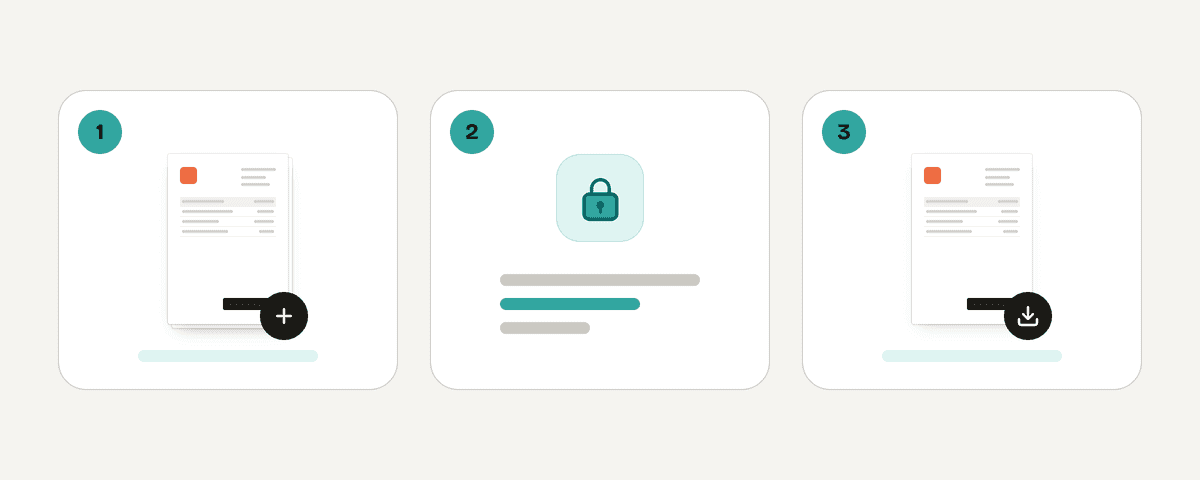
Add the PDFs you want to encrypt
Choose “Select PDF files” and select one or more PDF files from your device. Review the list before you continue. Every file in that list will receive the same opening password and the same permissions you choose in the next steps.
Set and confirm an opening password
Enter a password that recipients must provide when they open the output PDF, then enter it again to confirm. Use at least 6 characters. A longer passphrase with capitals, digits, and punctuation is a stronger choice. Write the password down somewhere secure.
Choose printing, copying, and change permissions
Open the additional options and select whether an authorized reader can print, copy text and images, or edit, add, and remove pages. If needed, enter a separate owner password to control changes to those restrictions later.
Encrypt and download the protected PDFs
Select “Encrypt the PDFs” once both password fields match. The files are encrypted in your browser with AES-256. Download each protected PDF when it is ready, then share the opening password only through a method you trust.
Protect PDF with password online, without uploading it
Your PDFs are encrypted locally in your browser through a web worker. The files are never uploaded, and the password you enter never leaves your browser. This is useful when you need to lock a PDF with a password online while keeping the document on your device during processing. No account is required, and the protected output has no watermark. Remember that the opening password is essential: PDF Toucan does not store it, and a lost opening password cannot be recovered. Save it in a secure place before sharing the encrypted PDF.
Runs in your browser: the file never leaves your device.
Protect PDF with Password – frequently asked questions
How do I protect a PDF with a password?
Select your files, enter and confirm an opening password, choose any printing, copying, and change permissions, then select “Encrypt the PDFs.” The downloaded PDF requires the opening password before it can be opened. You can encrypt one file or multiple PDFs with the same settings.
Can I lock a PDF with a password?
Yes. Add the PDF, set an opening password of at least 6 characters, and encrypt it. Anyone opening the resulting file will be asked for that password. You can also set permissions that control printing, copying, and page changes after the file is opened.
Is it possible to password protect a PDF for free?
Yes. You can password protect PDF free in your browser with PDF Toucan. There is no account to create and no watermark added to the encrypted file. The PDFs stay on your device while the browser encrypts them.
What happens if I lose my PDF password?
A lost opening password cannot be recovered. It is required to open the encrypted PDF, and it is not stored by the tool. Write it down or save it in a secure password manager before you distribute the protected file.
Does password protection stop people from printing a PDF?
It can restrict printing in PDF viewers that honor the file’s permissions. Turn off Allow printing before encrypting the file. Permission settings apply once someone has opened the PDF with the password; they should not be treated as an absolute way to prevent every possible form of copying or reproduction.
Can I protect multiple PDF files with the same password?
Yes. Add multiple PDFs to the file list, then set one opening password. That password applies to every file in the batch, along with the same permission choices. Each PDF is encrypted as its own output file with AES-256.
Which password should I use to encrypt a PDF?
Use a unique, memorable passphrase that is difficult for others to guess. Include more than the 6-character minimum; at least 8 characters is recommended. Capitals, digits, and punctuation can strengthen a password. Do not reuse a password that protects important accounts.
Once your PDFs are encrypted, you can use compress to reduce file size before sharing, or merge to combine related documents first. Protect PDF with password when recipients should need a password to open the file, and keep that opening password stored safely.
Last updated September 19, 2026