How to Sign a PDF: Add a Signature Free on Any Device
PDF Toucan editorial team · Last updated September 19, 2026 · 7 min read
If you need to know how to sign a PDF, the short version is this: open PDF Toucan's Sign PDF tool, click "Select PDF file" (or drop or paste your PDF onto the page), then draw, type, or upload your signature and click the spot on the page where it belongs. Drag it to move it, pull a corner to resize it, then click "Sign PDF" and save the result. It works on phones, tablets, and computers, needs no account, adds no watermark, and the file is processed inside your browser rather than being uploaded to a server.
How do I sign a PDF online for free with PDF Toucan?
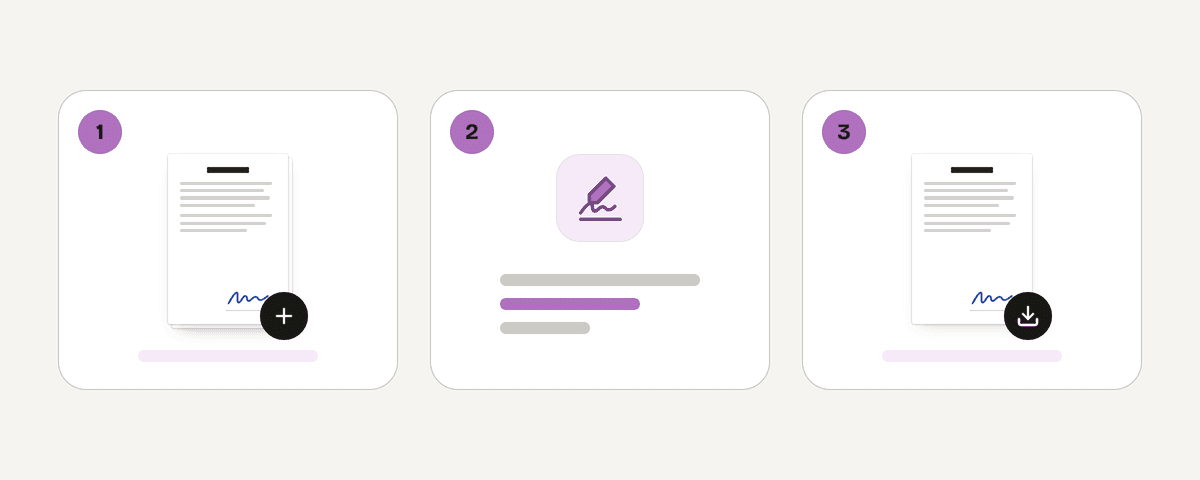
The whole workflow takes under a minute once your signature exists. Here is the exact sequence:
- Open the Sign PDF page in a current browser.
- Click Select PDF file and choose your document. You can also drag the file anywhere onto the page, or paste it.
- Under Your signatures, click Create a new signature (or Create signature the first time). The panel is titled Create your signature.
- Pick Draw, Type, or Upload, build your signature, then click Add signature.
- Click Use this signature, then click the page where the signature should sit. The on-screen hint says it plainly: add your signature, then click where it should go on the page.
- Drag the signature to move it, or pull a corner handle to resize it until it fits the signature line.
- Add any extra marks you need — Date, Full name, or Text — using the same click-to-place approach.
- Click Sign PDF and save the signed file.
The browser tool is free, has no daily limit, and does not stamp a watermark on the output. Because a local processing engine runs in a web worker inside your browser, the PDF never leaves your device — there is no upload step and nothing sitting on a server afterwards. That also means the tool works the same whether the document is a lease, an invoice, or an internal form.
Can I draw, type, or upload a signature to a PDF?
All three methods are available in the Create your signature panel, and each suits a different situation.
| Method | Best for | How it works | Watch out for |
|---|---|---|---|
| Draw | Touchscreens, stylus, pen tablets | Sign in the Signature drawing area with a mouse, pen, or your finger; Clear resets it | Mouse-drawn signatures can look shaky — redraw a few times |
| Type | Fast, tidy results on any device | Enter Your name, then pick a Style: Handwritten, Elegant, or Plain | It is a font rendering, not your actual handwriting |
| Upload | Reusing a real ink signature | Choose a signature image — PNG or JPG; a photo of a signature on white paper works too | Use Remove background to drop the paper, and Choose another image to swap files |
A few extra controls are worth knowing. Ink color lets you switch the signature away from black, which is useful when a form asks for blue ink. Remember on this device saves the signature for next time — the interface is explicit that saved signatures stay on this device, in this browser only. They do not sync to your phone, another browser, or a colleague's computer. You can remove one later with Delete this signature. If you click Add signature before drawing anything, the tool prompts you with "Draw your signature first."
One important distinction: everything above produces a visible signature — an image or text drawn onto the page. That is different from a certificate-based digital signature, which is a cryptographic operation tied to an identity certificate. More on that below.
How do I add a signature to a PDF on an iPhone or Android phone?
Signing on a phone is often the fastest route, because your finger is a better pen than a trackpad.
- Open the Sign PDF page in Safari, Chrome, or your default mobile browser.
- Tap Select PDF file. Your device picker appears — choose the PDF from Files, Downloads, or whichever cloud storage the picker exposes.
- Tap Create a new signature, choose Draw, and sign with a finger or stylus in the signature drawing area. Tap Clear and retry until it looks right; most people need two or three attempts.
- If drawing on a small screen is awkward, switch to Type and pick the Handwritten style, or Upload a photo of your signature and turn on Remove background.
- Tap Add signature, then tap the page where the signature should land.
- Drag it into position and use a corner handle to resize it. Pinch-zoom the browser first if the signature line is small — placement is much more precise when the page is enlarged.
- Tap Sign PDF and save or share the signed file.
If you sign the same kinds of documents regularly, enable Remember on this device so the signature is waiting under Your signatures next time. Again, that storage is per-browser and per-device; switching from Safari to Chrome on the same phone means creating the signature again.
How do I sign a PDF on a Windows PC or Mac?
The desktop flow is identical, with a few ergonomic differences.
- Open the Sign PDF page and click Select PDF file, or drag the document from Explorer or Finder anywhere onto the page.
- Choose your input method. A connected pen tablet or a Mac trackpad gives a decent Draw result; with a plain mouse, Type usually looks more professional.
- Click Add signature, then click the intended location on the page.
- Drag the signature into place and pull a corner to match the width of the signature box. Keep it inside the printed line rather than overlapping the text above it.
- Add Date, Full name, or Text fields if the form requires them.
- Scroll through every page before you finish, especially in multi-page contracts with several signature lines or initials blocks.
- Click Sign PDF and save the file.
Use Add to all pages (the On every page option) only when the same mark genuinely belongs on each page — some agreements ask for initials on every page, but stamping a full signature everywhere on a normal contract looks wrong.
Is a signed PDF flattened, and how can I make sure the signature stays in place?
What the tool does is well defined: it adds a visible signature to the PDF and gives you a new PDF to download. Rather than relying on assumptions about how that content is embedded, verify the output yourself — that habit is worth keeping with any signing tool.
- Download the finished file and reopen it in a normal PDF viewer (Preview, Acrobat Reader, Edge, or your phone's viewer).
- Confirm the signature appears on the correct page, at the correct size, and in the correct spot. Check that it did not land behind or on top of required text.
- Treat the downloaded signed copy as the version you send. Do not re-sign the original and hope the two match.
- If the recipient specifically requires a certificate-based digital signature, ask what software or provider they accept before you sign.
When the signed document is confidential, you can add an opening password with Protect PDF: click Select PDF files, set a Password, re-enter it, then click Encrypt the PDFs. It uses AES-256 encryption, and the password never leaves your browser. Note the warning shown in the tool — if you lose the password there is no way to open the file, so write it down somewhere safe. Also be clear about what encryption does: it controls who can open the file. It does not authenticate who signed it, and it does not convert a visible signature into a digital one.
Are electronic signatures on PDFs legally valid in the United States?
In broad terms, yes — the federal E-SIGN Act and state UETA laws recognize electronic signatures across many kinds of transactions, and a signature is not automatically invalid solely because it is electronic. But "generally valid" is not the same as "valid in your specific case."
- An electronic signature can be a typed name, a drawn mark, a checkbox, or another electronic sign-off. Validity turns on context: intent to sign, agreement between the parties to transact electronically, association of the signature with the record, and the ability to retain and reproduce the record.
- A digital signature is a narrower technical thing: a certificate-based signature that can help demonstrate signer identity and show whether a document changed after signing. A picture of a signature — drawn, typed, or photographed — is not a digital signature, no matter how realistic it looks.
- The Sign PDF tool adds visible signatures plus Date, Full name, and Text fields. It does not claim to provide certificate-based verification, identity checks, or an audit trail.
- Some categories are treated differently or carry extra requirements: court filings, real estate transfers, certain government forms, lending documents, wills, and some employment or notarized paperwork. Follow the recipient's stated rules.
This is general information, not legal advice. For anything high-stakes, ask the receiving party what they accept and, where the amount or risk is significant, talk to a lawyer.
FAQ
Can I sign a PDF online free with no sign-up?
Yes. PDF Toucan's Sign PDF tool needs no account, applies no watermark, and has no daily limit on the browser tools. Open the page, click "Select PDF file," create your signature, place it, then click "Sign PDF." Ads fund the site, so the tool itself stays free.
How do I add a signature to a PDF without printing it?
Skip the print-sign-scan loop entirely. Open the PDF in the Sign PDF tool, choose Draw, Type, or Upload, click the page to place your signature, resize it to fit the line, then click "Sign PDF" and save the signed file straight to your device.
Can I use a photo of my handwritten signature in a PDF?
Yes. Choose Upload, then select a PNG or JPG — a photo of a signature on white paper works too. Turn on Remove background so the paper disappears and only the ink remains. Good, even lighting and a plain white sheet give the cleanest result.
Is a typed name a legally valid electronic signature?
Often, yes. Under E-SIGN and UETA, a typed name can qualify when there is intent to sign and agreement to transact electronically. Validity still depends on context and the recipient's requirements. For court filings, property, or lending documents, confirm what is accepted before signing.
Can I password-protect a signed PDF?
Yes. Run the signed file through Protect PDF: select the file, set a password of at least six characters, re-enter it, and click "Encrypt the PDFs." It applies AES-256 encryption in your browser. Record the password — without it, the file cannot be opened.