“Unlock PDF” means removing a known PDF password in your browser. Use this page to remove a password only when you already know it; it does not recover, guess, or bypass passwords. Add one or several PDFs, enter the applicable password on each locked file, then download versions that open without a password. PDF Toucan is free, needs no account, adds no watermark, and has no daily limits for browser tools.
What you can do with Unlock PDF Files
Enter the known password for every locked PDF
Each locked file has its own card, so you can type the password that belongs to that PDF. This gives you a straightforward way to remove a PDF password online when you have permission and already know the password. Different files can use different passwords.
See whether a PDF actually needs a password
Check the status of every file before you begin. You may see Checking, Waiting for a password, Password entered, Not protected, Restricted — no password needed, or Could not be opened. Clear statuses help you know which files are ready and which need your attention.
Remove passwords from several PDFs together
Add multiple PDF files in one session and provide a known password for each locked file. You do not need to process files one by one. Files that are ready can be handled together after you have entered the required passwords.
Recognize PDFs that already open normally
A file marked Not protected does not need password removal. If none of the files you added are protected, the page tells you so. A file marked Restricted — no password needed also opens without a password; that status does not mean this page can remove its restrictions.
Download PDFs that no longer ask for a password
After successful password removal, you receive confirmation that the file now opens without a password. Download the unlocked PDF when it is ready. This makes it easy to keep a usable copy for situations where you no longer need the opening password.
How to unlock PDF files online
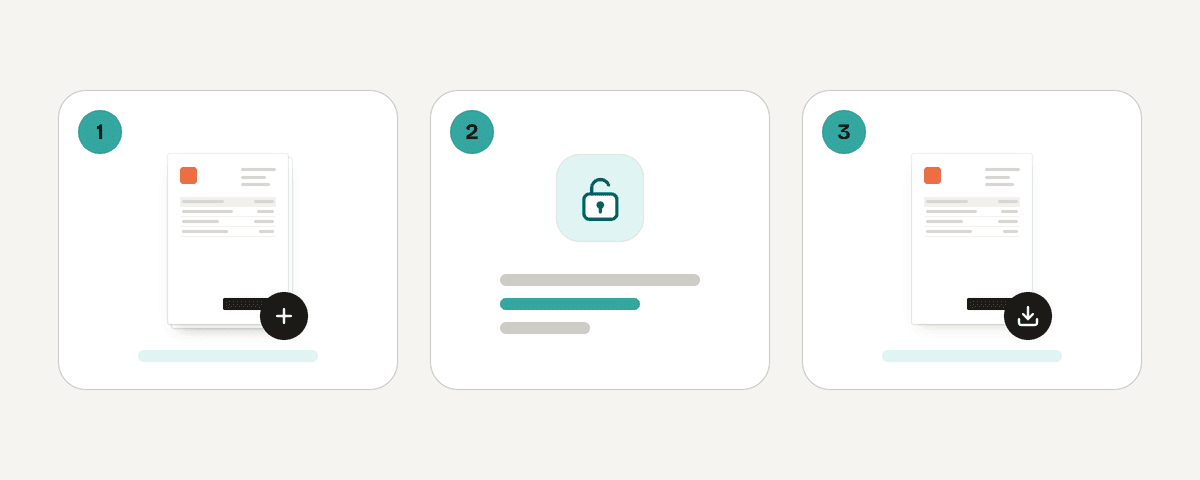
Add the PDFs you want to unlock
Click “Select PDF files” and choose one or more PDF files from your device. The page checks each file to determine whether it is protected, already unprotected, restricted without a password requirement, or unable to be opened.
Type the known password for each locked file
For every file marked Waiting for a password, enter its known password on that file’s card. A password entered for one PDF applies only to that PDF, so repeat this step wherever another locked file needs credentials.
Review each file’s password status
Wait for the status to show Password entered, Not protected, or Restricted — no password needed. If a file cannot be opened, check that it is the intended PDF and that the password is correct before continuing.
Remove the passwords and download the results
Click “Remove the passwords” for files whose passwords you know. When protection removal succeeds, download the unlocked PDF or PDFs. The result opens without the password that was removed.
Your PDFs stay on your device
PDF Toucan processes this task entirely inside your browser, using a local processing engine in a web worker. Your PDF files are never uploaded for password removal. The passwords you type and the resulting PDFs remain on your device as the browser handles the work locally. You can remove PDF password protection without creating an account, and the downloaded result has no watermark. Browser tools have no daily limits; ads help fund the site. Because processing is local, keep your browser open until your files are ready to download.
Runs in your browser: the file never leaves your device.
Unlock PDF Files – frequently asked questions
How do I remove a PDF password for free?
Choose your PDF, enter the password you already know, and start password removal. PDF Toucan lets you do this free with no account and no watermark. Its browser tools have no daily limits, with advertising helping fund the site.
Can I unlock a password-protected PDF without the password?
No. This page removes password protection only when you provide the correct password for the PDF. It does not recover, guess, crack, or bypass passwords, so you need to obtain the password from the document owner or sender.
What happens if I enter the wrong PDF password?
The PDF will not be unlocked until a valid password is entered. Recheck capitalization, numbers, symbols, and spaces, then try the password again on that file’s card. Each protected PDF may have a different password.
Does PDF Toucan upload my PDF file?
No. Your PDF is processed locally in a browser worker on your device and is never uploaded. This lets you remove a PDF password online while the file itself stays in your browser rather than being sent to a server.
Why does my PDF say it is restricted but needs no password?
It means the PDF does not require a password to open. That file is already accessible without an opening password, so it does not need this password-removal process. The status is not a promise that any document restrictions can be removed.
Is it possible to remove password protection from several PDFs at once?
Yes. Add several PDF files, then enter the known password on every locked file that needs one. Once the applicable passwords are entered, you can start removal for the ready files in the same session.
After I unlock a PDF, will it still ask for a password?
No. After successful removal, the downloaded PDF opens without the password that was removed. Look for the confirmation that protection was removed, then download the unlocked PDF to use the password-free version.
When your PDFs are ready, you can keep working in your browser with other PDF Toucan tools. Use merge to combine documents, compress to reduce file size, or split to separate pages into smaller PDFs. Each browser tool is free to use without an account or watermark.
Last updated September 19, 2026