How to Remove Password from PDF: Open vs. Permissions Passwords
PDF Toucan editorial team · Last updated September 19, 2026 · 7 min read
If you are wondering how to remove password from PDF files, the short answer is this: you can remove a PDF password when you are authorized to do so and you already know the password protecting the file. An open password blocks viewing entirely, while a permissions password limits what you can do after the document opens. If you do not have the password or the authority to change the document, ask the owner for an unlocked copy instead of trying to defeat the protection.
Can you legally remove a password from a PDF?
Before touching any tool, settle the ownership question. Removing protection is appropriate only for PDFs you own, or for files you have been authorized to modify by the document owner or by your organization.
- Knowing the password is not the same as having permission. A colleague may share an opening password so you can read a report. That does not authorize you to strip the protection, republish the file, or hand an unlocked copy to someone outside the intended audience.
- Workplace, school, legal, and client documents often carry rules you cannot see. Confidentiality agreements, records-retention policies, and regulatory requirements can all apply to the protected version of a file.
- If you do not know the password, ask. Request the correct password or an unlocked copy from the sender. Attempting to bypass protection on a document you were not given access to is a different activity entirely, and no reputable tool will help you do it.
- Keep the protected original. When a document may be needed for records, contracts, compliance, or litigation, archive the original encrypted file and work only on a clearly labelled copy.
What is the difference between an open password and a permissions password?
PDF encryption supports two distinct passwords, and confusing them is the most common reason people think a tool has failed.
| Open password | Permissions password | |
|---|---|---|
| Also called | User password | Owner password |
| When it is requested | Before the PDF can be viewed at all | Not requested to view; needed to change restrictions |
| What it controls | Access to the document contents | Printing, copying text and images, editing pages |
| Typical symptom | Reader shows a password prompt on opening | File opens normally but printing or copying is greyed out |
| Can you read the file without it? | No | Yes |
A PDF can have one, the other, or both. A file that opens instantly but refuses to let you copy a paragraph has a permissions password set by whoever produced it. That restriction is a deliberate decision by the document owner, and the fact that you can read the file does not mean you are authorized to lift its limits.
Readers also disagree about vocabulary. Adobe Acrobat, Preview on macOS, Microsoft Edge, and Chrome each describe security settings slightly differently. To see what you are dealing with, open the document properties or security panel in your reader and look for two things: whether a password is required to open the document, and which actions are listed as allowed or not allowed.
What can and cannot be removed technically?
Being honest about scope saves a lot of wasted time.
What works: if you know the password for a protected PDF and you have authorization, a browser-based unlock tool can produce a copy that opens without any prompt. The content, page order, and layout stay the same; only the encryption layer is gone.
What does not work:
- Password recovery. The Unlock PDF tool removes protection only from files whose password you know. It does not guess, crack, or recover forgotten passwords, and it is not a bypass service.
- Silently lifting permissions. If a file opens normally but is marked restricted, the correct route is to obtain the owner password or an unrestricted source file from whoever created it.
- Broken or unusual files. A damaged PDF, a mistyped password, an unsupported encryption scheme, or a policy-managed corporate document may simply refuse to open or process. The status on the file card will tell you — ask the owner for a fresh copy when that happens.
- Anything outside the PDF itself. Removing a PDF password does not remove a portal login, a digital rights management wrapper, a signature workflow, existing redactions, or access rules enforced by a document management system.
How do you remove a known PDF password online?
These steps assume you are authorized and you know the password.
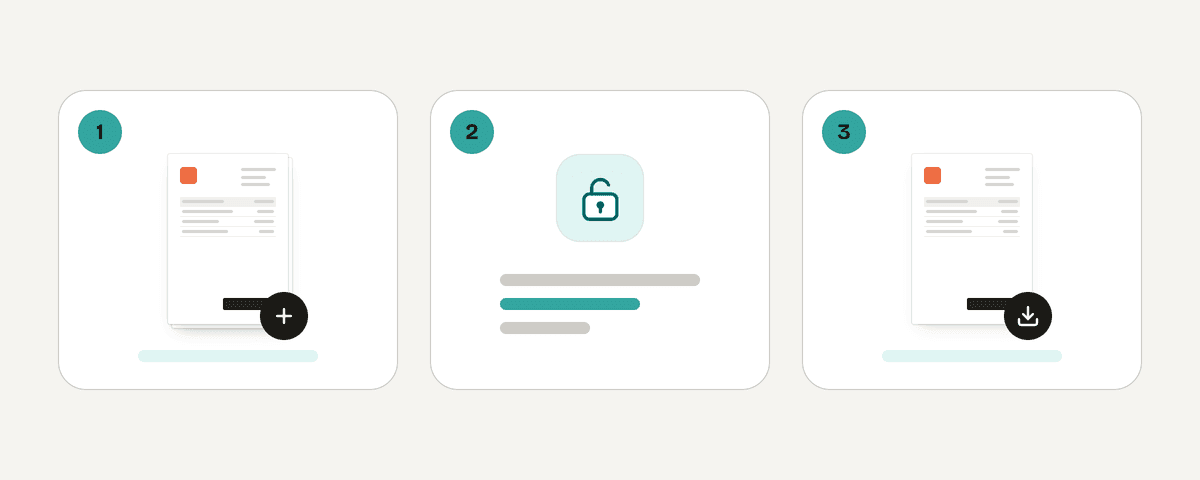
- Open the Unlock PDF tool in your browser.
- Choose Select PDF files. You can also drop files anywhere on the page or paste them from the clipboard. Several PDFs can be added at once.
- Wait for each file card to finish Checking. The status then tells you what to do next: Waiting for a password, Restricted — no password needed, Not protected, or Could not be opened.
- Type the password you know on each locked file's card. The status changes to Password entered once the file is ready.
- Choose Remove the passwords. When Protection removed! appears, the confirmation tells you the file now opens without a password.
- Choose Download the unlocked PDF. With several files, the results arrive together in an
unlocked-pdfsdownload.
If you add files that were never encrypted, the tool will simply say that none of the files you added are protected — nothing is changed.
The tool runs entirely inside your browser using a local processing engine in a web worker, so the PDF is never uploaded to a server. It is free, requires no account, adds no watermark, and has no daily limit.
How can you check that the unlocked PDF works?
Verification takes a minute and prevents awkward surprises later.
- Open the downloaded copy in a PDF reader or a browser tab and confirm that no password prompt appears.
- If the point of the exercise was authorized printing, editing, or copying, test that exact action before you send the file anywhere.
- Compare the page count and visible content against the original. Skim for missing images, broken fonts, or form fields that no longer display.
- Check any signatures. Password removal is not a way to alter or invalidate a signed record — if a document carries a digital signature, treat the signed original as the authoritative version.
- Name the output clearly, for example
contract-unlocked-copy.pdf, and keep the protected original in a separate folder rather than overwriting it.
How do you re-protect a PDF after editing?
Once your authorized changes are done, the file usually needs to go back under protection — often with tighter or clearer permissions than before.
- Open the Protect PDF tool and choose Select PDF files, or drop or paste your PDFs onto the page.
- Under Set a password, type the opening password, then re-enter it. The tool confirms The passwords match and shows a Password strength reading of weak, medium, or strong.
- Note that the same opening password applies to every file in the list. If different documents need different passwords, encrypt them in separate batches.
- Open More options to set Permissions once the file is open: Allow printing, Allow copying, and Allow changes. Grant only what the recipient genuinely needs.
- Optionally set an Owner password — used to change the restrictions later. It must differ from the opening password. Left empty, a random one is assigned.
- Choose Encrypt the PDFs and download the result.
Practical password advice: the tool requires at least 6 characters, but at least 8 is recommended, and capitals, digits, and punctuation make a real difference. Use a password you have not reused elsewhere.
Write the password down in an approved password manager before you close the tab. PDF Toucan does not store your password, and a lost opening password means the protected file cannot be opened again. Files are encrypted with AES-256 and, like the unlock tool, everything happens in your browser.
A quick decision checklist
- Prompted for a password and you know it, and you are authorized? Use the unlock tool.
- Prompted for a password and you do not know it? Ask the owner. No tool should be used to guess it.
- Opens fine but printing or copying is blocked? That is a permissions password. Request the owner password or an unrestricted source file.
- Finished editing an authorized copy? Re-encrypt it with a fresh password and deliberate permissions.
Frequently asked questions
Can I remove a PDF password if I do not know it?
No. The Unlock PDF tool removes protection only from files whose password you already know, and it is not a recovery or cracking service. If you have forgotten the password or were never given it, contact the document owner and ask for the password or an unlocked copy.
Can I remove restrictions from a PDF that opens without a password?
A file that opens freely but blocks printing or copying carries a permissions password set by its owner. The correct route is to request the owner password or an unrestricted source file. Being able to read a document does not mean you are authorized to lift the limits its creator chose.
Does removing a PDF password remove a digital signature or redaction?
No. Redactions already applied to the content remain applied, and password removal is not a way to recover redacted text. Digital signatures are a separate mechanism; modifying a signed document can invalidate the signature, so always treat the signed original as the authoritative record.
Is it safe to remove a PDF password online with PDF Toucan?
Both tools run inside your browser with a local engine in a web worker, so the PDF and the password are never uploaded to a server. That keeps the document on your own machine. Still keep the protected original archived, and only unlock files you are authorized to modify.