How to Crop PDF Pages (and What Cropping Does Not Remove)
PDF Toucan editorial team · Last updated November 2, 2026 · 4 min read
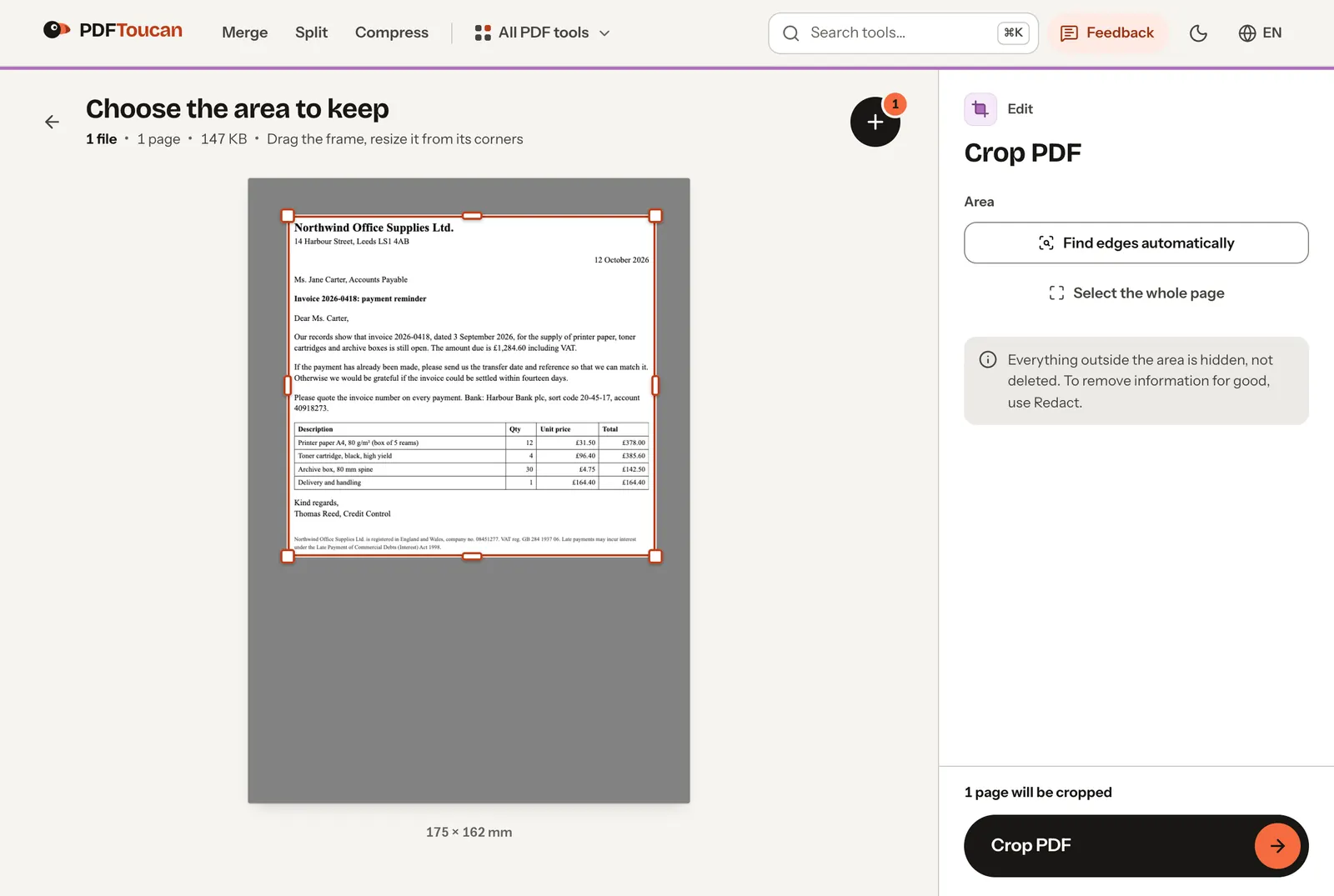
To crop a PDF, open Crop PDF Pages, choose the file, drag the frame around the part of the page you want to keep (or press Find edges automatically), choose under Which pages? whether the area applies to This page, All pages or Selected pages, and press Crop PDF. Everything outside the frame disappears from view in every PDF reader and printer.
One thing most crop tools do not tell you: cropping hides the rest of the page, it does not delete it. The text and images outside the frame are still inside the file. We show below how easily they come back, and what to use when they must really be gone.
Step by step
- Open Crop PDF Pages and choose your PDF. The first page appears with a frame around it.
- Set the area to keep:
- Drag the frame and pull its corners. The size is shown in millimetres.
- Or press Find edges automatically and the frame snaps to the printed content of the page, cutting the empty margin. In our test, on an A4 letter, it found the text block, including the small print at the bottom, at once.
- Arrow keys move the frame in small steps; with Shift they resize it.
- Under Which pages?, choose This page, All pages or Selected pages. Use Previous page and Next page to check the others before you apply one area to all of them.
- Press Crop PDF and download the file. The original is not changed.
What cropping really does
A PDF page has a few invisible boxes that tell a reader how big the page is and which part to show. Cropping makes those boxes smaller. Crop PDF Pages changes both the visible box (CropBox) and the page size itself (MediaBox), because some printers and programs only look at the page size. The drawing instructions of the page are left exactly as they were.
That has three consequences you can see in a test:
| Result in our test | |
|---|---|
| How the page looks in readers and when printed | Only the area inside the frame |
| File size | Practically unchanged (147 KB before, 142 KB after) |
| Text outside the frame | Still inside the file |
To check the last row, we cropped our test letter to its top quarter and then set the page box back to the full A4 size, which any PDF editor can do in a few clicks. The whole letter, including the signature and the footer, came back.
So:
- Use cropping to remove empty margins, to make a scan fit the screen, to cut a page down to the part you want to print, or to tidy up pages before merging.
- Do not use cropping to hide information, such as an account number, a name or a signature. Use Redact PDF instead, which removes the text and images under the marked areas from the file.
- Do not expect a smaller file. To reduce the size, use Compress PDF.
Cropping several pages the same way
Scanned books and booklets often have the same wide margin on every page. Set the frame on one page, choose All pages, then step through a few pages with Next page to make sure nothing important falls outside the frame on pages with a different layout. If only some pages need cropping, choose Selected pages and pick them.
If the pages of a scan are slightly shifted against each other, crop them in two or three groups instead of one: a frame that fits every page loosely is better than one that cuts off text on some of them.
Cropping and other page problems
- A page lying on its side: turn it with Rotate PDF; cropping does not rotate.
- A blank page in the middle of a scan: remove it with Remove PDF Pages.
- The page is the right size but you want two pages per sheet or a different paper size: that is a print setting, not a crop.
Is my file uploaded?
No. Crop PDF Pages runs in your browser tab; the PDF stays on your device.
How we tested
On 2 November 2026 we cropped a one-page A4 letter (147 KB, text, a table and a 7.5 pt footer) with Crop PDF Pages on pdftoucan.com in Chrome, using Find edges automatically. We then checked the page boxes and size of the result. Separately, we cropped the same letter to its top quarter the same way the tool does (MediaBox and CropBox), reset the page box to full A4 and extracted the text of the page to see what was still in the file.