How to Extract Pages from a PDF and Save Them as a New File
PDF Toucan editorial team · Last updated November 2, 2026 · 5 min read
To extract pages from a PDF, open Extract PDF Pages, pick your file, type the pages you want into Page numbers (for example 5, 2-4, 31) or click their thumbnails, and press Extract the selected pages. You get a new PDF with just those pages, in the order you chose; the original file is not changed. The file never leaves your browser.
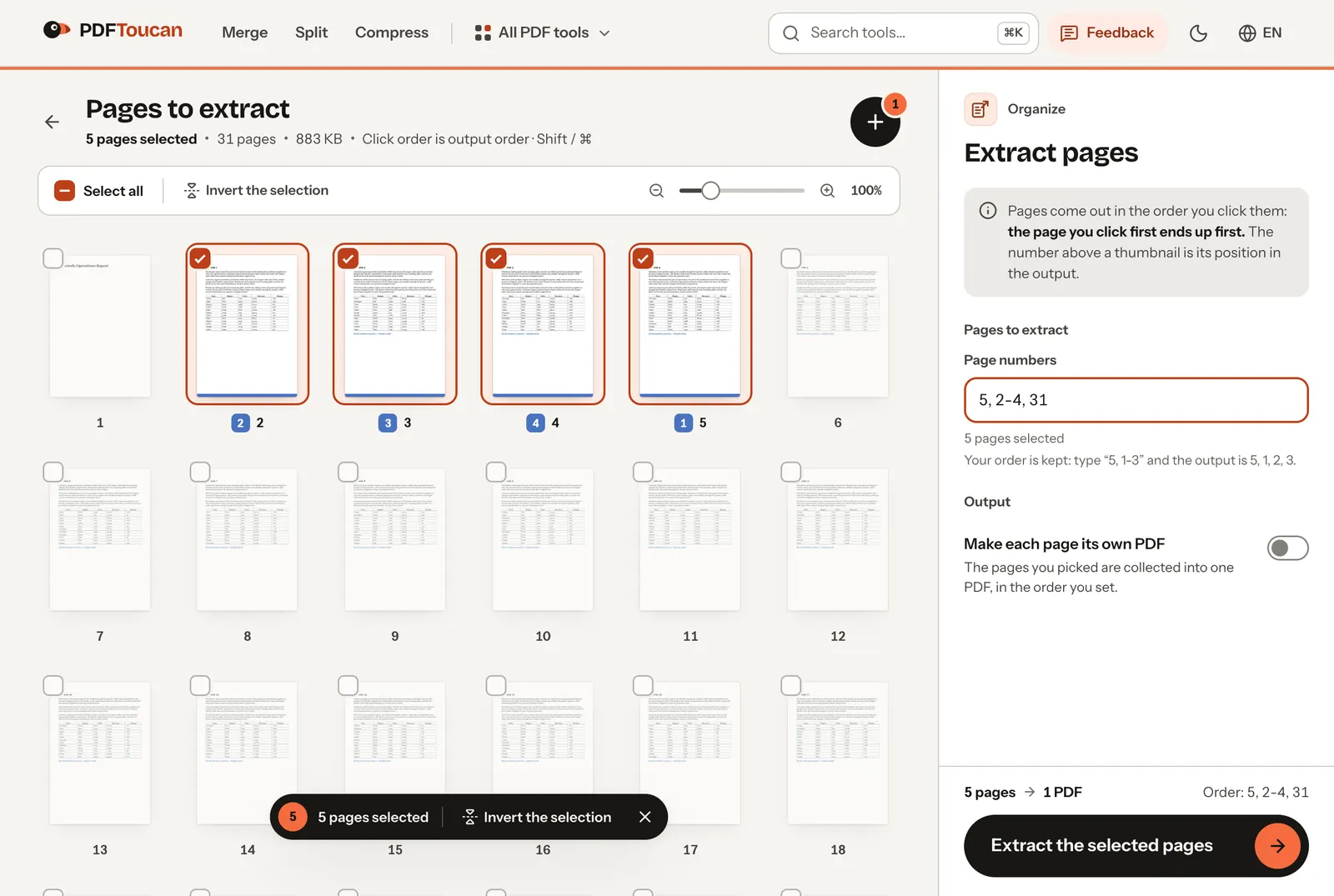
We tried it on a 31-page, 883 KB report: pulling out five pages took less than a second and produced a 70 KB file. The details below show what carries over into the new file and what does not.
Step by step
- Open Extract PDF Pages and choose the PDF. Every page appears as a thumbnail with its number.
- Choose the pages in one of two ways:
- Click the thumbnails. The order you click is the order of the new file; a small badge on each page shows its new position. Hold Shift and click to select a run of pages.
- Type page numbers into the Page numbers box. Separate pages with commas, use a hyphen for a range and
lastfor the final page:1-3, 8, 12-last.
- Need everything except a few pages? Select those few and press Invert the selection.
- If you want one file per page instead of a single PDF, switch on Make each page its own PDF. The pages then download together as a ZIP.
- Press Extract the selected pages and download the result.
The order is yours
Most tools put extracted pages back in their original order. Here the order you type or click is kept: 5, 2-4, 31 gives a file that starts with page 5, followed by pages 2, 3 and 4, and ends with page 31. That is handy for building a short pack out of a long document, such as the summary first and the details after it, without a second step to reorder pages.
If you only need to change the order of all pages, Organize PDF is the better tool. To cut a document into several parts by page ranges, use Split PDF.
What the new file keeps and what it leaves behind
We checked the five-page file page by page:
| In the new PDF? | |
|---|---|
| Text (selectable and searchable) | Yes, unchanged |
| Images, tables, fonts | Yes, as in the original |
| Links to websites | Yes |
| Links that jump to another place in the same document | No, they stop working (even when the target page was extracted too) |
| Bookmarks (the outline in the reader's side panel) | No |
| The pages you did not pick | No, they are not hidden inside the file |
The last row matters if you extract pages to share part of a confidential document: the pages you leave out are not in the new file at all. We counted the page objects inside the file, and there were exactly five.
Bookmarks and in-document links are not carried over because they point into the whole document; most of them would lead nowhere in a five-page extract. If you need them, add them again in a PDF editor after extracting.
Why the new file is so much smaller
The 31-page report was 883 KB; the five extracted pages came to 70 KB. The new file only holds what those five pages use, and it is saved in a compact form. That is also why extracting is a quick way to send just the relevant part of a large document by email. If the extract is still too large, run it through Compress PDF.
Extract or delete?
Both tools build a new PDF from the pages you keep, so the result is the same. Pick whichever needs fewer clicks:
- Keeping a few pages out of many: Extract PDF Pages.
- Dropping a few pages out of many: Remove PDF Pages. In our test, removing pages 2–11 from the 31-page report took under a second and left a 21-page file of 145 KB. That tool can also save the removed pages as a second PDF, in case you marked the wrong ones.
Is my file uploaded?
No. Extracting and deleting pages happen in your browser tab, on your own device. The PDF is not sent to our server, which also means it works on large files without an upload wait. Closing the tab clears it from memory.
Common questions
Can I extract pages from a password-protected PDF? Yes, once you enter the password to open it. If you only know that there is a password but not what it is, the file cannot be opened, here or anywhere else.
Can I pick pages from several PDFs at once? Extract works on one file at a time. To combine pages from several files, extract from each and then join the results with Merge PDF.
Does it work on a phone? Yes. On a small screen, typing the page numbers is quicker than tapping thumbnails.
How we tested
On 2 November 2026 we ran Extract PDF Pages and Remove PDF Pages on pdftoucan.com in Chrome with a 31-page A4 report (text, a table on every page, web links, links between sections and a bookmark outline). We then opened the results with a PDF library and counted pages, links, bookmarks and page objects, and extracted the text of every page.