How to Make a Scanned PDF Searchable: OCR, Languages, and Checks
PDF Toucan editorial team · Last updated September 19, 2026 · 8 min read
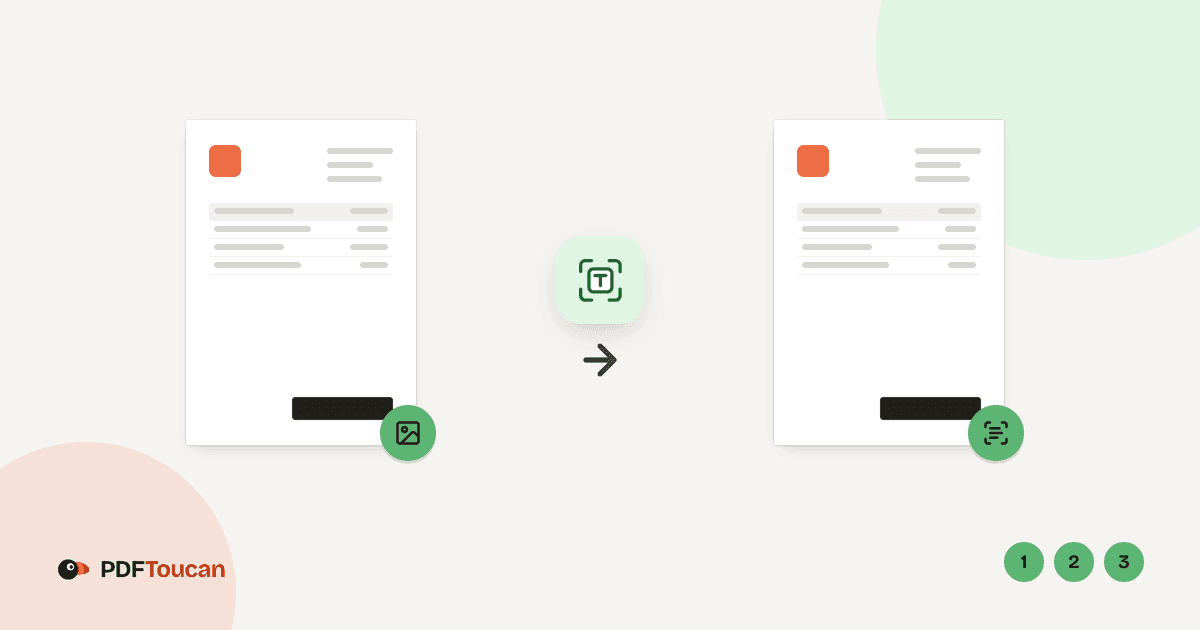
Here is how to make a scanned PDF searchable: run OCR on the file so a text layer is added behind each scanned page. In PDF Toucan's OCR PDF tool, choose "Select PDF files", pick the document language or languages, optionally straighten or reorient pages, select "Recognize text", and then test the downloaded file with your reader's search box. If you need an editable Word file afterwards, OCR the PDF first and convert that searchable PDF to Word second.
What makes a scanned PDF unsearchable, and how does OCR fix it?
A scanned PDF is usually just a stack of pictures. Your scanner or phone camera photographed each sheet of paper and wrapped those images in a PDF container. To a human eye the page looks like a normal document; to a PDF reader there are no words at all, only pixels. That is why pressing Ctrl+F finds nothing, why highlighting text selects a rectangle instead of a sentence, and why copying gives you nothing usable.
OCR — optical character recognition — solves this. The software examines the shapes in the page image, matches them against the letterforms of the languages you selected, and writes the recognized characters into the PDF as an invisible text layer positioned over the picture. The page still looks exactly the same, but search, copy, and text extraction now work.
Results depend heavily on the source scan. Sharp 300 DPI scans of clean printed text usually come out very well. Faint carbon copies, photocopies of photocopies, mobile snapshots taken at an angle, handwriting, decorative fonts, and stamped or watermarked pages are much harder, and some errors are unavoidable. OCR is a reading aid, not a guarantee of a perfect transcription.
How do you make a scanned PDF searchable online with PDF Toucan?
The workflow is the same on a laptop, a tablet, or a phone — you only need a browser.
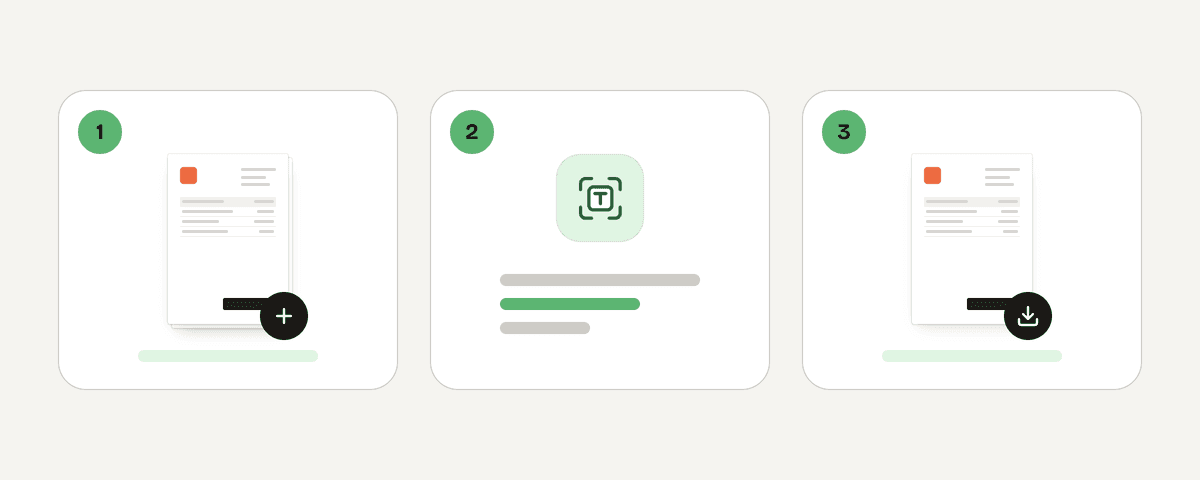
- Open OCR PDF and select "Select PDF files". You can also drag and drop a PDF anywhere on the page, or paste a file from the clipboard.
- Under Document language, tick every language that actually appears in the document. You must pick at least one.
- Open More options if you want to change which pages are scanned or apply page fixes (both are covered below).
- Select "Recognize text" and wait. Text recognition can take a few minutes for files with many pages, so leave the tab open.
- When the tool reports "Text recognized!", select "Download the searchable PDF".
You can add several PDFs at once; each file is processed on its own and you get searchable versions of all of them. No account and no watermark are involved.
A word on how this one works: OCR is computationally heavy, so unlike some of the purely in-browser tools, this file is sent over HTTPS to servers in the European Union. It is processed in memory, never written to disk or stored, and deleted as soon as the result is downloaded — at the latest after 10 minutes. If a document is so sensitive that it must never leave your device, handle it with offline software instead.
Which OCR language and page-recognition options should you choose?
Languages
The Document language list offers 30 languages across Latin, Cyrillic, Greek, Arabic, Hebrew, Devanagari, Thai and CJK scripts, and you can combine up to five. Pick the languages genuinely present in the file. Language selection is not cosmetic: it tells the engine which alphabet, accents, and word patterns to expect, which is exactly what rescues an ambiguous character such as a smudged "ö" or "ğ". For a bilingual contract, select both languages. Do not tick everything "just in case" — extra languages slow the process down and can introduce odd substitutions.
Which pages should be scanned?
Many PDFs are mixed: a digitally generated cover letter followed by scanned attachments. The page options let you decide how much of the file is re-read.
| Option | What it does | Best for | Trade-off |
|---|---|---|---|
| Scan pages without text (recommended) | Only image-only pages are recognized; pages that already contain text are left alone | Most scans and mixed documents | Poor existing text stays poor |
| Recognize existing text again | Badly recognized old text is removed and those pages are read again | PDFs with an existing, unreliable OCR layer | Straightening is not available in this mode |
| Treat every page as an image | Every page is turned into an image and recognized from scratch | Broken or unusable text layers, inconsistent files | Old selectable text and links are lost |
Start with "Scan pages without text". It is the fastest option, it never damages clean digital text, and for a pure scan it processes everything anyway. Reach for the other two only when you have evidence that an existing text layer is wrong — for example, searching for a word you can plainly read on the page returns nothing, or copying produces gibberish.
Should you straighten tilted pages or fix their orientation before OCR?
Two page fixes are available, and both are worth knowing.
- Straighten tilted pages corrects sheets that were fed into the scanner slightly crooked. Recognition engines read along horizontal lines, so even a few degrees of skew can cost accuracy. Straightened output is also simply nicer to read.
- Fix page orientation automatically rotates pages that were scanned upside down or sideways. This is common when a document mixes portrait letters with landscape tables, or when a sheet-feeder grabbed pages the wrong way round.
One limitation to plan for: straightening is not available when "Recognize existing text again" is selected. If a file needs both deskewing and a full re-read of bad text, use "Treat every page as an image" instead, accepting that existing links and selectable text are discarded.
Before committing a 400-page archive, test a short extract. Receipts, forms with boxes, multi-column newsletters, stamped pages, and tables are the layouts most likely to need a manual review afterwards, and it is cheaper to discover that on five pages than on five hundred.
How do you check whether the searchable PDF OCR worked?
Never assume. Spend two minutes verifying:
- Open the downloaded searchable PDF in your usual reader.
- Press Ctrl+F on Windows or ChromeOS, or Command+F on macOS, and search for a distinctive word, surname, date, or invoice number you can see on a page. Confirm the viewer jumps to the page you expect.
- Repeat the search on a page near the start, the middle, and the end — a file can OCR well in one section and badly in another.
- Select a short sentence, copy it, and paste it into a plain-text editor. Compare it with the scan character by character, paying attention to names, addresses, dates, totals, and punctuation. Digits and the letter/number lookalikes (0/O, 1/l, 5/S) are the classic failure points.
- If the results are wrong, rerun OCR with the correct languages selected, orientation fixed, and — if a stale text layer is to blame — "Treat every page as an image".
One important caveat: OCR rewrites the PDF's contents to add the text layer, so any existing digital signature becomes invalid. The tool tells you when this happens. If a signature must remain verifiable, keep the signed original untouched and treat the searchable copy as a working document.
How do you convert the searchable PDF to Word after OCR?
Order of operations matters here, and getting it wrong is the single most common mistake.
- Run OCR PDF first and download the searchable PDF.
- Open PDF to Word, select "Select PDF files", and add the OCR-processed file — not the original scan.
- Select "Convert to Word" and then "Download the Word document".
- Open the DOCX in Word and review it before editing or reusing anything important.
Why this order? The PDF to Word tool converts the text that exists in a PDF. It does not perform recognition on its own, so scanned pages with no text layer are simply added as pictures — you get a Word file full of page images you cannot edit. Once OCR has added real text, the conversion has something to work with.
Keep the searchable PDF open beside the Word document while you check it. Complex tables, multi-column layouts, and footnotes are where conversion drifts most, and having the original page image on screen makes corrections quick. For archiving the scan afterwards, PDF Toucan's compress tool can bring large image-heavy files back down to a sensible size.
FAQ
Can I make a scanned PDF searchable for free without signing up?
Yes. The OCR PDF tool needs no account and adds no watermark. Upload one or more PDFs, choose the document languages, select "Recognize text", and download the searchable result. The file is processed in memory on EU servers and deleted once downloaded, at the latest after 10 minutes.
What is the best OCR language setting for a PDF with more than one language?
Tick each language that genuinely appears — for example English and German for a bilingual contract. Recognition uses those alphabets and word patterns to resolve ambiguous characters. Avoid selecting languages the document does not contain: extras slow processing down and can cause odd substitutions in otherwise clean text.
Why can I search some pages in my PDF but not others?
Your file is probably mixed: some pages were generated digitally and already contain text, while others are scans. With "Scan pages without text" selected, only the image pages are recognized. If a page still resists search, it may be a photo, a stamp, or handwriting that OCR could not read.
Does PDF to Word convert a scanned PDF into editable text?
No. Scanned pages contain no text, so the converter adds them to the DOCX as pictures. Run OCR on the PDF first, download the searchable version, and convert that file instead. Then the Word document contains real, editable paragraphs rather than page images.
Will OCR preserve a PDF's digital signature?
No. Adding a text layer modifies the document, which breaks the cryptographic seal, and the tool warns you that the digital signature is no longer valid. Keep the signed original archived unchanged and use the searchable copy for searching, copying, and conversion work only.
Related guides
- Convert PDF to Word without Losing Formatting: Practical GuideLearn why PDFs shift in Word, how to handle scans and tables, and when a free conversion needs cleanup before you edit.8 min read
- Best Resolution for Scanning Documents: We Measured 150 to 600 DPIWe scanned the same letter at 150, 200, 300 and 600 dpi and ran OCR on each. Why 300 dpi is the safe choice, and why contrast matters more for faded receipts.7 min read