Combine JPG Photos into One PDF in the Right Order
PDF Toucan editorial team · Last updated November 2, 2026 · 4 min read
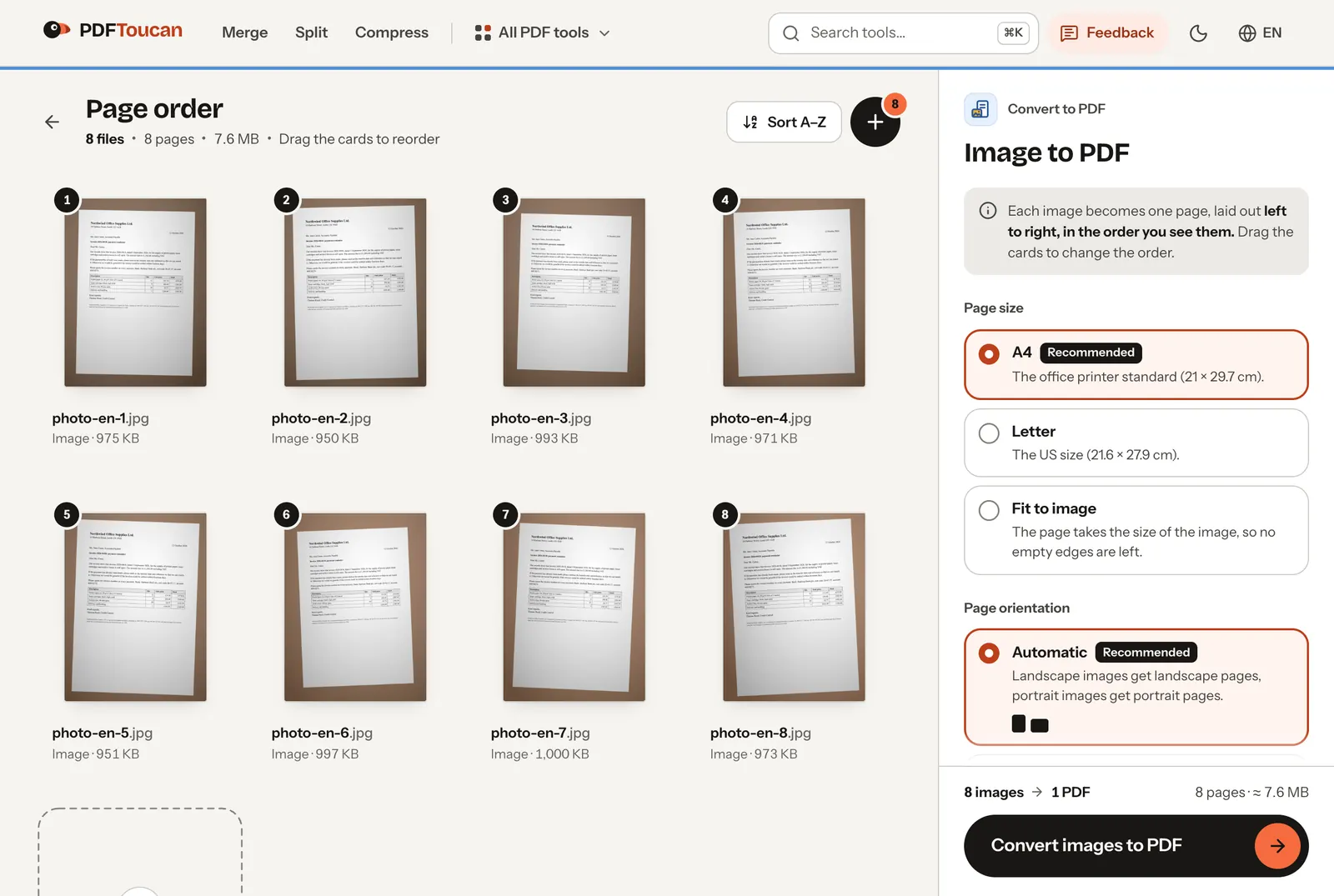
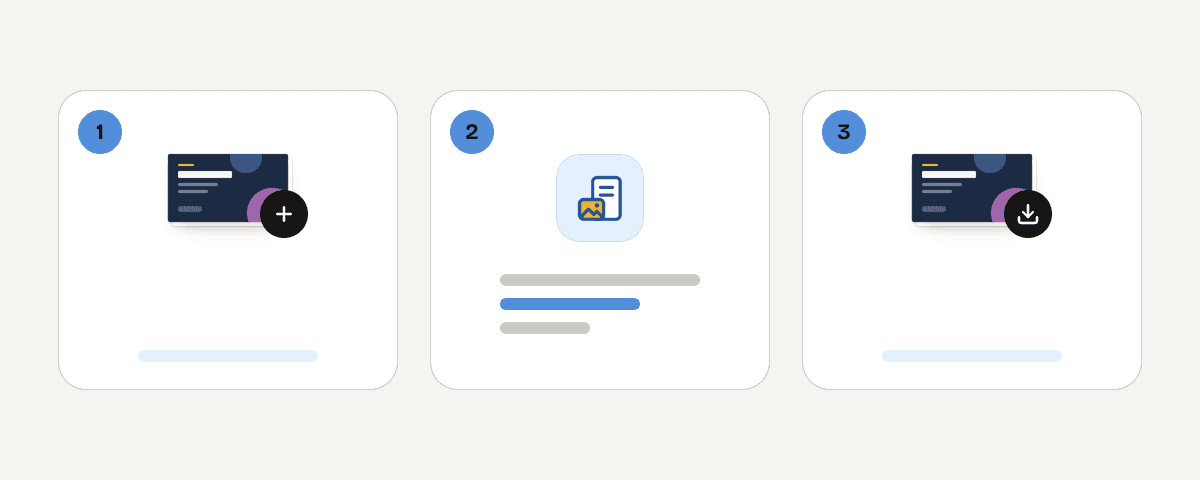
To combine JPG photos into one PDF, open Image to PDF, select all the photos at once, drag the cards into the right order (or press Sort A–Z if the file names are already in order), keep Combine all images into one PDF switched on and press Convert images to PDF. Each photo becomes one page of a single PDF.
In our test, eight 12-megapixel phone photos (7.6 MB together) became one eight-page PDF of 7.6 MB in about a second, without leaving the browser. The photos are placed into the PDF as they are, so nothing is lost in quality. That is also why the PDF is about as large as the photos; the last section shows how to make it small enough for email.
Step by step
- Open Image to PDF and select your photos. You can pick many files at once, drop them onto the page or paste them.
- Put the pages in order. Each card is one page, read left to right, top to bottom. Drag a card to move it, or press Sort A–Z to order them by file name. Phone photos are usually named by date and time, so sorting by name often gives the order you took them in.
- Choose the Page size:
- A4 (recommended) or Letter for documents you will print or send to an office.
- Fit to image if you only want to view the photos; each page then takes the photo's own size and there is no white border.
- Leave Page orientation on Automatic: landscape photos get landscape pages, portrait photos get portrait pages.
- Pick a Margin: None runs the photo to the edge of the page, Small leaves a thin white frame so printers do not clip it, Large leaves room for binding.
- Press Convert images to PDF and download the file.
Sideways photos come out upright
Phones often save a photo taken in portrait as a landscape image plus a note that says "turn this 90°" (the EXIF orientation). Some converters ignore the note and you get pages lying on their side. In our test set, one photo was stored exactly like that; in the PDF its page came out upright, because the converter reads the note and turns the image on the page, without decoding and re-saving the photo.
If a page still ends up the wrong way round, for example because the photo itself was taken at an angle, fix it afterwards with Rotate PDF.
Why the PDF is as large as your photos
| Size | |
|---|---|
| 8 photos, 3024 × 4032 px each | 7.6 MB in total |
| The combined PDF | 7.6 MB |
| After Compress PDF, Balanced compression | 0.65 MB |
| After Compress PDF, Strong compression | 0.28 MB |
Image to PDF does not recompress your photos: the PDF holds the original JPG data, so the pages look exactly like the photos, but there is no saving in size either. A 12-megapixel photo has far more detail than an A4 page needs for reading. Compress PDF reduces each photo to a resolution that suits the page (in our test, to 1157 × 1542 pixels per page, about 140 dpi on A4) and saves it again as JPG. That made the PDF about 12 times smaller in under five seconds, and the text on the photographed letters stayed readable.
So the usual sequence for email or a web form is: combine first, then compress.
Is my photo uploaded?
Combining the photos happens in your browser; the photos stay on your device. Compressing is done on our servers, in memory: the file is deleted as soon as you download the result, and after 10 minutes at the latest.
Other image types
- iPhone photos in HEIC format: use HEIC to PDF.
- Screenshots and graphics saved as PNG: PNG to PDF keeps them sharp and keeps transparent areas transparent.
- To turn every photo into a separate PDF instead of one file, switch off Combine all images into one PDF.
Tips for photographing documents
- Lay the page flat in even light and hold the phone parallel to it; shadows and angles cost more readability than resolution.
- Fill the frame with the page. Everything around it ends up in the PDF too.
- If you need to search or copy the text later, run the combined PDF through OCR PDF. Our guide on the best resolution for scanning documents shows what helps OCR and what does not.
How we tested
On 2 November 2026 we used Image to PDF on pdftoucan.com in Chrome with eight JPG photos of a printed letter lying on a desk, each 3024 × 4032 pixels and about 1 MB (one of them stored sideways with an EXIF orientation note). We checked the resulting PDF's pages, the embedded image data and its orientation, then ran the PDF through Compress PDF with Balanced and Strong compression.
Related guides
- Best Resolution for Scanning Documents: We Measured 150 to 600 DPIWe scanned the same letter at 150, 200, 300 and 600 dpi and ran OCR on each. Why 300 dpi is the safe choice, and why contrast matters more for faded receipts.7 min read
- JPG vs PNG for Scanning Documents: Clarity, Size, and PDF UseChoose JPG for smaller photo-heavy scans and PNG for sharp text and line art. Compare compression, OCR, and ways to make a shareable PDF.8 min read