How to Merge PDF on Mac: Preview, Finder, and Online Options
PDF Toucan editorial team · Last updated September 19, 2026 · 7 min read
If you want to know how to merge PDF on Mac, you have three solid options. Open the first document in Preview, turn on View > Thumbnails, and drag the second PDF (or individual page thumbnails) into the sidebar at the exact spot you want, then save or use File > Export as PDF. For a faster merge of complete files, select the PDFs in Finder, Control-click, and choose Quick Actions > Create PDF. And if you need to combine PDFs and images, drag file cards into order, or prepare a file for double-sided printing, use a browser-based merger like the Merge PDF tool.
How do you merge PDFs in Preview on a Mac?
Preview is built into macOS and handles most merges without any extra software. The trick is to work from the thumbnail sidebar, not the main page view.
- Open the PDF that should come first in the final document (double-click it, or Control-click > Open With > Preview).
- Choose View > Thumbnails from the menu bar so the page sidebar appears on the left.
- Open the second PDF in a separate Preview window, or locate it in Finder.
- Drag the second PDF's file icon from Finder — or select specific page thumbnails in its sidebar — into the first document's thumbnail sidebar.
- Watch for the horizontal insertion line, and release the mouse when it sits exactly where the new pages belong.
- Repeat for any additional files, then choose File > Export as PDF (or press Command-S to save the edited document).
Use this method whenever placement matters. Preview lets you drop a single page between pages 4 and 5, append a whole appendix at the end, or pull a signature page to the front — things a one-click merge can't do. Apple documents the sidebar workflow in its Preview user guide.
One caution: exporting rasterizes nothing, but Preview does rewrite the file. Form fields, annotations, and digital signatures can behave differently after a Preview save, so keep the originals until you've checked the result.
Why does Preview put merged PDF pages in the wrong order?
Almost every ordering complaint in Preview comes down to where the file was dropped. A few fixes:
- Watch the drop indicator. Dropping directly on a thumbnail can insert pages before or after a page you didn't intend. Drag slowly until a clear insertion line appears between two thumbnails, then let go.
- Turn thumbnails on first. If View > Thumbnails isn't enabled and you drag into the main document view, macOS may open the file separately or insert pages somewhere unexpected. The sidebar is the reliable target.
- Append vs. prepend. To add a PDF at the end, drag it below the last thumbnail. To put it at the start, drag it above the first thumbnail.
- Fix it in place. If pages landed badly, you don't need to start over — drag thumbnails within the sidebar to rearrange them, or select stray pages and press Delete before saving.
- Verify before sending. Scroll the sidebar top to bottom, then reopen the saved file and check the page sequence. Preview's undo history disappears once the window closes.
If you're merging many files and the sidebar becomes unwieldy, it's usually faster to combine everything first and reorder afterwards in a dedicated organize view.
Can Finder Quick Actions combine PDFs without opening Preview?
Yes. macOS includes a Quick Action that creates a combined PDF straight from Finder:
- Open the folder containing your PDFs in Finder.
- Select two or more files, clicking them in the order you want them combined (or arrange the folder by name first).
- Control-click (or right-click) one of the selected files.
- Choose Quick Actions > Create PDF.
- macOS produces a combined PDF in the same folder; rename it right away so it doesn't get lost among the originals.
This is the quickest built-in route, and it works without launching an app. The limitation is control: there's no page-level preview or reorder screen before the file is created. You get whatever sequence Finder derives from your selection and sort order.
If the result isn't in the sequence you expected, you have three ways out. Rename the sources with sortable prefixes — 01-cover.pdf, 02-report.pdf, 03-appendix.pdf — and run the Quick Action again. Or select the files one at a time in the correct order before Control-clicking. Or open the combined file in Preview and drag thumbnails until the order is right.
How can you merge PDFs and images online without uploading files?
Preview and Finder both expect PDFs. When your set includes JPGs or PNGs from a phone camera alongside PDFs, a browser tool handles the mix in one pass.
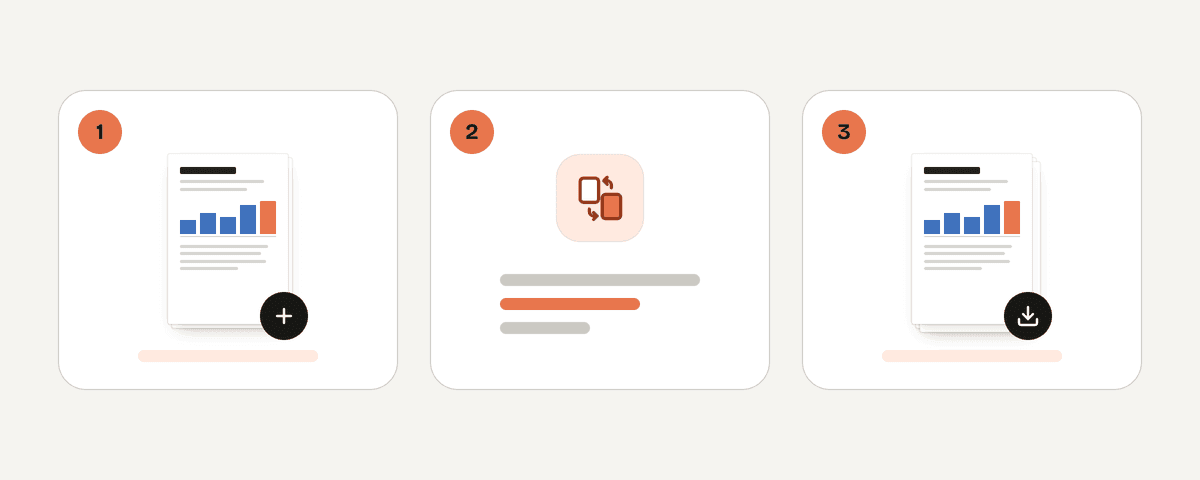
- Open the Merge PDF page and choose Select PDFs or images. You can also drop files anywhere on the page, or paste them.
- Add at least two files — the tool accepts PDFs and images together. Fewer than two, and it will simply prompt you to add more.
- Drag the file cards until they read in the order you want. Files are merged left to right, exactly as shown.
- Pick your merge options (covered in the next section).
- Choose Merge the PDFs, then use Download the merged PDF to save the result.
Two details worth knowing. First, the tool is free, needs no account, adds no watermark, and has no daily limits — ads pay for the site. Second, the merging runs locally in your browser through a web worker, so your files are never uploaded to a server. That matters when the documents are contracts, medical records, or anything else you'd rather not hand to a cloud service.
Which merge order should you choose for normal files or double-sided scans?
The browser tool offers two ways to interleave pages, plus a couple of output options.
- File by file, in order — the default for ordinary documents. Every page from the first file is added, then every page from the next, producing A, A, B, B.
- Page by page, alternating — designed for fronts and backs scanned in two separate passes. It produces A1, B1, A2, B2… so a stack of one-sided scans becomes a correctly ordered double-sided document. Check that both inputs have compatible page counts before relying on it; mismatched sets will interleave awkwardly.
- A bookmark for every file — adds each file name as a bookmark, so the merged PDF shows a table of contents in compatible readers. Handy for bundles of invoices or chapters.
- Prepare for double-sided printing — inserts a blank page after any file with an odd page count, so the next document starts on a fresh sheet. This option is not available when merging alternately.
When should you use Preview, Finder Quick Actions, or an online merger?
| Need | Preview | Finder Quick Actions | Browser merger |
|---|---|---|---|
| Insert or delete individual pages | Yes | No | Reorder files, not pages |
| Merge complete PDFs fast | Yes | Best option | Yes |
| Include JPG or PNG images | Limited | No | Yes |
| Drag-to-reorder before merging | Page thumbnails | No | File cards |
| Bookmarks from file names | No | No | Yes |
| Blank page for double-sided printing | Manual | No | Yes |
| Works offline | Yes | Yes | Runs locally in the browser |
In practice: reach for Preview when the job is page surgery, Finder when you just need three reports stapled together, and a browser tool when the set is mixed, long, or destined for a printer. PDF Toucan also has compress, organize, page-numbers, protect, and split tools if the merged file needs trimming, renumbering, or a password afterwards.
FAQ
Can I merge PDF files on a Mac for free?
Yes. Preview and Finder's Quick Actions > Create PDF are included with macOS at no cost, and free browser-based mergers exist too. You don't need Acrobat or a subscription for standard merging, bookmarking, or page reordering tasks on a Mac.
How do I combine PDF and JPG files on a Mac?
Preview can convert images to PDF first (File > Export, format PDF), then you merge as usual. It's faster to use a browser merger that accepts PDFs and images in the same batch — add everything, drag the cards into order, and merge once.
Why are my PDF pages out of order after merging in Preview?
Usually the file was dropped onto a thumbnail rather than between two thumbnails, so pages landed beside an unintended page. Enable View > Thumbnails, drag until the insertion line appears in the right gap, and rearrange any stray pages in the sidebar before saving.
Does Finder's Create PDF Quick Action let me rearrange pages?
No. Create PDF combines the selected files without offering a page-level reorder screen. Control the sequence beforehand by renaming files with prefixes like 01-, 02-, 03-, or open the combined result in Preview and drag thumbnails into place.
Is it safe to merge PDFs online without signing up?
It depends on the tool. Many services upload your documents to a server. A tool that processes files locally in your browser keeps them on your machine, which avoids that transfer entirely. Check the tool's description, and prefer local processing for sensitive documents.
Related guides
- How to Merge PDF on iPhone: Files, Shortcuts, and a Browser ToolCombine PDFs on an iPhone or iPad with the Files app, a reusable Shortcut, or a private browser tool, then reorder and save the result.8 min read
- How to Merge PDF Files: Options for Every DeviceLearn how to merge PDF files on any device, reorder pages, add images, and create one readable PDF with useful file bookmarks.8 min read
- How to Combine PDF Files on Windows 11: Free Merging MethodsWindows 11 cannot natively merge PDFs. Learn the Print to PDF limitation, a private browser-based method, file ordering, and large-scan tips.7 min read
- How to Add Page Numbers to a PDF: Positions, Starts, and FormatsLearn where to place PDF page numbers, start at 1 after a cover, choose Word for Roman numerals or Page 1 of 10, and number exported PDFs online.8 min read