How to Reduce PDF File Size for Email: Gmail and Outlook Limits
PDF Toucan editorial team · Last updated September 19, 2026 · 8 min read
If you need to know how to reduce PDF file size for email, start with balanced compression and then check that text and images are still readable at normal zoom. Aim for roughly 23 MB or less for Gmail and 18 MB or less for Outlook, since email encoding adds overhead on top of the raw file size. If the PDF is still too large, split it into smaller parts or send a permission-controlled sharing link instead of compressing the same file over and over.
What PDF size can you email through Gmail and Outlook?
Before you touch any settings, it helps to know what you are aiming for.
- Gmail allows attachments up to 25 MB per message.
- Outlook.com allows up to 20 MB per message.
- Work, school, and desktop Outlook accounts often have lower limits set by the organization's mail server or by a policy your IT team controls. A 20 MB file that leaves your outbox can still bounce at the recipient's server.
The stated limits are not the whole story. Attachments are encoded for transport, which inflates them by roughly a third, and some mail systems measure the encoded size. That is why a 24.5 MB PDF can fail in Gmail even though the limit reads 25 MB.
Practical targets:
| Mail service | Stated limit | Safe target | Notes |
|---|---|---|---|
| Gmail | 25 MB | ~23 MB or less | Gmail may offer a Drive link for oversized files |
| Outlook.com | 20 MB | ~18 MB or less | May offer a OneDrive upload instead |
| Work/school mail | Varies (often 10–25 MB) | Ask IT, or stay under 10 MB | Recipient limits matter as much as yours |
If the recipient's limit is unknown, staying under 10 MB is the most reliable choice. And if a quality-preserving compression pass does not get you there, stop compressing and switch strategies — splitting or a sharing link will serve you better than a file that is too blurry to read.
How do you compress a PDF while keeping it readable?
Compression works mainly by re-encoding the images inside a PDF. A quality-first workflow means starting gently and only going harder if the size still misses the target.
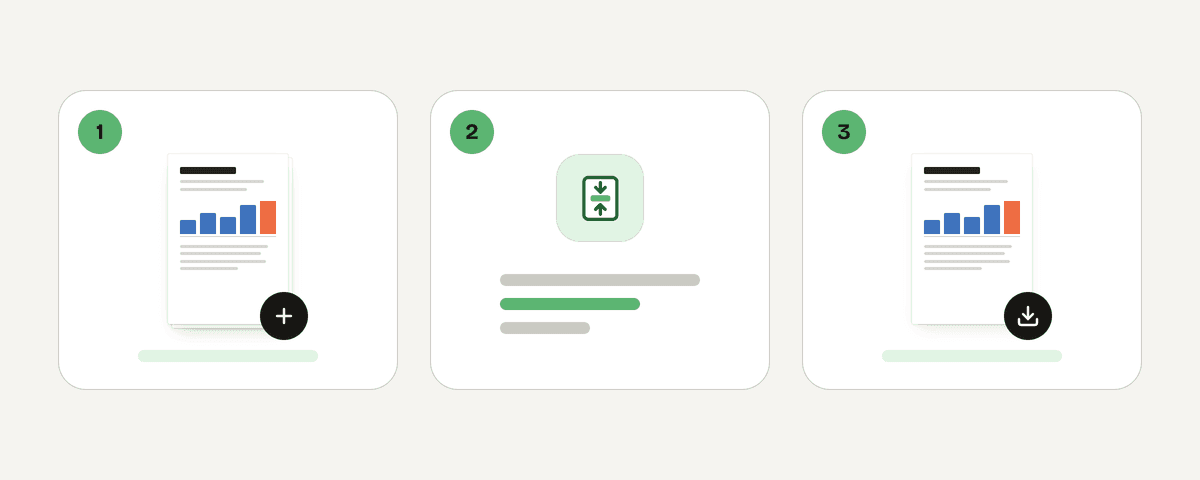
- Open Compress PDF and choose "Select PDF files". You can also drop a file anywhere on the page or paste it.
- Add one or several PDFs. Each file is compressed on its own, so a 40 MB report and a 2 MB cover letter are handled independently.
- Under "How small should it get?", start with "Balanced compression" — it is the recommended setting. The file gets much smaller while images stay sharp, which is enough for most email attachments.
- Check the "Image quality" option and keep the recommended level unless you have a reason to change it.
- Leave "Make it black and white" switched off unless color genuinely does not matter. That option turns images grey for extra savings; text colors do not change.
- Select "Compress the PDF" (or "Compress the PDFs" for a batch). You will see a result such as The file got … smaller: … → ….
- Choose "Download the compressed PDF", then open the file and inspect your most important pages — small print, tables, signatures, logos — at 100% zoom before you attach anything.
A note on what can happen: some PDFs are already optimized. In that case you will see "Already compressed" or a message that the file could not be made any smaller; it is ready to download unchanged. That is not a failure, it is a signal to try splitting or a link.
PDF Toucan's compressor runs on servers in the European Union. The file travels over HTTPS, is processed in memory rather than written to disk, and is deleted as soon as the result is downloaded — at the latest after 10 minutes. There is no account, no watermark, and no daily limit.
Which PDF compression setting should you choose for email?
Match the strength to the document, not to the size target alone.
| Setting | Best for | Expected result |
|---|---|---|
| Light compression | Contracts, resumes, line drawings, documents with tiny print | Quality stays almost the same; the file gets a bit smaller |
| Balanced compression | Reports, presentations, mixed text-and-image PDFs, scans | Much smaller file, images stay sharp — the best first choice |
| Strong compression | Image-heavy scans or slide decks that must fit a hard limit | Smallest file; images lose noticeable quality |
| Black and white (extra option) | Grayscale-friendly scans, internal drafts | Images turn grey for extra savings; text colors unchanged |
Two things worth remembering:
- Compression targets images. A PDF that is mostly selectable text, form fields, or vector graphics may barely shrink, because there is little image data to re-encode. Do not interpret a small saving as a broken tool.
- Compressing twice rarely helps. Running an already-compressed file through a stronger setting mostly costs quality for a small gain. If balanced compression got you to 30 MB and you need 18 MB, splitting is usually the better answer than jumping straight to strong compression.
How can you split a PDF into email-sized attachments without lowering quality?
Splitting divides a long document into separate PDFs. It does not re-encode the pages, so it normally preserves the original quality — you are simply sending fewer pages per message.
- Open Split PDF and choose "Select PDF file", or drop or paste the document onto the page. The document needs at least 2 pages.
- Pick a "Split method". Choose "Ranges" to build parts such as
1-10, 11-20, 21-last, or switch "How are the ranges set?" to "Fixed ranges" and enter a page count to cut the document into equal parts. - If only certain pages need to go out, choose "Pages" and then "Separate the selected pages". Pick pages on the canvas (hold Shift to select several) or type them, for example
2, 5-9. - Leave "Merge all ranges into one PDF" and "Merge the selection into one PDF" switched off when you want each range as its own attachment. Switch one on only when the chosen pages should travel together in a single file.
- Check the colored bands on the canvas — they show which file each page ends up in. Pages without a band are left out.
- Select "Split the PDF". When several files are produced they download as one ZIP, which can take a while for large documents.
- Rename the parts before attaching, for example
Project-report-part-1-of-3.pdf, so recipients immediately see that files belong together.
The splitter runs entirely inside your browser using a local processing engine in a web worker, so the file is never uploaded. That makes it a practical choice for documents you would rather not send anywhere.
A useful combination: split first into logical chapters, then compress only the parts that are still oversized. A 60 MB scan split into three 20 MB parts, with light compression on each, often lands comfortably under every common limit with better quality than a single strongly compressed file.
When should you send a sharing link instead of attaching the PDF?
Sometimes the right answer is not to attach the file at all.
Send a link when:
- The PDF stays too large even after balanced compression.
- The document must retain its original image quality — print-ready artwork, high-resolution scans, architectural drawings.
- Splitting would be confusing for the recipient, such as a signed agreement or a bound report.
- You expect to update the document and want everyone to see the current version.
How to do it cleanly:
- Upload the original, uncompressed file to an approved service: your organization's OneDrive, SharePoint, Google Drive, or Dropbox.
- Set viewing or editing permissions deliberately. Decide whether recipients may download, and whether the link should work for anyone or only named people.
- Add an expiration date where the service supports it, especially for anything sensitive.
- Paste the link into the email with one line of context: what the file is, how many pages, and when access ends.
Follow your organization's file-sharing policy — some employers forbid personal cloud accounts for work documents entirely. Also remember the trade-off: a link sidesteps attachment limits, but recipients need internet access and may have to sign in, which can be a problem for external partners or people reading on a locked-down device.
How do you attach the smaller PDF in Gmail or Outlook?
Gmail (web):
- Select Compose.
- Click the paperclip attachment icon at the bottom of the compose window.
- Choose the compressed or split PDF.
- Wait for the upload progress to finish before you select Send — Gmail will not send a partially uploaded attachment.
- If Gmail says the file is too large, it will offer to upload it to Google Drive and insert a link instead. Check the link's sharing settings before sending. Google documents the current limits in its Gmail attachment help.
Outlook.com:
- Select New mail.
- Select Attach, then Browse this computer (or pick from OneDrive).
- Choose the PDF and wait for it to finish attaching.
- If Outlook offers to upload a large file to OneDrive, accept only if a link is acceptable — then verify who can open it before sending. Microsoft's attachment limit guidance covers the current behavior.
Final checks that prevent bounced mail:
- When you attach several split parts, add up the total attachment size, not each file individually. Mail limits apply per message.
- If the combined total is close to the limit, send two or three messages with a clear subject line such as "Report — 1 of 3".
- For anything important, send a test copy to yourself, open the attachment, and skim a few pages. This matters most after strong compression, where image degradation is easiest to miss on a phone screen.
- If a message bounces, the error text usually names the limit that was exceeded — recipient-side limits are the most common surprise.
FAQ
What is the Gmail PDF attachment size limit?
Gmail allows attachments up to 25 MB per message. Because attachments are encoded for transport, aim for about 23 MB or less so the encoded message still fits. Larger files trigger Gmail's offer to upload the PDF to Google Drive and send a link instead of an attachment.
Why is my PDF still too large after compression?
Compression mainly re-encodes embedded images. A PDF built from selectable text, vector graphics, or one that was already optimized has little left to remove, and you may see an "Already compressed" result. In that case, split the document into parts or share a cloud link rather than compressing repeatedly.
Does splitting a PDF reduce its quality?
No. Splitting copies existing pages into new files without re-encoding images or text, so each part keeps the original quality. It only changes how many pages travel in each file. That makes splitting a better choice than strong compression when image detail or small print must stay intact.
Is 20 MB the Outlook attachment limit?
Outlook.com allows up to 20 MB per message, so target about 18 MB. Work, school, and desktop Outlook accounts often use lower limits set by the organization's mail server. Recipient limits apply too, so a message can bounce even when it left your outbox successfully.
Can I reduce PDF size free with no sign-up?
Yes. PDF Toucan's compressor and splitter are free, need no account, add no watermark, and have no daily limits on browser tools. The compressor processes files in memory on EU servers and deletes them after download, at the latest within 10 minutes; the splitter runs entirely in your browser.
Related guides
- Compress PDF to 200KB: Steps for Forms and EmailLearn how to compress a PDF to 200 KB for applications or email, choose the right settings, verify the result, and handle files that cannot shrink further.8 min read
- Compress PDF to 1MB: Choose the Right Compression LevelNeed a PDF under 1 MB? Compare compression levels, preserve readable text, check the final size, and retry with PDF Toucan.7 min read
- Compress PDF to 100KB: Portal-ready File Size GuideLearn what makes PDFs large, choose a realistic compression level, and prepare scanned or digital files for 100 KB government and job portal limits.8 min read
- Combine JPG Photos into One PDF in the Right OrderTurn phone photos into a single PDF page by page: order, page size, sideways photos and why the PDF is as large as the photos, with tested sizes.4 min read