Compress PDF to 200KB: Steps for Forms and Email
PDF Toucan editorial team · Last updated September 19, 2026 · 8 min read
To compress PDF to 200 KB, open PDF Toucan's Compress PDF tool, add your file, start with Balanced compression, then download the result and check its actual file size on your computer. If it is still over the limit, run the original file again with Strong compression, a lower image quality setting, or "Make it black and white" for suitable scans. If it still will not shrink, the fix is usually in the source document — fewer photos, fewer pages, or a leaner scan — not more rounds of compression.
How can you compress a PDF to 200 KB?
A 200 KB ceiling is common on government portals, university applications, job boards, and older email systems. Here is the fastest reliable route:
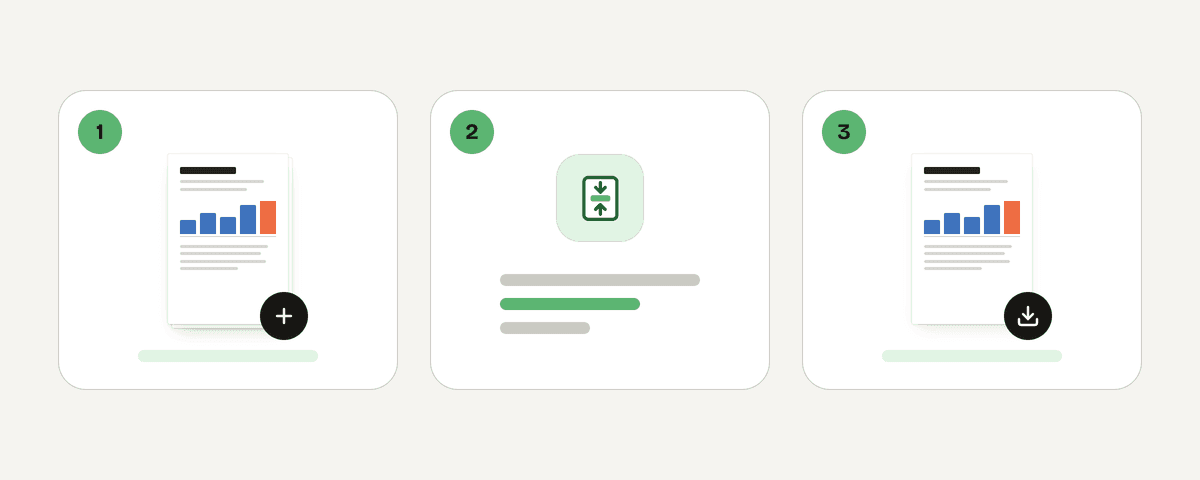
- Open the Compress PDF tool.
- Select "Select PDF files", drop a PDF anywhere on the page, or paste a PDF you copied. You can add several files; each file is compressed on its own.
- Under "How small should it get?", choose Balanced compression (the recommended option). It is the best starting point for most forms.
- Set Image quality to a level that still keeps form text, signatures, and ID numbers readable. Start with good for scans; very good if the document is mostly crisp text with a few images.
- Select "Compress the PDF". The result screen shows how much smaller the file got, for example 2.4 MB → 310 KB.
- Select "Download the compressed PDF", then check the size of the downloaded file in File Explorer (Windows) or Finder (macOS).
- Still above 200 KB? Go back and compress the original file again with Strong compression or lower image quality. Do not keep re-compressing an already-compressed copy — you lose quality quickly and gain very little size.
That last point matters. Each compression pass discards image detail permanently. Running the original once with stronger settings almost always gives a better-looking 200 KB file than three gentle passes stacked on top of each other.
Which compression setting is best for a 200 KB application form?
The right setting depends on how far you need to travel and what has to stay legible. Use this as a starting map:
| Setting | What it does | Best for | Watch out for |
|---|---|---|---|
| Light compression | Quality stays almost the same, the file gets a bit smaller | Originals already close to 200 KB; forms with signatures, small print, or fine graphics | May not reach a strict limit |
| Balanced compression (recommended) | The file gets much smaller, images stay sharp | Most digital application forms and exported documents | Sometimes lands just above 200 KB |
| Strong compression | Smallest file; images lose noticeable quality | Hard 200 KB portal limits, photo-heavy scans | Check scanned text and stamps carefully |
| Image quality: low / good / very good | Controls how much detail images keep | Tuning size without changing the overall preset | "low" can blur handwriting and 8 pt print |
| Make it black and white | Images turn grey and the file gets even smaller; text colors do not change | Grayscale-friendly scans, plain paperwork | Never use it where color carries meaning |
Practical guidance:
- Scanned forms: try Balanced + good first. Only drop to low image quality after you have opened the result and confirmed every field, signature, date stamp, and ID detail is readable at normal zoom.
- Text-only PDFs exported from a word processor: these are often small already and may report "Already compressed". Compression cannot remove text — it mainly targets images.
- Black and white: excellent for photocopied paperwork and bank statements. Avoid it for color-coded evidence, colored official stamps, charts where color separates data series, or anything where an authority requires a color copy.
How do you confirm the PDF is under the 200 KB limit?
The reduction percentage on the results screen is useful, but the number that counts is the size of the file sitting on your disk.
- Windows: right-click the downloaded PDF, choose Properties, and read Size. Note that Windows shows both "Size" and "Size on disk" — the upload limit applies to Size.
- macOS: select the file in Finder and choose File > Get Info, then read the size at the top.
- Aim below the limit, not at it. If a portal says "maximum 200 KB", target roughly 190 KB or less. Some systems count kilobytes as 1,000 bytes, others as 1,024, and some add encoding overhead during upload.
- Open the file before submitting. Page through the whole document at 100% zoom. Confirm nothing is missing, pages are in the right order, and small print is still crisp.
- Keep the original. If the portal rejects the upload or a reviewer says the scan is unreadable, you will need the untouched file to produce a different version.
What should you do if the PDF will not compress to 200 KB?
Sometimes the tool reports "This file could not be made any smaller. It is ready to download unchanged." That usually means the PDF is already compressed, or it is mostly vector text and line art, which does not shrink the way photographs do.
Work through these in order:
- Re-run the original with Strong compression and, for grayscale-friendly scans, "Make it black and white".
- Go back to the source document. Delete blank pages, decorative backgrounds, oversized logos, duplicate cover sheets, and any embedded attachments, then export a fresh PDF.
- For scans, rescan only the requested pages in grayscale at a lower resolution — 200–300 DPI is usually enough for readable small text. Avoid photographing pages with a phone in dim light; the noise creates huge image data that compresses badly and looks worse.
- Split the document only if the recipient explicitly allows separate uploads. If you later need one file again, the merge tool can recombine the approved parts.
- Ask the organisation. Many accept multiple files, a higher limit, or an email submission. It is far better to ask than to squeeze a document until the signature or reference number becomes unreadable — an illegible file is usually rejected outright.
A 30-page color scan will not reach 200 KB while staying legible. Recognising that early saves time.
How can you make a PDF small enough before compressing it?
The cheapest kilobytes are the ones you never add:
- Export, don't print-and-scan. Save or "Print to PDF" directly from Word, Google Docs, or your form-filling app. A text-based PDF of a two-page form is often 60–150 KB before any compression, while the scanned equivalent can be 3 MB.
- Scan selectively. Only the pages requested, cropped to the page edge, with scanner borders removed.
- Choose grayscale at scan time when color is not required. This is more effective than converting later.
- Resize photos first. If a passport photo or evidence image is mandatory, scale it to roughly the size it appears on the page before inserting it. A 12-megapixel photo placed in a 4 cm box still carries all 12 megapixels of data.
- Be careful with format conversions. The PDF-to-JPG tool is the right choice when an organisation specifically asks for image files, or when you are rebuilding a simplified document. Converting formats back and forth is not automatically a shortcut to a smaller PDF and can cost clarity.
Is it safe to use an online PDF compressor for application documents?
Here is exactly how the Compress PDF tool handles your file, so you can judge for yourself:
- It is free to use — no account, no watermark, and no daily limit on browser tools. Ads fund the site.
- Your PDF is sent over HTTPS and processed on servers located in the European Union.
- Files are processed in memory. They are not written to disk or stored, and they are deleted as soon as the result is downloaded — at the latest after 10 minutes.
That said, application packs often contain passports, payslips, medical letters, or client data. If your employer, school, agency, or legal adviser has rules about which services may handle those documents, follow those rules first. When in doubt, compress a redacted test copy to learn the settings, then apply the same settings to the real file through an approved route.
FAQ
Can I compress a PDF to exactly 200 KB?
No tool can hit an exact byte target, because the result depends on your document's images, fonts, and structure. You choose a compression level and image quality, then check the resulting size. Aim comfortably below the limit — around 190 KB — so upload overhead or rounding differences do not push you over.
Why is my PDF still larger than 200 KB after Strong compression?
Strong compression mainly reduces image data. A long document, high-resolution scans, embedded fonts, or many pages of vector graphics can leave the file above 200 KB even at the smallest setting. Reduce the page count, rescan in grayscale at a lower resolution, or rebuild the document from its source.
Will compressing a PDF make an application form unreadable?
It can, at the most aggressive settings. Balanced compression is designed to shrink files while keeping images sharp, and Light compression barely changes quality. Strong compression plus low image quality may blur handwriting and 8 pt print, so always open the downloaded file and review every page at 100% zoom before submitting.
Can I compress multiple PDFs to 200 KB at once?
Yes. The tool accepts multiple files, and each file is compressed on its own using the settings you chose. The results screen shows the combined reduction, and the download arrives as a compressed-PDFs package. Check each file's size individually afterwards, since results vary by document.
What does "already compressed" mean?
It means the tool could not reduce that file further with the chosen settings — the PDF was optimised previously, or it consists mostly of text and vector graphics that do not shrink. The file is still ready to download unchanged. To go smaller, edit the source document or rescan it rather than compressing again.
Related guides
- How to Reduce PDF File Size for Email: Gmail and Outlook LimitsReduce a PDF for Gmail’s 25 MB and Outlook’s 20 MB attachment limits. Compare compression, splitting, and share links without sacrificing quality.8 min read
- Compress PDF to 1MB: Choose the Right Compression LevelNeed a PDF under 1 MB? Compare compression levels, preserve readable text, check the final size, and retry with PDF Toucan.7 min read
- Compress PDF to 100KB: Portal-ready File Size GuideLearn what makes PDFs large, choose a realistic compression level, and prepare scanned or digital files for 100 KB government and job portal limits.8 min read
- Combine JPG Photos into One PDF in the Right OrderTurn phone photos into a single PDF page by page: order, page size, sideways photos and why the PDF is as large as the photos, with tested sizes.4 min read