Compress PDF to 100KB: Portal-ready File Size Guide
PDF Toucan editorial team · Last updated September 19, 2026 · 8 min read
To compress a PDF to 100 KB, start with Balanced compression and only switch to Strong compression if the file is still too big; for text-only scans, turn on the black-and-white option and check readability afterwards. A one-page text document usually fits under the limit, but multi-page color scans and photo-heavy PDFs often cannot reach 100 KB without visible quality loss or removing content you do not need to submit. The search for how to "compress PDF to 100 KB" almost always comes from a government or job portal with a hard upload cap, so this guide focuses on getting a file that is both small enough and still accepted by a human reviewer.
Can you really compress a PDF to 100 KB?
Sometimes yes, sometimes no — and knowing which case you are in saves a lot of wasted attempts.
A 100 KB target is realistic for:
- A one-page, text-heavy PDF created digitally (exported from Word, Google Docs, or a web form).
- A simple, low-detail scan of a black-ink document at a modest resolution.
- A single-page certificate or letter with no photographs.
A 100 KB target is often unrealistic for:
- Multi-page scans, especially color ones.
- PDFs containing photographs, ID images, detailed charts, or full-page graphics.
- Documents with colored seals, stamps, or dense signatures that must remain legible.
Before you start squeezing, check the portal's wording carefully. Some sites say "100 KB", others say "100 MB" — a thousandfold difference. Others apply the limit per file, which means supporting documents can sometimes be uploaded separately rather than merged into one oversized PDF. Follow the portal's own instructions; never split or reorganize a document in a way the form does not allow.
Finally, aim slightly below the stated limit. Targeting roughly 90–95 KB gives you headroom, because some portals count file size differently (KB vs KiB) or add a little upload overhead during validation.
What makes a PDF too large?
PDF size comes from two very different sources, and the fix depends on which one you are dealing with.
Scanned PDFs are large because every page is a raster image. Three factors multiply quickly:
- Resolution (DPI) — doubling DPI roughly quadruples the pixel count.
- Color depth — full-color scans hold far more data than grayscale or bitonal ones.
- Page area — wide margins and blank space still consume pixels.
Digitally created PDFs can be tiny when they contain live text and vector lines. They grow when they include embedded photos, high-resolution logos, full font sets, or graphics exported from spreadsheets and design tools. One high-resolution color page can easily outweigh fifty pages of plain text.
That leads to the single most useful insight for a 100 KB limit: removing or rescanning the one heavy page is usually more effective than compressing the whole document harder. If your resume PDF contains a decorative full-width header image, deleting it may do more than any compression setting.
When you want to know how much room is actually left, run the file through the Compress PDF tool and look at the reported result. If the PDF is already optimized, the tool will tell you that the file could not be made any smaller and offer it for download unchanged — which is a clear signal to change the source document instead of compressing again.
Which compression level should you use for a 100 KB portal limit?
PDF Toucan offers three levels plus an image-quality choice. Here is how they compare in practice:
| Option | What it does | Best for a 100 KB limit |
|---|---|---|
| Light compression | Quality stays almost the same, the file gets a bit smaller | Only when you are already very close to the limit |
| Balanced compression (recommended) | The file gets much smaller, images stay sharp | The default starting point for portal uploads |
| Strong compression | Smallest file; images lose noticeable quality | When Balanced is still over the limit and the content is text |
| Make it black and white | Images turn grey and the file gets even smaller; text colors do not change | Black-ink forms, letters, resumes, plain scans |
Step-by-step
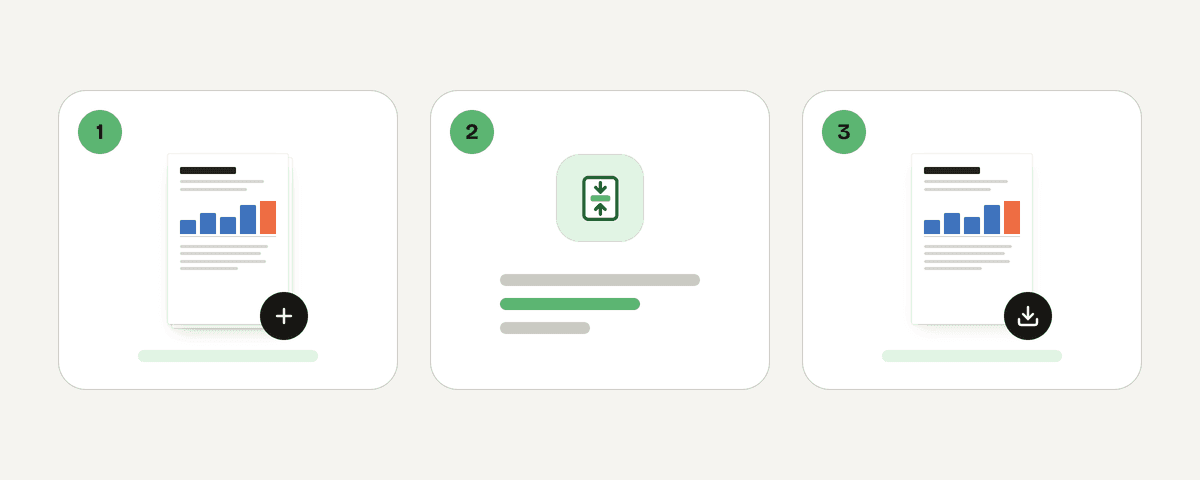
- Open the compress tool and choose Select PDF files. You can also drop a PDF anywhere on the page or paste it.
- Under Compression options, answer How small should it get? by selecting Balanced compression.
- Set Image quality to
goodfor a first attempt, orlowif you already know the file is far over the limit. - Choose Compress the PDF.
- Read the result line — it shows how much smaller the file became, for example
2.4 MB → 180 KB. - Select Download the compressed PDF and check the actual size on disk.
- Still over 100 KB? Go back to the original file, select Strong compression, and repeat.
Two cautions. First, always compress from the original PDF, not from the already-compressed download. Repeated lossy compression blurs text and rarely delivers a meaningful extra reduction. Second, open the result at 100% zoom before you upload it. A file that meets the size limit but cannot be read will be rejected by the reviewer, not by the upload form.
Each file is compressed on its own, so you can drop several documents in at once and still get individually optimized results.
Should you make a scanned PDF grayscale or black and white?
The Make it black and white option is the strongest lever after resolution, because it strips color information from the page images while leaving text colors unchanged.
Use it when the document is a black-ink form, a typed letter, a resume, a transcript, or any text-only supporting page. These convert cleanly and often drop well below the limit.
Keep color when the color itself carries required information:
- Color-coded charts or maps.
- Photographs and ID pages with security features.
- Colored stamps, seals, or official ink signatures a reviewer may need to verify.
- Highlighted instructions or a portal that explicitly asks for a color copy.
After converting, inspect the small details: 8-point footnotes, checkbox marks, faint pen signatures, and embossed seals. If any of these become hard to read, step back to Balanced compression without the black-and-white option, or obtain a cleaner source scan.
One rule overrides all of the above: never process a document in a way that hides information or makes an official copy misleading. If compression erases a watermark, a stamp, or a correction mark, that file is not fit to submit.
What scan resolution is realistic for a PDF under 100 KB?
If you control the scan, resolution is where you win or lose the 100 KB battle — long before any compression tool is involved.
- 100–150 DPI — fine for plain typed text that will only be read on screen. Produces the smallest files.
- 150–200 DPI — use when small printed text, light signatures, or fine rule lines must stay legible.
- 300 DPI and above — intended for printing, archiving, or zooming into detailed originals. A high-DPI color scan rarely compresses cleanly to 100 KB.
Most phone scanning apps and desktop scanner drivers expose a quality or DPI setting; choosing "text" or "document" mode instead of "photo" usually applies a sensible resolution and reduces color data at the same time.
If the PDF you received is already a scan and you cannot rescan it, converting the pages with the PDF to image tool is a useful inspection step: every page becomes its own JPG, PNG, or WebP, at Low, Standard, or High resolution, so you can see exactly which page is carrying the weight and how it looks at a lower resolution. Be clear about what this tool does, though — it outputs separate images, not a smaller PDF. Use it for diagnosis or for a workflow where the portal explicitly accepts images, not as an automatic PDF-size fix.
How do you verify a compressed PDF will work in a government or job portal?
Run this checklist before every submission:
- Open the compressed file. Confirm every required page is present, upright, and in the right order.
- Check readability at 100% zoom. Names, dates, reference numbers, and signatures must be clear without zooming in further.
- Confirm the extension is
.pdf. Check the size in File Explorer on Windows or Finder on macOS — right-click and choose Properties or Get Info. - Compare against the limit with a margin. 90–95 KB is safer than 99 KB.
- If the portal still rejects it, look beyond size. Common hidden requirements include maximum page count, no password protection, allowed filename characters (avoid spaces, accents, and symbols), a specific PDF version, and a required document type or orientation.
On privacy: the Compress PDF tool sends your file over HTTPS to servers in the European Union, where it is processed in memory rather than written to disk, and deleted as soon as the result is downloaded — at the latest after 10 minutes. PDF Toucan requires no account, adds no watermark, and applies no daily limits on its browser tools. That said, if your employer or institution has a policy against processing documents online, use the approved internal method for sensitive records such as identity documents or medical files.
FAQ
How can I reduce a PDF to 100 KB without losing readability?
Start with Balanced compression and image quality set to good. If that is not enough, enable the black-and-white option for text-only documents before reaching for Strong compression. Removing decorative images or rescanning at 150 DPI usually preserves more readability than compressing the same file repeatedly.
Why will my scanned PDF not compress to 100 KB?
Each scanned page is a full raster image, so size scales with page count, DPI, and color depth. A five-page color scan at 300 DPI contains millions of pixels that no compression setting can shrink to 100 KB while staying legible. Rescan at lower resolution in grayscale instead.
Is black and white better than grayscale for PDF compression?
Removing color always helps. The compress tool's black-and-white option turns page images grey, which cuts size substantially while leaving text colors untouched. Choose it for black-ink documents. Keep full color whenever stamps, photographs, security features, or color-coded charts carry information the reviewer needs.
What DPI should I use for a job application PDF?
For screen review, 150 DPI is a good default: small printed text stays legible and file sizes remain manageable. Drop to 100–120 DPI for clean typed pages that must fit a strict limit. Reserve 300 DPI for documents that will be printed or that the portal explicitly requires at that resolution.
Related guides
- How to Reduce PDF File Size for Email: Gmail and Outlook LimitsReduce a PDF for Gmail’s 25 MB and Outlook’s 20 MB attachment limits. Compare compression, splitting, and share links without sacrificing quality.8 min read
- Compress PDF to 200KB: Steps for Forms and EmailLearn how to compress a PDF to 200 KB for applications or email, choose the right settings, verify the result, and handle files that cannot shrink further.8 min read
- Compress PDF to 1MB: Choose the Right Compression LevelNeed a PDF under 1 MB? Compare compression levels, preserve readable text, check the final size, and retry with PDF Toucan.7 min read
- Combine JPG Photos into One PDF in the Right OrderTurn phone photos into a single PDF page by page: order, page size, sideways photos and why the PDF is as large as the photos, with tested sizes.4 min read