Compress PDF to 1MB: Choose the Right Compression Level
PDF Toucan editorial team · Last updated September 19, 2026 · 7 min read
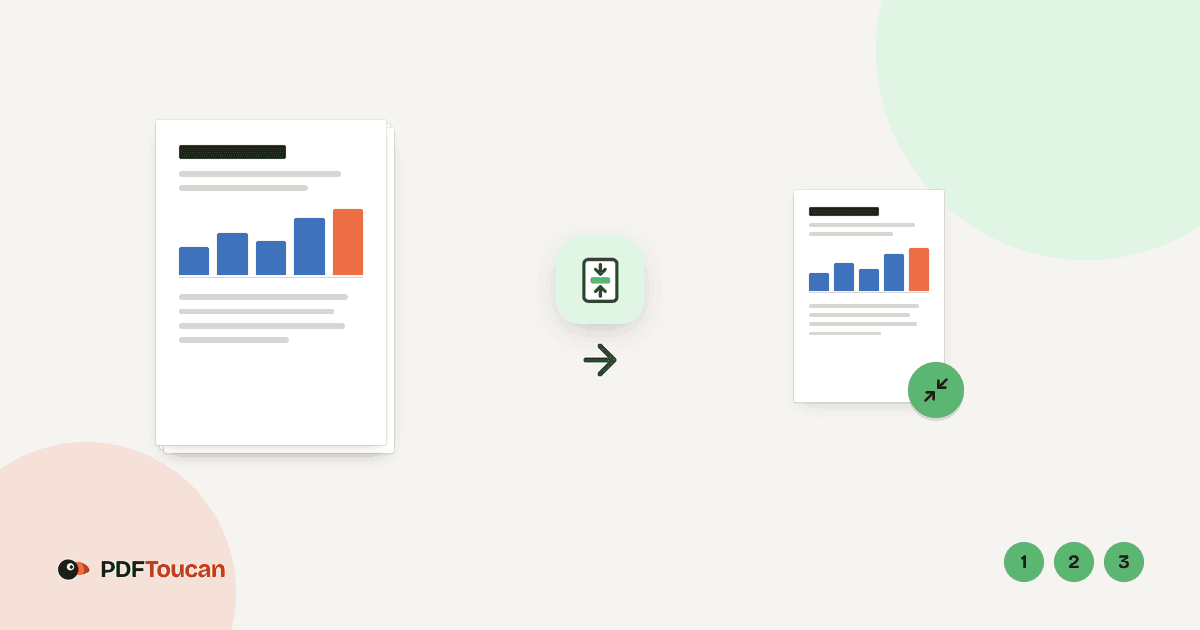
Need to compress PDF to 1 MB for an upload form? Start with Balanced compression in PDF Toucan's Compress PDF tool, download the result, and check its actual file size on your device. If the file is still too large, run the original again with Strong compression or switch on Make it black and white, then review scanned pages and small print before you upload. No single setting guarantees an exact size, so the workflow is: compress, measure, adjust.
How can you compress a PDF to 1 MB for an upload limit?
Most upload limits are hard ceilings. A job portal that says "max 1 MB" will reject a 1.2 MB CV without explaining why. The fastest route is to compress once at a sensible quality level, measure the result, and only then decide whether you need to sacrifice more image quality.
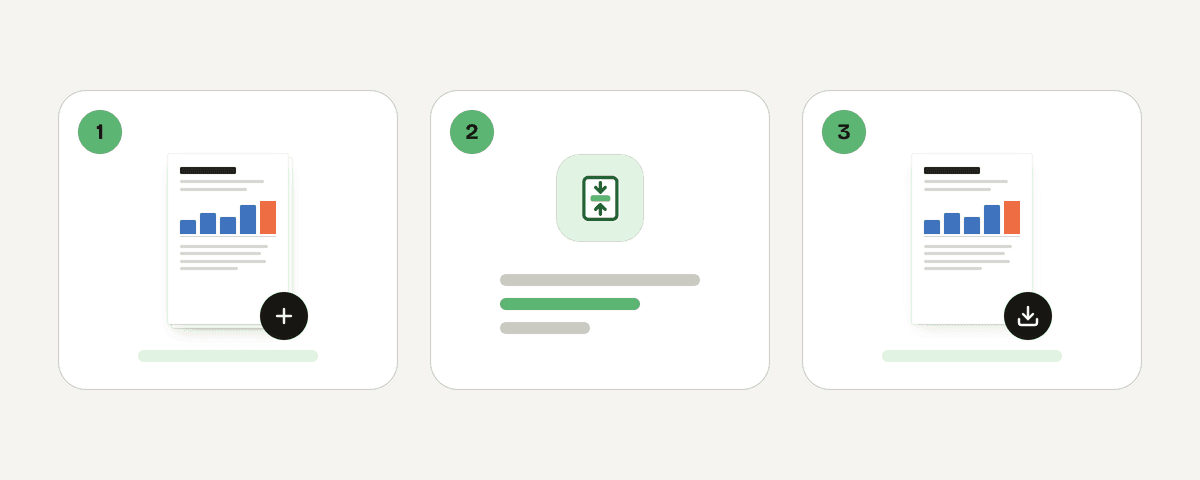
- Open the Compress PDF page and add your document with Select PDF files. You can also drop a PDF anywhere on the page or paste it from the clipboard.
- Under How small should it get?, leave Balanced compression selected. It is marked Recommended and is built to make the file much smaller while images stay sharp.
- Choose Compress the PDF. The tool reports the change, for example "The file got … smaller: … → …", so you can see the before and after size immediately.
- Select Download the compressed PDF and check the saved file's size in your file manager.
- If it is still above 1 MB, go back and compress the original file again with a stronger setting — not the already-compressed copy.
One honest caveat: compression cannot promise an exact 1 MB result. The size you can reach depends on how many pages the PDF has, how large and how numerous its images are, which fonts are embedded, and whether the file was already compressed when it was created. A 40-page scanned contract may not fit under 1 MB at any quality level that still looks acceptable.
Which compression level should you use to keep text sharp?
The three levels trade size against image quality. Text that was typed into the document (native, selectable text) is generally unaffected by image-quality settings — it is described by fonts and vectors, not pixels. Text that lives inside a scan, a photo, or a screenshot is part of an image, so it degrades along with everything else in that image.
| Setting | What it does | Best for | Watch out for |
|---|---|---|---|
| Light compression | Quality stays almost the same, the file gets a bit smaller | PDFs already close to 1 MB; portfolios, print-bound files | May not be enough to cross a strict limit |
| Balanced compression (Recommended) | The file gets much smaller, images stay sharp | Forms, reports, CVs, PDFs with screenshots or photos | Occasionally still above 1 MB for heavy scans |
| Strong compression | Smallest file. Images lose noticeable quality | Hard upload limits where fitting matters most | Small text inside scans and screenshots can blur |
| Make it black and white (extra option) | Images turn grey, file gets even smaller; text colors do not change | Scanned documents, invoices, forms with no colour meaning | Colour-coded charts, stamps, or highlighting lose meaning |
A practical rule: if your PDF was exported from a word processor or a design app and contains ordinary typed text, Balanced compression almost always keeps it perfectly crisp, because the size savings come from the images. If your PDF is a scan of a printed page, every letter is an image, and the difference between Balanced and Strong is easy to see when you zoom in.
Also worth checking is the Image quality control, which offers low, good, and very good. It gives you a second lever when a level alone does not get you where you need to be.
What should you do when balanced compression is still above 1 MB?
Don't jump straight to the smallest possible file. Escalate in steps so you give up only as much quality as the limit actually requires.
- Re-run the original with Strong compression. Download it and open it at 100% zoom — the size most reviewers will use. Inspect the smallest text, thin table rules, signatures, and any screenshots. If those still read cleanly, you are done.
- Add the black-and-white option. If colour carries no meaning in your document, enable Make it black and white. Images turn grey and the file shrinks further; text colours are not changed by this option.
- Reduce what is in the PDF. If the document still misses the limit, the problem is content, not settings. Remove pages you do not need to submit, or rebuild the PDF from the source with smaller images — a 12-megapixel photo pasted into a report will dominate the file size no matter how it is compressed.
- Rescan at a lower resolution. For scanned paperwork, 200–300 dpi in greyscale is usually plenty for legibility. Scanning at 600 dpi in colour produces files that are hard to squeeze under 1 MB.
Avoid compressing an already-compressed result over and over. Each pass re-encodes the images, so artefacts accumulate while the savings shrink. If a file has nothing left to give, the tool simply tells you: "This file could not be made any smaller. It is ready to download unchanged." Keep your original PDF in a separate folder so you can always start fresh and compare versions side by side.
How do you check whether a PDF is really under 1 MB?
Measuring matters as much as compressing, because different systems count megabytes differently.
- Find the downloaded PDF in your file manager and open its details or properties to read the exact size in KB or MB.
- Treat 1 MB as a strict ceiling. Some services define 1 MB as 1,000,000 bytes and others as 1,048,576 bytes, and some add overhead when a file is attached. If a portal rejects a file that shows as 1 MB, produce a slightly smaller version — aiming for roughly 950 KB removes the guesswork.
- Open the compressed PDF and page through it before submitting. Pay special attention to small print, footnotes, scanned signatures, and any pages that came from a phone camera.
- Compare against the tool's own report. It shows the size change from the original to the compressed result, and flags files that were Already compressed, so you know when further attempts are pointless.
If you are emailing rather than uploading, remember that mail systems enlarge attachments during encoding, so a file that just squeaks under a limit on disk can still be refused by a mail server.
Can you compress several PDFs for separate 1 MB uploads?
Yes. The tool accepts multiple PDFs at once, listed under Files to compress.
- Each file is compressed on its own. The selected level applies to every file, but the results are independent, so each one can be checked against its own upload limit.
- Files are not combined. If an application form requires a single document — for example a CV, cover letter, and certificates in one PDF — use the site's merge tool first, then compress the merged file and verify its final size.
- Download and rename clearly. When each attachment goes into a different form field, give the compressed copies obvious names such as
cv-compressed.pdfandtranscript-compressed.pdfso the right file lands in the right slot. - Expect different outcomes. A text-only letter may already be far under 1 MB and come back marked as already compressed, while a scanned certificate in the same batch may need a second pass at Strong compression.
Is it safe to use a free online PDF compressor without signing up?
PDF Toucan's browser tools are free to use, need no account, add no watermark, and have no daily limits; the site is funded by ads rather than subscriptions.
Compression is one of the tools that runs on servers rather than entirely in your browser, and it is worth being clear about what that means. Your file is sent over HTTPS to servers in the European Union, where it is processed in memory — not written to disk and not stored. The file and its result are deleted as soon as the download completes, and at the latest after 10 minutes.
That is a reasonable arrangement for CVs, invoices, application forms, and portfolio samples. For documents covered by a confidentiality agreement, medical records, or anything classified by your employer, follow your organisation's file-handling policy first — that rule applies to any online service, not just this one. If you need to restrict who can open a file after compressing it, the site also offers a protect tool for adding a password.
FAQ
Can I make any PDF exactly 1 MB?
No. Compression reduces size by re-encoding images and stripping redundant data, and the floor depends on the document's page count, fonts, and image content. You choose a quality level, not a target size. Compress, check the result, and step up to a stronger setting if you are still above the limit.
Does compressing a PDF make the text blurry?
Native, selectable text stays sharp because it is stored as fonts and vectors, not pixels. Text inside scans, photos, or screenshots is part of an image and can blur at Strong compression. Use Balanced compression for scanned documents when possible, and always zoom in on small print before submitting.
Which setting should I choose for a scanned document?
Start with Balanced compression, which usually keeps scanned text legible while cutting size significantly. If you are still above the limit, enable Make it black and white before moving to Strong compression — greyscale often saves more on scans than extra image compression, with less visible damage to the letters.
Can I reduce PDF file size free with no sign up?
Yes. The Compress PDF tool needs no account, applies no watermark, and imposes no daily limits. Add files with Select PDF files, drop them on the page, or paste them, choose a level, then select Compress the PDF and download the result. Advertising funds the service.
Why is my PDF still too large after compression?
The file may already be optimised — the tool will say it could not be made any smaller — or it may contain many high-resolution scans. Try Strong compression plus black and white, then reduce the source: remove unneeded pages, rescan at 200–300 dpi, or shrink images before exporting the PDF again.
Related guides
- How to Reduce PDF File Size for Email: Gmail and Outlook LimitsReduce a PDF for Gmail’s 25 MB and Outlook’s 20 MB attachment limits. Compare compression, splitting, and share links without sacrificing quality.8 min read
- Compress PDF to 200KB: Steps for Forms and EmailLearn how to compress a PDF to 200 KB for applications or email, choose the right settings, verify the result, and handle files that cannot shrink further.8 min read
- Compress PDF to 100KB: Portal-ready File Size GuideLearn what makes PDFs large, choose a realistic compression level, and prepare scanned or digital files for 100 KB government and job portal limits.8 min read
- Combine JPG Photos into One PDF in the Right OrderTurn phone photos into a single PDF page by page: order, page size, sideways photos and why the PDF is as large as the photos, with tested sizes.4 min read