PDF Too Large to Upload: Reduce Size Without Losing Readability
PDF Toucan editorial team · Last updated September 19, 2026 · 8 min read
If you have a PDF too large to upload, first find the portal’s exact file-size limit, then make a smaller copy and confirm it stays below the cap. Whether you are checking a file on Windows, a Mac, or an iPhone, and comparing MB with KB, start with balanced compression, review the smallest text afterward, and split the document only if the portal allows more than one file.
What PDF size limits do upload portals commonly use?
The receiving portal sets the limit, not the PDF format. Check the upload field, an error message, or the portal’s help pages for its maximum size and accepted file types before changing your document.
Limits vary widely. Restrictive forms may allow only 2 MB or 5 MB. Job, school, government, insurance, and document portals may allow 10 MB, 20 MB, or 25 MB. These are common examples, not guarantees.
Leave room below the stated maximum. A file displayed as exactly 10 MB can still fail if the website rounds sizes differently, adds upload overhead, or changes its limit. Aim to get noticeably under the cap where possible.
Before choosing a solution, confirm these details:
- Does the portal require one combined PDF, or can you attach several files?
- Is there also a page-count limit?
- Does it accept only PDFs, or does it permit JPG or PNG files?
- Does it explicitly accept ZIP files? Do not assume that it does.
- Does it require a particular document order?
How do I check a PDF’s file size on Windows, Mac, iPhone, or Android?
Check the original file first, then compare its size with the smaller copy. A KB is much smaller than an MB, so pay attention to the unit as well as the number.
| Device | How to check the PDF size |
|---|---|
| Windows | In File Explorer, right-click the PDF, choose Properties, and check Size. Details view can help compare several files. |
| Mac | In Finder, select the PDF and press Command-I, or right-click it and choose Get Info. Check Size in the General section. |
| iPhone or iPad | In the Files app, press and hold the PDF, then tap Get Info. |
| Android | In Files by Google or your device’s file manager, select or long-press the file and open Details or File info. Names vary by device. |
After reducing the size, open the new PDF. Check dense text, tables, signatures, stamps, images, and any page that contains important evidence. A smaller file is useful only when the portal and its reviewer can still read it.
How can I reduce a PDF file size free with no sign-up?
Compression is usually the best first option when a portal requires one PDF and your file is only moderately above the limit. PDF Toucan’s Compress PDF tool is free to use, requires no account, adds no watermark, and has no daily limit for browser tools.
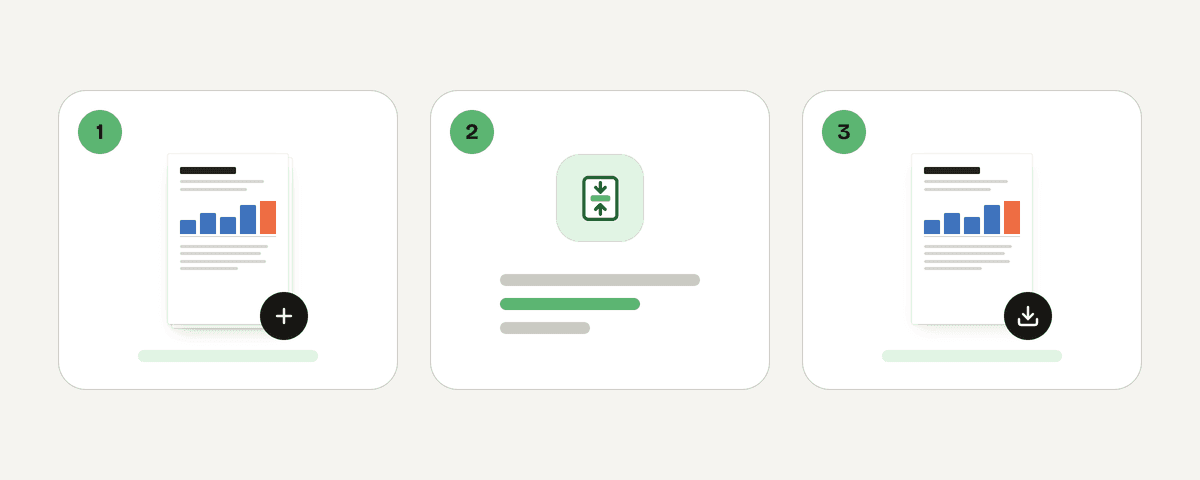
- Open the Compress PDF tool.
- Select Select PDF files. You can also drop PDFs anywhere on the page or paste them.
- Under the compression options, choose how small the document should get.
- Start with Balanced compression, marked Recommended. It makes the file much smaller while aiming to keep images sharp.
- Choose Light compression for small scanned type, fine lines, stamps, signatures, or detailed diagrams where preserving quality matters most.
- Use Strong compression only when you need the smallest file and can accept noticeable image-quality loss. Tiny scanned text may become hard to read.
- If suitable, enable Make it black and white. It turns images grey and can reduce the file further; text colors do not change.
- Select Compress the PDF or Compress the PDFs, then choose Download the compressed PDF.
The black-and-white option can work well for ordinary monochrome scans. Review it carefully if your document includes highlights, red correction marks, color-coded instructions, maps, charts, or colored signatures.
The tool accepts multiple PDFs, but it compresses each file separately. It does not merge them into one document.
What should I do if compression does not make the PDF small enough?
Keep the original PDF untouched. Recompressing an already compressed copy can reduce image detail further without delivering a meaningful size reduction.
Use this decision path:
- Try Balanced compression and inspect the result.
- If it remains over the cap, try Strong compression only if small text, signatures, and required details remain readable at normal viewing size.
- Remove unnecessary pages from the source document where appropriate, such as blank scan backs, accidental duplicates, or attachments the portal did not request. Keep required pages and their order intact.
- If the portal permits several uploads, use the Split PDF tool to create sensible sections, such as pages 1–10 and pages 11–20.
- If the portal requires one PDF and compression is insufficient, ask its support team about another upload method or an exception.
To split a long document:
- Open the Split PDF tool and select Select PDF file. You can also drop or paste the PDF.
- Choose Ranges. Use custom ranges such as
1-10, 11-20, or choose fixed ranges to divide the file into equal parts. - Check the colored bands to confirm which pages will go into each output file. Pages without a band are left out.
- Select Split the PDF.
Split only when the portal allows multiple files or requests separate attachments. Splitting cannot satisfy a one-PDF requirement. A portal may also reject a ZIP containing split files, so check its rules first.
If the compressor says the PDF is already compressed or cannot be made smaller, it may contain mostly text or images that are already optimized. There may be little size to recover without harming readability.
Will converting a scanned PDF to images help it upload?
Usually not if the receiving system requires a PDF. The PDF to image tool turns each PDF page into a separate JPG, PNG, or WebP image; it does not create a smaller PDF. Use it only if the portal explicitly accepts image files.
| Format or setting | Best use | Important trade-off |
|---|---|---|
| JPG | Broad compatibility and smaller images | Text edges can soften slightly. |
| PNG | Small text, line work, and scans that must stay sharp | Usually creates the largest files. |
| WebP | Near-PNG sharpness at near-JPG size | Older programs may not open it. |
| Low resolution | Screen reading and strict upload caps | Small text can become difficult to read. |
| Standard resolution | Crisp screen reading and clean office printing | A practical default for accepted image uploads. |
| High resolution | Printing and close zooming | Files grow noticeably. |
To convert pages:
- Select Select PDF files.
- Choose the image format and resolution.
- Choose all pages or selected pages.
- Select Convert pages to JPG (the button names the format you chose, such as PNG or WebP).
Every selected page becomes its own image. Images may download individually or together in a ZIP, but many portals do not accept ZIP uploads. Avoid converting a PDF to images and then back into a PDF just to reduce size: it can soften text and may not reduce the final file size.
How can I keep a compressed scan legible?
Use the least aggressive compression setting that gets below the portal limit. A readable PDF that is comfortably under the cap is better than an unreadable file that barely qualifies.
- Open the compressed PDF at normal reading size, then zoom in on the smallest text.
- Check dates, account numbers, handwritten notes, seals, signatures, footnotes, table columns, and detailed graphics.
- Compare several image-heavy pages with the original, not just the first page or a thumbnail.
- Avoid black-and-white conversion when color carries meaning, including highlights, red marks, status labels, maps, and charts.
- If the quality is inadequate, begin again with the original PDF and choose a lighter setting.
For sensitive documents, understand where processing happens before choosing a tool. PDF Toucan’s Compress PDF tool sends files over HTTPS to servers in the European Union. Files are processed in memory, are not written to disk or stored, and are deleted once the result is downloaded, no later than 10 minutes. Split PDF and PDF to image run locally in the browser and do not upload the file.
Why is my PDF too large even though it has only a few pages?
Page count is not the main cause of file size. A short PDF can include high-resolution scans, full-page photographs, embedded fonts, or detailed graphics. One high-resolution color scan can be larger than many pages of ordinary selectable text. Compress the file and inspect the result before submitting it.
Can I compress a PDF without making the text blurry?
Often, yes. Start with Balanced compression and use Light compression for scans with small type or fine lines. Text created directly in a PDF usually stays clear, while scanned text is more vulnerable. Always zoom in on small text, signatures, stamps, and tables before uploading.
Should I split a PDF or compress it for a portal upload?
Compress first if the portal requires one PDF or your file is only moderately too large. Split only if the portal permits multiple PDF uploads or specifically asks for separate files. Dividing a document cannot solve a submission rule that requires one combined PDF.
Can I upload a ZIP file when my PDF is too large?
Only if the portal explicitly states that ZIP files are accepted. Many application and document portals accept PDFs but reject ZIP archives for workflow or security reasons. ZIP files can also be inconvenient for reviewers. Check accepted file types and upload instructions before creating one.
Why did my compressed PDF stay almost the same size?
The PDF may already be compressed, contain mostly text, or have little removable image data. Compression cannot always produce a major reduction without visible quality loss. Check for unnecessary pages, split the document if multiple uploads are allowed, or ask the receiving portal whether it provides another submission route.
Related guides
- PDF Won't Open: Causes, Fixes, and Recovery OptionsLearn why a PDF will not open, from incomplete downloads and wrong extensions to encryption and corruption, plus the safest fixes to try first.8 min read
- Combine JPG Photos into One PDF in the Right OrderTurn phone photos into a single PDF page by page: order, page size, sideways photos and why the PDF is as large as the photos, with tested sizes.4 min read
- Best Resolution for Scanning Documents: We Measured 150 to 600 DPIWe scanned the same letter at 150, 200, 300 and 600 dpi and ran OCR on each. Why 300 dpi is the safe choice, and why contrast matters more for faded receipts.7 min read
- Ilovepdf vs Smallpdf: Free Limits, Privacy, and PDF ToucanCompare iLovePDF and Smallpdf free limits, privacy, watermarks, and languages, then see where PDF Toucan offers a different approach.8 min read