PDF Won't Open: Causes, Fixes, and Recovery Options
PDF Toucan editorial team · Last updated September 19, 2026 · 8 min read
If a PDF won't open, start with the simplest causes: download the file again, confirm it really ends in .pdf, and try a different PDF reader or browser. If it asks for a password, it is encrypted rather than broken, and you need the correct password from the owner. If it is genuinely corrupted, a repair tool can copy whatever is still readable into a new, healthy PDF — though badly damaged files may only come back as images, or not at all.
Why won't my PDF open?
Before you change anything, work out which of the four common causes you are facing. The fix is different for each one.
- Incomplete or interrupted download. The transfer stopped early, so the file is missing the end-of-file structure a reader needs. Typical clues: a 0 KB file, a file that is far smaller than expected, or an error such as "file format is not supported" or "the file is damaged and could not be repaired".
- Wrong file type or extension. The file was saved as
.pdfbut is actually an HTML error page, a ZIP archive, an image, or a partial download (.crdownload,.part,.download). A PDF reader opens it, finds no PDF header, and refuses. - Encryption or password protection. The document is intact but locked. You will see a password prompt or a note that the document is secured.
- Damaged internal structure. The cross-reference table, object stream, or page tree is corrupted — often after a crash during saving, a bad USB transfer, a failing drive, or a broken sync.
One more useful signal: if the PDF opens on one device but not another, the file is probably fine. That points to a viewer, browser plugin, or mobile in-app preview limitation rather than permanent damage.
What should I try first when a PDF won't open?
Work through these in order. They are the safest steps and none of them modify the original file.
- Download the file again. Go back to the original email, website, cloud folder, or chat message and download it fresh over a stable connection. Wait until the download is fully finished before opening it. Compare the file size with what the sender or the download page states.
- Check the file name and extension. It should end in
.pdf. If it ends in something else, do not simply rename it — renaming does not convert a file's format, and a renamed image or ZIP will still fail to open as a PDF. - Try a different reader or browser. On Windows, right-click the file, choose Open with, and pick another installed reader. On Mac, open it in Preview. On iPhone, iPad, or Android, download the file locally first and open it in a dedicated PDF app instead of an in-app preview inside a mail or chat client.
- Move the file locally. Copy it from the USB stick, network share, or synced cloud folder to your desktop, then open the local copy. Broken network reads can imitate corruption.
- Ask the sender to resend it. Request the original as a direct attachment or a fresh cloud link. Email gateways, aggressive scanners, and chat compression occasionally mangle attachments in transit.
If the file still refuses to open after steps 1–4, you are most likely dealing with encryption or real corruption.
How do I tell whether the PDF is encrypted or password-protected?
Encryption and corruption look similar to a frustrated user, but they need opposite fixes.
| Symptom | Most likely cause | What to do |
|---|---|---|
| A password box appears | Encrypted with an open password | Enter the password from the document owner |
| Opens, but printing/copying is blocked | Permissions password | Ask the owner for an unrestricted copy |
| "File is damaged" / "not a valid PDF" | Corruption or wrong file type | Re-download, then repair |
| 0 KB or tiny file size | Incomplete download | Download again from the source |
| Opens elsewhere but not here | Viewer or device issue | Try another reader or update the app |
| Repair tool reports "The file is encrypted" | Encryption, not damage | Remove the password first, then repair |
If you do not have the password, contact the sender or document owner. No repair tool can recover or bypass an unknown password — that is by design, not a limitation to work around. If PDF Toucan's repair tool reports "The file is encrypted. Remove its password with Unlock PDF first.", use an unlock tool with the correct password, then try repairing the unlocked copy if it still will not open.
How can I repair a corrupted PDF online for free?
Once you have re-downloaded the file, confirmed it is a real PDF, and ruled out a password, a repair pass is the next reasonable step. Use the Repair PDF tool to try to recover broken PDFs or ones that will not open.
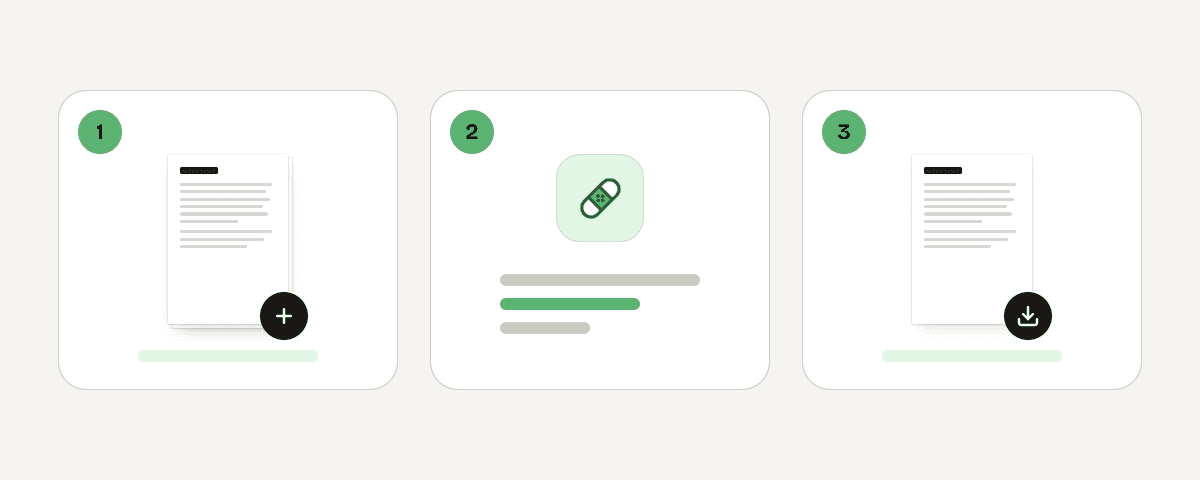
- Open the repair page and choose "Select PDF files". You can also drop files anywhere on the page or paste them.
- Add one file or several — the tool accepts multiple PDFs, and each file is repaired on its own.
- Choose Repair the PDF (or Repair the PDFs for a batch). Everything that can be recovered is copied into a new, healthy PDF.
- Read the result line for each file. You may see Repaired, Recovered as images, text may not be selectable, The file is too damaged to recover, or a note that the file is encrypted.
- Select Download the repaired PDF to save the result. Batches arrive as a
repaired-pdfsdownload.
Set expectations honestly. A "Repaired" result means the file opens without problems. A file recovered as images will show its pages, but the text layer may be gone, so text may not be selectable or searchable — you can rebuild a text layer afterwards with an OCR tool if you need to search or copy from it. A file reported as too damaged to recover cannot be restored by this tool, and no amount of re-running will change that.
On the practical side: PDF Toucan's browser tools are free, need no account, add no watermark, and have no daily limits. The repair tool runs on servers in the European Union. Your file is sent over HTTPS, processed in memory rather than written to disk, and deleted as soon as the result is downloaded — at the latest after 10 minutes.
What should I do after the repaired PDF opens?
A repaired PDF is a reconstruction, not a clone. Verify it before you rely on it.
- Open the repaired file and scroll through every page, not just the first one.
- Check the elements that break most often: tables, charts, embedded images, form fields, annotations, digital signatures, and the final pages of the document.
- Confirm the page count matches what you expect.
- Try selecting and copying a line of text. If nothing selects, the page was likely recovered as an image.
- Keep the original damaged file in a separate folder until you are certain the repaired copy contains everything you need. Never overwrite the original with the repaired version during testing.
If the recovered file is too large to email or upload — image-based recovery can inflate file size noticeably — run it through Compress PDF. Choose Balanced compression for a much smaller file while images stay sharp, or Light compression when image quality matters most and you only need a modest reduction. There is also a Make it black and white option that shrinks image-heavy scans further.
One important caveat: compression reduces file size, it does not repair corruption. Only compress a PDF after it opens successfully.
When is a PDF truly lost and what can I do next?
Some files really are gone. Accept that early and you will spend your time better. A PDF is likely unrecoverable when:
- the only copy came from an incomplete download and no intact source exists;
- the storage device has lost or overwritten the underlying data;
- a repair attempt reports that the file is too damaged to recover.
Before giving up, hunt for another copy:
- Search your email for the original attachment, including Sent, Archive, and Trash.
- Check cloud version history in Google Drive, OneDrive, or Dropbox — most services keep previous versions for a period of time.
- Look at shared-drive activity logs to see who else downloaded the file.
- Restore from backup software, Time Machine, or File History.
- Ask the sender to check their Sent folder, or ask another recipient for their copy.
If the PDF was exported from a Word document, spreadsheet, presentation, scan, or design file, the fastest route is almost always to find that source file and export a fresh PDF. For important legal, financial, or one-of-a-kind documents, stop writing to the affected drive, avoid repeatedly saving over the original, and consider professional data recovery if the hardware itself has failed.
Going forward, two habits prevent most of this: verify a download completed before deleting the source message, and keep at least one copy of critical PDFs somewhere other than the device you use daily.
FAQ
Can a corrupted PDF file be fixed?
Often, yes. A repair tool reads whatever objects, pages, and text are still intact and copies them into a new PDF. Light structural damage usually recovers fully. Heavier damage may only recover as page images, and files with missing data can be beyond repair entirely.
How can I repair a damaged PDF file for free?
Use PDF Toucan's repair tool: choose "Select PDF files" or drop your file on the page, then select Repair the PDF and download the result. It is free, needs no account, adds no watermark, and has no daily limits. Check every page of the output before discarding the original.
Why does a PDF say it is not a valid PDF file?
Usually the file is not actually a PDF, or the download stopped early. It may be an HTML error page, a ZIP, or a partial file renamed with a .pdf extension. Download it again from the source first, then try a repair pass if the error persists.
Can I fix a PDF that asks for a password?
A password prompt means the file is encrypted, not broken. Enter the password supplied by the document owner. If you do not have it, ask the sender — repair tools cannot recover or bypass unknown passwords. Once unlocked, you can repair the file if it still fails to open.
Does compressing a PDF fix a damaged file?
No. Compression only reduces file size by re-encoding images and streams; it does nothing for a corrupted structure and may fail on a broken file. Repair first, confirm the document opens and looks correct, and only then compress it for emailing or uploading.